🌿 Branching Fundamentals in Git
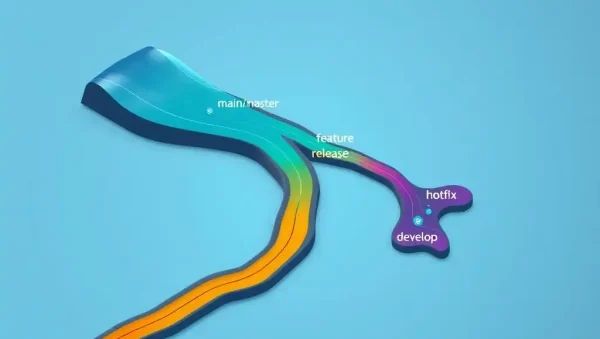
Learn the essential Git branching commands for creating, switching, listing, and deleting branches. This guide helps developers build a safe, organized workflow for feature development, bug fixes, experimentation, and team collaboration.
🌱 Creating Git Branches
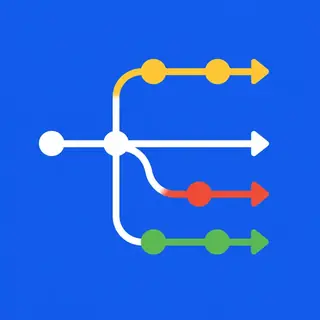
Creating a branch gives your work an isolated space without changing the stable codebase. Readers will learn how to use git branch and git switch -c to create feature branches, bug-fix branches, and experimental branches from the correct starting point. Clear branch naming conventions, including names such as feature/login-form or fix/payment-error, make repositories easier to navigate and support effective Git collaboration.
🔄 Switching Between Branches
Switching branches allows you to move between tasks while preserving each branch’s separate history and files. This section explains modern commands such as git switch branch-name, along with the traditional git checkout command. You will learn how to check your current branch, understand working-tree changes, and avoid accidentally overwriting uncommitted work before changing branches in a local repository.
📋 Listing and Inspecting Branches
Effective branch management begins with knowing what already exists. Discover how to use git branch, git branch -a, and git branch -r to view local and remote branches. You will also learn how to identify the active branch, inspect recent commits, and compare branch histories. These practical techniques improve repository awareness and help developers choose the correct branch before creating commits or opening pull requests.
🗑️ Deleting Local and Remote Branches
Removing obsolete branches keeps a Git repository clean and reduces confusion after a feature has been merged. Learn when to use git branch -d branch-name for safely deleting a merged branch and when git branch -D branch-name may be necessary for an unmerged branch. The guide also explains how to delete remote branches with git push origin --delete branch-name, while emphasizing careful verification before destructive actions.
🛡️ Safe Branching Workflows
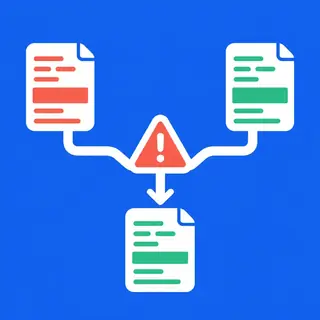
Strong branching fundamentals support reliable development in both personal projects and professional teams. Readers will learn how to create branches from an updated main branch, commit focused changes, push branches to GitHub or GitLab, and keep work synchronized with teammates. Practical advice on checking status, protecting important branches, and using descriptive names helps prevent conflicts, accidental deletions, and unclear project history while preparing code for merging and CI/CD workflows.
Frequently Asked Questions
What is a branch in Git?
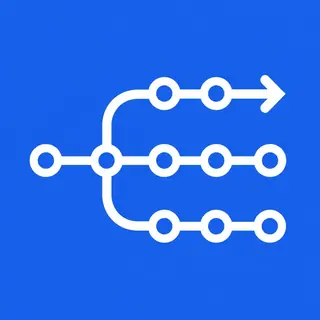
A Git branch is a movable pointer to a sequence of commits. It lets you develop a feature, fix a bug, or test an idea independently from the main branch. Branches make experimentation safer and allow multiple contributors to work on different tasks without immediately changing the shared production code.
How do I create and switch to a new Git branch?
Use git switch -c branch-name to create and immediately switch to a new branch. For example, git switch -c feature/search creates a branch named feature/search from your current commit. Before starting, confirm that you are based on the correct branch and have handled any uncommitted changes.
What is the difference between git switch and git checkout?
git switch is a modern command designed specifically for changing branches and creating new ones. git checkout can also switch branches, but it performs several unrelated tasks, including restoring files. Using git switch makes branching commands clearer and reduces the chance of confusing branch operations with file-recovery actions.
How can I safely delete a Git branch?
Use git branch -d branch-name to delete a local branch after it has been merged. Git will usually prevent deletion if commits could be lost. The force option, git branch -D branch-name, removes an unmerged branch and should be used only after confirming that its work is no longer needed.
How do I delete a branch from GitHub or GitLab?
After confirming that the remote branch is no longer needed, run git push origin --delete branch-name. This removes the branch from the remote repository, while your local copy may still exist. You can delete the local version separately and use git fetch --prune to clean outdated remote-tracking references.