Merge Conflict Resolution Strategies: Graphical Merge Tools and Advanced Git Scenarios
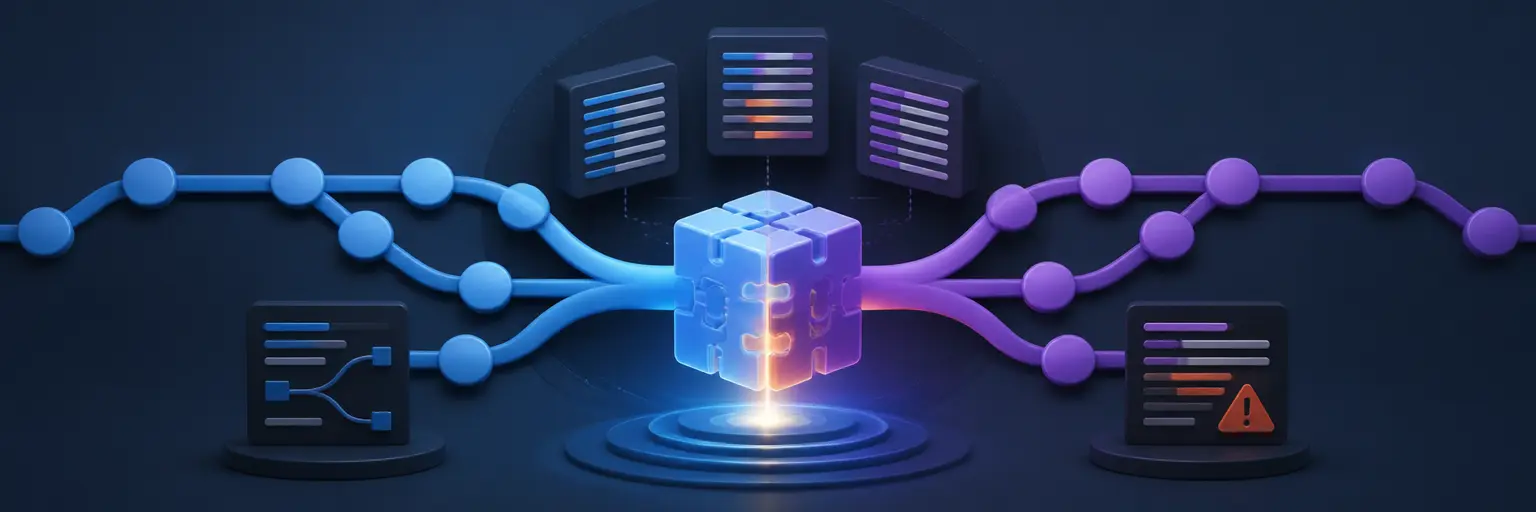
Welcome to the Merge Conflict Resolution Strategies section of GitAndVersionControlHub.com, your practical resource for mastering Git branching and merging. Learn how to identify, understand, and resolve Git merge conflicts with confidence using command-line techniques, graphical merge tools, IDE integrations, and proven team workflows. Whether you are handling a simple file conflict, a complex rebase, a cherry-pick conflict, or a difficult GitHub pull request, these guides provide clear steps for protecting code quality and preserving project history.
🧩 Understanding Git Merge Conflicts
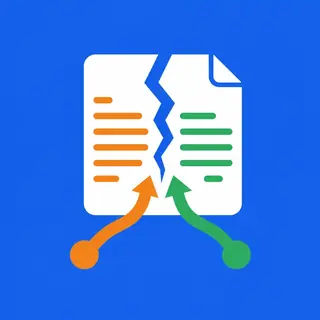
A Git merge conflict occurs when Git cannot automatically combine changes from different branches. This commonly happens when two developers edit the same lines, rename files differently, delete files that another branch modifies, or make incompatible structural changes. Our tutorials explain why merge conflicts happen, how Git marks conflicting sections, and how to inspect the affected files before choosing a resolution.
Readers can expect practical guidance for using commands such as git status, git diff, and git log to understand the conflict context. You will learn how to separate incoming changes from current-branch changes, avoid accidental overwrites, and confirm that the final code reflects the intended behavior.
🖥️ Graphical Merge Tools and IDE Workflows
Graphical merge tools make conflict resolution easier by displaying competing changes side by side or in a three-way comparison. Explore popular options such as Visual Studio Code, IntelliJ IDEA, GitKraken, Meld, Beyond Compare, and other Git mergetools. These resources show how to configure a visual diff tool, select the correct version, and review changes before committing.
Our content also explains how IDE conflict editors support current changes, incoming changes, and combined results. You will find advice for resolving conflicts safely, checking syntax and formatting, running tests, and using Git commands after an IDE-based resolution so that graphical workflows remain transparent and reproducible.
🔀 Resolving Conflicts During Git Merge
Learn a reliable process for resolving conflicts created by git merge. The recommended workflow includes updating your local repository, identifying the merge base, opening conflicted files, editing the final version, staging resolved files, and completing the merge commit. These steps help developers resolve conflicts deliberately instead of accepting changes blindly.
Detailed guides cover commands such as git merge --abort, git add, and git commit, along with methods for reviewing the merge before completion. You will also learn how to handle multiple conflicted files, distinguish staged from unstaged changes, and communicate important resolution decisions to teammates during collaborative development.
🧠 Advanced Conflict Scenarios
Some merge conflicts require more than choosing one side of a file. Explore advanced scenarios involving renamed files, binary assets, deleted-versus-modified files, generated code, lockfiles, submodules, line-ending differences, and large refactors. These tutorials explain how Git interprets these situations and how to preserve the correct project behavior.
Readers will also learn strategies for conflicts involving database migrations, dependency updates, configuration files, and simultaneous feature development. Careful analysis, targeted testing, and meaningful review are essential when a conflict affects application logic rather than simple text, especially in production repositories and shared development branches.
♻️ Rebase, Cherry-Pick, and Interactive Conflict Resolution
Conflict resolution during git rebase and git cherry-pick follows familiar principles but has different continuation and cancellation commands. Learn how to use git rebase --continue, git rebase --skip, git rebase --abort, and git cherry-pick --abort without losing valuable work or creating confusing repository history.
These guides explain how to resolve conflicts commit by commit, inspect patches, edit commit sequences, and decide whether a change should be skipped or manually rewritten. You will also learn why rebasing shared branches can disrupt teammates and how to use force-with-lease more safely when updating a remote branch.
🛡️ Testing, Verification, and Safe Conflict Prevention
Resolving a conflict is only the first step; the resulting code must still compile, pass tests, and meet project requirements. Discover verification techniques including unit testing, integration testing, linting, type checking, build validation, and targeted code review. Git conflict resolution tutorials should always connect the textual result with the actual behavior of the software.
We also cover ways to reduce future conflicts through smaller commits, focused branches, frequent synchronization, clear ownership, consistent formatting, and effective pull request practices. Teams can use continuous integration checks, protected branches, and automated conflict detection to identify risks earlier in GitHub, GitLab, and CI/CD workflows.
❓ Frequently Asked Questions About Merge Conflict Resolution
What is the safest first step when Git reports a merge conflict?
Start with git status to identify conflicted files and the operation currently in progress. Then inspect each file and review the surrounding code before editing conflict markers. Avoid immediately choosing “accept current” or “accept incoming” unless you fully understand the consequences.
Should I use a graphical merge tool or the command line?
Both approaches are valid. A graphical merge tool offers a clear side-by-side or three-way view, while the command line provides precise control and works well in remote environments. Many developers use an IDE or visual tool for editing and Git commands for status checks, staging, verification, and completion.
How do I cancel a merge that has become too complicated?
If you are in a standard merge and want to return to the previous state, use git merge --abort. For a rebase, use git rebase --abort, and for a cherry-pick, use git cherry-pick --abort. Confirm that you have saved or committed any unrelated work before aborting an operation.
How can I verify that a conflict was resolved correctly?
Check that no conflict markers remain, run git diff and git diff --cached, and inspect the staged result. Then run relevant tests, linters, builds, or application checks. A successful Git commit does not guarantee that the merged code is logically correct.
How can teams prevent frequent Git merge conflicts?
Teams can reduce conflicts by keeping branches short-lived, pulling or rebasing regularly, creating focused commits, coordinating changes to shared files, and avoiding unnecessary formatting changes. Automated CI/CD checks, pull request reviews, clear branch policies, and consistent communication also make conflict resolution faster and safer.