⚔️ Merge Conflicts: Understanding, Resolving, and Reading Conflict Markers in Git
Welcome to the Merge Conflicts subcategory at GitAndVersionControlHub.com, your practical resource for mastering Git branching and merging. Here you will learn why conflicts occur, how Git detects competing changes, and how to resolve them safely without losing valuable code. Our tutorials cover Git merge conflicts, conflict markers, branch synchronization, pull requests, rebasing, cherry-picking, and collaborative version control workflows for both individual developers and teams.
🔍 Understanding Git Merge Conflicts
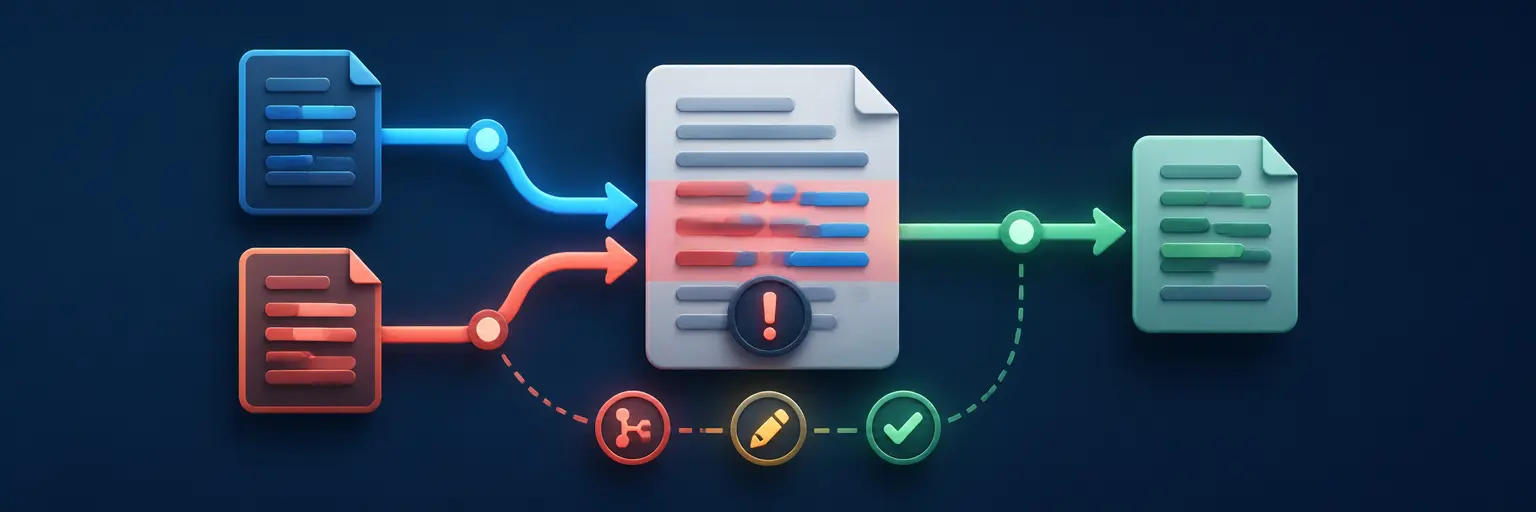
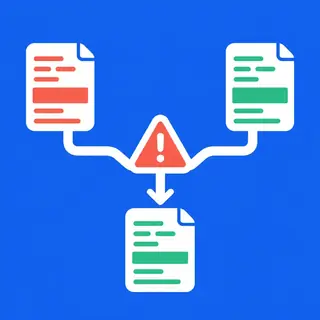
A merge conflict happens when Git cannot automatically combine changes from two branches. This commonly occurs when different developers edit the same lines in a file, modify nearby code, rename files, or change a file in one branch while deleting it in another. Understanding the causes of conflicts is the first step toward resolving them confidently.
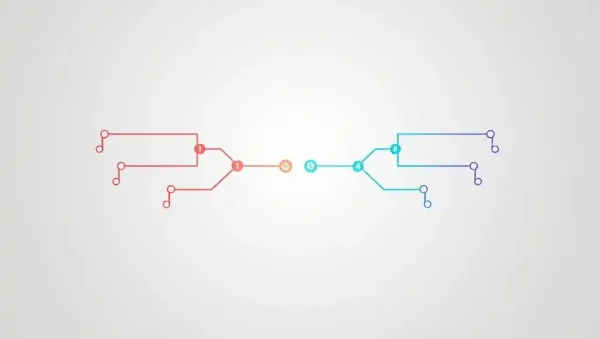
Expect clear explanations of Git’s three-way merge process, branch divergence, merge bases, and the difference between automatic merges and manual conflict resolution. You will also learn how shared repositories, feature branches, pull requests, and parallel development workflows can create conflicts in GitHub and GitLab projects.
🧩 Reading Git Conflict Markers
When Git encounters incompatible changes, it places conflict markers directly in the affected file. The markers <<<<<<<, =======, and >>>>>>> identify the competing versions. The section above the divider usually represents your current branch, while the section below represents the branch being merged.
Our guides explain how to interpret conflict markers, compare competing code blocks, and identify which changes should be retained, combined, or removed. You will also learn why conflict markers must be deleted before committing and how to use editors such as Visual Studio Code, IntelliJ IDEA, and command-line tools to review each decision carefully.
🛠️ Resolving Merge Conflicts Step by Step
Effective conflict resolution requires more than selecting “ours” or “theirs.” You must understand the intended behavior of the application, preserve compatible changes, and test the final result. This subcategory provides practical workflows for resolving conflicts with git status, git diff, git add, and git commit.
Expect step-by-step examples that show how to open conflicted files, edit the correct content, remove conflict markers, stage resolved files, and complete a merge. You will also learn how to cancel an unsuccessful merge with git merge --abort, inspect unresolved files, and verify that the final branch contains the expected code.
🔄 Merge Conflicts During Rebasing and Cherry-Picking
Merge conflicts are not limited to standard branch merges. Rebasing and cherry-picking can also produce conflicts when Git attempts to replay commits onto a different history. These operations require careful handling because they rewrite or selectively apply commit changes.
Learn how to use git rebase --continue, git rebase --abort, and git cherry-pick --continue when conflicts occur. Our content explains how to inspect the current operation, resolve each conflict in sequence, and avoid accidentally skipping important commits or creating an incorrect project history.
🤝 Preventing Conflicts in Team Workflows
The best merge conflict is often the one your team prevents. Short-lived feature branches, frequent updates from the main branch, focused commits, clear communication, and consistent formatting can significantly reduce unnecessary conflicts in collaborative Git projects.
Explore practical strategies for GitHub and GitLab teams, including keeping branches current, using pull requests early, reviewing changes before merging, and coordinating work on shared files. You will also discover how CI/CD checks, automated tests, code reviews, and protected branches help detect integration problems before they reach production.
🧪 Testing and Verifying a Conflict Resolution
Resolving conflict markers does not automatically mean the merge is correct. A successful Git merge can still introduce broken logic, missing functionality, compilation errors, or failing tests. Verification is therefore an essential part of every conflict-resolution workflow.
Our tutorials explain how to inspect the final diff, run unit tests, build the project, check linting tools, and review affected files before pushing changes. These practices help developers confirm that the merged code is complete, functional, and safe for integration into the main branch.
❓ Frequently Asked Questions About Git Merge Conflicts
What is a merge conflict in Git?
A merge conflict occurs when Git cannot automatically combine changes from two branches. It usually happens when the same lines or related sections of a file were changed differently. Git pauses the merge and asks you to decide which content should remain.
What do Git conflict markers mean?
The markers <<<<<<<, =======, and >>>>>>> show conflicting versions of a file. The first section generally contains changes from your current branch, while the second section contains changes from the branch being merged. You must edit the file, choose or combine the correct code, and remove all markers.
How do I resolve a merge conflict in Git?
Run git status to identify conflicted files, open each file, review the competing changes, and edit the content into the correct final version. Remove the conflict markers, save the file, run git add to stage it, and then complete the merge with git commit or the appropriate rebase or cherry-pick command.
How can I cancel a merge conflict?
If you are not ready to resolve the conflict, use git merge --abort to return to the state before the merge began. For a rebase, use git rebase --abort. These commands are useful when you need more information, want to update your branch, or discover that the operation was started against the wrong branch.
How can developers prevent Git merge conflicts?
Keep branches short-lived, pull or fetch recent changes regularly, make focused commits, communicate when editing shared files, and merge small changes frequently. Using pull requests, code reviews, automated tests, formatting standards, and CI/CD validation can also reduce conflicts and make unavoidable conflicts easier to resolve.