Git Workflow: Local and Remote Repositories
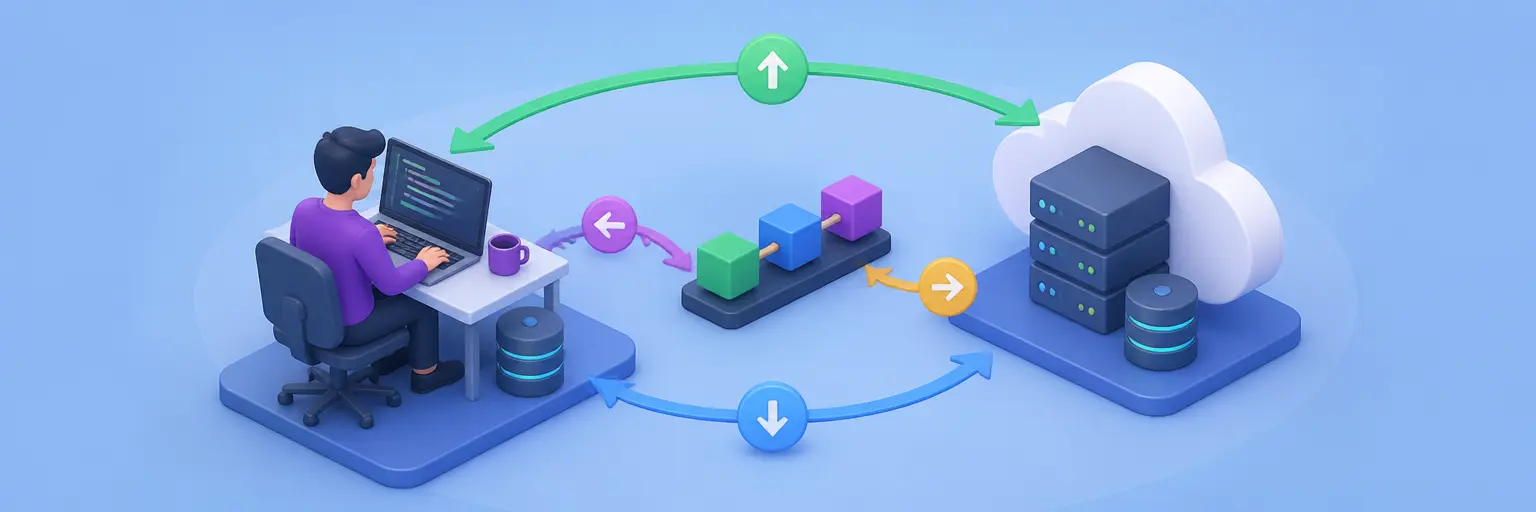
Learn a reliable Git workflow for managing a local repository, connecting to a remote repository, and sharing code with commands such as git push, git pull, and git fetch. This guide helps beginners and development teams understand how changes move between a computer and platforms such as GitHub or GitLab.
💻 Local Repository Fundamentals
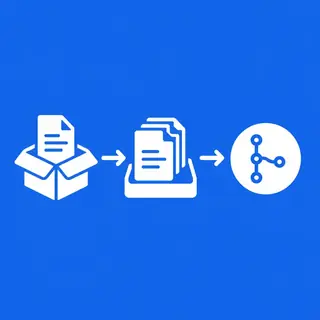
A local Git repository stores your project files, commit history, branches, and configuration on your computer. A practical workflow typically includes checking the working tree with git status, reviewing changes, staging files with git add, and creating snapshots with git commit. Understanding the difference between modified, staged, and committed files helps you create clean, focused commits that are easier to review, troubleshoot, and reverse.
🌐 Connecting to a Remote Repository
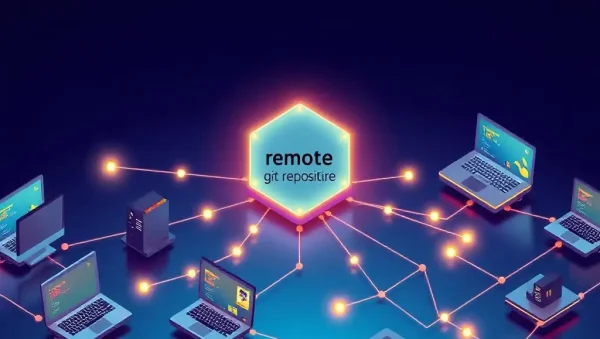
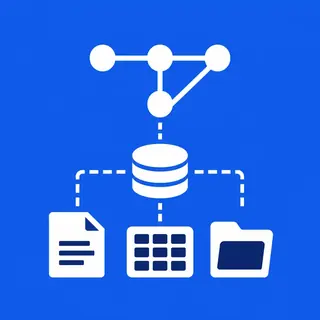
A remote repository is a hosted copy of your project, commonly located on GitHub, GitLab, Bitbucket, or a private Git server. Use git remote -v to inspect configured connections and git remote add origin to define a remote URL. Correct remote setup is essential for collaborative development, secure authentication, and maintaining a dependable link between your local project and the team’s shared codebase.
⬆️ Using Git Push to Share Changes
The git push command uploads local commits to a remote repository, making new branches and project updates available to teammates. A common command is git push origin main, although branch names may differ. Before pushing, review your commits and confirm that you are working on the intended branch. Frequent, meaningful pushes improve backup, code review, and continuous integration workflows.
⬇️ Git Pull and Git Fetch Explained
Git fetch downloads new commits and branch information from a remote repository without changing your current files, making it a safe way to inspect updates. Git pull retrieves remote changes and integrates them into the current branch, usually through a merge or rebase. Knowing this distinction helps developers choose between reviewing remote history first with fetch and quickly synchronizing work with pull.
🔄 Synchronizing Teams and Resolving Conflicts
When several developers edit the same project, synchronization requires a consistent pull, branch, commit, and push routine. Conflicts can occur when Git cannot automatically combine changes in the same lines or nearby sections. Read the conflict markers, choose the correct content, run git add, and complete the merge or rebase. Small commits, descriptive messages, and regular updates make collaboration safer and conflict resolution faster.
Frequently Asked Questions
What is the difference between a local and remote Git repository?
A local repository exists on your computer and contains project files, branches, and commit history. A remote repository is hosted elsewhere for collaboration, backup, and shared access. Developers commit locally, then use git push to upload commits and git pull or git fetch to receive remote updates.
What does git push do?
Git push transfers commits from a local branch to a remote repository. For example, git push origin main sends the local main branch to the remote named origin. You may need to authenticate first, and the push can be rejected if the remote contains commits that your local branch does not yet have.
Should I use git pull or git fetch?
Use git fetch when you want to download remote updates without automatically changing your working branch. Use git pull when you are ready to retrieve and integrate those updates. Fetch offers more control for reviewing remote commits, while pull is convenient when your branch can safely be synchronized.
How can I avoid Git push conflicts?
Before pushing, update your branch with git fetch and review the remote changes, or use an approved pull or rebase workflow. Commit focused changes, communicate about shared files, and avoid rewriting public history. If a push is rejected, integrate the remote commits, resolve conflicts, test the project, and push again.
What should I do after resolving a Git merge conflict?
Inspect each conflicted file, remove conflict markers, and keep the correct combined content. Run tests, use git status to confirm the remaining conflicts, and stage resolved files with git add. Finish with a merge commit or continue the rebase, then push the verified result to the remote repository.