How to Reset to a Previous Commit in Git: StepbyStep
Lost a crucial change? This Git tutorial shows you exactly how to reset to a previous commit, recovering your work step-by-step. Master…
Read article

Master Git with confidence by learning how to safely undo changes using git reset, git revert, and git checkout 🔄. Discover when to discard working-file edits, unstage commits, restore previous versions, or reverse changes without disrupting team history. These practical Git undo commands help developers recover from mistakes, protect important work, and maintain a clean, reliable version control workflow—whether working locally or collaborating through GitHub and GitLab.

Lost a crucial change? This Git tutorial shows you exactly how to reset to a previous commit, recovering your work step-by-step. Master…
Read article
Accidentally committed the wrong code? GitAndVersionControlHub.com shows you how to undo your last Git commit quickly and easily using `git reset HEAD^`.…
Read article
Undoing a merge commit in Git can be tricky. This GitAndVersionControlHub.com tutorial shows you how to safely revert a complex merge, avoiding…
Read article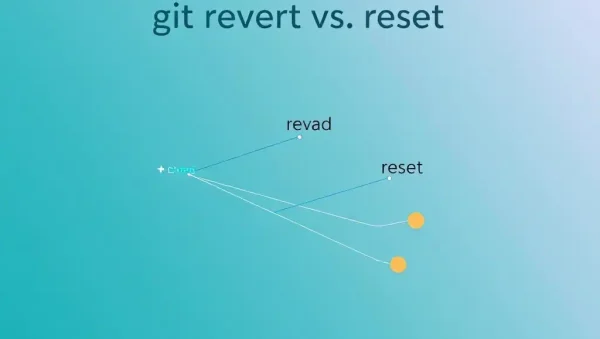
Confused about Git revert vs. reset? This Git revert vs reset tutorial from GitAndVersionControlHub.com clarifies when to use each command, preserving project…
Read article
Seamless Git branch switching is crucial for efficient workflow. GitAndVersionControlHub.com provides expert tutorials to master this essential skill, covering everything from basic…
Read article
Master your Git history! GitAndVersionControlHub.com shows you how to effortlessly checkout a specific Git commit, exploring past project states and streamlining your…
Read article
Quickly undo unwanted changes in your working directory with Git Checkout! This Git Checkout undo changes guide from GitAndVersionControlHub.com shows you how…
Read article
Master Git's staging area with GitAndVersionControlHub.com! This article explains how to effectively undo changes using `git reset` and `git checkout`, offering clear…
Read article
Mastering Git's `reset` command is crucial. GitAndVersionControlHub.com demystifies the nuances of soft, mixed, and hard resets, providing clear explanations to improve your…
Read article
Mastering Git's undo functionality is crucial. GitAndVersionControlHub.com reveals best practices for reversing commits, recovering lost work, and avoiding common pitfalls when undoing…
Read article
Lost in Git's history? GitAndVersionControlHub.com's comprehensive Git reset, revert, and checkout tutorial empowers you to confidently undo mistakes, master branching, and streamline…
Read article
Lost changes in your Git working directory? GitAndVersionControlHub.com's "Undo Git changes tutorial" on `git checkout` and `git clean` provides a clear, concise…
Read articleLearn how to safely undo changes in Git with practical guidance on git reset, git revert, and git checkout. This Git Basics subcategory from Git and Version Control Hub explains how to discard working-directory edits, unstage files, move between commits, and reverse published changes without damaging your project history. Whether you are working alone or collaborating through GitHub and GitLab, these tutorials help you choose the right command for every situation.
Discover how to remove unwanted edits from your working directory before they are committed. You will learn when commands such as git restore and the modern checkout syntax can safely return files to their last committed state, making them useful for correcting mistakes and cleaning up experiments.
These guides explain the difference between modified, staged, and committed changes. Expect practical examples for restoring individual files, recovering a clean working tree, and avoiding accidental data loss when undoing uncommitted changes in Git.
Learn how to reverse git add when a file has been staged by mistake or when only part of a change should be included in a commit. Tutorials cover commands such as git restore --staged and related techniques for moving changes from the staging area back to the working directory.
You will also learn how staging works in the Git index and how to inspect staged content with git diff --cached. This helps you prepare focused commits, prevent sensitive files from being included, and maintain a clean, understandable project history.
Understand how git reset moves the current branch and HEAD to another commit. This section covers the differences between --soft, --mixed, and --hard reset, including how each option affects commits, the staging area, and files in the working directory.
Because reset can rewrite local history, these tutorials emphasize safe Git workflows, recovery strategies, and careful use on shared branches. You will learn how to undo the most recent commit, keep its changes for editing, or remove local work when it is no longer needed.
Learn why git revert is usually the safest method for undoing changes that have already been pushed to a remote repository. Instead of deleting history, revert creates a new commit that reverses the effect of an earlier commit, preserving transparency for teammates and automated systems.
Expect guidance on reverting individual commits, handling merge commits, resolving conflicts, and pushing the resulting revert to GitHub or GitLab. This approach is especially valuable for shared branches, production fixes, and collaborative development workflows.
Explore how git checkout can switch branches, inspect previous commits, and restore files from another point in history. You will also see how newer commands such as git switch and git restore provide clearer alternatives for branch navigation and file recovery.
These tutorials explain detached HEAD states, temporary commit inspection, and safe ways to return to an active branch. You will learn how to examine older versions of a project without confusing historical inspection with permanently changing your branch.
Undoing changes does not always mean that work is permanently gone. Learn how Git records references through the reflog and how git reflog can help locate commits after a reset, branch deletion, or accidental checkout.
This section also promotes reliable habits such as creating backup branches, checking git status, reviewing diffs, and confirming the target commit before using destructive commands. These practices make Git recovery more predictable and reduce the risk of losing valuable code.
Use git revert when the commit has been pushed or shared with other developers. It creates a new commit that reverses the original change without rewriting the existing project history.
Git reset moves a branch reference and can rewrite local history, while git revert creates a new commit that undoes an earlier commit. Reset is commonly used for private local work; revert is generally preferred for published or shared commits.
For an uncommitted file, use git restore filename to return it to the last committed version. Review the file carefully first because this command can discard local edits that are not saved elsewhere.
Use git restore --staged filename to remove the file from the staging area while keeping its modifications in the working directory. This lets you edit the file further or stage only the intended parts.
Often, yes. Run git reflog to view recent HEAD positions, identify the lost commit, and create a recovery branch or reset back to it. Recovery is most reliable when performed before Git’s unreachable objects are cleaned up.