Git GUI Clients: Popular Git Interfaces and GUI vs CLI Workflows
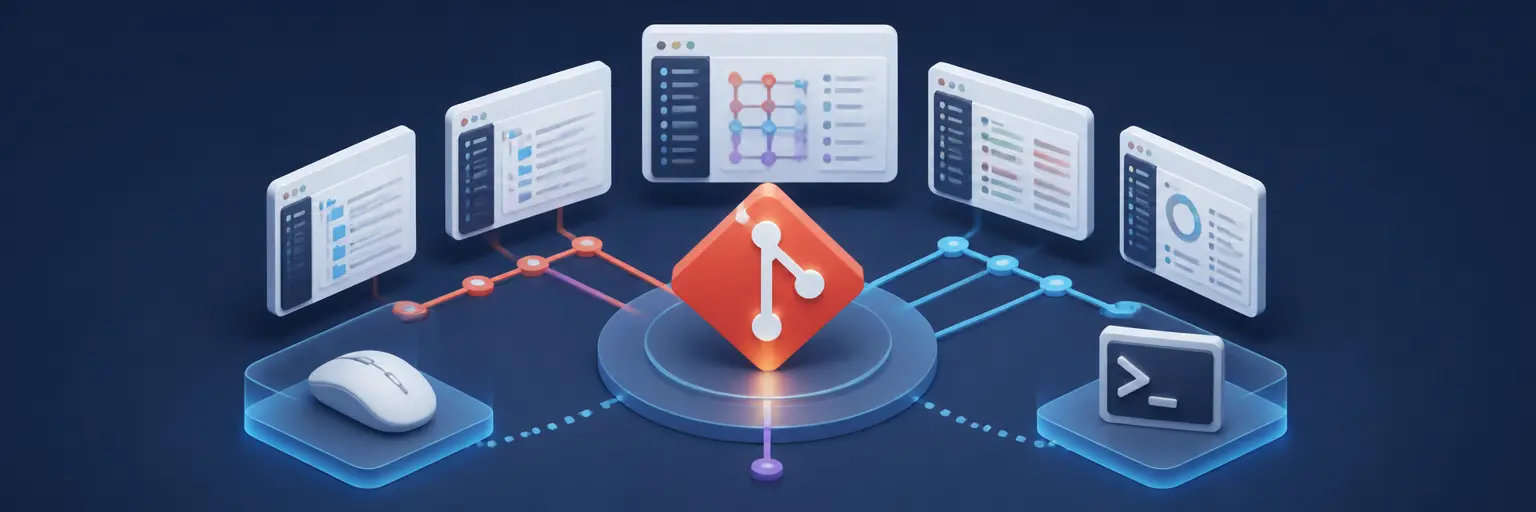
Git GUI clients make version control more accessible by providing visual tools for repositories, branches, commits, merges, pull requests, and change history. On the Git and Version Control Hub, this guide explains how popular Git graphical user interfaces work, how they compare with the Git command line, and how to choose the right workflow for your projects. Whether you are learning Git basics, managing a personal repository, or collaborating with a development team through GitHub or GitLab, you will discover practical ways to use a Git GUI client effectively.
🖥️ What Is a Git GUI Client?
A Git GUI client is a desktop or web-based application that presents Git operations through visual menus, buttons, panels, and graphs instead of requiring every command to be entered in a terminal. A graphical Git interface can help you view modified files, inspect differences, stage selected lines, write commit messages, switch branches, resolve merge conflicts, and review repository history.
Git GUI tools are especially useful for developers who are new to version control or prefer a visual overview of their work. They can make complex actions easier to understand while still using the same underlying Git repository and commands. The best Git GUI clients provide clear branch visualization, reliable commit management, integrated diff tools, and remote repository support.
⭐ Popular Git GUI Clients to Explore
There are many Git graphical interfaces, each designed for different operating systems, experience levels, and development workflows. Popular choices include GitHub Desktop, GitKraken, Sourcetree, Tower, Fork, SmartGit, and the built-in Git tools available in Visual Studio Code, JetBrains IDEs, Visual Studio, and other code editors. Some applications focus on simplicity, while others provide advanced branch graphs, merge tools, and team integrations.
When comparing Git GUI software, consider support for Windows, macOS, and Linux, GitHub and GitLab integration, SSH authentication, multiple repositories, interactive staging, stashing, rebasing, submodules, and conflict resolution. A suitable client should improve your productivity without hiding important Git concepts or making repository history difficult to understand.
🔍 Using a Git GUI for Commits and File Changes
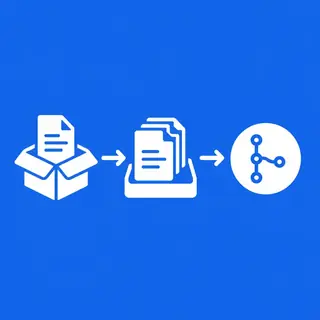
One of the most common reasons to use a Git GUI is to review and commit changes visually. Most clients display modified, staged, and untracked files in separate areas, allowing you to inspect diffs before creating a commit. Many also support partial staging, which lets you commit only selected lines from a file and keep unrelated work separate.
A visual commit workflow can encourage better version control habits. You can verify the exact changes being recorded, write focused commit messages, and review previous commits without memorizing commands. However, users should still understand concepts such as the working tree, staging area, local repository, and remote repository to avoid committing unintended files or overlooking important changes.
🌿 Branches, Merging, and Rebasing in Git GUIs
Git GUI clients often display branches in a visual commit graph, making it easier to understand how feature branches, release branches, and the main branch relate to one another. Creating, renaming, deleting, checking out, and publishing branches can usually be completed through menus. This is helpful when working with feature development, bug fixes, pull requests, and GitFlow-style workflows.
Many graphical tools also provide guided interfaces for merging and rebasing. They may show conflicts in a three-way merge editor and allow you to select changes from the current branch or the incoming branch. Even with visual assistance, it is important to understand that rebasing rewrites commit history and that shared branches should be handled carefully. A Git GUI should clarify these operations rather than encourage risky actions without explanation.
⚖️ Git GUI vs Git CLI: Which Should You Use?
The Git command line interface offers direct access to every Git feature and is available on nearly every development environment. Commands such as git status, git add, git commit, git switch, git merge, and git rebase are powerful, scriptable, and easy to use in automated workflows. The CLI is particularly valuable for remote servers, CI/CD pipelines, troubleshooting, and advanced Git operations.
A Git GUI offers visual feedback and can reduce the learning curve for everyday tasks. It may be faster for reviewing complex history, selecting individual changes, and resolving conflicts with an integrated editor. Many experienced developers use a hybrid workflow: a GUI for repository visualization and routine tasks, and the CLI for automation, advanced commands, documentation, and situations where a graphical tool does not expose the required option.
🧰 Features to Look for in a Git GUI Client
Before installing a graphical Git client, review its core features and how well they match your development process. Important capabilities include branch and commit graphs, side-by-side diff views, interactive staging, stash management, tag creation, remote tracking, SSH and HTTPS authentication, and support for GitHub pull requests or GitLab merge requests.
Advanced users may also need multiple account profiles, repository search, submodule support, signed commits, Git LFS compatibility, custom merge tools, hooks, terminal integration, and performance for large repositories. Choosing a tool with strong conflict resolution and transparent Git operations can save time while helping you build reliable version control skills.
🚀 Building Better Git Workflows with a GUI
A Git GUI can support a consistent workflow for personal projects and collaborative software development. A typical process includes pulling the latest changes, creating a dedicated branch, editing files, reviewing diffs, staging related changes, committing with a meaningful message, pushing the branch, and opening a pull request. Visual status indicators can make it easier to see whether local and remote branches are synchronized.
For teams, graphical Git tools can make code review and repository maintenance more approachable, but they should be used alongside agreed conventions. Establish standards for branch naming, commit messages, protected branches, pull requests, merge strategies, and release tags. Combining a well-configured Git GUI with GitHub, GitLab, continuous integration, and automated testing can create a dependable development workflow.
❓ Frequently Asked Questions About Git GUI Clients
What is the best Git GUI client for beginners?
The best choice depends on your operating system and goals. GitHub Desktop is often approachable for beginners who work with GitHub, while Sourcetree, GitKraken, Fork, and IDE-integrated Git tools offer different combinations of simplicity and advanced features. Choose a client with clear status information, readable branch history, and reliable diff and conflict tools.
Is a Git GUI better than the command line?
Neither is universally better. A Git GUI provides visual context and can simplify common tasks, while the CLI offers flexibility, automation, portability, and access to every Git command. Learning both gives you the most effective workflow for local development, team collaboration, troubleshooting, and CI/CD environments.
Can I use a Git GUI with GitHub and GitLab?
Yes. Most modern Git GUI clients can connect to repositories hosted on GitHub and GitLab using HTTPS or SSH. Depending on the application, you may also be able to view pull requests, create branches, open merge requests, manage issues, and authenticate through a provider-specific account integration.
Do Git GUI clients hide Git commands?
Some clients hide the exact command by default, while others display command output or provide an embedded terminal. A quality Git GUI should make the operation understandable and allow you to inspect results. Beginners should learn the corresponding Git concepts and commands so they can work confidently when a GUI is unavailable.
Can a Git GUI resolve merge conflicts?
Yes. Many Git GUI applications include visual merge and conflict-resolution tools that show the current version, incoming version, and combined result. You should review each conflict carefully, test the project after resolving it, and create the merge commit only after confirming that the resulting files are correct.