🛠️ Interactive Rebase: Rewording, Squashing, and Editing Git Commits
Master interactive rebase in Git with practical guidance for rewording commit messages, squashing multiple commits, editing historical changes, and creating a clean, review-ready project history. This advanced Git technique helps developers organize local commits before sharing work with a team, opening a pull request, or integrating changes through GitHub and GitLab. At Git and Version Control Hub, you will learn how to use git rebase -i safely, resolve conflicts, recover from mistakes, and improve Git workflows for both personal projects and collaborative software development.
🚀 What Is Interactive Rebase in Git?
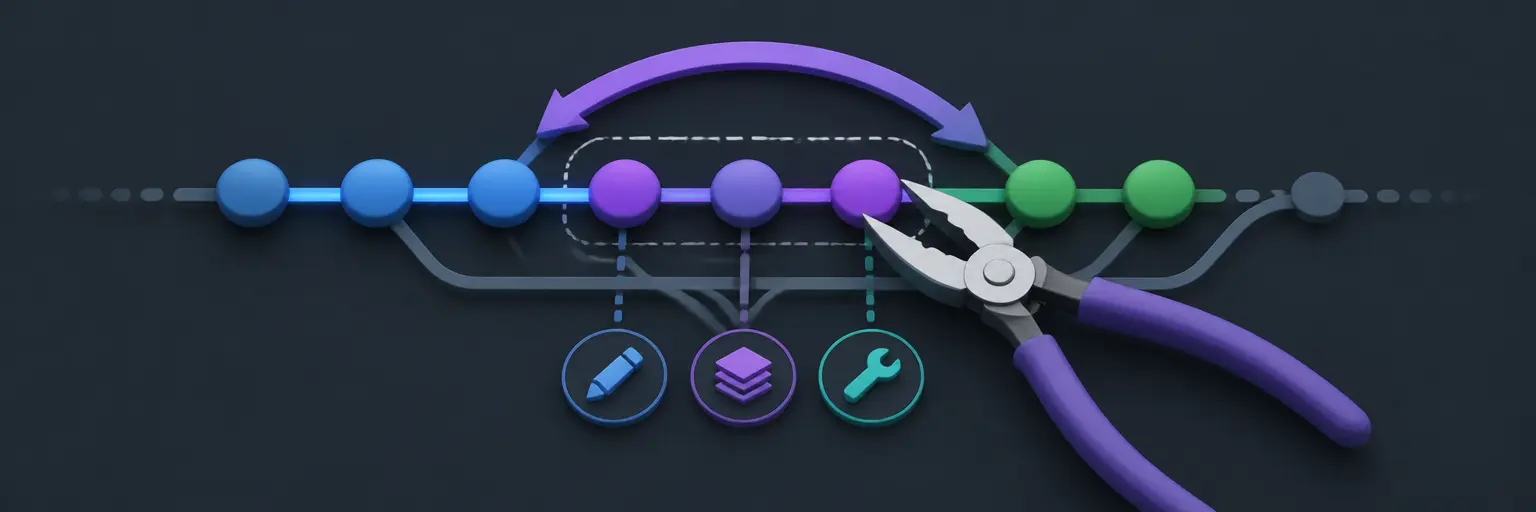
Interactive rebase is a powerful Git command for modifying a sequence of commits. By running git rebase -i, you can review commits one by one and choose actions such as pick, reword, edit, squash, and fixup. This gives you precise control over commit history without changing the final state of your files.
Readers can expect clear explanations of when to use interactive rebase, how it differs from a standard rebase, and how it supports clean Git history management. You will also learn why rewriting local commits is useful before collaboration, while understanding why published history should be handled with caution.
✍️ Rewording Commit Messages with Git Rebase
Clear commit messages make software projects easier to understand, review, and maintain. Interactive rebase lets you change inaccurate, vague, or inconsistent messages by replacing pick with reword or r. Git pauses during the operation so you can enter a more descriptive commit message.
This section explains how to write effective commit messages using relevant context, action-oriented language, and consistent formatting. You will discover how rewording commits improves pull request reviews, changelog generation, team communication, and long-term project documentation without modifying the code itself.
🧩 Squashing and Combining Commits
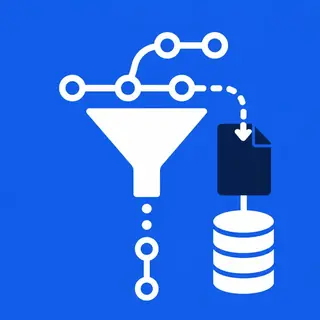
Squashing combines several related commits into one concise commit. This is especially useful when a feature branch contains temporary fixes, debugging changes, or multiple small commits that represent one logical task. Using squash preserves the opportunity to combine commit messages, while fixup merges changes and automatically discards the secondary message.
You will learn how to create a polished commit sequence before merging a branch into main or develop. Squashing Git commits can simplify code review, reduce unnecessary history, and make future troubleshooting with tools such as git bisect easier when used thoughtfully.
📝 Editing Commits and Amending Historical Changes
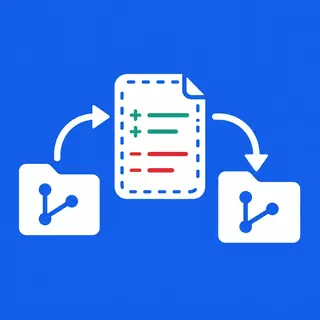
The edit action pauses an interactive rebase at a selected commit, allowing you to modify files, stage additional changes, or amend the commit with git commit --amend. This is helpful when a commit is missing a file, contains an incorrect implementation, or needs to be divided into more logical pieces.
This guide covers the practical workflow for stopping at a commit, making changes, staging updates, and continuing with git rebase --continue. You will also learn how to split a commit by resetting it while preserving file changes, then creating cleaner and more focused commits.
⚔️ Resolving Conflicts During Interactive Rebase
Rewriting commit history can produce merge conflicts when earlier changes no longer apply cleanly to the current branch. During a conflict, Git pauses the rebase and marks affected files. You can inspect the conflict, edit the correct content, stage the result with git add, and resume using git rebase --continue.
Readers will learn how to use git status, conflict markers, and diff tools to diagnose rebase problems. The workflow also explains when to use git rebase --skip for an unnecessary commit and git rebase --abort to return to the original branch state safely.
🔐 Safe Interactive Rebase Practices
Interactive rebase changes commit identifiers because Git creates rewritten commits. Before starting, create a backup branch or confirm that your work is committed. Use git log --oneline, git reflog, and git status to understand the current branch state and recover from accidental changes.
A key principle is to avoid rebasing commits that other developers have already based their work on. If rewritten commits have been pushed to a shared remote, updating the branch may require git push --force-with-lease. This is safer than plain force pushing because it helps prevent overwriting newer remote work.
🔄 Interactive Rebase in GitHub, GitLab, and Team Workflows
Interactive rebase is commonly used before submitting a GitHub pull request or GitLab merge request. Developers can combine implementation commits, remove accidental changes, and present a focused history that is easier for reviewers to understand. This supports efficient code review and more maintainable repositories.
You will also learn how to coordinate history rewriting with teammates, protected branches, and CI/CD pipelines. A clean branch history can improve automated testing workflows, but teams should define clear rules for rebasing, force pushing, branch protection, and merging into shared branches.
❓ Frequently Asked Questions About Interactive Rebase
What does interactive rebase do in Git?
Interactive rebase lets you modify a sequence of commits by selecting actions such as rewording messages, editing files, squashing commits, fixing up changes, reordering commits, or removing commits. It is typically used to clean up local branch history before sharing it.
What is the command for interactive rebase?
The standard command is git rebase -i HEAD~N, where N is the number of recent commits you want to review. For example, git rebase -i HEAD~4 opens the last four commits in Git’s configured editor.
What is the difference between squash and fixup?
Squash combines a commit with the previous commit and allows you to edit the resulting commit message. Fixup also combines the commits but automatically uses the earlier commit message and discards the fixup message.
How do I cancel an interactive rebase?
If the rebase is still in progress, run git rebase --abort. Git will attempt to restore the branch to its state before the rebase began. If the operation has already completed, git reflog can help you locate the previous branch position and recover it.
Is interactive rebase safe on a shared branch?
Interactive rebase is safest on private or local branches. Avoid rewriting commits that teammates have already pulled. If a shared branch must be rewritten, coordinate with the team, understand the consequences, and prefer git push --force-with-lease over an unprotected force push.