
Git Basics
Git Basics helps developers build a strong foundation in version control with clear, practical guidance for everyday Git workflows. Learn essential Git commands, understand repositories and commits, manage changes confidently, and improve collaboration across personal and team projects. Whether you’re new to Git or refining your development process, explore beginner-friendly tutorials and actionable tips to work more efficiently with modern software projects.
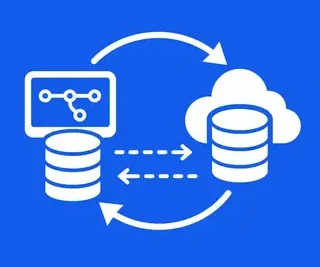 Git Workflow (Local Repo, Remote Repo, Push, Pull, Fetch)
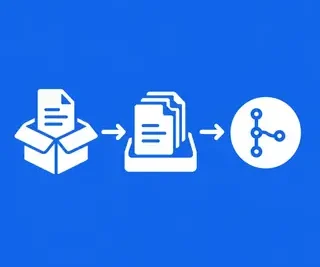 Core Concepts (Initialization, Staging, Committing)
 Git for Beginners (Step-by-Step Guides, Common Mistakes, Cheat Sheets)
 Git Configuration (Global vs Local Config, Aliases, Editor Setup)
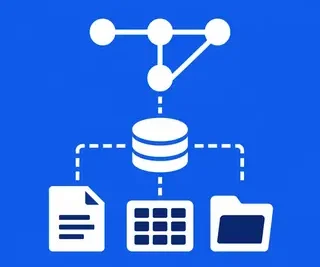 Git Internals (Data Model, Object Types, Index, Working Directory)
 Git GUI Clients (Overview of Popular Git GUIs, Using GUIs vs CLI)
 Undoing Changes (Reset, Revert, Checkout)
Git Basics is your practical starting point for learning Git, the distributed version control system used by developers and teams worldwide. Whether you are creating your first repository, saving project history, collaborating through GitHub or GitLab, or preparing for advanced branching workflows, this category provides clear, search-friendly guidance for building strong Git fundamentals.
Explore essential Git commands, repository management techniques, staging and committing best practices, configuration tips, and everyday collaboration workflows. Each guide is designed to help beginners understand how Git works, why each command matters, and how to avoid common mistakes while working on personal projects or professional software development teams.
From the command line to popular Git GUI clients, GitAndVersionControlHub.com explains the complete development workflow in an accessible way. Learn how to manage local and remote repositories, synchronize changes, undo mistakes safely, customize Git with aliases, and understand the internal data model that powers Git.
↩️ Undoing Changes (Reset, Revert, Checkout)
This subcategory explains how to undo changes in Git without accidentally losing valuable work. You will learn the differences between git reset, git revert, and git checkout, including when each command is appropriate for modifying files, unstaging changes, or correcting commit history.
Expect practical examples for recovering from common mistakes, restoring files, undoing local commits, and safely reversing changes that have already been shared with a remote repository. These tutorials emphasize safe Git recovery techniques and explain how different reset modes affect the working directory, staging area, and commit history.
🖥️ Git GUI Clients (Overview of Popular Git GUIs, Using GUIs vs CLI)
Discover how Git GUI clients can simplify repository management, commit creation, branching, history inspection, and merge conflict resolution. This section reviews popular Git graphical interfaces and explains which features are most useful for beginners, teams, and experienced developers.
You will also compare Git GUI tools with the command line to understand the strengths of each approach. Learn when a visual interface improves productivity, when CLI commands offer greater control, and how to combine both methods for an efficient Git workflow.
🔍 Git Internals (Data Model, Object Types, Index, Working Directory)
Go beyond basic commands by learning how Git stores and tracks project history. This section introduces the Git data model, including commits, trees, blobs, references, and the object database that makes distributed version control possible.
Readers will gain a clear understanding of the working directory, staging area or index, and repository. These concepts explain why Git commands behave differently and make it easier to troubleshoot unexpected status messages, detached HEAD states, and object or reference issues.
⚙️ Git Configuration (Global vs Local Config, Aliases, Editor Setup)
Learn how to configure Git for a consistent and productive development experience. Guides cover global Git configuration for user-wide preferences and local repository configuration for project-specific settings, including username, email, default branch names, line endings, and merge behavior.
This section also explains how to create Git aliases, choose a preferred text editor, improve command output, and manage configuration safely. Customizing Git can reduce repetitive typing and help you build a workflow tailored to your operating system, editor, and development tools.
🌱 Git for Beginners (Step-by-Step Guides, Common Mistakes, Cheat Sheets)
Designed for newcomers, this subcategory provides step-by-step Git tutorials that begin with the fundamentals and gradually introduce everyday version control tasks. Learn how to install Git, create a repository, track files, make commits, inspect history, and connect projects to remote hosting platforms.
Beginner-friendly explanations highlight common Git mistakes, such as forgetting to stage files, committing sensitive information, working on the wrong branch, or confusing local and remote changes. Quick-reference cheat sheets and practical examples help you remember essential Git commands and build confidence.
📦 Core Concepts (Initialization, Staging, Committing)
Understand the core Git workflow by learning how to initialize repositories, track files, stage changes, and create meaningful commits. This section explains the purpose of git init, git add, git status, and git commit with clear examples that reflect real development tasks.
You will also learn how to write useful commit messages, review staged changes, inspect commit history, and organize work into logical snapshots. Strong knowledge of initialization, staging, and committing creates the foundation for branching, merging, collaboration, and reliable project history.
🔄 Git Workflow (Local Repo, Remote Repo, Push, Pull, Fetch)
Learn how local and remote Git repositories work together in a modern software development workflow. This subcategory covers remote repository setup, cloning, tracking branches, and the essential commands used to exchange changes with GitHub, GitLab, and other Git hosting services.
Understand the differences between git push, git pull, and git fetch, including how to synchronize work, review incoming updates, and avoid unnecessary merge conflicts. Tutorials focus on practical collaboration habits for individual developers and teams working with shared repositories.
❓ Frequently Asked Questions About Git Basics
What is Git used for?
Git is a distributed version control system used to track changes in source code and other files. It helps developers create project history, experiment safely, collaborate with teammates, recover previous versions, and manage contributions across local and remote repositories.
What Git commands should beginners learn first?
Beginners should start with git init, git clone, git status, git add, git commit, git log, git branch, git switch, git pull, git fetch, and git push. Learning what each command does and when to use it is more important than memorizing commands without understanding the workflow.
What is the difference between Git and GitHub?
Git is the version control software that runs locally on your computer. GitHub is a cloud-based hosting and collaboration platform for Git repositories. GitLab and Bitbucket provide similar remote repository and team collaboration features.
Should I use Git commands or a Git GUI?
Both options are useful. The command line provides precise control and works consistently across environments, while a Git GUI can make history, branches, staging, and conflict resolution easier to visualize. Learning basic CLI commands is recommended even when you primarily use a graphical client.
How can I avoid losing work in Git?
Commit changes regularly, review files with git status, inspect staged content before committing, and push important commits to a trusted remote repository. Use git revert for safely undoing shared commits, and avoid destructive commands such as hard resets until you understand their effects.