🔐 Signed Commits: GPG Signing and Verification
Learn how signed Git commits strengthen repository security, prove authorship, and protect development workflows. This subcategory covers GPG key generation, Git configuration, commit verification, GitHub and GitLab integration, and practical solutions for common signing errors.
🔑 Understanding GPG-Signed Git Commits
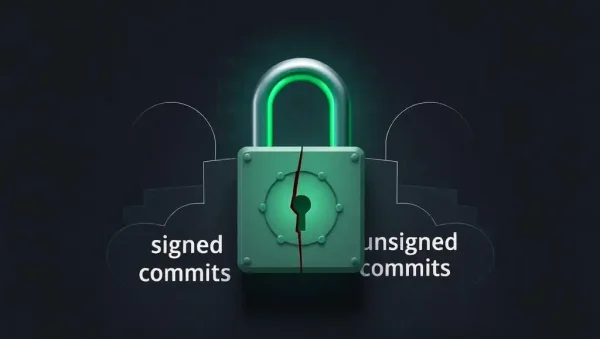
Signed commits use cryptographic signatures to connect a commit with a verified identity. You will learn how GPG, or GNU Privacy Guard, works with Git to sign commit objects and help teams confirm that changes were created by the expected developer. Clear explanations cover public and private keys, trust models, commit signatures, and the difference between signed, verified, and unsigned Git history.
⚙️ Generating and Configuring GPG Keys
Expect practical guidance for creating a GPG key, selecting the correct algorithm, setting an expiration date, and protecting your private key. Tutorials explain how to identify your key ID, configure user.signingkey, and enable automatic commit signing with Git settings. Instructions can be adapted for Linux, macOS, and Windows, including common considerations for GPG installations and terminal environments.
✍️ Signing Commits and Tags in Git
This section explains how to sign individual commits with git commit -S and how to make signed commits the default for future work. You will also learn about signed annotated tags, signing amended commits, and checking local signatures with Git commands. Examples show how signed history fits into feature branches, pull requests, release workflows, and collaborative repositories without disrupting normal Git development.
✅ Verifying Commits on GitHub and GitLab
Discover how to export a GPG public key and add it to GitHub or GitLab so hosted platforms can display a Verified badge. The guidance covers email address matching, account configuration, signature status, and command-line verification. You will understand how developers, reviewers, and security teams can inspect commit signatures before merging code or accepting releases.
🛠️ Troubleshooting Signed Commit Problems
Find solutions for frequent errors such as “gpg failed to sign the data,” missing secret keys, incorrect key IDs, unavailable TTY settings, and commits that appear unverified online. The section also explains how to diagnose signing with Git and GPG commands, update expired keys, and avoid exposing private key material. These practices help maintain reliable Git commit signing across computers and team environments.
Frequently Asked Questions
What is a signed Git commit?
A signed Git commit contains a cryptographic signature created with the author’s private GPG key. Anyone with the corresponding public key can verify that the commit was signed by that key and was not altered afterward. On GitHub or GitLab, successful account and email configuration may display a Verified label.
How do I sign a commit with GPG?
After configuring a GPG key in Git, sign a commit using git commit -S -m "Your message". To sign every commit automatically, enable commit signing globally with Git configuration. Before relying on the setting, create a test commit and use git log --show-signature to confirm that the signature is present and valid.
Why does Git say it failed to sign the data?
This error commonly results from an unavailable GPG program, an incorrect signing key, an expired key, or terminal and agent configuration problems. Check your key with GPG, confirm the value of user.signingkey, and verify that Git can access the correct GPG executable. Operating-system-specific pinentry settings may also be required.
How can I verify a signed commit?
Use git verify-commit COMMIT_ID to verify an individual commit, or use git log --show-signature to inspect signatures in history. Verification depends on having the signer’s public key and trusting the identity associated with it. Hosted services may provide additional verification when the public key and commit email are linked correctly.
Are GPG-signed commits required for every Git project?
No, signing is optional for most repositories, but it is valuable for open-source projects, security-sensitive code, regulated environments, and protected release branches. Teams should define a clear policy explaining when signatures are required, how keys are managed, and how exceptions are handled. Signed commits improve identity assurance but do not replace code review, access control, or CI security.