
Troubleshooting Git Integration Nightmares in Jenkins: Common Fixes

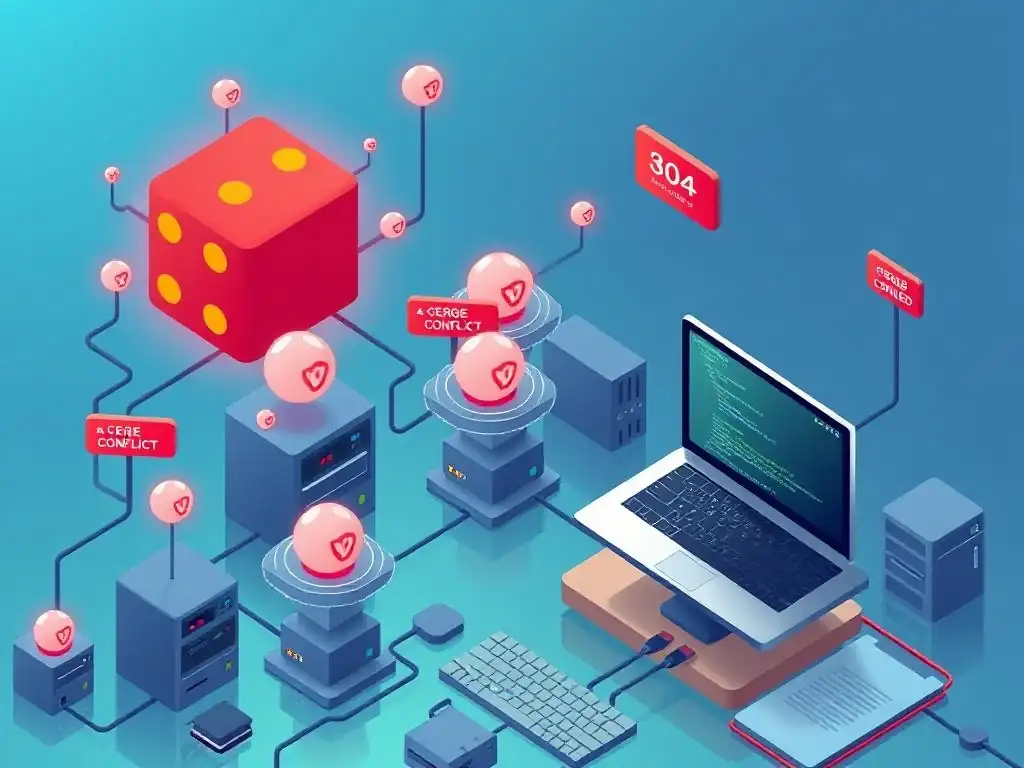
Welcome to Git and Version Control Hub, your go-to resource for mastering the art of version control! Ever found yourself wrestling with Git integration issues in Jenkins, tearing your hair out over failed builds and broken pipelines? You're not alone. Dive into our latest article, "Troubleshooting Git Integration Nightmares in Jenkins: Common Fixes," and discover practical solutions to conquer those frustrating roadblocks. Let's unlock smoother, more efficient automation together!
- Common Git Integration Issues in Jenkins and Their Root Causes
-
Frequently Asked Questions
- How do I fix the error "Git was not found in your PATH" in Jenkins?
- What causes "Permission denied (publickey)" errors when Jenkins tries to access my Git repository?
- Why is Jenkins building the wrong Git branch or commit?
- How can I resolve issues where Jenkins is failing to trigger builds automatically when I push changes to my Git repository?
- What should I do if Jenkins is experiencing slow Git clone or fetch times?
- Final Reflection: Mastering Git and Jenkins Harmony
- Conquer Your Jenkins Git Woes!
Common Git Integration Issues in Jenkins and Their Root Causes
Authentication Problems: Jenkins Failing to Connect to Git Repositories
One of the most frequent roadblocks in Git integration within Jenkins arises from authentication failures. Jenkins, when attempting to interact with Git repositories, needs proper credentials to prove its identity and authorization. A common scenario is using SSH keys for authentication.
If the SSH key configured in Jenkins does not match the public key authorized in the Git repository (e.g., on GitHub, GitLab, or Bitbucket), the connection will be refused. This often manifests as errors like "Permission denied (publickey)" in the Jenkins console output. Another prevalent cause is incorrect usernames or passwords when using HTTPS authentication.
Users might mistakenly enter outdated credentials or credentials that are not specifically authorized for the Jenkins server or service account used by Jenkins. Furthermore, token-based authentication, increasingly common for security, can fail if the token is expired, revoked, or incorrectly configured within Jenkins' credential management system. For instance, a Personal Access Token (PAT) generated from GitHub might have a limited lifespan or might not have the necessary repository access scopes granted.
These authentication failures are often rooted in misconfigurations during the setup phase or overlooked changes in repository access policies. Imagine a scenario where a developer initially sets up a Jenkins pipeline using their personal GitHub account and PAT. Later, the project transitions to an organization account with stricter access controls, or the developer's PAT expires without being renewed in Jenkins.
Suddenly, the pipeline, which was working perfectly, begins to fail with authentication errors. Diagnosing this requires careful examination of the Jenkins job configuration, specifically the credentials configured for Git access, and comparing them against the authentication requirements of the Git repository. It's crucial to ensure that the chosen authentication method (SSH keys, username/password, or tokens) is correctly set up both in Jenkins and on the Git repository side, with all necessary permissions granted to the entity (user or service account) Jenkins is using for authentication.
Repository Access Issues: Jenkins Unable to Clone or Fetch from Git
Beyond authentication, Jenkins can encounter issues related to repository access itself. Even with valid credentials, Jenkins might still fail to clone or fetch from a Git repository due to permission restrictions or network problems. A prime example is when the Jenkins user or service account lacks the necessary permissions to access the repository in the Git hosting platform.
In platforms like GitLab or Bitbucket, repository access is often controlled through roles and permissions. If the Jenkins user is not explicitly granted "read" or "clone" permissions for the repository, attempts to fetch code will be denied, resulting in errors like "Repository not found" or "Unauthorized" in Jenkins logs. These errors can be misleading as the repository might exist and be accessible to other users, but not to the specific account Jenkins is using.
Network connectivity is another significant factor. Jenkins needs a clear network path to reach the Git repository server. Firewall rules, network configurations, or proxy settings can obstruct this path. For instance, if the Jenkins server is behind a corporate firewall and the Git repository is hosted externally (e.g., on GitHub.com), outbound traffic on the necessary ports (typically 22 for SSH or 443 for HTTPS) might be blocked.
Similarly, if a proxy server is required to access external networks, Jenkins needs to be configured to use this proxy for Git operations. Incorrect or missing proxy configurations will lead to connection timeouts or failures when Jenkins attempts to reach the Git repository. Debugging these issues often involves checking network configurations, firewall rules, and proxy settings on the Jenkins server and the network infrastructure to ensure that there is an open and unobstructed path for Jenkins to communicate with the Git repository.
Branching and Merging Conflicts: Jenkins Pipeline Failures Due to Git Conflicts
Branching and merging are fundamental Git operations, but they can introduce complexities and potential failure points within Jenkins pipelines, particularly due to merge conflicts. When a Jenkins pipeline attempts to merge changes from one branch into another, or when it tries to build a specific branch that has diverged significantly from the target branch, merge conflicts can arise. These conflicts occur when Git cannot automatically reconcile changes between branches, usually because the same lines of code have been modified differently in both branches. If a Jenkins pipeline encounters a merge conflict during a git merge or git pull operation, the pipeline will typically fail, halting the build process. The error messages in Jenkins will often indicate a merge conflict and require manual resolution.
The root cause of these conflicts is often concurrent development on different branches without sufficient communication or integration. Imagine a scenario where two developers are working on separate features in different branches, and both modify the same configuration file. When Jenkins attempts to merge these branches, Git will detect a conflict because it's unclear which version of the configuration file should be kept. Pipeline failures due to merge conflicts are not necessarily indicative of a Jenkins configuration problem, but rather highlight the inherent challenges of concurrent version control. Resolving these issues typically requires human intervention. Developers need to manually examine the conflicting files, decide how to reconcile the changes, and then commit the resolved merge back to the repository. Jenkins pipelines can be configured to detect and report merge conflicts clearly, but they generally cannot automatically resolve them without specific conflict resolution strategies being implemented within the pipeline script itself.
Webhook Configuration Errors: Jenkins Not Triggered by Git Events
Webhooks are a powerful mechanism for automating Jenkins pipelines based on Git events, such as code pushes or pull requests. However, misconfigurations in webhook setup are a common source of frustration, leading to Jenkins pipelines not being triggered as expected. A typical error is an incorrectly configured webhook URL in the Git repository settings. When setting up a webhook, you need to provide the URL that the Git platform (GitHub, GitLab, etc.)
should use to send event notifications to Jenkins. If this URL is incorrect, for example, due to a typo, an outdated Jenkins URL after a server migration, or an incorrect port number, the Git platform will fail to deliver webhook payloads to Jenkins, and consequently, pipelines will not be triggered. This often manifests as no pipeline executions occurring despite code changes being pushed to the repository.
Another frequent issue lies in the webhook secret token. For security purposes, webhooks often use a secret token to verify that incoming requests are indeed from the configured Git repository and not from malicious actors. If the secret token configured in the Git repository webhook settings does not precisely match the secret token configured in the Jenkins job (or globally in Jenkins), Jenkins will reject the incoming webhook requests as invalid, and pipelines will not trigger.
Furthermore, incorrect selection of webhook event triggers can also lead to unexpected behavior. For instance, if you intend to trigger a pipeline on every code push to a branch, but the webhook is configured to only trigger on pull requests, pushes will be ignored, and the pipeline will not run.
Debugging webhook issues requires careful verification of the webhook URL, secret token, and event triggers configured in both the Git repository and the Jenkins job. Examining the webhook delivery logs in the Git platform can also provide valuable insights into whether webhook payloads are being sent successfully and if there are any delivery errors.
Frequently Asked Questions
How do I fix the error "Git was not found in your PATH" in Jenkins?
This error means Jenkins can't locate the Git executable. You need to ensure Git is installed on your Jenkins server and that the Git executable path is correctly configured in Jenkins system settings.
What causes "Permission denied (publickey)" errors when Jenkins tries to access my Git repository?
This usually happens because Jenkins doesn't have the right SSH keys to authenticate with the Git repository. You need to configure SSH keys for the Jenkins user and add the public key to your Git repository's deploy keys.
Why is Jenkins building the wrong Git branch or commit?
This is typically a configuration issue in your Jenkins job. Double-check that the correct branch or commit specifier is set in the "Source Code Management" section of your Jenkins job configuration.
How can I resolve issues where Jenkins is failing to trigger builds automatically when I push changes to my Git repository?
The most common cause is a problem with the webhook configuration between your Git repository and Jenkins. Verify that the webhook is properly configured in your Git repository settings and that it points to the correct Jenkins URL.
What should I do if Jenkins is experiencing slow Git clone or fetch times?
Slow Git operations can be due to network latency or a large repository size. Consider using shallow clones to reduce the amount of data transferred, or optimizing your network configuration for better performance.
Final Reflection: Mastering Git and Jenkins Harmony
The complexities of modern software development often hinge on the seamless integration of tools like Git and Jenkins, and our exploration of common troubleshooting techniques underscores the critical importance of robust Git integration in Jenkins pipelines. The challenges we've discussed are not merely technical hurdles; they represent potential bottlenecks that can significantly impact project timelines and overall team productivity. By understanding and addressing these issues proactively, we empower ourselves to build more reliable and efficient software delivery pipelines.
The ongoing evolution of DevOps practices means that mastering Git and Jenkins integration is no longer optional, but essential for success. My own experience has shown me that a single, seemingly minor configuration error can cascade into a major disruption, highlighting the need for meticulous attention to detail and a deep understanding of the underlying principles. The best error message is the one that never shows up.
This quote perfectly encapsulates the proactive mindset we should adopt when dealing with Git integration issues in Jenkins – prevention is always better than cure.
As you navigate the ever-changing landscape of software development, remember that the lessons learned here are not just about fixing errors; they are about building resilience and fostering a culture of continuous improvement. Take the time to understand the nuances of your Git and Jenkins setup, experiment with different configurations, and share your knowledge with your team. By embracing a proactive and collaborative approach, you can transform potential "Git integration issues Jenkins" nightmares into opportunities for growth and innovation.
Conquer Your Jenkins Git Woes!
Thanks for reading! We hope this guide has equipped you to tackle those frustrating Git integration issues in Jenkins. Now's the time to put your newfound knowledge into practice and streamline your development workflow. Ready to get started?
Here are a few actionable steps:
- Implement at least one of the troubleshooting steps outlined in this article on your most challenging Jenkins job. Don't just read – do!
- Review your Jenkins global settings for potential conflicts in system-wide Git configurations. You might be surprised what you find!
- Share this article with a colleague facing similar Jenkins Git integration problems. Helping others reinforces your own understanding.
What Jenkins Git issue will you tackle first? Share your experience in the comments below!