
Project Boards in GitHub: Kanban for Developers, Made Simple

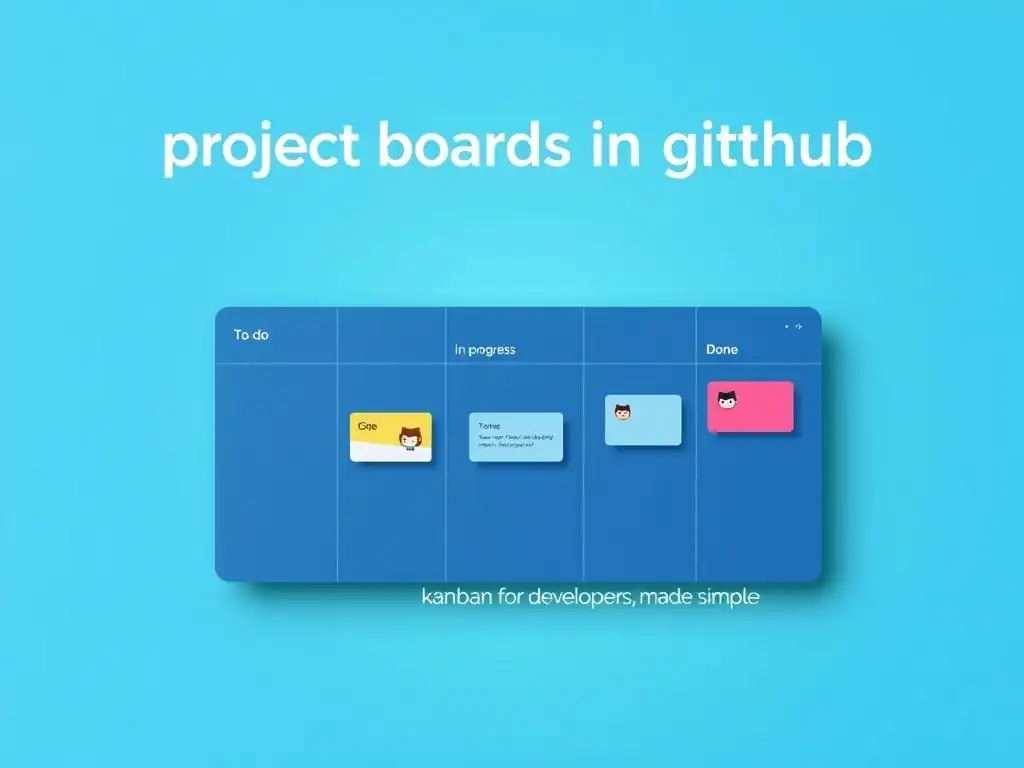
Welcome to Git and Version Control Hub, your ultimate resource for mastering the art of version control! Ever wondered how to streamline your workflow and boost team collaboration within GitHub? Dive into our latest tutorial where we unlock the secrets of Kanban project boards in GitHub, transforming chaos into organized progress. Discover how to implement this powerful tool for effective project management, and leave no task behind. Intrigued? Let's get started!
Project Boards in GitHub: Kanban for Developers
- Introduction to Kanban Project Boards on GitHub
- Setting Up Your First Kanban Project Board in GitHub
- Adding Issues and Pull Requests to Your GitHub Project Board
- Managing Your Kanban Workflow on GitHub
- Automating Your GitHub Project Board with GitHub Actions
- Advanced Kanban Techniques for GitHub Project Boards
- Collaboration and Communication with GitHub Project Boards
- Best Practices for Using Kanban Project Boards in GitHub
- GitHub Project Boards vs. Other Kanban Tools
- Troubleshooting Common Issues with GitHub Project Boards
- Conclusion: Mastering Kanban with GitHub Project Boards
-
Frequently Asked Questions
- What are Kanban project boards in GitHub used for?
- How do Kanban project boards relate to version control?
- Where can I find a good tutorial on using Kanban project boards with GitHub?
- Can Kanban project boards be integrated with other tools like CI/CD pipelines?
- Are Kanban project boards only for large team projects?
- Final Reflection: Mastering Workflow with GitHub Kanban
- Reimagine Your Workflow: Unlock Kanban Mastery!
Introduction to Kanban Project Boards on GitHub
What are GitHub Project Boards?
GitHub Project Boards are a flexible project management tool integrated directly into GitHub repositories. They provide a visual and intuitive way to organize and track your work, mirroring the principles of Kanban and other agile methodologies. Think of them as digital whiteboards where you can visualize your project's workflow, from initial ideas to completed features.
Each project board is composed of columns representing different stages of your workflow, and cards within these columns represent individual tasks, issues, or pull requests. This visual representation allows developers and teams to quickly grasp the current status of projects, identify bottlenecks, and manage their workload effectively.
GitHub Project Boards are designed to be deeply integrated with the GitHub ecosystem. This means they seamlessly connect with issues and pull requests, the fundamental building blocks of software development on GitHub. You can easily convert issues into cards on your project board and track their progress as they move through your development lifecycle.
This tight integration eliminates the need for context switching between different tools, keeping your project management and development activities within a unified environment. This streamlined approach enhances efficiency and collaboration, ensuring everyone on the team has a clear and shared understanding of project progress directly within their familiar development platform.
Why Use GitHub Project Boards for Project Management?
For developers already working within the GitHub ecosystem, adopting GitHub Project Boards for project management offers several compelling advantages. First and foremost is the inherent integration. Unlike external project management tools, GitHub Project Boards are natively built into the platform. This eliminates the need for separate accounts, logins, or synchronization processes. Your issues, pull requests, and code repositories are all interconnected with your project boards, creating a cohesive and streamlined workflow. This integration significantly reduces friction and administrative overhead.
Secondly, GitHub Project Boards are remarkably accessible and easy to use, especially for teams already familiar with GitHub. The interface is intuitive and designed for developers, focusing on visual clarity and ease of navigation. Setting up a basic Kanban board takes just a few clicks, and customizing it to fit your team's specific workflow is straightforward.
This low barrier to entry encourages adoption and ensures that teams can quickly start benefiting from structured project management without a steep learning curve. Moreover, for open-source projects hosted on GitHub, project boards offer a transparent way to manage contributions and communicate progress with the community.
Understanding Kanban Principles in GitHub
Kanban, a Japanese term meaning "visual signal" or "card," is a project management methodology focused on visualizing workflow, limiting work in progress (WIP), and maximizing efficiency. GitHub Project Boards are designed to implement Kanban principles effectively within the software development context. The core idea of Kanban is to use a board with columns representing stages of work, allowing teams to visualize the flow of tasks and identify bottlenecks. In GitHub Project Boards, these columns are easily customizable and can be tailored to match your specific development process, such as "Backlog," "To Do," "In Progress," "Review," and "Done."
By visualizing the workflow on a GitHub Project Board, teams gain immediate insights into the distribution of tasks across different stages. This visual transparency is crucial for identifying areas where work might be piling up or where bottlenecks are occurring. Kanban also emphasizes limiting work in progress.
While GitHub Project Boards don’t enforce WIP limits directly, the visual nature of the board encourages teams to naturally limit the number of items in each column, particularly in the "In Progress" column. This focus on limiting WIP helps teams to concentrate on finishing tasks before starting new ones, improving flow and reducing context switching, ultimately leading to faster delivery and increased efficiency in software development projects managed on GitHub.
Setting Up Your First Kanban Project Board in GitHub
Creating a New Project Board in Your GitHub Repository
Creating your first Kanban project board in GitHub is a straightforward process that starts directly within your repository. Navigate to your desired repository on GitHub. Look for the "Projects" tab, typically located between "Issues" and "Pull requests". Click on the "Projects" tab, and you will be presented with an option to "Create a project". Click this button to begin setting up your new project board.
GitHub offers you a choice between two types of project boards: "Project boards (classic)" and "Projects". For a Kanban-style board, "Project boards (classic)" is generally recommended for its simpler setup and direct issue/pull request integration. Select "Project boards (classic)". You will then be prompted to give your project board a name and optionally a description.
Choose a descriptive name that reflects the project or team using the board. Once you’ve named your board and added a description if desired, click the "Create project" button. GitHub will then generate a basic project board with default columns, ready for you to customize and begin using for your project management needs.
Configuring Project Board Columns: Backlog, To Do, In Progress, Done, Review, Deployed
Upon creating a new project board, GitHub typically provides a basic structure with columns like "To do," "In progress," and "Done." However, a robust Kanban workflow often benefits from more granular stages. Consider configuring your columns to better reflect your team's development lifecycle. A common and effective setup includes columns like "Backlog," "To Do," "In Progress," "Review," "Deployed," and "Done." The "Backlog" column serves as a repository for all new ideas, feature requests, and bug reports.
"To Do" represents items that are prioritized and ready to be worked on. "In Progress" tracks tasks currently being actively developed. "Review" signifies tasks that are completed and awaiting code review. "Deployed" indicates features that have been successfully deployed to a staging or production environment. Finally, "Done" represents fully completed and verified tasks.
To customize your columns, navigate to your newly created project board. You'll see the default columns. To add a new column, look for the "+" button typically located to the right of the last column. Click this button and enter the name of your new column, such as "Backlog" or "Review".
You can also rename existing columns by clicking on the column name and editing it directly. To rearrange columns, simply drag and drop them into your desired order. This flexibility in column configuration is a key strength of GitHub Project Boards, allowing you to tailor your Kanban board to precisely match your team's unique development process and workflow stages.
Customizing Columns for Your Workflow
While the "Backlog, To Do, In Progress, Review, Deployed, Done" column structure is a solid starting point, the real power of GitHub Project Boards lies in its customization capabilities. You should tailor your columns to perfectly mirror your team's specific workflow and development stages. For instance, if your team follows a rigorous testing phase before deployment, you might add a "Testing" column between "Review" and "Deployed."
Alternatively, if you have a separate design phase, you could include a "Design" column before "To Do." The key is to create columns that accurately represent the distinct stages through which your tasks progress.
Consider the specific needs of your project and team when customizing columns. For example, a team working on a complex feature might benefit from breaking down "In Progress" into more granular stages, such as "Development," "Unit Testing," and "Integration Testing." For bug fixes, you might have columns like "Triage," "Fix in Progress," and "Verification."
Don't hesitate to experiment with different column configurations to find what works best for your team. Remember, the goal is to create a visual representation of your workflow that is clear, efficient, and supports your team's productivity. Regularly review and adjust your column structure as your team's process evolves or project requirements change to ensure your GitHub Project Board remains a highly effective project management tool.
Adding Issues and Pull Requests to Your GitHub Project Board
Linking Existing Issues and Pull Requests to Your Project Board
One of the most efficient aspects of GitHub Project Boards is the seamless integration with existing issues and pull requests. If you already have issues and pull requests created in your repository, linking them to your project board is a straightforward process. Within your project board, locate the column where you want to add the existing issue or pull request. Click the "+" button at the top of the column, or look for an "Add cards" option, often located at the bottom of the column if it's not empty.
A search bar will appear. Start typing the title or number of the issue or pull request you want to add. GitHub will dynamically search and display matching issues and pull requests from your repository.
Select the desired issue or pull request from the search results, and it will be instantly added as a card to the selected column on your project board. You can add multiple existing issues and pull requests in this manner. This linkage ensures that all your project-related tasks, whether they are feature requests, bug fixes, or code reviews represented by pull requests, are centrally organized and tracked within your Kanban project board, providing a holistic view of your project's progress.
Creating New Issues Directly from the Project Board
GitHub Project Boards not only allow you to link existing issues but also offer the convenience of creating new issues directly from within the board itself. This feature streamlines the process of capturing new tasks or ideas as they arise during project planning or daily stand-ups. To create a new issue directly from the project board, navigate to the column where you want to place the new issue card. Similar to linking existing issues, click the "+" button at the top of the column or the "Add cards" option at the bottom.
Instead of searching for an existing issue, simply start typing the title of your new issue directly into the search bar. As you type, an option to "Create new issue" will appear. Click on this option. A simplified issue creation form will appear directly within the project board interface.
Enter the title and description of your new issue. You can also assign labels and milestones directly from this form if needed. Once you click "Create," the new issue will be created in your repository and automatically added as a card to the column you selected on your project board. This direct issue creation capability minimizes context switching and keeps your workflow efficient, allowing you to quickly capture and organize new tasks without leaving your project management view.
Adding Notes for Tracking Non-Code Tasks
While GitHub Project Boards are tightly integrated with issues and pull requests, they also recognize that project management often involves tasks that are not directly related to code changes. To accommodate these non-code tasks, GitHub Project Boards allow you to add simple notes as cards on your board. These notes can be used to track things like documentation updates, design tasks, meetings, or any other project-related activities that don't necessarily involve creating issues or pull requests in your code repository.
To add a note, go to the column where you want to place it. Click the "+" button or "Add cards" option as you would for issues or pull requests. Instead of searching or creating an issue, simply start typing your note directly into the search bar. After typing your note, press "Enter" or click "Add note."
A simple card containing your note will be created and added to the column. Notes are lightweight and don't have the full features of issues, but they are perfect for quickly capturing and tracking non-code tasks within your project board. You can move notes between columns just like issues and pull requests, allowing you to visualize the progress of all types of project tasks, code-related or not, within a single Kanban view.
Managing Your Kanban Workflow on GitHub
Moving Items Between Columns
The core of Kanban methodology and the primary interaction with GitHub Project Boards involves moving items between columns to reflect their progress through your workflow. Moving cards is designed to be intuitive and visually driven. Simply click and drag a card (representing an issue, pull request, or note) from its current column to the next column in your workflow as the task progresses.
For example, when an issue in the "To Do" column is actively being worked on, you would drag it to the "In Progress" column. Once development is complete and the code is ready for review, you would move it to the "Review" column.
This drag-and-drop functionality provides a real-time visual representation of your project's status. As items move across the board, everyone on the team can instantly see what stage each task is in. This dynamic visualization is crucial for identifying bottlenecks, understanding workload distribution, and keeping the project moving forward smoothly. Regularly updating the project board by moving items as they progress is essential for maintaining an accurate and useful Kanban system in GitHub. It ensures that the board remains a reliable source of truth for project status and facilitates effective communication within the team.
Assigning Items to Team Members
Effective Kanban workflow relies on clear task ownership and accountability. GitHub Project Boards facilitate this by allowing you to assign items (issues and pull requests) to specific team members directly from the board. When you add an issue or pull request to your project board, or when you click on an existing card to view its details, you will see an "Assignees" section. Click on this section to open the assignees dropdown.
From the dropdown, you can select one or more team members to assign to the task. GitHub will notify the assigned team members, ensuring they are aware of their responsibilities. Assigning items directly on the project board provides visual clarity about who is responsible for each task. When viewing the project board, you can quickly see who is working on what, fostering accountability and making it easier to distribute workload effectively. Consistent assignment of items contributes to a well-organized Kanban workflow and ensures that tasks are not overlooked or left unassigned, promoting team collaboration and efficient task management.
Using Labels and Milestones for Enhanced Organization
While columns provide the primary structure for your Kanban workflow in GitHub Project Boards, labels and milestones offer powerful supplementary organization and filtering capabilities. Labels are used to categorize issues and pull requests based on various attributes, such as type (e.g., "bug," "feature," "documentation"), priority (e.g., "high," "medium," "low"), or status (e.g., "blocked," "ready for development"). You can apply labels to cards directly from the project board by clicking on a card and using the "Labels" section.
Milestones, on the other hand, represent larger project goals or deadlines. You can associate issues and pull requests with specific milestones to track progress towards those overarching objectives. Milestones can also be assigned and managed directly from the project board interface.
Using labels and milestones in conjunction with your Kanban columns significantly enhances the organization and filtering capabilities of your GitHub Project Board. You can filter the board by labels to focus on specific types of tasks or by milestones to see progress towards particular goals. This enhanced organization allows for a more nuanced view of your project's status and facilitates better prioritization and planning within your Kanban workflow.
Automating Your GitHub Project Board with GitHub Actions
Introduction to GitHub Actions for Project Board Automation
GitHub Actions provide a powerful way to automate various aspects of your development workflow directly within your GitHub repository. This automation extends to GitHub Project Boards, allowing you to streamline your Kanban workflow and reduce manual tasks. With GitHub Actions, you can create custom workflows that automatically respond to events within your repository, such as issues being created, pull requests being opened or merged, or code being pushed. These workflows can then interact with your project board to automatically move cards between columns, assign team members, or update labels, based on predefined rules.
Automation through GitHub Actions can significantly improve the efficiency and consistency of your Kanban workflow. By automating repetitive tasks like moving issues based on pull request status or updating card status based on labels, you free up developers from manual project board maintenance, allowing them to focus more on coding. Setting up automation requires defining workflows using YAML files within your repository's .github/workflows directory. These workflows specify the events that trigger the automation, the actions to be performed, and any conditions or rules that govern the automation behavior. The integration of GitHub Actions with Project Boards enables a more dynamic and responsive Kanban system.
Automatically Moving Issues Based on Pull Request Status
One of the most common and beneficial automations for GitHub Project Boards is automatically moving issues based on the status of associated pull requests. For example, when a pull request that addresses an issue is merged, you can automate the issue card to move from the "In Review" or "Deployed" column to the "Done" column on your project board. This automation ensures that the project board reflects the latest status of development without manual intervention.
To achieve this automation, you would create a GitHub Actions workflow that triggers on the pull_request event, specifically when a pull request is closed and merged. Within the workflow, you would use the GitHub API to identify the issue(s) linked to the merged pull request. Then, using the Project Boards API, the workflow would locate the corresponding card(s) on your project board and move them to the "Done" column (or any other designated column for completed tasks). This type of automation significantly reduces the manual effort required to keep the project board up-to-date and accurate, providing a more reliable and real-time view of project progress.
Creating Custom Automation Rules for Your Workflow
Beyond automatically moving issues based on pull request status, GitHub Actions allows for creating a wide range of custom automation rules tailored to your specific Kanban workflow needs. You can automate card movements based on various events, such as issue labels being added or removed, milestones being updated, or comments being added to issues or pull requests. For instance, you could set up a rule to automatically move an issue card to the "In Progress" column when a specific label like "priority: high" is added.
Similarly, you could automate assigning team members to cards based on issue labels or project board column. If you have a "Bug" column, you could automatically assign bug fix issues to team members specializing in bug resolution. The possibilities for custom automation are extensive. By carefully considering your team's workflow and identifying repetitive manual tasks, you can leverage GitHub Actions to create automation rules that significantly streamline your Kanban process, improve efficiency, and ensure your GitHub Project Board remains a dynamic and accurate reflection of your project's status, minimizing manual overhead and maximizing developer productivity.
Advanced Kanban Techniques for GitHub Project Boards
Using Multiple Project Boards for Different Teams or Projects
As your organization or project complexity grows, managing everything on a single GitHub Project Board might become unwieldy. GitHub allows you to create multiple project boards within a repository or even at the organization level. This feature is particularly useful for managing different teams working on the same repository or for separating different aspects of a large project. You could have separate project boards for different teams (e.g., "Frontend Team Board," "Backend Team Board"), different project phases (e.g., "Feature Development Board," "Bug Fix Board"), or even different projects within the same organization.
Using multiple project boards provides better organization and focus. Each team can have its own dedicated board tailored to their specific workflow and priorities. This reduces clutter and makes it easier for teams to manage their individual workloads. When using multiple boards, it’s important to establish clear naming conventions and ensure that teams understand which board they should be using and how they relate to each other, especially in larger, multi-team projects. Properly utilizing multiple project boards can significantly improve the scalability and manageability of your Kanban implementation in GitHub as your projects and teams expand.
Implementing WIP (Work in Progress) Limits
While GitHub Project Boards don't enforce Work in Progress (WIP) limits directly through settings, you can and should implement WIP limits as a key Kanban principle to improve workflow efficiency. WIP limits restrict the number of tasks that can be in progress at any given time, typically in columns like "In Progress" or "Review." The goal of WIP limits is to encourage teams to focus on completing tasks before starting new ones, reducing context switching, improving flow, and accelerating delivery.
To implement WIP limits in GitHub Project Boards, you need to establish an agreement within your team on the maximum number of cards allowed in each WIP-limited column. This limit should be based on team capacity and workflow analysis. Then, the team needs to actively monitor the project board and adhere to these limits.
If a column reaches its WIP limit, team members should focus on helping to move existing tasks in that column forward before pulling new tasks into that stage. While not automated, consciously implementing and respecting WIP limits on your GitHub Project Board is crucial for realizing the full benefits of Kanban, improving flow, reducing bottlenecks, and enhancing overall project velocity.
Utilizing Cycle Time and Lead Time Metrics
To continuously improve your Kanban workflow on GitHub Project Boards, tracking and analyzing cycle time and lead time metrics is essential. Cycle time is the time it takes for a task to move from the "In Progress" column to the "Done" column. Lead time is the total time from when a task is created (typically in the "Backlog" or "To Do" column) until it reaches the "Done" column. These metrics provide valuable insights into the efficiency and predictability of your workflow.
While GitHub Project Boards don't automatically calculate these metrics, you can track them manually or use third-party tools that integrate with GitHub's API. By monitoring cycle time and lead time over time, you can identify trends, spot bottlenecks, and measure the impact of workflow improvements. For example, if you notice cycle times increasing, it might indicate a bottleneck in your "Review" process. Analyzing these metrics allows you to make data-driven decisions about optimizing your Kanban workflow, such as adjusting WIP limits, refining column structure, or improving team processes, ultimately leading to more efficient and predictable software delivery.
Collaboration and Communication with GitHub Project Boards
Using Project Boards for Team Stand-up Meetings
GitHub Project Boards are an excellent tool to structure and enhance your team's daily stand-up meetings. Instead of simply going around the room and asking "What did you do yesterday? What will you do today? Any blockers?
", you can use the project board as the central focus of the stand-up. During the meeting, walk through the project board column by column, starting from "In Progress" and moving towards "Done." For each card in the "In Progress" column, the assigned team member can briefly update the team on their progress, any challenges they are facing, and what they plan to work on next.
Using the project board visually during stand-ups ensures that everyone is on the same page regarding project status. It provides a clear and concise overview of what's being worked on, who is responsible for what, and where potential roadblocks might be. This structured approach makes stand-up meetings more efficient, focused, and productive. It also promotes transparency and shared understanding within the team, as everyone can see the progress of all tasks in real-time on the GitHub Project Board, fostering better collaboration and communication.
Integrating Project Boards with Slack or Microsoft Teams
To further enhance communication and real-time updates regarding your GitHub Project Boards, consider integrating them with team communication platforms like Slack or Microsoft Teams. Several GitHub Apps and integrations are available that can send notifications to your team's Slack or Teams channels whenever changes occur on your project board. These notifications can include alerts when issues or pull requests are added to the board, when cards are moved between columns, or when comments are added to cards.
Integrating with Slack or Teams keeps the team informed of project board updates without requiring them to constantly check GitHub. This real-time notification system is particularly useful for distributed teams or teams working asynchronously. It ensures that everyone is promptly aware of changes in task status, assignments, or priorities.
These integrations bridge the gap between project management and team communication, making it easier to stay synchronized and responsive to project developments. By receiving timely updates directly in their communication platform, team members can react quickly to changes and maintain a continuous flow of information, enhancing overall team coordination and project visibility.
Communicating Project Status to Stakeholders
GitHub Project Boards are not only valuable for internal team management but also serve as a powerful tool for communicating project status to external stakeholders, such as product owners, managers, or clients. The visual nature of the Kanban board makes it easy to understand the overall progress of the project at a glance. Stakeholders can quickly see which features are in development, which are in review, and which have been completed.
By sharing access to the GitHub Project Board with stakeholders (with appropriate read-only permissions if needed), you provide them with a transparent and up-to-date view of project progress. This transparency builds trust and reduces the need for frequent status update meetings. Stakeholders can monitor progress at their convenience and gain insights into the team's workflow.
Furthermore, you can use specific columns or labels on the project board to highlight items that are particularly relevant to stakeholders, such as features targeted for the next release or critical bug fixes. GitHub Project Boards, therefore, become a central communication hub, fostering transparency and facilitating effective communication about project status with both internal teams and external stakeholders.
Best Practices for Using Kanban Project Boards in GitHub
Keeping Your Project Board Up-to-Date
The effectiveness of a GitHub Project Board as a Kanban tool hinges on its accuracy and timeliness. Therefore, consistently keeping your project board up-to-date is paramount. This means regularly moving cards between columns as tasks progress, promptly adding new issues and notes, and ensuring that assignments and labels are current. An outdated project board quickly loses its value and can become misleading, hindering rather than helping project management.
To ensure the board remains current, make it a regular part of your team's workflow. Encourage team members to update the board as they complete tasks or change task status. Incorporate board updates into your daily stand-up routine, making it a natural part of the team's communication and workflow. Consider using automation, as discussed earlier, to automatically update card status based on events like pull request merges. A diligently maintained project board becomes a reliable source of truth for project status, fostering better decision-making and more efficient project execution.
Regularly Reviewing and Refining Your Workflow
Kanban is about continuous improvement. Your GitHub Project Board setup and workflow should not be static. Regularly review your project board and Kanban process with your team to identify areas for improvement. Periodically assess your column structure: are the columns still accurately reflecting your workflow? Are there any bottlenecks visible on the board? Are WIP limits effective if you are using them? Analyze your cycle time and lead time metrics if you are tracking them.
Hold retrospective meetings specifically focused on your Kanban workflow and project board usage. Gather feedback from the team on what's working well and what could be improved. Based on these reviews, refine your column configuration, adjust WIP limits, explore new automation possibilities, or experiment with different labels and milestones. This iterative approach to workflow refinement ensures that your GitHub Project Board remains optimized for your team's needs and that your Kanban process continuously evolves to improve efficiency and project delivery.
Encouraging Team Participation and Ownership
For a GitHub Project Board to be truly effective as a Kanban tool, active participation and a sense of ownership from the entire team are crucial. Encourage all team members to actively use the project board: to move their own cards, create new issues when needed, and provide updates during stand-ups. Make sure everyone understands how the project board works, how to update it, and why it's important for team collaboration and project success.
Foster a culture of shared ownership of the project board. When team members feel responsible for keeping the board accurate and up-to-date, it becomes a more valuable and reliable tool for everyone. Recognize and appreciate team members who actively contribute to maintaining the project board. Address any resistance or lack of participation by understanding the underlying reasons and providing training or addressing concerns. A team that actively participates in and takes ownership of their GitHub Project Board will reap the full benefits of Kanban methodology, leading to improved collaboration, transparency, and project outcomes.
GitHub Project Boards vs. Other Kanban Tools
GitHub Project Boards vs. Jira
When considering Kanban for software development, two popular options often come up: GitHub Project Boards and Jira. While both are project management tools that support Kanban, they cater to different needs and scales. GitHub Project Boards, as we've seen, are deeply integrated within the GitHub ecosystem, offering seamless connection with issues, pull requests, and code repositories.
They are generally praised for their simplicity, ease of use, and tight integration, making them a natural choice for teams already working extensively within GitHub. GitHub Project Boards excel at visualizing workflow and managing tasks directly related to code development within the GitHub platform.
Jira, on the other hand, is a more comprehensive and feature-rich project management tool. It's designed to handle a wider range of project management methodologies beyond just Kanban, including Scrum and other agile frameworks. Jira offers extensive customization options, advanced reporting features, and integrations with a vast array of tools beyond just code repositories.
Jira is often favored by larger organizations or teams requiring more sophisticated project management capabilities, detailed reporting, and cross-functional project management that extends beyond software development tasks. Choosing between GitHub Project Boards and Jira often depends on the scale of your project, the complexity of your workflow, and the level of integration required with your development tools and broader organizational processes.
Choosing the Right Kanban Tool for Your Team
Selecting the right Kanban tool for your team involves evaluating your specific needs, team size, project complexity, and existing tool ecosystem. If your team is primarily focused on software development and heavily relies on GitHub for version control and collaboration, GitHub Project Boards are often an excellent starting point and may be sufficient for many teams.
Their simplicity, ease of use, and direct integration with GitHub workflows offer a low barrier to entry and efficient project management within the development context. GitHub Project Boards are particularly well-suited for smaller to medium-sized teams and projects that are tightly coupled with GitHub repositories.
However, if your team is larger, manages more complex projects, requires advanced reporting and analytics, or needs to integrate project management with a wider range of non-development tools and processes, Jira might be a more suitable choice. Jira's extensive feature set and customization options cater to more demanding project management needs and larger organizational structures.
Consider factors like budget, team familiarity with each tool, and the long-term scalability requirements of your project management solution when making your decision. In many cases, starting with GitHub Project Boards and migrating to a more comprehensive tool like Jira as your needs evolve can be a pragmatic approach.
Troubleshooting Common Issues with GitHub Project Boards
Items Not Appearing on the Board
Occasionally, you might encounter situations where issues or pull requests you expect to see on your GitHub Project Board are not appearing. This can be frustrating, but often the cause is simple to identify. First, double-check that the issue or pull request is actually linked to the project board. Verify that you have correctly added the item to the desired column. If you used the search functionality to link existing items, ensure you selected the correct issue or pull request from the search results.
If the item is linked but still not visible, check the project board filters. GitHub Project Boards allow filtering by assignees, labels, and milestones. Ensure that no filters are active that might be hiding the item you are looking for. Clear any active filters to see if the item then appears. Finally, refresh your browser. Sometimes, a simple browser refresh can resolve display issues. If after these steps the item still doesn't appear, there might be a rare synchronization issue, and contacting GitHub support might be necessary, although this is uncommon.
Problems with Automation Rules
When using GitHub Actions to automate your project board, you might occasionally encounter problems with automation rules not working as expected. The first step in troubleshooting automation issues is to check the GitHub Actions workflow logs. Navigate to the "Actions" tab in your repository and find the workflow related to your project board automation. Examine the logs for any error messages or indications of failures during workflow execution. Logs often provide valuable clues about why an automation rule might be failing.
Review your workflow YAML file to ensure the automation rules are correctly defined. Double-check the event triggers, conditions, and actions specified in your workflow. Pay close attention to syntax and API calls. Test your automation rules incrementally. Start with a simple rule and gradually add complexity to isolate the source of the problem. If you are using custom scripts within your workflow, ensure they are functioning correctly and handling errors gracefully. If you're still stuck, consult the GitHub Actions documentation and community forums for help with specific automation scenarios or error messages you are encountering.
Difficulty Moving Items Between Columns
Moving items between columns on a GitHub Project Board is usually a straightforward drag-and-drop operation. However, if you experience difficulty moving items, there are a few potential reasons to consider. First, check your browser compatibility. Ensure you are using a supported and up-to-date browser version. Outdated browsers can sometimes have issues with drag-and-drop functionality. Try clearing your browser cache and cookies, as cached data can sometimes interfere with web application behavior.
If browser issues are not the cause, check your permissions. Ensure you have the necessary permissions to modify the project board and move cards. If you are part of a team or organization, your role might restrict your ability to make changes. If you suspect permission issues, contact your repository administrator or organization owner to verify your access level.
In rare cases, there might be temporary glitches with the GitHub platform itself. Check the GitHub status page to see if there are any reported incidents affecting project boards. If the issue persists and is not browser or permission related, contacting GitHub support might be necessary to investigate potential platform-level problems.
Conclusion: Mastering Kanban with GitHub Project Boards
Key Takeaways for Effective Project Management in GitHub
GitHub Project Boards offer a powerful and integrated Kanban solution for developers working within the GitHub ecosystem. Their simplicity, ease of use, and seamless connection with issues and pull requests make them an excellent choice for visualizing workflow and managing software development projects. Key takeaways for effective use include customizing columns to match your team's workflow, actively using labels and milestones for enhanced organization, and leveraging automation through GitHub Actions to streamline repetitive tasks. Implementing WIP limits, tracking cycle time and lead time, and regularly reviewing and refining your process are crucial for continuous improvement.
Furthermore, GitHub Project Boards facilitate better team collaboration and communication, especially when used in stand-up meetings and integrated with communication platforms like Slack or Teams. They also serve as a transparent way to communicate project status to stakeholders. By embracing these key practices, teams can effectively master Kanban using GitHub Project Boards, leading to improved workflow efficiency, enhanced collaboration, and more predictable project delivery within their GitHub-centric development environment.
Next Steps: Exploring GitHub Insights for Project Analysis
While GitHub Project Boards provide a visual overview of project progress, GitHub Insights offers more in-depth analytics and reporting capabilities that can further enhance your project management and team performance analysis. GitHub Insights provides metrics on repository activity, contributor engagement, and code frequency, offering valuable data for understanding team productivity and project health. Explore the "Insights" tab within your repository to access these analytics.
Delve into features like "Pulse," "Contributors," "Code frequency," and "Dependency graph" to gain deeper insights into your project's development patterns. Utilize these insights to identify areas for process improvement, understand team workload distribution, and track key project metrics over time. Combining the visual workflow management of GitHub Project Boards with the data-driven analytics of GitHub Insights provides a comprehensive approach to project management within the GitHub platform, empowering teams to continuously optimize their development processes and achieve greater project success.
Frequently Asked Questions
What are Kanban project boards in GitHub used for?
Kanban project boards in GitHub are used to visualize and manage your workflow, helping you track the progress of tasks from start to finish. They provide a flexible and collaborative way to organize your development projects.
How do Kanban project boards relate to version control?
While not directly version control, Kanban boards enhance project organization around version control. They help manage the tasks associated with features being developed and tracked within Git repositories.
Where can I find a good tutorial on using Kanban project boards with GitHub?
GitAndVersionControlHub.com offers detailed tutorials on how to use Kanban project boards in GitHub. These tutorials cover everything from basic setup to advanced features for team collaboration.
Can Kanban project boards be integrated with other tools like CI/CD pipelines?
Yes, Kanban project boards can be integrated with CI/CD pipelines by linking tasks to specific commits or pull requests. This allows for automated workflows based on task status changes.
Are Kanban project boards only for large team projects?
No, Kanban project boards are useful for projects of all sizes, even personal ones. They help individuals stay organized and track their progress on software development tasks.
Final Reflection: Mastering Workflow with GitHub Kanban
The journey through GitHub project boards, as outlined in this tutorial, underscores the enduring power of visual workflow management in software development. While digital tools evolve, the core principles of Kanban – visualizing work, limiting work in progress, and optimizing flow – remain essential for teams striving for efficiency and clarity. This isn't just about managing code; it's about managing the creative process itself, and GitHub's project boards offer a readily accessible and deeply integrated solution for developers of all levels.
The impact of Kanban on software development is undeniable, fostering transparency and collaboration across teams. Personally, I've witnessed firsthand how a well-structured Kanban board can transform a chaotic project into a manageable and even enjoyable experience. The ability to visually track progress, identify bottlenecks, and adapt to changing priorities is invaluable. The secret to getting ahead is getting started.
- Mark Twain. This quote perfectly encapsulates the proactive and iterative nature of Kanban, encouraging developers to break down complex tasks and continuously improve their workflow.
Now, consider how you can apply these principles to your own projects. Take a moment to visualize your current workflow. Are there areas where clarity is lacking? Where bottlenecks are slowing you down? Embrace the simplicity and power of GitHub project boards to bring order to your development process, foster collaboration within your team, and ultimately, build better software, faster. The tools are at your fingertips; the potential is limitless.
Reimagine Your Workflow: Unlock Kanban Mastery!
Thanks for exploring the power of GitHub Project Boards! Now that you understand how to use Kanban for smoother development, it's time to put that knowledge into action and truly optimize your workflow. Ready to boost your team's productivity?
Here are a few next steps:
- Create your first GitHub Project Board for your most pressing project and start visualizing your workflow. This is the single most important step you can take right now.
- Explore GitHub's advanced project board features, such as automation rules, custom fields, and insights, to customize your board to your team's specific needs.
- Share your optimized workflow tips and tricks on social media and use the hashtag #GitAndVersionControlHub to connect with the community.
What changes will you implement in your next sprint using GitHub Project Boards?