
Kanban Flow in GitHub Projects: Visualize Your Workflow for Success

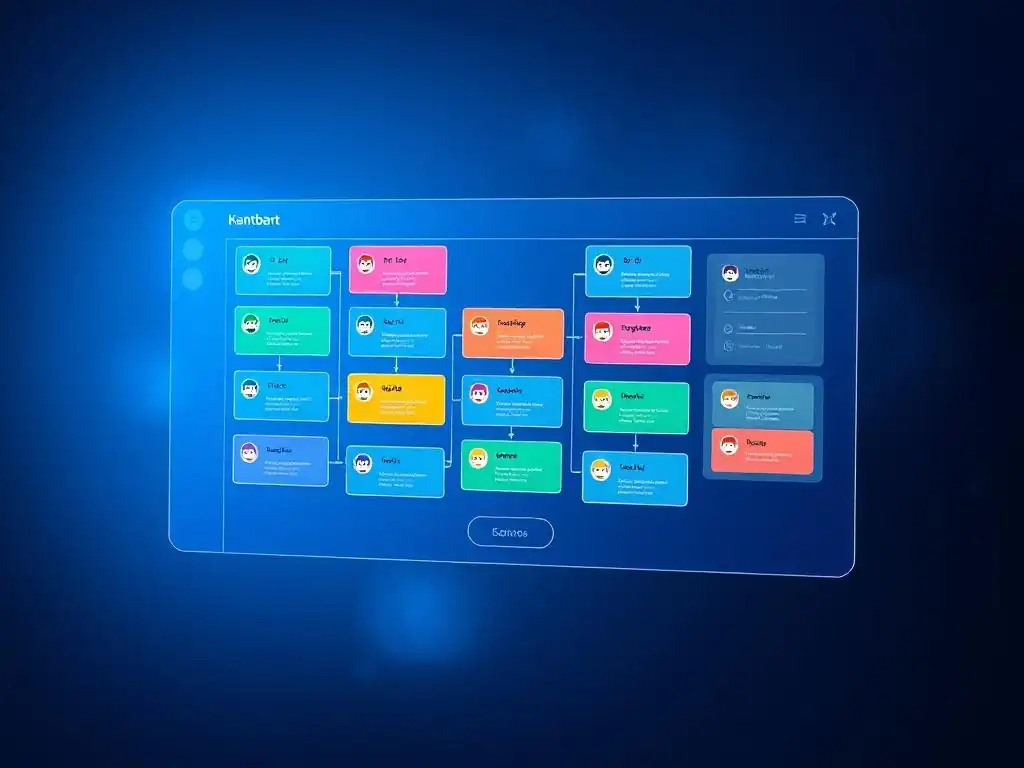
Welcome to Git and Version Control Hub!
Are you ready to transform your GitHub projects into streamlined, visual powerhouses? Dive into our latest article, " Kanban Flow in GitHub Projects: Visualize Your Workflow for Success," and discover how to implement a Kanban workflow in GitHub to boost your team's productivity. Uncover the secrets to improved collaboration and efficient task management. Curious how simple visualization can revolutionize your software development process? Let's explore the power of Kanban together!
Kanban Flow in GitHub Projects: Visualize Your Workflow for Success
- Introduction to Kanban Workflow in GitHub
- Setting Up Your GitHub Project for Kanban
- Implementing Kanban Principles in GitHub Issues
- Managing Your Kanban Workflow in GitHub
- Advanced Kanban Techniques for GitHub Projects
- Kanban Best Practices for GitHub Teams
- Example Kanban Workflow Scenarios in GitHub
- Troubleshooting Common Kanban Issues in GitHub
- Conclusion: Enhancing Project Management with Kanban in GitHub
-
Frequently Asked Questions
- What is a Kanban workflow, and why is it useful in GitHub projects?
- How can I implement a Kanban workflow directly within GitHub?
- What are some key benefits of using a Kanban workflow with GitHub Projects?
- How does Kanban in GitHub Projects help with issue tracking and management?
- Can I integrate automated actions with my Kanban workflow in GitHub Projects?
- Final Reflection: Embracing Agile Clarity
- Unlock Your GitHub Potential: Start Visualizing Today!
Introduction to Kanban Workflow in GitHub
What is Kanban and Why Use It for GitHub Projects?
Kanban, originating from the Japanese word for "visual signal," is a highly effective visual management system that helps teams manage workflow and improve efficiency. At its core, Kanban is about visualizing your work, limiting work in progress (WIP), and focusing on flow. Instead of relying on complex project management software, Kanban uses a simple board, often divided into columns representing different stages of a workflow, to track tasks as they move from "To Do" to "Done." This visual representation allows teams to quickly understand the status of projects, identify bottlenecks, and ensure a smooth, continuous flow of work.
Integrating Kanban into GitHub projects brings this visual clarity directly to the development workflow. GitHub, primarily known as a version control platform, offers robust project management tools, including project boards that can be easily configured to implement Kanban. For software development teams using GitHub, adopting Kanban provides a lightweight yet powerful way to manage issues, features, and tasks directly within their development environment. This eliminates the need to switch between different tools for code management and project tracking, streamlining the entire development process and fostering better collaboration within the team.
Benefits of Implementing Kanban in Your GitHub Workflow
Implementing Kanban in your GitHub workflow offers a multitude of benefits that can significantly enhance project management and team productivity. One of the primary advantages is improved workflow visualization. By representing tasks as cards moving through columns representing workflow stages like "Backlog," "In Progress," and "Review," teams gain an immediate and clear understanding of project status. This visual transparency helps everyone stay informed about what's being worked on, where potential roadblocks might exist, and the overall progress towards project goals.
Furthermore, Kanban inherently encourages a focus on flow and efficiency. Limiting work in progress (WIP) is a core Kanban principle. By setting WIP limits for each stage of the workflow, teams are discouraged from starting too many tasks simultaneously, which can lead to context switching and decreased productivity. Instead, Kanban promotes finishing tasks before starting new ones, ensuring a smoother flow of work and reducing bottlenecks.
In GitHub, this translates to a more organized issue management system, faster feature delivery, and improved predictability in project completion timelines. For example, a study by Forrester Research found that teams using agile methodologies, which often incorporate Kanban principles, reported a 25% increase in team productivity and a 40% reduction in time to market. By adopting Kanban in GitHub, development teams can experience similar improvements in efficiency and project delivery.
Setting Up Your GitHub Project for Kanban
Creating a New GitHub Project Board
To begin utilizing Kanban within your GitHub projects, the first step is to create a dedicated project board. GitHub offers project boards directly within repositories, making it seamlessly integrated with your codebase. To create a new project board, navigate to your GitHub repository and click on the "Projects" tab. You'll find a button labeled "New project." Clicking this will present you with options to start from a template or create a blank board. For Kanban, starting with a "Basic Kanban" template or a blank board is suitable, as you'll be customizing the columns to fit your specific workflow.
When creating the board, you'll be prompted to give it a name and a brief description. Choose a name that clearly reflects the project or team it's for, such as "Development Team Kanban Board" or "Feature X Project Board." Once named, click "Create project."
GitHub will then generate your project board, typically with default columns like "To do," "In progress," and "Done." This initial setup provides a basic Kanban framework, which you can then customize further to align with your team's specific workflow stages and project needs. This ease of creation within the GitHub environment makes it simple to adopt Kanban without needing to learn new tools or integrate external services.
Configuring Columns to Represent Kanban Stages (To Do, In Progress, Done)
The heart of a Kanban board lies in its columns, representing the different stages of your workflow. GitHub project boards are highly customizable, allowing you to tailor these columns to accurately reflect your team's process. While the default columns ("To do," "In progress," "Done") are a great starting point, you can easily add, rename, or remove columns to match your specific development lifecycle. For instance, you might want to add columns like "Backlog," "Ready for Development," "Code Review," "Testing," and "Deployment."
To configure your columns, navigate to your project board and click on the "Board settings" (often represented by three dots or a settings icon). Here, you'll find options to manage columns. You can rename existing columns by clicking on their names and typing in the new name.
To add a new column, click the "Add column" button, give it a name that clearly describes the stage it represents, and click "Create column." For example, for a typical software development workflow, you might set up columns in the following order: "Backlog," "To Do," "In Progress," "Code Review," "Testing," "Ready to Deploy," and "Done." This detailed column structure provides a granular view of the workflow, enabling better tracking and identification of bottlenecks at each stage.
Customizing Your Kanban Workflow in GitHub
Beyond column configuration, GitHub offers several customization options to further tailor your Kanban workflow. One key customization is setting Work In Progress (WIP) limits for each column. WIP limits restrict the number of tasks that can be in a particular stage at any given time. To set WIP limits, go to the "Board settings" and then to the column settings.
You can then specify a numerical limit for each column. For example, you might set a WIP limit of 3 for the "In Progress" column, meaning developers can only have a maximum of three tasks actively being worked on simultaneously. This encourages focus and prevents work overload.
Additionally, GitHub allows you to customize the appearance and behavior of your Kanban board. You can choose different layouts, enable or disable features like automation (which we'll discuss later), and even integrate custom fields to cards for tracking specific information relevant to your project. For instance, you might add custom fields for "Priority," "Estimated Effort," or "Due Date." These customizations make your Kanban board in GitHub a truly personalized tool that fits the unique needs of your team and project, allowing for a more efficient and focused workflow management system.
Implementing Kanban Principles in GitHub Issues
Creating Issues as Kanban Cards
In a GitHub Kanban workflow, issues serve as the fundamental units of work, effectively acting as Kanban cards. Each issue represents a task, bug fix, feature request, or any other piece of work that needs to be done. To create an issue as a Kanban card, you simply create a new issue in your GitHub repository, as you normally would. When creating the issue, provide a clear and concise title that summarizes the task. In the issue description, provide detailed information about the task, including acceptance criteria, context, and any relevant background information.
Once created, these issues automatically become available to be added to your Kanban project board. When you navigate to your project board, you will typically see a section called "Add cards" or "New issues." From here, you can easily drag and drop existing issues from your repository onto your Kanban board columns.
Alternatively, you can create new issues directly within your project board by clicking the "+" button at the bottom of each column. These newly created issues will automatically be added to your repository's issue tracker and will be visible on the Kanban board. Treating issues as Kanban cards ensures a seamless integration between issue tracking and workflow visualization, making it easy to manage and track work progress directly within GitHub.
Assigning Issues to Team Members
Effective task assignment is crucial for a smooth Kanban workflow, and GitHub simplifies this process. Within each issue (Kanban card), you can easily assign it to a specific team member responsible for completing the task. To assign an issue, open the issue details and look for the "Assignees" section on the right-hand sidebar. Click on "Assignees" and then select the team member from the dropdown list. GitHub will notify the assigned team member, ensuring clear accountability and responsibility for each task on the Kanban board.
Assigning issues directly within GitHub provides transparency and ensures that everyone knows who is responsible for what. It also facilitates better communication and collaboration within the team. When a team member is assigned an issue, it becomes clear that they are responsible for moving that card through the Kanban workflow stages until completion. This clear ownership helps to avoid confusion and ensures that tasks are not overlooked. Furthermore, GitHub allows for assigning multiple team members to an issue if needed, for collaborative tasks or when work needs to be distributed.
Using Labels for Issue Prioritization and Categorization
GitHub labels are a powerful tool for enhancing your Kanban workflow by enabling issue prioritization and categorization. Labels can be used to visually categorize issues based on various criteria, such as priority (e.g., "High Priority," "Medium Priority," "Low Priority"), type (e.g., "Bug," "Feature," "Documentation"), component (e.g., "Frontend," "Backend," "API"), or any other category relevant to your project. To apply labels to issues, open the issue details and find the "Labels" section on the right-hand sidebar. Click on "Labels" to see existing labels or create new ones.
By using labels strategically, you can visually highlight important issues on your Kanban board. For example, you might use color-coded labels to quickly identify high-priority tasks or issues related to a specific feature. Labels also facilitate filtering and searching issues on your Kanban board, making it easier to focus on specific types of work or prioritize tasks.
For instance, you can filter the board to show only "High Priority" issues or issues labeled with "Bug." This level of categorization and visual differentiation significantly enhances the organization and management of issues within your GitHub Kanban workflow, allowing teams to quickly understand the context and priority of each task.
Managing Your Kanban Workflow in GitHub
Moving Issues Between Kanban Columns
The dynamic movement of issues between Kanban columns is the core action in managing your workflow in GitHub. As work progresses on a task represented by an issue card, it should be moved to the next appropriate column reflecting its current stage. For example, when a developer starts working on an issue in the "To Do" column, they should move it to the "In Progress" column. Once the development is complete and the code is ready for review, the issue moves to the "Code Review" column, and so on, until it reaches the "Done" column upon completion and deployment.
Moving issues in GitHub project boards is straightforward and intuitive. You simply drag and drop the issue card from one column to another. This visual action provides an immediate update on the status of the task and reflects the progress of the overall project. Regularly moving issues across columns ensures that the Kanban board always accurately represents the current state of work. This real-time visualization facilitates transparency and allows team members to quickly grasp the project's progress and identify any potential bottlenecks or delays in the workflow.
Utilizing Milestones for Project Tracking
GitHub Milestones provide a valuable tool for tracking progress against larger project goals or deadlines within your Kanban workflow. Milestones represent significant checkpoints or deliverables within your project, such as feature releases, sprint goals, or project phases. You can associate issues (Kanban cards) with specific milestones to track their contribution to achieving those larger objectives. To create a milestone, navigate to the "Milestones" section in your GitHub repository and create a new milestone, giving it a title, description, and due date.
Once milestones are created, you can assign them to issues directly from the issue details page, similar to assigning labels or assignees. By associating issues with milestones, you gain a clear view of how much work is remaining to achieve each milestone. GitHub provides progress tracking for milestones, showing the percentage of issues completed within each milestone.
This allows teams to monitor progress towards larger goals, identify potential delays in meeting milestones, and make necessary adjustments to maintain project momentum. Using milestones in conjunction with Kanban provides a hierarchical view of project progress, combining task-level workflow management with high-level goal tracking.
Setting Up Automated Workflow Actions in GitHub
To further optimize your Kanban workflow in GitHub, you can leverage automation to streamline repetitive tasks and enhance efficiency. GitHub Actions, a powerful automation platform directly integrated into GitHub, can be used to automate various aspects of your Kanban workflow. For example, you can automate the movement of issues between columns based on certain events, such as when a pull request is merged or a code review is completed.
For instance, you can set up an action that automatically moves an issue from the "Code Review" column to the "Testing" column when a pull request associated with that issue is merged. Similarly, you can automate notifications to team members when an issue reaches a specific column or when a due date is approaching. To set up these automations, you would define workflows using YAML files within your repository's .github/workflows directory. These workflows specify triggers (events that initiate the automation) and actions (tasks to be performed). Automating workflow actions reduces manual effort, minimizes the risk of human error, and ensures consistency in your Kanban process, freeing up team members to focus on more complex and creative tasks.
Advanced Kanban Techniques for GitHub Projects
Using GitHub Actions for Kanban Automation
Expanding on the automation capabilities, GitHub Actions can be used for more sophisticated Kanban automations beyond simple column movements. You can create actions to automatically assign issues based on labels, prioritize issues based on certain criteria, or even generate reports on cycle time and lead time metrics. For instance, you could set up an action that automatically assigns issues labeled "Bug" to the QA team, or issues labeled "Frontend" to frontend developers.
Furthermore, GitHub Actions can be integrated with external tools and services to extend your Kanban workflow beyond GitHub itself. You could create actions that trigger deployments when issues reach the "Done" column, update external project management dashboards, or send notifications to communication platforms like Slack or Microsoft Teams. The flexibility of GitHub Actions allows you to build custom automations tailored to your specific Kanban workflow needs, significantly enhancing efficiency and reducing manual overhead. Leveraging GitHub Actions for Kanban automation is a powerful way to optimize your workflow and free up valuable developer time.
Integrating Kanban with Pull Requests
Seamless integration with pull requests is a key advantage of using Kanban in GitHub, especially in software development projects. Pull requests are central to the code review and merging process in GitHub, and they can be directly linked to your Kanban workflow. When a developer completes work on an issue (Kanban card) and creates a pull request for their changes, you can link the pull request back to the original issue. This link provides traceability and context, making it easy to track the code changes associated with each Kanban card.
Furthermore, you can use the status of pull requests to trigger workflow transitions on your Kanban board. As mentioned earlier, GitHub Actions can be configured to automatically move issues between columns based on pull request events, such as when a pull request is opened, reviewed, or merged. This integration ensures that your Kanban board reflects the current state of code changes and review processes.
For example, an issue might automatically move to the "Code Review" column when a pull request is opened, and then to the "Testing" column when the pull request is merged. This tight integration between Kanban and pull requests streamlines the development workflow, improves visibility, and ensures that code changes are effectively tracked and managed within the Kanban framework.
Tracking Cycle Time and Lead Time in GitHub
While GitHub does not natively provide built-in metrics for cycle time and lead time, these crucial Kanban metrics can be tracked and visualized using third-party tools or custom scripts integrated with GitHub. Cycle time measures the time it takes for a task to move from the "In Progress" column to the "Done" column, representing the actual time spent working on a task. Lead time, on the other hand, measures the total time from when a task enters the "Backlog" or "To Do" column to when it reaches the "Done" column, representing the total time from request to completion.
To track these metrics in GitHub, you can use browser extensions, command-line tools, or integrate with external analytics platforms that can pull data from GitHub's API. These tools can analyze the history of issue movements on your Kanban board to calculate cycle time and lead time for each issue and provide aggregated metrics over time. Tracking cycle time and lead time allows teams to identify bottlenecks in their workflow, measure the efficiency of their processes, and track improvements over time.
By monitoring these metrics, teams can make data-driven decisions to optimize their Kanban workflow in GitHub and continuously improve their project delivery speed and efficiency. For example, if cycle times are consistently high in the "Code Review" column, it might indicate a need to improve code review processes or allocate more resources to code reviews.
Kanban Best Practices for GitHub Teams
Daily Stand-up Meetings and Kanban Board Review
To maximize the effectiveness of Kanban in GitHub, incorporating daily stand-up meetings focused on the Kanban board is highly recommended. Daily stand-ups are short, time-boxed meetings (typically 15 minutes or less) where the team gathers to quickly review the Kanban board and discuss progress, roadblocks, and plans for the day. During the stand-up, each team member can briefly answer three key questions: "What did I do yesterday? ", "What will I do today? ", and "Are there any impediments blocking my progress? ".
Reviewing the Kanban board during stand-ups ensures that everyone is aligned on the current project status and any emerging issues. The team can collectively identify bottlenecks, discuss solutions to roadblocks, and ensure that tasks are flowing smoothly through the workflow. The visual nature of the Kanban board facilitates these discussions by providing a shared understanding of the work in progress. Daily stand-ups centered around the GitHub Kanban board promote transparency, communication, and collaboration within the team, leading to more efficient workflow management and faster issue resolution.
Continuous Improvement of Your Kanban Workflow
Kanban is inherently about continuous improvement, and your GitHub Kanban workflow should be no exception. Regularly review your workflow, identify areas for improvement, and adapt your Kanban board and processes accordingly. This iterative approach is crucial for maximizing the benefits of Kanban over time. Periodically, schedule retrospectives or review meetings specifically focused on your Kanban workflow. During these meetings, discuss what's working well, what's not working well, and what changes could be made to improve efficiency and flow.
Consider analyzing cycle time and lead time metrics to identify bottlenecks or areas where tasks are taking longer than expected. Experiment with different column configurations, WIP limits, or automation rules to see what works best for your team. Gather feedback from team members on their experience with the Kanban workflow and incorporate their suggestions for improvement. Continuous improvement is an ongoing process, and regularly refining your GitHub Kanban workflow based on data and feedback will lead to significant gains in productivity, efficiency, and team satisfaction over time.
Collaborating Effectively with Kanban in GitHub
Kanban in GitHub is not just about individual task management; it's also about fostering effective team collaboration. The visual transparency of the Kanban board promotes shared understanding and awareness of everyone's work. Encourage team members to actively participate in updating the Kanban board, moving issues as they progress, and providing comments and updates within issue cards. This active participation ensures that the board accurately reflects the current state of work and keeps everyone informed.
Utilize GitHub's collaboration features, such as issue comments and mentions, to facilitate communication and discussions directly within the context of each task. Encourage team members to use issue comments to ask questions, provide updates, and share relevant information. Use mentions (@username) to directly notify specific team members when their input or action is needed. By fostering a culture of open communication and active participation around the Kanban board in GitHub, teams can leverage Kanban to enhance collaboration, improve coordination, and work together more effectively towards shared project goals.
Example Kanban Workflow Scenarios in GitHub
Scenario 1: Bug Tracking and Resolution Using Kanban
Kanban is particularly effective for managing bug tracking and resolution workflows in GitHub. A typical Kanban board for bug tracking might have columns like "Bug Backlog," "To Investigate," "In Progress (Fixing)," "Code Review (Fix)," "Testing (Fix)," and "Resolved." When a new bug is reported (created as a GitHub issue), it initially lands in the "Bug Backlog." During triage, bugs are prioritized and moved to "To Investigate" for further analysis and reproduction. Once a bug is being actively fixed, it moves to "In Progress (Fixing)."
After the fix is implemented, the issue progresses through "Code Review (Fix)" and "Testing (Fix)" stages. Upon successful testing and verification, the bug issue is moved to the "Resolved" column. This Kanban workflow provides a clear visual representation of the bug resolution process, from reporting to resolution.
It allows teams to track the status of each bug, identify bottlenecks in the bug fixing process (e.g., a backlog in "Code Review"), and ensure timely resolution of critical issues. Prioritization labels (e.g., "Critical," "High," "Medium," "Low") can be used to manage the "Bug Backlog" and ensure that high-priority bugs are addressed promptly.
Scenario 2: Feature Development Using Kanban
Kanban is also well-suited for managing feature development in GitHub projects. A Kanban board for feature development might include columns like "Feature Backlog," "Feature Ready for Development," "Developing," "Code Review," "Testing," "Ready for Release," and "Released." New feature requests (created as GitHub issues) are initially placed in the "Feature Backlog." Once a feature is prioritized and refined, it moves to "Feature Ready for Development." Developers then pull features from this column to work on, moving them to "Developing."
As the feature progresses through development, code review, and testing, the issue moves through the corresponding Kanban columns: "Code Review," "Testing," and "Ready for Release." Once the feature is deployed to production, the issue is moved to the "Released" column. This Kanban workflow provides a structured approach to feature development, ensuring that features move smoothly through each stage of the development lifecycle.
WIP limits in the "Developing" column can help prevent developers from starting too many features simultaneously, promoting focus and efficient feature delivery. Milestones can be used to group features for specific releases or sprints, providing a higher-level view of feature development progress.
Scenario 3: Content Creation and Review Using Kanban
Kanban's versatility extends beyond software development and can be effectively used for content creation and review workflows within GitHub, especially for documentation or website content managed in Git repositories. A Kanban board for content creation might have columns like "Content Ideas," "Content To Write," "Writing in Progress," "Content Review," "Content Ready to Publish," and "Published." New content ideas (created as GitHub issues) are initially placed in "Content Ideas." Once an idea is approved and prioritized, it moves to "Content To Write." Content writers then move issues to "Writing in Progress" as they begin drafting the content.
After drafting, the content moves to "Content Review," where editors or subject matter experts review and provide feedback. Based on feedback, the content might move back to "Writing in Progress" for revisions or, if approved, to "Content Ready to Publish." Finally, once the content is published (e.g., deployed to a website or documentation platform), the issue is moved to the "Published" column.
This Kanban workflow streamlines the content creation process, providing visibility into the status of each piece of content and facilitating collaboration between writers, reviewers, and publishers. Labels can be used to categorize content by topic, type (e.g., "Blog Post," "Tutorial," "Documentation"), or target audience.
Troubleshooting Common Kanban Issues in GitHub
Dealing with Bottlenecks in Your Workflow
Bottlenecks, where work items get stuck in a particular stage of the workflow, are a common challenge in Kanban. In GitHub Kanban, bottlenecks often manifest as a column consistently having a large number of issues piling up while subsequent columns remain relatively empty. Identifying bottlenecks is crucial for optimizing your Kanban workflow. Regularly monitor your Kanban board, paying attention to column sizes and the flow of issues. Look for columns where issues tend to accumulate.
Once a bottleneck is identified, investigate the reasons behind it. Is it due to a lack of resources in that stage? Are there process inefficiencies? Is the WIP limit too high for that stage?
For example, if the "Code Review" column consistently has a backlog, it might indicate a need to increase code review capacity, improve code quality to reduce review time, or refine the code review process. Addressing bottlenecks promptly is essential for maintaining a smooth flow and preventing delays in your Kanban workflow. Consider adjusting WIP limits, reallocating resources, or streamlining processes to alleviate bottlenecks and improve flow.
Managing Unexpected Tasks and Interruptions
Unexpected tasks and interruptions are inevitable in any workflow, and Kanban in GitHub needs to be flexible enough to handle them. When unexpected tasks arise, they should be visualized on the Kanban board just like any other work item. Create issues for unexpected tasks and add them to the appropriate column, typically the "To Do" or "Backlog" column, depending on their priority and urgency.
For urgent interruptions that need immediate attention, consider creating a dedicated "Expedite" lane or column on your Kanban board. This lane is reserved for high-priority, time-sensitive tasks that need to bypass the regular workflow. However, use the "Expedite" lane sparingly, as overuse can disrupt the flow and predictability of your Kanban system.
When an unexpected task or interruption occurs, assess its impact on the current workflow and prioritize accordingly. Communicate with the team about the interruption and its potential impact on existing tasks. Adjust WIP limits or task assignments if necessary to accommodate the unexpected work while minimizing disruption to the overall flow.
Addressing Stalled Issues on Your Kanban Board
Issues can sometimes get stalled on a Kanban board, remaining in the same column for an extended period without progress. Stalled issues can indicate roadblocks, dependencies, or lack of clarity. Regularly review your Kanban board to identify stalled issues. During daily stand-ups or Kanban board review meetings, specifically look for issues that have not moved columns for a significant amount of time.
When a stalled issue is identified, investigate the reasons for the stagnation. Is there a dependency blocking progress? Is the issue unclear or lacking necessary information? Is the assigned team member facing challenges or needing assistance?
For example, a stalled issue in the "In Progress" column might be blocked by an external dependency, or the developer might be stuck and need help. Once the reason for the stall is identified, take appropriate action to unblock the issue. This might involve clarifying requirements, resolving dependencies, providing support to the assigned team member, or re-prioritizing the issue if it's no longer relevant. Proactively addressing stalled issues ensures that tasks keep moving through the workflow and prevents bottlenecks from forming.
Conclusion: Enhancing Project Management with Kanban in GitHub
Recap of Kanban Benefits for GitHub Projects
Implementing Kanban in GitHub offers a powerful and visually intuitive approach to project management for development teams. By visualizing workflow, limiting work in progress, and focusing on flow, Kanban enhances team productivity, improves project transparency, and streamlines the development process directly within the familiar GitHub environment. Key benefits include improved workflow visualization, increased efficiency through WIP limits, enhanced collaboration through shared visibility, and better project predictability. Kanban in GitHub is adaptable to various workflows, from bug tracking and feature development to content creation, making it a versatile tool for diverse teams.
The integration with GitHub Issues, Project Boards, and Actions provides a seamless and efficient workflow management system, eliminating the need for external project management tools. By leveraging GitHub's features to implement Kanban principles, teams can achieve a more organized, focused, and collaborative development process, ultimately leading to faster project delivery and improved team performance. The visual nature of Kanban, combined with the collaborative features of GitHub, empowers teams to work together more effectively, track progress transparently, and continuously improve their workflow.
Next Steps for Implementing Kanban in Your GitHub Workflow
To start implementing Kanban in your GitHub workflow, begin by creating a new project board in your repository and configuring columns that represent your team's workflow stages. Start with a simple Kanban board structure and gradually customize it as you gain experience and identify specific needs. Train your team on Kanban principles and how to use the GitHub Kanban board effectively. Encourage team members to actively participate in updating the board and moving issues as they progress.
Experiment with WIP limits for different columns to optimize flow and prevent bottlenecks. Consider using GitHub Actions to automate repetitive tasks and further streamline your workflow. Start tracking cycle time and lead time, even manually initially, to get insights into your workflow efficiency. Schedule regular Kanban board review meetings and retrospectives to continuously improve your workflow and adapt to changing project needs. By taking these steps, you can effectively integrate Kanban into your GitHub projects and unlock the benefits of visual workflow management for your development team, leading to increased productivity, improved collaboration, and more successful project outcomes.
Frequently Asked Questions
What is a Kanban workflow, and why is it useful in GitHub projects?
A Kanban workflow is a visual system for managing tasks. It's useful in GitHub because it allows teams to track progress, identify bottlenecks, and improve overall efficiency in their development process.
How can I implement a Kanban workflow directly within GitHub?
You can implement Kanban in GitHub using GitHub Projects. These boards allow you to create columns (e.g., To Do, In Progress, Done) and move issues and pull requests between them, visualizing your workflow.
What are some key benefits of using a Kanban workflow with GitHub Projects?
Benefits include increased transparency of the project status, improved team collaboration, and better management of tasks from start to finish within the GitHub environment.
How does Kanban in GitHub Projects help with issue tracking and management?
Kanban provides a clear visual representation of each issue's status. This helps teams quickly identify which issues are blocked, in progress, or completed, facilitating better prioritization and task assignment.
Can I integrate automated actions with my Kanban workflow in GitHub Projects?
Yes, you can use GitHub Actions to automate tasks based on changes in your Kanban board. For example, you could automatically assign reviewers when an issue moves to the "Review" column or close an issue when it reaches the "Done" column, saving time and effort.
Final Reflection: Embracing Agile Clarity
The principles of Kanban, once confined to physical boards, have found a powerful digital home within GitHub Projects, offering a dynamic and accessible way to visualize and manage workflows. This integration is more relevant than ever in today's fast-paced development landscape, where efficient collaboration and transparent progress tracking are paramount for project success. By embracing Kanban workflow in GitHub, teams can unlock a new level of clarity and responsiveness, ultimately leading to more successful and impactful projects.
The beauty of Kanban lies in its simplicity and adaptability. Its influence extends beyond mere task management; it fosters a culture of continuous improvement and shared understanding within development teams. This approach resonates deeply with the human desire for order and progress. As Peter Drucker wisely stated: What gets measured gets managed.
Kanban, in its essence, provides the measurement framework necessary to effectively manage and optimize any project, large or small.
Now, consider how you can apply these principles to your own projects and workflows. Take a moment to visualize your current processes, identify bottlenecks, and explore how Kanban in GitHub Projects can bring greater clarity and efficiency to your team. The power to streamline your workflow and achieve your goals is within reach. Embrace the Kanban philosophy, and watch your projects flourish.
Okay, I'm ready to craft a Call to Action (CTA) for the end of the article "Kanban Flow in GitHub Projects: Visualize Your Workflow for Success" published on GitAndVersionControlHub.com.
Unlock Your GitHub Potential: Start Visualizing Today!
Thanks for exploring how Kanban can supercharge your GitHub project management! We hope you’ve gained valuable insights into streamlining your workflow and boosting your team's productivity. Now, let's put that knowledge into action and take your GitHub projects to the next level.
Here are a few ways you can start leveraging Kanban in GitHub right away:
- Start your Kanban journey now: create a GitHub Project and configure it as a Kanban board. Immediately track the progression of your active issues.:
- Share this article with your team and discuss how Kanban can address your current workflow bottlenecks. Perhaps organize a brief workshop to build a first Kanban board together!
- Dive even deeper by experimenting with customized labels to represent your specific workflow stages, and document that workflow within your team.
What immediate changes are you excited to implement in your GitHub projects to visualize and optimize your workflow? Share your initial Kanban board setup and biggest anticipated improvements in the comments below!