
Issue Tracking for Personal Projects with GitHub: Stay Organized

Welcome to Git and Version Control Hub, your central resource for mastering Git and version control. Are you leveraging the full potential of GitHub for your personal projects? Dive into our expert insights and discover essential GitHub issue tracking tips to stay organized and supercharge your workflow. Unlock the secrets to efficient project management and collaboration – the journey to streamlined development starts here!
Issue Tracking for Web Development Projects with GitHub: Stay Organized
- Mastering GitHub Issue Tracking for Web Development Projects
- Setting Up GitHub Issue Tracking for Your Web Development Projects
- Advanced GitHub Issue Tracking Tips and Techniques
- GitHub Issue Tracking Workflow Best Practices for Solo Web Developers
- Optimizing Your GitHub Issue Tracking Experience
- Conclusion: Streamlining Your Workflow with GitHub Issue Tracking
-
Frequently Asked Questions
- What are the benefits of using GitHub issue tracking for personal projects?
- How can I create a new issue in GitHub?
- What are labels and milestones, and how can they help with issue tracking?
- How can I assign issues to myself or others on GitHub?
- What are some effective strategies for closing issues on GitHub?
- Final Reflection: Mastering Personal Project Momentum
- Conquer Your Project Chaos: Get Started Now!
Mastering GitHub Issue Tracking for Web Development Projects
GitHub issue tracking is an indispensable tool, not just for large teams, but also for individual web developers striving for organized and efficient project management. It transforms the chaotic process of managing bugs, feature requests, and to-dos into a structured, trackable system. For web development projects, whether you're building a complex e-commerce platform or a simple portfolio website, mastering GitHub issues can significantly improve your workflow and ensure nothing falls through the cracks. This article will guide you through setting up and effectively using GitHub issue tracking to stay organized and boost your productivity.
Why Use Issue Tracking for Your Web Development Projects?
Imagine building a website and relying solely on your memory or scattered notes to keep track of tasks. You might remember to implement a user authentication feature, but forget about fixing that CSS bug on mobile devices. This is where issue tracking becomes crucial.
Issue tracking systems, like the one integrated into GitHub, provide a centralized location to log and manage everything that needs to be done in your project. From reporting bugs and suggesting new features to outlining tasks and improvements, issue tracking helps you systematically address each aspect of your web development project. Without it, even small projects can quickly become disorganized, leading to missed deadlines and potential quality issues.
Benefits of GitHub Issue Tracking for Individual Web Developers
While often associated with team collaboration, GitHub issue tracking offers significant advantages for solo web developers. For individuals, it acts as a personal project management tool, helping to structure development efforts. Instead of juggling tasks in your head, you can create issues for each feature, bug, or improvement.
This externalization of tasks frees up mental space and reduces the risk of forgetting crucial steps. Furthermore, using issue tracking on personal projects cultivates good development habits, mimicking professional workflows used in larger organizations. This proactive approach not only boosts current project efficiency but also prepares you for collaborative projects in the future, making you a more organized and effective developer.
Setting Up GitHub Issue Tracking for Your Web Development Projects
Setting up GitHub issue tracking is straightforward and seamlessly integrated into your repository. It requires no additional installations or complex configurations, making it readily accessible for any web development project hosted on GitHub. By leveraging the built-in features, you can quickly establish a robust system for managing your project's development lifecycle, from initial planning to final deployment and ongoing maintenance.
Creating a New Issue in GitHub: A Step-by-Step Guide
Creating a new issue in GitHub is a simple process designed for quick task capture. First, navigate to your repository on GitHub. Locate and click on the "Issues" tab, typically positioned between "Pull requests" and "Actions" in the repository navigation bar. On the Issues page, you'll find a prominent green button labeled "New issue". Click this button to start creating a new issue.
You'll be presented with a title field and a description area. Enter a concise yet descriptive title summarizing the issue, for example, "Implement User Registration Form" or "Fix: Button overlap on mobile view". In the description box, provide detailed information about the issue, including steps to reproduce a bug, specifications for a feature request, or specific tasks to be completed. Once you've filled in the necessary information, click the "Submit new issue" button. Your issue is now created and ready for further organization and tracking.
Understanding Issue Labels: Categorizing Your Tasks
Issue labels are powerful tools for categorizing and filtering your tasks within GitHub issue tracking. They act like tags, allowing you to quickly group and identify issues based on various criteria. By applying labels, you can easily filter issues to focus on specific types of tasks, such as bug fixes, feature enhancements, or documentation updates.
This categorization makes it simpler to manage a growing list of issues, ensuring you can efficiently prioritize and address different aspects of your web development project. Labels are fully customizable, allowing you to tailor your issue tracking system to the specific needs and terminology of your project.
Applying Labels for Bug Fixes, Feature Requests, and Documentation
GitHub provides default labels that are commonly used across software projects, including web development. Labels like bug are used to categorize issues that report unexpected behavior or errors in your web application. When you identify a bug, creating an issue and labeling it as bug immediately signals its nature and priority. Similarly, the enhancement or feature request label is used for issues proposing new functionalities or improvements to existing features. This helps differentiate between fixing existing problems and adding new capabilities. For tasks related to writing or updating project documentation, the documentation label is invaluable. Using these standard labels provides a clear and consistent categorization system, instantly conveying the type of work associated with each issue.
Creating Custom Labels for Frontend, Backend, and Database
Beyond the default labels, creating custom labels tailored to your web development project's architecture can significantly enhance organization. For instance, if your project has distinct frontend, backend, and database components, creating labels like frontend, backend, and database allows you to categorize issues based on the area of the codebase they affect. If you encounter a CSS issue or a JavaScript error, you can label it frontend. Issues related to server-side logic or API endpoints can be labeled backend. Database-related issues, such as query optimization or schema changes, can be tagged with database. This level of granularity enables you to filter issues based on specific technical domains, streamlining issue assignment (if working in a team) and allowing for focused work on particular parts of your web application. You can create custom labels in the "Labels" section of your repository's Issues tab, choosing descriptive names and colors for easy visual identification.
Utilizing Milestones for Sprint Planning and Releases
Milestones in GitHub issue tracking are designed to group issues related to a specific goal, timeframe, or release. They are particularly useful for sprint planning or managing tasks leading up to a specific version release of your web application. By assigning issues to milestones, you create a structured roadmap for your project. Milestones provide a visual representation of progress towards a larger objective, allowing you to track the completion rate of issues associated with a particular sprint or release. This feature is especially beneficial for solo developers to maintain focus and manage project phases effectively.
Setting Realistic Milestones for Web Application Features
When setting milestones for web application features, it's crucial to define realistic scopes and timelines. Instead of creating a single, massive milestone for the entire project, break down large features into smaller, manageable milestones. For example, if you're developing an e-commerce site, you might create milestones for "User Authentication," "Product Catalog," and "Shopping Cart Functionality." Each milestone should represent a specific, achievable set of features or tasks.
Consider the estimated time required for each milestone and set realistic deadlines. Starting with smaller, focused milestones allows for quicker wins and a better sense of progress, motivating you through the development process. For instance, a milestone for "User Authentication" might include issues for "Implement User Registration," "Implement Login Functionality," and "Password Reset Feature."
How Milestones Help Track Progress Towards a Minimum Viable Product
Milestones are instrumental in tracking progress towards a Minimum Viable Product (MVP) for your web application. An MVP focuses on delivering the core functionalities of your application first. By defining milestones that represent the essential features required for your MVP, you can strategically organize your development efforts.
For example, your MVP milestone might include features like basic user registration, core content display, and essential navigation. As you assign issues related to these features to the MVP milestone and track their completion, you gain a clear visual representation of your progress towards launching the initial version of your web application. GitHub's milestone progress tracking visually displays the percentage of completed issues within each milestone, providing a tangible metric of how close you are to achieving your MVP goals.
Advanced GitHub Issue Tracking Tips and Techniques
Beyond the basic setup, GitHub issue tracking offers advanced features that can further optimize your workflow and enhance project management. These techniques, while slightly more complex, provide significant benefits in terms of visual organization, traceability, and consistency in issue reporting, especially as your web development projects grow in complexity.
Leveraging GitHub Project Boards for Visual Task Management
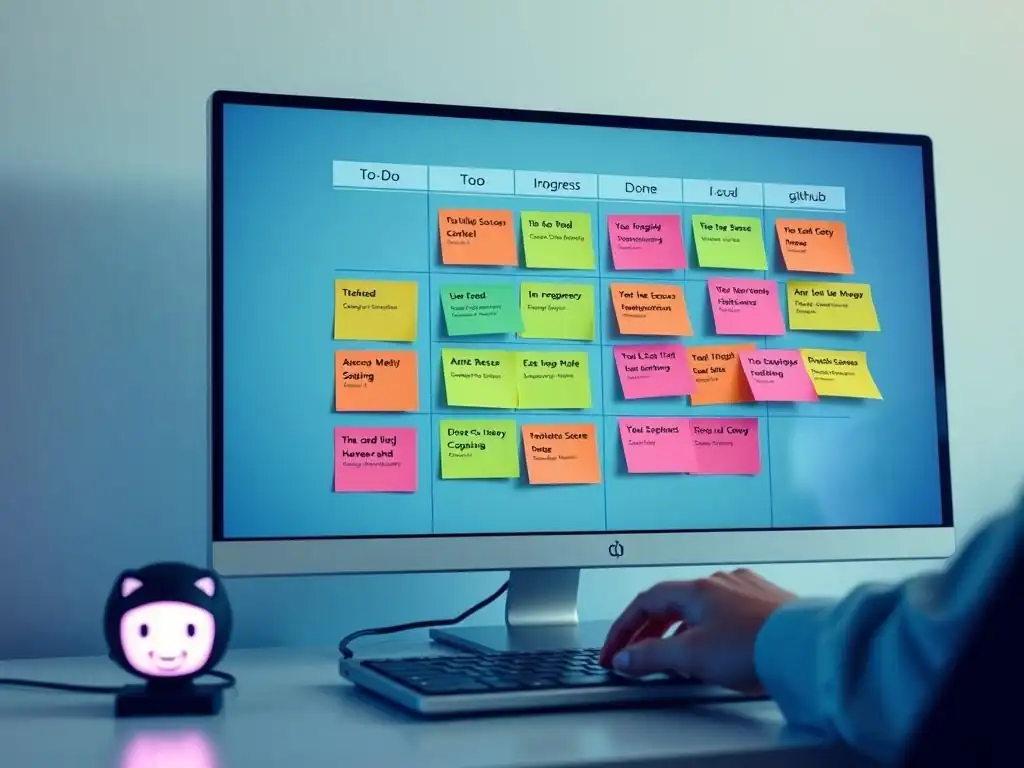
GitHub Project Boards provide a visual, Kanban-style interface for managing your issues. They transform your issue list into a dynamic board with columns representing different stages of your workflow. This visual representation allows you to see the status of each issue at a glance and easily move issues between stages as they progress. Project boards are particularly useful for solo developers as they offer a clear overview of all tasks, their current status, and the overall project flow, making task management more intuitive and efficient.
Creating a Kanban Board for Web Development Tasks
Creating a Kanban board in GitHub Project Boards is a simple way to visualize your web development workflow. To create a board, navigate to the "Projects" tab in your repository and click "Create a project". Choose the "Kanban" template to start with pre-defined columns or select "Basic Kanban" for a blank board to customize fully. Typical columns for a web development Kanban board might include "Backlog," "To Do," "In Progress," "Testing," and "Done." The "Backlog" column holds all new issues or feature ideas.
"To Do" contains issues ready to be worked on. "In Progress" tracks issues currently being developed. "Testing" holds issues awaiting testing or quality assurance. "Done" contains completed issues. You can customize these columns to perfectly match your workflow stages.
Moving Issues Through Different Stages (Backlog, Development, Testing, Done)
Once your Kanban board is set up with columns like "Backlog," "Development," "Testing," and "Done," the core of visual task management lies in moving issues between these stages. As you identify new tasks or bugs, they initially enter the "Backlog" as issues. When you're ready to start working on an issue, drag and drop it from "Backlog" to "To Do" or directly to "In Progress" if you immediately begin development.
As development progresses, move the issue to "Testing" once the code is ready for review or quality assurance. After testing and verification, drag the issue to the "Done" column upon successful completion. This visual movement of issues across columns provides a clear, real-time representation of task status and project progress, making it easy to identify bottlenecks and track workflow efficiency.
Linking Commits and Pull Requests to Issues for Traceability
Linking commits and pull requests (PRs) to issues is crucial for maintaining traceability and context within your GitHub issue tracking system. By connecting code changes directly to the issues they address, you create a clear audit trail of development activities. This linkage allows you to easily understand why specific code changes were made, what issue they were intended to resolve, and the overall history of how bugs were fixed or features were implemented. Traceability is essential for debugging, understanding past decisions, and ensuring a well-documented project history.
Automating Issue Closure with Commit Messages Using Keywords Like "Fixes #IssueNumber"
GitHub offers a powerful feature to automate issue closure directly from your commit messages. By using specific keywords in your commit messages, you can automatically close associated issues when the commit is merged into your main branch or a designated branch. Common keywords include "Fixes #IssueNumber," "Closes #IssueNumber," and "Resolves #IssueNumber," where #IssueNumber is replaced by the actual issue number you want to close. For example, a commit message like "Fixes #123: Resolved button overlap issue on mobile" will automatically close issue number 123 once this commit is merged. This automation streamlines workflow, ensures issues are closed when their corresponding code changes are integrated, and reduces manual issue management.
Maintaining a Clear History of Changes Related to Specific Bugs or Features
Linking commits and pull requests to issues provides a clear and comprehensive history of changes related to specific bugs or features. When you view an issue in GitHub, you can easily see all associated commits and pull requests linked to it. Conversely, when viewing a commit or pull request, you can quickly navigate back to the issue that initiated the change.
This bidirectional linking creates a valuable context for understanding the evolution of your codebase. For example, if you need to revisit a bug fix implemented months ago, you can easily find the original issue report, the commit that fixed it, and any related discussions or pull requests, providing a complete picture of the bug's resolution history.
Effectively Using Issue Templates for Consistent Reporting
Issue templates in GitHub ensure consistent and comprehensive issue reporting, particularly beneficial for bug reports and feature requests. Templates provide pre-defined structures and guidelines for issue descriptions, prompting users (even yourself) to provide all necessary information when creating a new issue. This consistency significantly improves the quality of issue reports, making it easier to understand, reproduce, and address issues efficiently. Templates are customizable and can be tailored to different types of issues relevant to your web development project.
Creating Issue Templates for Bug Reports and Feature Requests
You can create issue templates for various issue types, with bug reports and feature requests being the most common. For a bug report template, you might include sections like "Steps to reproduce," "Expected behavior," "Actual behavior," "Screenshots (if applicable)," and "Environment (browser, OS)." These sections guide users to provide crucial details needed to understand and replicate the bug. For a feature request template, sections might include "Describe the feature," "Motivation and context," "Proposed solution," and "Alternatives considered." These sections encourage users to clearly articulate the feature, its purpose, and potential implementation approaches. GitHub supports creating issue templates in Markdown format, which are stored in the .github/ISSUE_TEMPLATE directory of your repository.
Customizing Issue Templates for Frontend Bugs, Backend Bugs, and New Feature Proposals
To further refine issue reporting, you can customize issue templates for specific categories like frontend bugs, backend bugs, and new feature proposals. For a "Frontend Bug" template, you might add sections like "Browser and version," "Operating System," and "Specific page URL" to capture environment-specific details relevant to frontend issues. A "Backend Bug" template could include sections for "Error logs," "API endpoint," and "Database interaction."
For "New Feature Proposals," you could customize the template to include sections like "Target user," "User story," and "Acceptance criteria." Tailoring templates to these specific categories ensures that reporters provide the most relevant information for each type of issue, streamlining the debugging and feature development processes within your web development workflow.
GitHub Issue Tracking Workflow Best Practices for Solo Web Developers
For solo web developers, establishing effective workflows with GitHub issue tracking is paramount for maintaining organization and productivity. These best practices focus on prioritization, regular maintenance, and thorough issue closure to ensure your issue tracker remains a valuable tool throughout your project lifecycle.
Prioritizing Issues: Focusing on Critical Bugs and Core Features
Issue prioritization is essential, especially when working solo and managing your own time. Focus on addressing critical bugs and implementing core features first. Bugs that directly impact user experience or break core functionality should be prioritized as "high" priority. Similarly, features crucial for your Minimum Viable Product (MVP) or the core functionality of your web application should also be prioritized. Use labels like priority: high, priority: medium, and priority: low to categorize issue urgency. Regularly review your issue list and focus on tackling high-priority issues first to ensure the stability and progress of your project.
Regularly Reviewing and Updating Your Issue Tracker
Regularly reviewing and updating your issue tracker is crucial for its continued effectiveness. Set aside dedicated time, perhaps weekly or even daily, to review your open issues. During these review sessions, update issue statuses, clarify descriptions if needed, add new labels or milestones, and re-prioritize issues based on current project needs. Close issues that have been resolved and verified. This proactive maintenance ensures your issue tracker remains current, accurate, and a reliable reflection of your project's status. Ignoring your issue tracker for extended periods can lead to outdated information and a loss of its organizational benefits.
Closing Issues Properly: Documenting Solutions and Resolutions with Code Snippets
Closing issues properly is more than just clicking the "Close issue" button. It involves documenting the solution or resolution within the issue itself. Before closing an issue, especially for bug fixes or complex features, add a comment summarizing how the issue was resolved.
If applicable, include relevant code snippets within the issue comments to illustrate the fix or implementation. This documentation within the issue provides valuable context for future reference. For example, if a bug reappears later, you can quickly revisit the closed issue, review the documented solution, and understand how it was previously addressed, saving time and effort in re-investigation.
Optimizing Your GitHub Issue Tracking Experience
To further enhance your GitHub issue tracking experience, consider exploring integrations and advanced features that can streamline your workflow and add automation. These optimizations can significantly boost efficiency and customize your issue tracking system to perfectly fit your specific web development needs.
Integrating GitHub Issue Tracking with Other Tools Like Slack
Integrating GitHub issue tracking with communication tools like Slack can significantly improve responsiveness and team awareness (even for solo developers who might use Slack for personal organization or community communication). By setting up integrations, you can receive notifications in Slack channels for new issues, issue updates, comments, and issue closures.
These real-time notifications keep you immediately informed of project activity without constantly checking GitHub. Slack integrations can be configured within your repository settings, allowing you to customize the types of notifications you receive and the Slack channels they are sent to, ensuring you stay on top of issue tracking updates.
Using GitHub API for Custom Issue Tracking Solutions
The GitHub API provides powerful capabilities for creating custom issue tracking solutions or extending the built-in functionalities. With the API, you can programmatically interact with your GitHub issues, automating tasks, generating reports, or integrating issue data with other systems. For example, you could create scripts to automatically generate issue summaries, export issue data to spreadsheets for analysis, or build custom dashboards to visualize issue metrics. The GitHub API opens up a wide range of possibilities for tailoring issue tracking to highly specific needs or creating advanced workflows beyond the standard GitHub interface.
Exploring GitHub Actions for Automated Issue Management: Example - Auto-labeling Issues
GitHub Actions allows you to automate various tasks within your GitHub repository, including issue management. One practical example is auto-labeling issues based on keywords in the issue title or description. You can create a GitHub Action workflow that automatically applies labels like frontend, backend, or documentation to new issues based on the content they contain. For instance, if an issue title contains keywords like "CSS" or "JavaScript," the action could automatically apply the frontend label. Similarly, keywords like "API" or "database" could trigger the backend label. This automation reduces manual label assignment, ensures consistent categorization, and streamlines issue triage, making your issue tracking system more efficient and less prone to manual errors.
Conclusion: Streamlining Your Workflow with GitHub Issue Tracking
GitHub issue tracking is an invaluable asset for web developers, regardless of project size or team structure. For solo developers, it transforms from a team collaboration tool into a personal project management powerhouse. By mastering its features, from basic issue creation and labeling to advanced techniques like project boards and automation, you can significantly streamline your workflow. Embracing GitHub issue tracking leads to better organization, improved task management, and ultimately, more efficient and successful web development projects. Start implementing these tips today and experience the benefits of a well-organized and trackable development process.
Frequently Asked Questions
What are the benefits of using GitHub issue tracking for personal projects?
Using GitHub issue tracking helps you stay organized and prioritize tasks. It allows you to track bugs, feature requests, and other to-dos in a structured manner.
How can I create a new issue in GitHub?
You can create a new issue by navigating to the "Issues" tab in your GitHub repository and clicking on the "New issue" button. You'll then be prompted to provide a title and detailed description of the issue.
What are labels and milestones, and how can they help with issue tracking?
Labels and milestones are tools to categorize and prioritize issues. Labels can represent issue types (e.g., bug, feature) while milestones track progress towards specific goals or releases.
How can I assign issues to myself or others on GitHub?
Within the issue details, you can assign the issue to a user using the "Assignees" section. This allows for clear ownership and accountability for resolving the issue.
What are some effective strategies for closing issues on GitHub?
Ensure the issue is fully resolved before closing it. It's also good practice to leave a comment summarizing the solution or referencing the commit that fixed the issue for future reference.
Final Reflection: Mastering Personal Project Momentum
The journey of managing personal projects often feels like navigating a dense forest, and effective issue tracking is the compass that keeps us on course. In today's fast-paced world, where distractions abound and motivation can wane, the ability to organize tasks, prioritize bugs, and document ideas is more crucial than ever for seeing our passion projects through to completion.
The impact of structured issue tracking extends far beyond mere task management. It fosters a sense of accomplishment, encourages continuous improvement, and ultimately transforms the chaotic landscape of personal projects into a manageable and rewarding experience. Personally, I've found that consistently using GitHub's issue tracking features has not only increased my productivity but also deepened my understanding of my own workflow. The key is not to prioritize what's on your schedule, but to schedule your priorities.
- Stephen Covey. This quote perfectly encapsulates the power of issue tracking in helping us focus on what truly matters.
Now, I invite you to reflect on your own project management habits. Are you letting brilliant ideas slip through the cracks? Are you struggling to maintain momentum on your personal endeavors? Embrace the power of GitHub issue tracking. Experiment with different workflows, tailor the system to your unique needs, and witness the transformative effect it has on your ability to bring your creative visions to life. Your next great project awaits, and with the right tools and mindset, you can conquer any challenge that comes your way.
Conquer Your Project Chaos: Get Started Now!
Thanks for reading "Issue Tracking for Personal Projects with GitHub: Stay Organized"! We hope you found valuable tips to boost your productivity. Ready to put this knowledge to work?
Here's how to transform your project management immediately:
- Start by setting up an issue tracker in your most disorganized personal project on GitHub. Identify three key tasks to tackle this week. This is the first step to seeing real results.
- Share this article with a fellow developer – help them get organized too!
- Explore GitHub's advanced features, like project boards and labels, to further refine your workflow.
What's the top priority for your next project, and how will issue tracking help you achieve it? Share your plans in the comments!