
GitHub Project Boards: Your Kanban Command Center for Development

Welcome to Git and Version Control Hub!
Unlock the Power of Agile Development with GitHub Project Boards! Are you ready to transform your workflow and supercharge your team's collaboration? Dive into our comprehensive GitHub project boards tutorial and discover how to leverage Kanban-style boards to efficiently manage tasks, track progress, and streamline your projects. Learn how to customize your boards, automate workflows, and gain unparalleled visibility into your development process. Curious to see how GitHub Project Boards can revolutionize your team's productivity? Let's get started!
GitHub Project Boards: Your Kanban Command Center for Development
- Introduction to GitHub Project Boards for Agile Development
- Setting Up Your First GitHub Project Board
- Mastering GitHub Project Board Features
- Advanced GitHub Project Board Techniques
- GitHub Project Boards vs. Other Project Management Tools
- Best Practices for Effective GitHub Project Board Management
- Troubleshooting Common GitHub Project Board Issues
- Optimizing Your Development Workflow with GitHub Project Boards
- Conclusion: Unleashing the Power of GitHub Project Boards
-
Frequently Asked Questions
- What are GitHub Project Boards and what are they used for?
- How do GitHub Project Boards relate to the overall Git workflow?
- Can I automate tasks on GitHub Project Boards based on Git actions?
- Are GitHub Project Boards suitable for both personal and team projects?
- How do GitHub Project Boards integrate with GitHub and GitLab?
- Final Reflection: Mastering Project Flow
- Unlock Your Team's Potential: Build Your First Project Board!
Introduction to GitHub Project Boards for Agile Development
What are GitHub Project Boards? An Overview
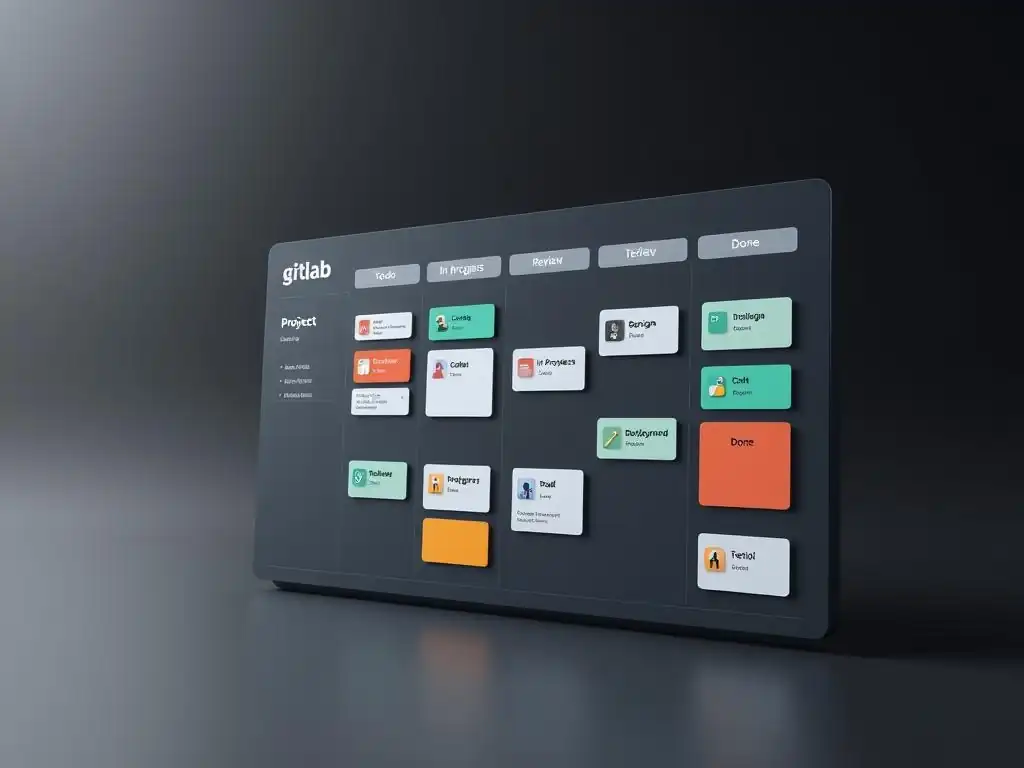
GitHub Project Boards are flexible, customizable project management tools directly integrated into GitHub. They are designed to help you visualize and manage your work in a Kanban-style format, making them a powerful asset for agile development workflows. Imagine a digital whiteboard divided into columns representing different stages of your project's lifecycle – that's essentially what a GitHub Project Board offers, but with the added benefits of direct integration with your code repository and issues.
These boards allow you to organize issues, pull requests, and notes into columns that represent stages in your workflow, such as "To do," "In Progress," and "Done." Think of it as a visual layer on top of your GitHub repository that helps teams track tasks, manage priorities, and see the big picture of their project's progress.
Unlike standalone project management tools, GitHub Project Boards are deeply connected to your development workflow, linking directly to issues and pull requests, streamlining the process from planning to deployment within the GitHub ecosystem. This tight integration makes them particularly appealing for development teams already living and breathing within GitHub.
Why Use GitHub Project Boards for Project Management?
Choosing GitHub Project Boards for project management brings several key advantages, especially for development teams already using GitHub for version control and collaboration. First and foremost is integration: Project Boards are natively built into GitHub, meaning they seamlessly connect with your repositories, issues, and pull requests. This eliminates the need to switch between different platforms, reducing context switching and improving efficiency. For instance, you can directly convert an issue into a task on your project board with just a few clicks, and status updates on the board are immediately visible within the linked issues and pull requests.
Secondly, GitHub Project Boards enhance visibility and organization. By visualizing your workflow in a Kanban format, everyone on the team can quickly understand the project's current status, identify bottlenecks, and see who's working on what. Instead of sifting through lists of issues, the visual representation of the board provides an immediate overview.
Imagine a team working on a new feature; the project board can clearly show which tasks are in "To Do," which are "In Progress" (perhaps with assignees), and which are "Completed," providing a shared understanding of progress. This clarity fosters better communication and collaboration within the team. Furthermore, the customizable nature of project boards allows teams to tailor their workflow stages to match their specific development process, ensuring the tool adapts to their needs, not the other way around.
GitHub Project Boards Tutorial: A Step-by-Step Guide
This article serves as your comprehensive GitHub project boards tutorial, guiding you through setting up and effectively using project boards to enhance your development workflow. We'll start with the basics of creating a new project board and configuring its columns to match your team's workflow. Then, we'll delve into mastering essential features like adding issues and pull requests, utilizing labels for efficient organization, and assigning tasks for clear accountability. Beyond the fundamentals, we'll explore advanced techniques such as customizing views, leveraging draft issues for planning, and even integrating project boards with CI/CD pipelines.
This tutorial isn't just about features; it's about practical application. We’ll cover real-world examples and best practices to ensure you not only understand how to use GitHub Project Boards but also why they can be a game-changer for your project management.
Whether you're a solo developer managing personal projects or part of a larger team working on complex software, this GitHub project boards tutorial will equip you with the knowledge and skills to leverage this powerful tool to streamline your development process and boost your team's productivity. From initial setup to advanced customization and troubleshooting, we’ll cover every aspect to make you a proficient user of GitHub Project Boards.
Setting Up Your First GitHub Project Board
Creating a New Project Board in GitHub
Creating your first GitHub Project Board is a straightforward process. To begin, navigate to your GitHub repository. On the repository's main page, you'll find a series of tabs just below the repository name: "Code," "Issues," "Pull requests," and "Projects." Click on the "Projects" tab. If you haven't created any project boards yet, you'll see a prompt to "Create a project." Click this button to start the process.
GitHub offers two types of project boards: repository projects and organization projects. Repository projects are scoped to a single repository and are ideal for managing tasks within that specific codebase. Organization projects, on the other hand, are organization-wide and can aggregate issues and pull requests from multiple repositories within your GitHub organization.
For your first project board, especially if you're focusing on a specific project, a repository project is usually the best starting point. After clicking "Create a project," you'll be prompted to choose a template. You can start with a basic "Kanban" template, which provides pre-configured columns like "To do," "In progress," and "Done," or you can choose "Automated Kanban" to leverage automation features from the outset.
You'll also need to give your project board a descriptive name and optionally add a brief description. Once you've filled in these details, click "Create project," and your new GitHub Project Board will be ready to use.
Configuring Project Board Columns: Defining Your Workflow Stages
The columns in your GitHub Project Board represent the stages of your workflow. Configuring these columns effectively is crucial for visualizing your project's progress and managing tasks efficiently. By default, the Kanban template often starts with columns like "To do," "In progress," and "Done." However, these are just starting points and should be customized to accurately reflect your team's specific development process.
To customize your columns, navigate to your newly created project board. You'll see the default columns displayed horizontally. To add a new column, click the "+" button to the right of the existing columns. A new column will be added, and you can then click on the column's title to rename it.
Think about the typical stages your team goes through when working on a task. For example, a software development team might have stages like "Backlog," "Ready for Development," "In Development," "Code Review," "Testing," "Ready for Deploy," and "Deployed." A content creation team might use stages like "Idea Backlog," "Drafting," "Review," "Editing," and "Published." Consider a real-world example: a mobile app development project might use columns like "Feature Backlog," "Designing UI/UX," "Developing Features," "Testing & QA," "Bug Fixing," and "Ready for Release."
Each column should represent a distinct phase in your workflow. You can also reorder columns by dragging and dropping them, and delete columns by clicking the "..." menu on the column header and selecting "Delete." Carefully consider the number and names of your columns to create a clear and actionable representation of your project's workflow.
Automating Your Workflow with GitHub Project Board Automation
GitHub Project Boards offer powerful automation features that can significantly streamline your workflow and reduce manual tasks. Automation allows you to set up rules that automatically move cards (issues or pull requests) between columns based on specific events. To access automation settings, go to your project board and click on the "..." menu at the top right, then select "Settings." In the settings panel, you'll find the "Automation" section. Here, you can configure various automation rules.
One common automation is moving issues or pull requests when they are associated with a milestone or label. For example, you can create a rule that automatically moves issues labeled "in progress" to the "In Progress" column. Similarly, when a pull request is merged, you can automatically move the linked issue to the "Done" column.
To set up such a rule, you would choose the trigger event (e.g., "Pull request merged"), specify the condition (e.g., "Linked issue exists"), and then define the action (e.g., "Move linked issue to column 'Done'"). Another useful automation is automatically adding issues to the project board when they are created with specific labels. For instance, any issue created with the label "feature request" could be automatically added to the "Feature Backlog" column.
Consider a practical example: a bug fix workflow. When an issue labeled "bug" is closed, automation can automatically move it to a "Resolved Bugs" column on the project board, providing a clear record of completed bug fixes. By leveraging automation, you can ensure your project board stays up-to-date with minimal manual intervention, freeing up time for more critical development tasks.
Mastering GitHub Project Board Features
Adding Issues and Pull Requests to Your Project Board
Adding issues and pull requests to your GitHub Project Board is fundamental to managing your work visually. There are several ways to add items to your board, offering flexibility to suit different workflows. The most direct method is to drag and drop existing issues or pull requests from the "Issues" or "Pull requests" tabs onto your project board columns.
Navigate to the "Issues" or "Pull requests" tab in your repository. You'll see a list of existing issues and pull requests. Simply click and drag an issue or pull request from the list and drop it into the desired column on your project board.
Alternatively, you can add items directly from within the project board itself. In each column of your project board, you'll find an "Add card" button at the bottom. Clicking this button allows you to either create a new issue directly on the board or link an existing issue or pull request.
If you choose to create a new issue, a small card will appear where you can enter the issue title. Once you save the title, it becomes a fully functional issue linked to your project board. If you choose to link an existing issue or pull request, you can search for it by title or issue number and then add it to the column.
Consider a scenario where you're triaging new issues. As you review incoming issues, you can quickly drag and drop them from the "Issues" tab directly onto your "To do" column on your project board, instantly incorporating them into your workflow. This drag-and-drop functionality, combined with the "Add card" option, makes it incredibly easy to populate your project board and keep it synchronized with your repository's issues and pull requests.
Using Labels Effectively in GitHub Project Boards
Labels are essential for categorization and filtering within GitHub Project Boards, significantly enhancing organization and searchability. Think of labels as tags that you can apply to issues and pull requests to classify them based on various criteria like type, priority, component, or status. Effective use of labels is crucial for making your project board more than just a visual display; it transforms it into a dynamic tool for project management and reporting. To use labels effectively, first, establish a consistent labeling system for your project. Define a set of labels that are relevant to your workflow. For example, you might use labels like bug, feature, documentation, high-priority, frontend, backend, etc.
Once you have your labels defined, consistently apply them to issues and pull requests as you create them. When adding issues or pull requests to your project board, ensure they are appropriately labeled. You can apply labels directly from the issue or pull request page, or often, directly from the project board card itself. Labels become particularly powerful when used in conjunction with filtering. GitHub Project Boards allow you to filter cards by labels, enabling you to quickly view only issues or pull requests with specific labels. For instance, you might want to filter your board to only show "high-priority" issues to focus on urgent tasks, or filter by "frontend" to see all tasks related to the frontend development. Imagine a scenario where you need to generate a report on bugs. By using a bug label consistently, you can easily filter your project board to display only bug-related issues, providing a quick overview of the current bug backlog and resolution progress. Consistent and thoughtful label usage is key to unlocking the full potential of GitHub Project Boards for organization and efficient task management.
Assigning Tasks and Tracking Progress in GitHub
Assigning tasks and tracking progress are core functionalities of GitHub Project Boards, facilitating team collaboration and ensuring accountability. Assigning issues and pull requests to specific team members directly within the project board clarifies responsibilities and helps track who is working on what. To assign a task, navigate to a card on your project board (representing an issue or pull request). Click on the card to open its details view.
In the details view, you'll find an "Assignees" section. Click on "Assignees" and then select the team member you want to assign the task to from the dropdown list. You can assign tasks to multiple team members if necessary.
Once tasks are assigned, the project board visually tracks progress as cards move across columns representing different workflow stages. The movement of cards across columns provides a real-time visual representation of project progress. For example, as a developer starts working on an assigned issue, they can move the card from the "To do" column to the "In Progress" column.
When the development is complete and the code is ready for review, they can move it to the "Code Review" column. This visual progression clearly indicates the status of each task and the overall project. Consider a team sprint: at the beginning of the sprint, tasks are assigned and placed in the "To do" column.
Throughout the sprint, as team members work on their assigned tasks, the cards move progressively towards the "Done" column, providing a transparent and easily understandable view of sprint progress for the entire team. Regularly updating the status of tasks on the project board ensures everyone is on the same page regarding progress and potential roadblocks.
Filtering and Searching Within Your Project Board
Filtering and searching are crucial features for navigating and managing information within GitHub Project Boards, especially as boards grow larger and contain numerous issues and pull requests. Filtering allows you to narrow down the displayed cards based on specific criteria, while searching helps you locate specific cards by keywords. To filter your project board, look for the "Filter" button, typically located near the top right of the board, often next to the "Search" bar. Clicking the "Filter" button reveals various filtering options. You can filter by assignee, label, milestone, and status.
For example, you can filter to see only issues assigned to a specific team member, or only issues with a particular label, such as "bug" or "high-priority." You can also combine filters, for instance, to see issues assigned to a specific person and labeled "bug." The search bar, usually located next to the filter button, allows you to search for cards by keywords in their titles or descriptions.
Simply type your search term into the search bar and press Enter. The project board will then display only cards that match your search query. Imagine a scenario where you need to quickly find all issues related to user authentication.
By using the search bar and typing "authentication," you can instantly filter the board to show only issues containing that keyword in their title or description. Similarly, if you want to see what tasks are currently assigned to a specific developer, you can use the filter by assignee. Combining filtering and searching capabilities allows you to efficiently manage large project boards, quickly find relevant tasks, and focus on specific areas of work.
Advanced GitHub Project Board Techniques
Customizing Your Project Board Views
GitHub Project Boards offer different view options beyond the standard Kanban board, allowing you to customize how you visualize your project data to suit different needs and preferences. While the Kanban view, with its columns and cards, is the default and most common, GitHub also provides table views and roadmap views, each offering unique advantages.
To switch between views, look for the view selector dropdown, typically located at the top left of your project board, often labeled with the current view name (e.g., "Board"). Clicking this dropdown will present you with the available view options: "Board," "Table," and "Roadmap" (depending on your project type and GitHub plan).
The Table view displays your project data in a list format, similar to a spreadsheet. This view is excellent for quickly scanning a large number of issues and pull requests and for bulk editing properties like assignees, labels, and statuses. It provides a dense overview of your project items and is particularly useful for project managers who need to review and update many tasks at once. The Roadmap view is designed for visualizing project timelines and dependencies.
It displays issues and pull requests as bars on a timeline, allowing you to plan sprints, track milestones, and visualize project progress over time. This view is invaluable for long-term planning and for communicating project timelines to stakeholders. Consider a scenario where you need to conduct a sprint planning meeting.
The Roadmap view can be used to visualize the sprint backlog, allocate tasks to sprints, and adjust timelines based on team capacity and dependencies. Alternatively, if you need to quickly update the assignees and labels of a large number of issues, the Table view would be more efficient than individually editing cards in the Kanban board view. Experimenting with different views allows you to leverage the best visualization method for different project management tasks and stages.
Using Draft Issues for Planning
Draft issues in GitHub Project Boards are a valuable feature for early-stage planning and brainstorming. They provide a way to capture ideas, tasks, or features that are not yet fully defined or ready to be formally tracked as issues.
Think of draft issues as sticky notes on your digital Kanban board – placeholders for thoughts and ideas that you can later refine and convert into actionable issues. To create a draft issue, simply click the "Add card" button at the bottom of any column on your project board, just as you would to add a regular issue.
However, instead of linking an existing issue or creating a full issue, choose the option to "Create draft issue" (the wording might vary slightly depending on the GitHub interface version but the concept is the same). This will create a simple card on your board where you can enter a title for your draft issue.
Draft issues are particularly useful during brainstorming sessions, sprint planning, or initial project scoping. You can quickly jot down ideas without needing to fill out all the details required for a formal issue. Later, when you're ready to develop a draft issue into a fully tracked task, you can convert it into a regular issue. To do this, click on the draft issue card to open its details view.
You'll find an option to "Convert to issue." Clicking this option transforms the draft issue into a standard GitHub issue, allowing you to add descriptions, labels, assignees, and link it to your repository. Consider a scenario where your team is brainstorming new features for the next product release.
During the brainstorming session, team members can quickly create draft issues for each feature idea, placing them in a "Feature Ideas" column on the project board. After the brainstorming session, the team can review the draft issues, prioritize them, and convert the most promising ideas into full-fledged issues ready for development. Draft issues provide a low-friction way to capture and manage early-stage ideas within your project board workflow.
Integrating GitHub Project Boards with CI/CD Pipelines
Integrating GitHub Project Boards with CI/CD (Continuous Integration/Continuous Delivery) pipelines can create a highly automated and transparent development workflow. This integration allows you to automatically update the status of issues and pull requests on your project board based on the events in your CI/CD pipeline, providing real-time visibility into the deployment process. For example, you can set up automation rules that move an issue to a "Testing" column when a CI build is triggered, and then to a "Deployed" column when the deployment pipeline completes successfully.
To achieve this integration, you typically configure your CI/CD pipeline workflow (e.g., using GitHub Actions, Jenkins, or GitLab CI) to interact with the GitHub API. Within your CI/CD pipeline scripts, you can use the GitHub API to update project board cards based on pipeline stages. For instance, in a GitHub Actions workflow, you can use actions like actions/github-script or dedicated project board actions to move cards between columns. You would need to authenticate your CI/CD pipeline with GitHub using a token with appropriate permissions to update project boards. Consider a practical example: a web application deployment pipeline. When a pull request is merged into the main branch, the CI/CD pipeline automatically builds, tests, and deploys the application. You can configure your pipeline to, upon successful build completion, trigger an action to move the linked issue on the project board to a "Testing" column. Then, upon successful deployment to production, the pipeline can trigger another action to move the issue to the "Deployed" column. This integration ensures that your project board automatically reflects the latest deployment status, giving your team and stakeholders a clear and up-to-date view of the entire development lifecycle from issue creation to deployment.
Project Board Workflow for Bug Fixes
A well-defined project board workflow is particularly beneficial for managing bug fixes effectively. A dedicated bug fix workflow within your project board can streamline the process from bug reporting to resolution and deployment. A typical bug fix workflow might involve columns like "Bug Backlog," "Triaging," "In Progress (Bug Fix)," "Testing (Bug Fix)," "Resolved," and "Closed." The "Bug Backlog" column would house newly reported bug issues. "Triaging" is for reviewing and prioritizing bugs, assigning severity and priority labels.
"In Progress (Bug Fix)" indicates bugs currently being worked on by developers. "Testing (Bug Fix)" is for bugs that have been fixed and are undergoing testing and verification. "Resolved" signifies that the bug fix has been tested and confirmed. Finally, "Closed" is for bugs that have been deployed to production and are considered fully resolved.
When a new bug is reported (typically as a GitHub issue), it would initially land in the "Bug Backlog" column. A project manager or designated team member would then triage the bug, assigning priority labels (e.g., P0-Critical, P1-High, P2-Medium, P3-Low) and severity labels (e.g., blocker, critical, major, minor, trivial) in the "Triaging" column. Once a bug is assigned to a developer for fixing, the card moves to the "In Progress (Bug Fix)" column. After the developer implements the fix and creates a pull request, the card moves to "Testing (Bug Fix)" for QA and testing. Upon successful testing and merging of the pull request, the card progresses to "Resolved." Finally, after the bug fix is deployed to production, the card is moved to the "Closed" column. This structured workflow provides clear visibility into the bug fix process, helps track bug resolution progress, and ensures that bugs are systematically addressed and resolved. Using labels like "bug" and priority labels in conjunction with this workflow further enhances organization and reporting on bug fix efforts.
GitHub Project Boards vs. Other Project Management Tools
Comparing GitHub Project Boards to Trello
GitHub Project Boards and Trello are both popular Kanban-style project management tools, but they cater to slightly different needs and have distinct strengths. Trello, developed by Atlassian, is a standalone, web-based application primarily focused on visual task management using Kanban boards. GitHub Project Boards, as we've discussed, are integrated directly into the GitHub platform, deeply connected to code repositories and development workflows. One key difference lies in their integration.
GitHub Project Boards are inherently linked to GitHub repositories, issues, and pull requests. This tight integration is a significant advantage for development teams already using GitHub for version control. Trello, while offering integrations with various services through Power-Ups, is not natively connected to code repositories in the same way.
If you need a simple, standalone Kanban tool that's easy to pick up and use for various types of projects, Trello is a strong contender. If you're a development team heavily invested in the GitHub ecosystem and need project management tightly integrated with your code and workflows, GitHub Project Boards are a more natural and powerful choice.
GitHub Project Boards vs. Jira: Which is Right for You?
When comparing GitHub Project Boards to Jira, you're contrasting a lightweight, integrated project management tool with a robust, enterprise-grade project management platform. Jira, also developed by Atlassian, is a comprehensive project management tool widely used by software development teams and larger organizations for agile project management, issue tracking, and workflow management. GitHub Project Boards, while increasingly powerful, are more focused on providing essential project management features tightly integrated within the GitHub environment.
Complexity and Features: Jira is significantly more feature-rich and complex than GitHub Project Boards. Jira offers advanced features like customizable workflows, detailed reporting, sprint planning tools, burndown charts, and extensive issue tracking capabilities. GitHub Project Boards provide core Kanban functionality, automation, and integration with GitHub, but lack the advanced reporting and project management features of Jira.
Scalability and Enterprise Features: Jira is designed to scale to large teams and complex projects, offering enterprise-level features, robust reporting, and integration with a wide range of development tools. GitHub Project Boards are well-suited for smaller to medium-sized teams and projects that are primarily managed within GitHub. Integration: Jira integrates with a vast ecosystem of Atlassian products and other development tools, but its integration with GitHub, while possible, is not as seamless as GitHub Project Boards' native integration. GitHub Project Boards have a natural, deep integration with GitHub repositories, issues, and pull requests, simplifying workflows for teams already using GitHub.
Pricing: Jira is generally more expensive than GitHub Project Boards, especially for larger teams, as it's a standalone product with various pricing tiers based on features and user count. GitHub Project Boards are included with GitHub subscriptions, making them a cost-effective option for GitHub users. Target Audience: Jira is often the choice for larger organizations and teams requiring advanced project management features, detailed reporting, and scalability. GitHub Project Boards are ideal for smaller to medium-sized development teams that prioritize integration with GitHub and need a lightweight, visual project management solution.
Choosing between Jira and GitHub Project Boards depends heavily on your project's complexity, team size, required features, and budget. If you need advanced project management capabilities and scalability, Jira is likely the better choice. If you prioritize integration with GitHub, simplicity, and cost-effectiveness, GitHub Project Boards may be sufficient and more streamlined.
Leveraging GitHub Issues and Project Boards Together
GitHub Issues and Project Boards are designed to work synergistically, creating a powerful and integrated system for managing software development projects. Issues are the fundamental units of work in GitHub, representing tasks, bugs, feature requests, and other items that need attention. Project Boards provide the visual Kanban interface to organize and track these issues through different stages of the development lifecycle.
The key to leveraging them together lies in understanding that Issues are the content, and Project Boards are the container and workflow manager. Issues are where you define the details of a task – the description, labels, assignees, and discussions. Project Boards are where you visualize and manage the status and flow of these issues through your development process.
When you create issues, you can easily add them to your project board. Conversely, you can create new issues directly from your project board. The project board then becomes a visual representation of your issue backlog and workflow. For example, you might create issues for all the tasks in a sprint and then use your project board to track their progress through columns like "To do," "In Progress," "Code Review," and "Done." Automation features further enhance this synergy. You can set up automation rules so that when an issue's status changes (e.g., a pull request is merged resolving the issue), its corresponding card on the project board automatically moves to the appropriate column (e.g., "Done"). Labels play a crucial role in connecting Issues and Project Boards. You can use labels to categorize issues (e.g., bug, feature, documentation) and then filter your project board by labels to focus on specific types of tasks. Consider a scenario where you are planning a new feature. You would start by creating issues detailing the different sub-tasks required for the feature. Then, you would add these issues to your project board, organizing them in columns representing workflow stages. As developers work on these issues and update their status, the project board visually reflects the progress, providing a real-time overview of the feature development. By effectively using GitHub Issues and Project Boards in tandem, you create a cohesive and efficient workflow that streamlines project management within the GitHub environment.
Best Practices for Effective GitHub Project Board Management
Maintaining a Clean and Organized Project Board
Maintaining a clean and organized GitHub Project Board is crucial for its long-term effectiveness as a project management tool. A cluttered or disorganized board can quickly become confusing and lose its value for visualizing and managing work. One key practice is to regularly archive or close completed cards. Once an issue or pull request is resolved and deployed, move its card to a "Done" or "Closed" column. Periodically, archive cards in the "Done" column to keep the active board focused on current tasks. Archiving removes cards from the active board view but retains them for historical records and reporting.
Use clear and consistent column names that accurately reflect your workflow stages. Avoid ambiguous or overly specific column names that might confuse team members. Ensure that the order of columns logically represents the flow of work from start to finish. Employ labels effectively for categorization and filtering.
A well-defined and consistently applied labeling system is essential for keeping your board organized and searchable. Use labels to categorize issues by type (bug, feature), priority (high, medium, low), component (frontend, backend), or any other relevant criteria. Regularly review and groom your project board. Schedule periodic reviews of your project board with your team.
During these reviews, discuss the status of tasks, identify any bottlenecks, and ensure the board accurately reflects the current project state. Grooming might involve re-prioritizing tasks, updating labels, and ensuring all cards are in the correct columns. Consider a weekly sprint review meeting where the team walks through the project board, updates task statuses, and plans for the next iteration. By consistently applying these practices, you can keep your GitHub Project Board clean, organized, and a valuable asset for project management.
Collaborating Effectively with Your Team
GitHub Project Boards are inherently collaborative tools, designed to enhance teamwork and communication within development projects. To collaborate effectively using project boards, encourage active participation from all team members. Ensure everyone on the team understands how to use the project board, how to update task statuses, and how to find information on the board. Provide training or onboarding for new team members on project board usage.
Promote transparency by keeping the project board up-to-date. Team members should regularly update the status of their assigned tasks on the board as they progress through the workflow. This ensures that the project board accurately reflects the current project state and provides a shared understanding of progress for the entire team.
Use comments and mentions within issue and pull request cards to facilitate communication and discussions related to specific tasks directly within the project board context. Instead of relying solely on external communication channels, leverage the built-in commenting features to keep project-related discussions centralized within GitHub. Conduct regular project board review meetings with your team.
These meetings provide a forum to discuss progress, address roadblocks, and align on priorities, using the project board as a visual aid for the discussion. For example, during daily stand-up meetings, teams can quickly review the project board to get a snapshot of progress and identify any impediments. Establish clear roles and responsibilities for project board management.
Designate a project manager or team lead to oversee the project board, ensure it's well-maintained, and facilitate project board review meetings. By fostering a culture of active participation, transparency, and communication around the project board, you can maximize its value as a collaborative tool and improve team efficiency.
Regularly Reviewing and Updating Your Project Board
Regularly reviewing and updating your GitHub Project Board is essential to ensure it remains a relevant and effective tool for project management. A static and outdated project board quickly loses its value and can become a source of confusion rather than clarity. Schedule regular review cycles for your project board. The frequency of reviews might depend on your project's pace and sprint cycles. For agile teams, reviewing the project board at the end of each sprint or iteration is a good practice. For longer projects, weekly reviews might be appropriate.
During project board reviews, assess the current status of tasks. Walk through each column and card, discussing progress, identifying any roadblocks, and ensuring task statuses are accurate. Re-prioritize tasks as needed. Project priorities can shift as projects evolve. Use project board reviews to re-evaluate task priorities and adjust the order of tasks in your backlog or "To do" columns.
Update column configurations if your workflow changes. As your team's development process matures or project requirements change, you might need to adjust your project board columns to better reflect your workflow. Review your column setup periodically and make necessary adjustments. Archive or close completed cards during reviews to maintain a clean and focused board.
Gather feedback from your team on the effectiveness of the project board. Ask for suggestions on how to improve the board's structure, workflow, or usage. For instance, after each sprint, conduct a retrospective meeting where the project board is reviewed, and team members provide feedback on what worked well and what could be improved in terms of project board usage. By consistently reviewing and updating your project board, you ensure it remains a dynamic, accurate, and valuable tool that adapts to your project's evolving needs.
Troubleshooting Common GitHub Project Board Issues
Troubleshooting: Issues Not Appearing on the Board
Encountering issues not appearing on your GitHub Project Board can be frustrating, but often the cause is easily identifiable. The most common reason is incorrect filtering. Double-check your active filters. You might have filters applied based on assignees, labels, or status that are unintentionally excluding the issue you're looking for. Clear all filters and see if the issue appears. Look for the "Filter" button and ensure no filters are active, or carefully review the applied filters to ensure they are not excluding the issue.
Another potential cause is incorrect project board association. Verify that the issue is actually associated with the correct project board. Issues are not automatically added to project boards; they need to be explicitly added or linked. Go to the issue page and check if it's linked to your project board in the "Projects" section on the right sidebar. If it's not linked, add it to the correct project board.
Synchronization delays can sometimes occur. GitHub Project Boards are generally very responsive, but in rare cases, there might be a slight delay in synchronization. Try refreshing your browser page or clearing your browser cache and cookies to ensure you're seeing the latest data. Incorrect column configuration or automation rules could also be a factor. If you've recently changed column configurations or automation rules, review them to ensure they are not inadvertently preventing issues from appearing in certain columns or on the board at all.
For example, an overly restrictive automation rule might be moving issues to a column you're not currently viewing. If you've recently created the issue, ensure it has been properly created and saved. In rare cases, there might be an issue creation problem that prevents it from being fully registered and appearing on the board. By systematically checking these potential causes – filters, project association, synchronization, configuration, and issue creation – you can usually pinpoint why an issue is not appearing on your GitHub Project Board.
Troubleshooting: Automation Not Triggering Correctly
Automation in GitHub Project Boards can significantly streamline workflows, but when automation rules fail to trigger as expected, it can disrupt your process. The first step in troubleshooting automation issues is to carefully review your automation rules. Go to your project board settings and examine the configuration of the automation rule that's not working. Double-check the trigger events, conditions, and actions defined in the rule. Ensure that the trigger event is actually occurring as expected.
For example, if your automation rule is supposed to trigger when a pull request is merged, verify that pull requests are indeed being merged in your repository. Verify conditions are met. If your automation rule has conditions (e.g., "if issue has label 'bug'"), ensure that these conditions are being met for the issues or pull requests you expect to trigger the automation. Check for typos or incorrect label names in your automation rule configuration.
Check repository permissions. Automation rules require appropriate permissions to modify project boards and issues. Ensure that the user or token configured for automation has the necessary permissions to perform the actions defined in your automation rules. Test your automation rules with sample issues or pull requests.
Create a test issue or pull request that should trigger your automation rule and observe if the rule triggers as expected. This can help isolate whether the issue is with the rule configuration itself or with the events or conditions being met. Review GitHub Actions logs (if using GitHub Actions for automation). If you are using GitHub Actions to implement more complex project board automation, examine the logs of your GitHub Actions workflows for any errors or failures that might be preventing the automation from running correctly.
In some cases, browser caching issues can interfere with automation behavior. Try clearing your browser cache and cookies or using a different browser to see if the automation works correctly. By systematically reviewing your automation rule configuration, verifying triggers and conditions, checking permissions, testing with samples, and examining logs, you can effectively troubleshoot and resolve issues with GitHub Project Board automation.
Troubleshooting: Problems with Filtering and Searching
Problems with filtering and searching in GitHub Project Boards can hinder your ability to find and manage tasks efficiently. If your filters are not returning the expected results, or searches are not finding relevant cards, there are several troubleshooting steps you can take. First, double-check your filter criteria. Carefully review the filter options you've selected (e.g., assignee, label, status). Ensure that you've selected the correct filters and that they are not inadvertently excluding the cards you're looking for.
For example, you might have accidentally selected a label filter that is not actually applied to the cards you expect to see. Clear all filters and start again. Sometimes, complex filter combinations can lead to unexpected results. Try clearing all applied filters and then applying your filters one by one to isolate if a specific filter is causing the problem.
When searching, verify your search terms. Ensure you've typed your search keywords correctly and that they accurately reflect the text you're trying to find in card titles or descriptions. Try using different keywords or variations of your search term. GitHub search is generally effective, but sometimes using slightly different phrasing can yield better results. Check for typos or misspellings in both your search terms and in the card titles or descriptions themselves. A simple typo can prevent search matches.
Understand the scope of your search. GitHub Project Board search typically searches within card titles and descriptions. If the information you're looking for is contained within issue comments or linked resources, it might not be directly searchable within the project board search. Test with a simple search term. Try searching for a very common word that you know should appear in many cards on your board.
If even simple searches fail, there might be a more general issue with the search functionality or your browser. Refresh your browser or clear cache. Similar to automation issues, browser caching problems can sometimes interfere with search and filtering. Try refreshing your browser or clearing your cache and cookies to ensure you're seeing the most up-to-date data and functionality. By systematically checking your filter criteria, search terms, looking for typos, understanding search scope, testing with simple searches, and refreshing your browser, you can usually diagnose and resolve issues with filtering and searching in GitHub Project Boards.
Optimizing Your Development Workflow with GitHub Project Boards
Enhancing Team Collaboration with Project Boards
GitHub Project Boards, when used effectively, can significantly enhance team collaboration in software development projects. They act as a centralized hub for project visibility. Project boards provide a shared, visual representation of the project's status, tasks, and progress, ensuring that everyone on the team is on the same page. This shared visibility reduces misunderstandings, improves communication, and promotes a sense of collective ownership.
Improved task assignment and accountability are another benefit. By assigning tasks (issues and pull requests) to specific team members directly on the project board, responsibilities are clearly defined, and accountability is enhanced. Team members know exactly what they are responsible for, and project managers can easily track task ownership.
Streamlined communication and feedback are facilitated through project boards. Team members can use comments within issue and pull request cards directly on the board to discuss tasks, provide feedback, and ask questions, keeping project-related communication centralized and context-specific. Enhanced transparency and progress tracking are key collaboration improvements. The visual nature of project boards makes it easy to track progress, identify bottlenecks, and see the overall project status at a glance.
This transparency fosters trust and allows teams to proactively address potential issues. Better meeting efficiency is also achieved. Project board reviews can be integrated into team meetings (e.g., daily stand-ups, sprint reviews). The project board serves as a visual agenda for these meetings, making discussions more focused and efficient.
Consider a remote team working across different time zones. A well-maintained project board becomes an invaluable communication tool, allowing team members to stay updated on project progress asynchronously, regardless of their location or working hours. By leveraging GitHub Project Boards to centralize information, clarify responsibilities, streamline communication, enhance transparency, and improve meeting efficiency, teams can significantly boost their collaboration and overall project success.
Streamlining Your Development Process
GitHub Project Boards can be a powerful tool for streamlining your development process, leading to increased efficiency and reduced wasted effort. They enable visual workflow management. Project boards allow you to visualize your development workflow as a series of columns representing different stages (e.g., "Backlog," "In Development," "Testing," "Deployed"). This visual representation helps identify bottlenecks, optimize task flow, and ensure a smooth progression of work through the development lifecycle.
Improved prioritization and task management are key streamlining benefits. Project boards facilitate prioritization by allowing you to visually organize and rank tasks within columns like "Backlog" or "To do." Drag-and-drop functionality makes it easy to re-prioritize tasks as needed, ensuring that the most important items are addressed first.
Automation of repetitive tasks further streamlines the process. GitHub Project Board automation features allow you to automate routine tasks like moving cards between columns based on events (e.g., pull request merges, label changes). This reduces manual effort and ensures that the project board stays up-to-date automatically. Enhanced issue tracking and bug management contribute to a smoother process.
Project boards provide a visual system for tracking issues and managing bug fixes. Dedicated bug fix workflows within project boards can streamline the bug resolution process, ensuring bugs are addressed efficiently and systematically. Improved process visibility and continuous improvement are also facilitated. By visualizing your workflow on a project board, you gain better visibility into your development process.
This visibility allows you to identify areas for improvement, optimize workflows, and continuously refine your development process over time. For example, by observing the flow of cards across columns, you might notice that tasks are consistently getting stuck in the "Code Review" column, indicating a potential bottleneck in the code review process. This insight can then lead to process improvements, such as optimizing code review workflows or allocating more resources to code review. By leveraging project boards for visual workflow management, improved prioritization, automation, enhanced issue tracking, and continuous process improvement, you can significantly streamline your development process and boost team productivity.
Measuring Project Progress and Identifying Bottlenecks
GitHub Project Boards are not only valuable for visualizing and managing work but also for measuring project progress and identifying bottlenecks in your development workflow. The visual nature of project boards provides at-a-glance progress tracking. By observing the distribution of cards across columns, you can quickly assess the overall project progress.
A higher concentration of cards in later columns (e.g., "Testing," "Deployed") indicates good progress, while a backlog in earlier columns (e.g., "To do," "In Progress") might signal potential delays. Burndown charts (if using Roadmap view) can provide a more quantitative measure of progress, particularly in sprint-based workflows. The Roadmap view can generate burndown charts that visualize the amount of work completed versus remaining over time, helping track sprint progress against planned goals.
Column cycle times can reveal bottlenecks. By tracking the average time cards spend in each column, you can identify bottlenecks in your workflow. Columns with significantly longer cycle times compared to others might indicate areas where tasks are getting stuck or delayed. For example, if cards consistently spend a long time in the "Code Review" column, it might indicate a bottleneck in the code review process, suggesting a need to optimize code review workflows or allocate more reviewers. Issue aging analysis can highlight stalled tasks.
Project boards can help identify issues that have been in a specific column (e.g., "In Progress") for an unusually long time. This "issue aging" can flag tasks that are stalled, blocked, or requiring attention. Team velocity tracking can be indirectly inferred. By observing the number of cards moved to the "Done" column over a sprint or iteration, you can get a sense of team velocity and productivity.
While GitHub Project Boards don't directly provide velocity metrics, the visual tracking of completed tasks offers valuable insights into team output. Consider a scenario where you notice a consistently increasing number of cards piling up in the "Testing" column. This could indicate a bottleneck in your testing process, potentially due to insufficient testing resources or inefficient testing workflows. By using project boards to visually track progress, analyze column cycle times, identify issue aging, and infer team velocity, you can gain valuable data-driven insights into your development process, measure project progress effectively, and pinpoint areas where bottlenecks might be hindering efficiency.
Conclusion: Unleashing the Power of GitHub Project Boards
Embracing GitHub Project Boards for Efficient Project Management
GitHub Project Boards are more than just digital Kanban boards; they are a powerful and integrated project management solution designed to streamline development workflows and enhance team collaboration within the GitHub ecosystem. By embracing GitHub Project Boards, development teams can unlock significant benefits, leading to more efficient project management and improved project outcomes. The tight integration with GitHub repositories, issues, and pull requests is a key advantage.
This seamless integration eliminates context switching, simplifies workflows, and ensures that project management is directly connected to the codebase and development activities. Visual workflow management provided by project boards offers clarity and transparency. The Kanban-style visual representation of project stages and task flow makes it easy to understand project status, identify bottlenecks, and track progress at a glance.
Automation capabilities further enhance efficiency by reducing manual tasks and keeping project boards up-to-date automatically. Automation rules streamline workflows, minimize manual updates, and ensure that the project board accurately reflects the latest project status. Collaboration features promote teamwork and communication. Project boards facilitate shared visibility, task assignment, centralized communication, and improved meeting efficiency, fostering better team collaboration and alignment. Customization and flexibility allow teams to tailor project boards to their specific needs. Project boards are highly customizable, allowing teams to configure columns, views, and workflows to match their unique development processes and project requirements. For development teams already invested in the GitHub ecosystem, embracing GitHub Project Boards is a natural and highly beneficial step towards more efficient and streamlined project management. By leveraging the features and best practices outlined in this GitHub project boards tutorial, teams can unlock the full potential of this powerful tool and transform their development workflows.
Further Resources for Mastering GitHub Project Boards
To continue your journey in mastering GitHub Project Boards and further enhance your project management skills, several valuable resources are available. Official GitHub Documentation is the primary and most comprehensive resource. GitHub's official documentation provides detailed guides, tutorials, and reference materials on all aspects of GitHub Project Boards, from basic setup to advanced features and API integrations. Refer to the official documentation for the most up-to-date and accurate information.
GitHub Learning Lab offers interactive courses and projects that can help you learn by doing. The GitHub Learning Lab provides hands-on exercises and step-by-step guidance on using GitHub Project Boards in practical scenarios. These interactive courses are an excellent way to solidify your understanding and gain practical experience.
GitHub Blog regularly publishes articles, tutorials, and best practices related to GitHub features, including Project Boards. Follow the GitHub Blog for insights into new features, advanced techniques, and real-world examples of how teams are using GitHub Project Boards effectively. Online communities and forums dedicated to GitHub and project management can provide valuable peer support and knowledge sharing. Platforms like Stack Overflow, Reddit (subreddits like r/github), and GitHub Community Forums are great places to ask questions, share tips, and learn from other users' experiences with GitHub Project Boards.
Video tutorials and webinars on platforms like YouTube and developer-focused websites can offer visual demonstrations and step-by-step walkthroughs of GitHub Project Board features and workflows. Search for "GitHub Project Boards tutorial" on YouTube to find a wealth of video resources. Experimentation and practice are crucial for mastering any tool.
The best way to truly master GitHub Project Boards is to use them actively in your own projects. Create project boards, experiment with different features, try out automation rules, and continuously refine your workflows based on your experience and team feedback. By utilizing these resources – official documentation, learning platforms, online communities, video tutorials, and hands-on practice – you can deepen your understanding of GitHub Project Boards, master their advanced features, and continuously improve your project management skills.
Frequently Asked Questions
What are GitHub Project Boards and what are they used for?
GitHub Project Boards are visual tools within GitHub repositories that help teams organize and track their work. They are often used for Kanban-style project management, allowing teams to visualize workflows.
How do GitHub Project Boards relate to the overall Git workflow?
While not directly part of Git, Project Boards enhance collaboration by managing issues and pull requests that are tracked within Git repositories. They provide a visual layer on top of Git to manage the development process.
Can I automate tasks on GitHub Project Boards based on Git actions?
Yes, you can automate actions like moving cards when a pull request is merged or when an issue is closed. This automation is achievable through GitHub Actions and webhooks.
Are GitHub Project Boards suitable for both personal and team projects?
Yes, GitHub Project Boards are versatile and scalable. They can be used for individual projects to manage personal tasks, as well as for large team projects to streamline collaboration.
How do GitHub Project Boards integrate with GitHub and GitLab?
GitHub Project Boards are a native feature of GitHub and integrate seamlessly with its issues, pull requests, and other tools. While GitLab has its own issue tracking and board features, GitHub Project Boards are specific to GitHub repositories and do not directly integrate with GitLab.
Final Reflection: Mastering Project Flow
The journey through GitHub Project Boards, as outlined in this tutorial, highlights more than just a tool; it reveals a philosophy of organized collaboration and transparent progress that resonates deeply in today's fast-paced development landscape. Understanding how to effectively utilize these boards is no longer a niche skill, but a fundamental requirement for teams striving for efficiency and clarity in their workflows.
The impact of mastering GitHub Project Boards extends far beyond simply managing tasks. It fosters a culture of accountability and shared understanding, allowing teams to navigate complex projects with greater agility. This shift towards visual project management has personally transformed the way I approach collaborative coding, emphasizing the importance of clear communication and shared ownership. The key is not to prioritize what's on your schedule, but to schedule your priorities.
- Stephen Covey. This quote perfectly encapsulates the power of GitHub Project Boards in helping teams focus on what truly matters.
Now, armed with this knowledge, I encourage you to embrace the power of GitHub Project Boards in your own projects. Experiment with different layouts, customize your workflows, and discover how this versatile tool can unlock new levels of productivity and collaboration within your team. Let this tutorial be the starting point for a journey towards more organized, transparent, and ultimately, more successful development endeavors.
Unlock Your Team's Potential: Build Your First Project Board!
Thank you for learning about the power of GitHub Project Boards! We hope this article has shown you new ways to streamline your workflow and boost team productivity. Now, let's put that knowledge into action.
Here's how to get started:
- Create your first GitHub Project Board for your current project. Experiment with different columns and task automation to find what works best for your team.
- Share this article with a colleague who could benefit from improved project management. Collaboration is key!
- Explore the Git and Version Control Hub archives for more advanced tips on automating your GitHub workflows and integrating Project Boards with other tools.
How will you use GitHub Project Boards to improve your development process? Share your ideas in the comments below!