
Beyond Basic Kanban: Advanced GitHub Project Board Strategies

Welcome to Git and Version Control Hub, your ultimate resource for mastering Git and version control!
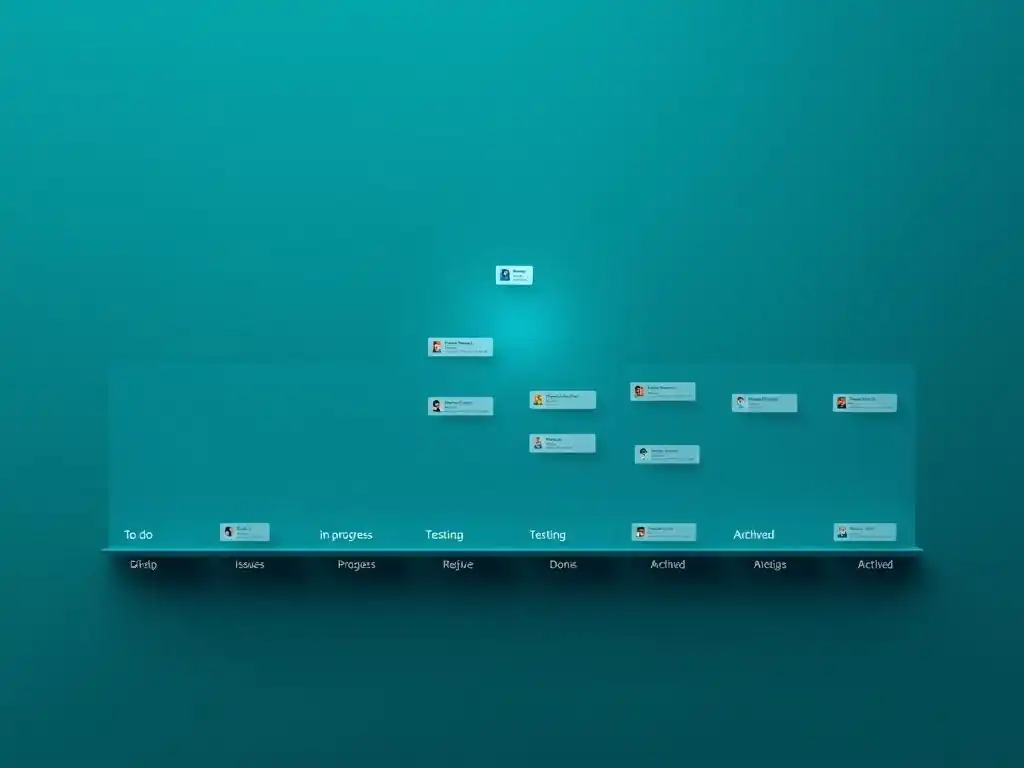
Are you ready to elevate your GitHub project management beyond simple Kanban boards? Dive into our article, "Beyond Basic Kanban: Advanced GitHub Project Board Strategies," and discover how to unlock the full potential of GitHub project boards to streamline your workflow, enhance team collaboration, and achieve unparalleled project organization. Prepare to transform the way you manage your projects!
- Advanced Kanban Techniques on GitHub Project Boards
-
Frequently Asked Questions
- What are some advanced features of GitHub Project Boards beyond basic Kanban?
- How can I use GitHub Project Boards to manage dependencies in a complex project?
- What are some strategies for using GitHub Project Boards for cross-functional team collaboration?
- How can I use automation rules to improve my GitHub Project Board workflow?
- What are some best practices for reporting and analytics using GitHub Project Boards?
- Final Reflection: Mastering Agile Workflow
- Unlock Your GitHub Workflow Potential!
Advanced Kanban Techniques on GitHub Project Boards
Implementing WIP Limits to Prevent Bottlenecks
Work In Progress (WIP) limits are a cornerstone of advanced Kanban and are crucial for optimizing flow and reducing bottlenecks in your development process when using GitHub Project Boards. WIP limits restrict the number of tasks that can be in a specific column at any given time. This constraint might seem counterintuitive at first—limiting work to improve speed—but it fosters focus and encourages teams to complete tasks before starting new ones.
For example, a team might decide to set a WIP limit of 5 for the "In Progress" column. If this limit is reached, no new tasks can be moved into "In Progress" until a task is moved to the next stage, like "Review" or "Done."
This directly addresses the common issue of developers starting many tasks but not finishing them, leading to context switching and decreased efficiency. By implementing WIP limits, teams can visualize bottlenecks, improve cycle time, and ensure a smoother workflow.
Implementing WIP limits in GitHub Project Boards requires a slightly different approach as the platform doesn't offer explicit WIP limit settings on columns. However, teams can enforce these limits through shared understanding and active management. For instance, during daily stand-ups, the team can review the "In Progress" column and ensure it doesn't exceed the agreed-upon limit.
Tools like browser extensions or custom scripts could potentially be used to visually highlight columns exceeding WIP limits, but the core principle relies on team discipline and visibility. Consider a scenario where a development team consistently has more than 10 issues in "In Progress" simultaneously.
By consciously limiting this to 5, they might find that the time it takes to move issues to "Done" actually decreases, as developers are less likely to be bogged down by multitasking and can focus on delivering complete features faster. This focused approach translates directly into improved velocity and predictability in project delivery.
Using Swimlanes to Organize Tasks by Feature or Component
Swimlanes provide a horizontal categorization within your Kanban board, adding another dimension of organization beyond the vertical columns representing workflow stages. In GitHub Project Boards, swimlanes can be effectively simulated to categorize tasks based on different criteria, such as feature areas, components, teams, or priority levels, enhancing visual clarity and workflow management. Imagine a software project with distinct modules like user authentication, payment processing, and reporting.
By dedicating swimlanes to each of these modules, the team gains immediate visibility into the progress and bottlenecks within each specific area. This is particularly beneficial for larger projects or when multiple teams are collaborating on a single project board.
While GitHub Project Boards don't have native swimlane functionality in the traditional sense, you can achieve a similar effect by creatively using labels or custom fields and then filtering or sorting your board. For example, you could create labels like "Feature: Authentication," "Feature: Payment," and "Feature: Reporting." By applying these labels to issues and then grouping or filtering the project board by labels, you effectively create visual swimlanes.
Alternatively, custom fields could be used to assign a "Component" or "Team" category to each task, allowing for similar segmentation. Consider a scenario where a web application development team is working on both frontend and backend features concurrently.
Using swimlanes (simulated through labels or custom fields) to differentiate between frontend and backend tasks allows for focused tracking of progress and resource allocation for each area, ensuring a balanced and efficient development effort across all components. This visual segregation helps identify potential imbalances and allows for proactive adjustments to workload distribution.
Prioritizing Tasks Using Drag-and-Drop and Custom Field Sorting
Effective prioritization is paramount in Kanban to ensure that the most valuable tasks are addressed first, maximizing efficiency and impact. GitHub Project Boards offer intuitive mechanisms for prioritizing tasks, primarily through drag-and-drop functionality within columns and the use of custom fields for sorting. Drag-and-drop provides a simple and immediate way to reorder tasks within a column, reflecting their relative priority.
For instance, if a critical bug is reported, it can be easily dragged to the top of the "To Do" or "Ready" column, signaling its immediate importance to the team. This visual and interactive prioritization allows for quick adjustments based on evolving project needs and urgent issues.
Beyond basic drag-and-drop, GitHub Project Boards allow for the creation of custom fields, which can significantly enhance prioritization capabilities. You can create a custom field like "Priority" with options such as "High," "Medium," and "Low," or even numerical priority levels. By assigning priority values to tasks using this custom field, you can then sort the project board based on priority.
This enables a more structured and data-driven approach to prioritization. For example, a product owner might assign priority levels based on business value and urgency. Sorting the "Ready" column by "Priority" ensures that the development team always picks up the highest priority tasks first.
Furthermore, combining drag-and-drop within sorted columns allows for fine-tuning prioritization within each priority level. This dual approach—combining visual drag-and-drop with structured custom field sorting—offers a flexible and powerful system for managing task priorities within GitHub Project Boards, ensuring that the team is always working on what matters most.
Frequently Asked Questions
What are some advanced features of GitHub Project Boards beyond basic Kanban?
Advanced features include leveraging custom fields for detailed tracking, using automation rules to streamline workflow, and implementing advanced filtering for focused views.
How can I use GitHub Project Boards to manage dependencies in a complex project?
You can create custom fields to represent dependencies and link related issues or pull requests. This allows for a clear visual representation of project dependencies and helps identify potential bottlenecks.
What are some strategies for using GitHub Project Boards for cross-functional team collaboration?
You can use custom fields to assign tasks to different teams, create separate views filtered by team, and implement automation rules to notify relevant team members of updates. This fosters better communication and alignment.
How can I use automation rules to improve my GitHub Project Board workflow?
Automation rules can automatically move issues based on status changes (e.g., when a pull request is merged, move the associated issue to "Done"). They can also assign reviewers or add labels based on specific triggers.
What are some best practices for reporting and analytics using GitHub Project Boards?
Use the Insights tab to track progress, identify bottlenecks, and measure team performance. You can also export data to external tools for more in-depth analysis and reporting.
Final Reflection: Mastering Agile Workflow
The journey through advanced GitHub Project Board strategies underscores a vital truth: effective project management transcends mere task tracking. It's about fostering collaboration, visualizing progress, and adapting to the ever-shifting demands of modern software development. The insights shared here, from custom automation to insightful reporting, are not just theoretical exercises; they are practical tools for building more efficient, responsive, and ultimately, more successful teams in today's fast-paced digital landscape.
This exploration has highlighted how deeply integrated and influential agile methodologies have become within the software development ecosystem. The ability to visualize and manage complex workflows effectively is no longer a luxury, but a necessity for teams striving for peak performance. The best way to predict the future is to create it.
- Peter Drucker. This quote resonates deeply with the spirit of agile, emphasizing the proactive and adaptive nature required to navigate the complexities of project management and shape the future of our projects.
Now, I invite you to reflect on your own project workflows. Consider how you can leverage the advanced GitHub Project Board strategies discussed to unlock new levels of efficiency and collaboration within your teams. Embrace the power of automation, visualize your progress with clarity, and empower your team to adapt and thrive. The future of your projects, and indeed, the future of your team's success, lies in your hands.
Unlock Your GitHub Workflow Potential!
Thanks for diving into the world of advanced Kanban with us! We hope you've discovered new ways to optimize your project management directly within GitHub. Now, let's put that knowledge into action and level up your team's efficiency.
Here's how you can start today:
- Immediately apply at least one advanced Kanban technique (like swimlanes or WIP limits) to your most active GitHub project board. Observe the impact on team velocity and communication.
- Share your learnings and challenges! Tweet your favorite advanced Kanban tip with the hashtag #GitKanbanMaster and let's learn from each other.
- Ready for a deep dive? Explore the GitHub API documentation to potentially automate Kanban board tasks and reporting! This could open up a whole new world of customization.
Which advanced Kanban strategy will you tackle first and how do you anticipate it will impact your team's workflow? Let's discuss in the comments!