
Git Fetch vs. Pull vs. Clone: Choosing the Right Command for Your Task

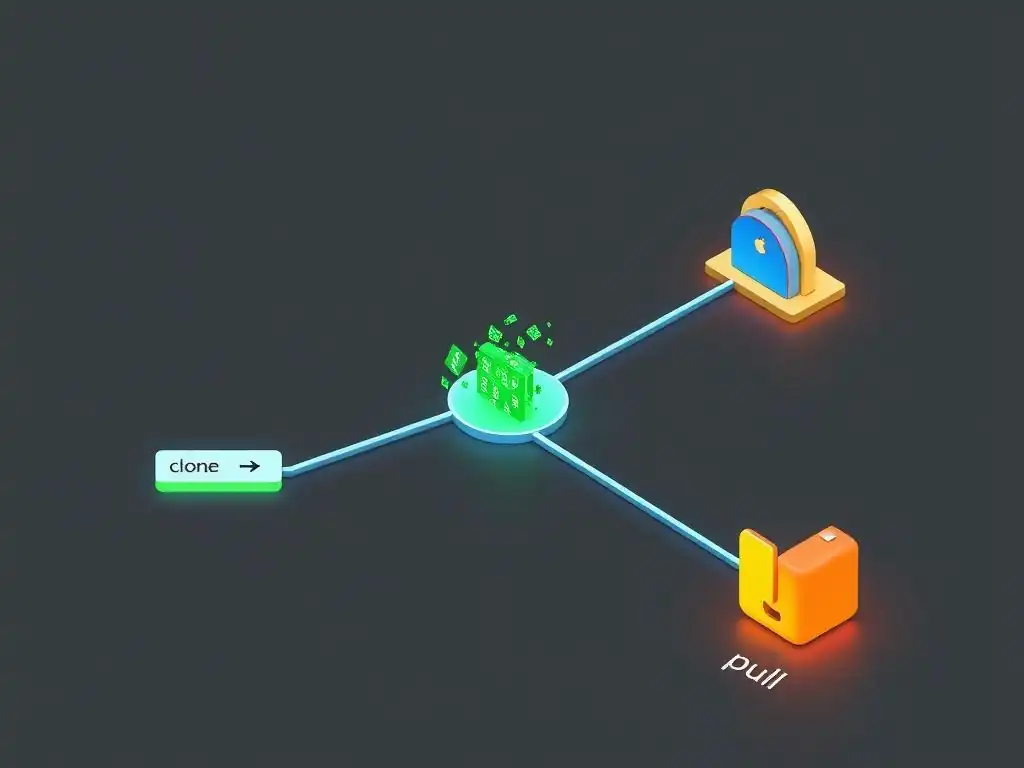
Welcome to Git and Version Control Hub, your central resource for mastering the art of version control! Ever wondered about the subtle yet crucial differences between commands like git fetch, git pull, and git clone? This article dives deep into the nuances of these essential tools. Unlock the secrets of efficient repository management and learn how to choose the right command for every task. Discover the power of informed decision-making in your Git workflow as we unpack the mysteries behind Git fetch vs pull vs clone – and find out which one truly suits your needs. Let's get started!
- Understanding Git Version Control: A Deep Dive into Fetch, Pull, and Clone
- Git Clone: Initializing Your Local Repository
- Git Fetch: Retrieving Changes Without Merging
- Git Pull: Fetching and Merging in One Step
- Comparing Git Clone vs. Git Fetch vs. Git Pull: A Detailed Analysis
- Choosing the Right Git Command: A Practical Guide
- Optimizing Your Git Workflow: Best Practices for Fetch, Pull, and Clone
- Mastering Git: Combining Fetch, Pull and Clone for efficient version control
-
Frequently Asked Questions
- What is the fundamental difference between git fetch, git pull, and git clone?
- When should I use git fetch instead of git pull?
- What is the purpose of git clone and when is it appropriate to use?
- How do git fetch and git pull affect my local working directory?
- Can I use git pull without having previously used git fetch?
- Final Reflection: Mastering Git's Core Commands
- Unveil Your Git Mastery: Next Steps Await!
Understanding Git Version Control: A Deep Dive into Fetch, Pull, and Clone
Git, the ubiquitous version control system, empowers developers to track changes, collaborate efficiently, and manage projects of any scale. At the heart of Git's functionality lie several key commands that facilitate interaction between local and remote repositories. Among these, git clone, git fetch, and git pull are fundamental for retrieving updates and synchronizing your work. Understanding the nuances of each command is crucial for maintaining a smooth and efficient Git workflow. Choosing the correct command for each situation not only streamlines your development process but also minimizes potential conflicts and ensures your local repository accurately reflects the project's current state.
Navigating the world of Git commands can initially seem daunting, especially when faced with options that appear to achieve similar outcomes. However, each of these commands – clone, fetch, and pull – serves a distinct purpose within the Git ecosystem. This article aims to demystify these commands, providing a clear understanding of their individual functionalities, use cases, and how they contribute to an effective version control strategy. By the end of this guide, you'll be equipped to confidently choose the right Git command for any given task, optimizing your workflow and enhancing your proficiency with Git.
Git Clone: Initializing Your Local Repository
Cloning a Remote Repository: A Step-by-Step Guide
The git clone command is your gateway to starting work on a project hosted in a remote repository. Think of it as making an exact copy of a remote Git repository onto your local machine. This command not only downloads all the project files but also sets up your local repository to track the remote repository. The process is straightforward: you provide the URL of the remote repository as an argument to the git clone command in your terminal. For example, to clone a repository hosted on GitHub, you would use a command like git clone https://github.com/username/repository.git. Git then downloads all the repository's contents, including all branches and commit history, to a new directory named after the repository (or a name you specify).
Once the cloning process is complete, you have a fully functional local Git repository. This repository is initialized with a .git directory, which contains all the necessary metadata for version control. Crucially, git clone automatically sets up a remote tracking branch, typically named origin/main or origin/master, which points to the main or master branch of the remote repository. This setup allows you to easily track changes from the remote repository and push your local changes back when you are ready. The initial clone operation is the foundation for all subsequent interactions with the remote repository, setting the stage for collaborative development and version control.
Using Git Clone for Project Setup: Best Practices
When initiating a new project or joining an existing one, git clone is the indispensable first step. It not only downloads the project code but also establishes the necessary Git configurations for seamless collaboration and version control. A best practice when using git clone is to ensure you are cloning from the correct repository URL. Mistakes in the URL can lead to cloning the wrong project or encountering errors. Double-checking the URL, especially when provided by collaborators or project documentation, is a simple step that prevents potential headaches later on.
Another important best practice is to choose an appropriate local directory for cloning the repository. By default, git clone creates a directory with the same name as the repository. However, you can specify a different directory name as a second argument to the git clone command, like git clone https://github.com/username/repository.git my-project-directory. This is particularly useful when you want to organize your projects within specific folders or avoid naming conflicts. Furthermore, after cloning, it’s advisable to immediately navigate into the newly created repository directory using cd repository-name and explore the project structure to familiarize yourself with the codebase and setup.
Understanding the implications of cloning a repository
Cloning a Git repository is more than just downloading files; it's establishing a complete version control environment on your local machine. One significant implication of cloning is that you are downloading the entire commit history of the repository. This comprehensive history is essential for understanding the project's evolution, reverting to previous states, and branching effectively. However, for very large repositories with extensive histories, the initial clone operation can take a considerable amount of time and disk space. While Git is efficient in compressing and managing history, being mindful of repository size is important, especially when working with limited resources.
Another crucial aspect of cloning is the automatic setup of the remote origin. This remote name, origin, is a convention that points back to the repository you cloned from. Git configures your local repository to track this origin, making it easy to interact with the remote repository for fetching updates, pushing changes, and collaborating with others. Understanding that git clone sets up this crucial link between your local and remote repositories is fundamental for grasping how Git facilitates distributed version control workflows. It lays the groundwork for all subsequent Git operations involving remote collaboration.
Git Fetch: Retrieving Changes Without Merging
What is Git Fetch and How Does It Work?
git fetch is a command designed to retrieve changes from a remote repository without automatically integrating them into your local working branch. It's like checking for updates without immediately applying them. When you execute git fetch origin (where origin is typically the name of your remote repository), Git reaches out to the remote repository, downloads new commits, branches, and tags, and updates your local remote-tracking branches. These remote-tracking branches, such as origin/main or origin/develop, are local copies that reflect the state of the remote branches at the time of your last fetch.
Crucially, git fetch does not modify your local working branch. It only updates the remote-tracking branches in your local repository. This means that after running git fetch, your local files remain unchanged, and your current branch is still at the same commit. The downloaded changes are stored in your local repository but are kept separate from your working branch. This behavior allows you to review the incoming changes, compare them to your local work, and decide how and when to integrate them. git fetch is therefore a safe and non-destructive way to stay informed about the latest developments in the remote repository.
Examining Remote Branches with Git Fetch
After performing a git fetch, you can examine the remote branches to see what changes have occurred since your last synchronization. The command git branch -r lists all your remote-tracking branches. You will see branches like origin/main, origin/develop, and any other branches that exist in the remote repository. These branches represent the latest state of their corresponding branches on the remote. You can then use commands like git log origin/main to view the commit history of the remote main branch or git diff main origin/main to see the differences between your local main branch and the remote origin/main branch.
Examining remote branches after a git fetch is invaluable for understanding the changes introduced by your collaborators. It allows you to see new features, bug fixes, or modifications made to the codebase without immediately merging them into your local branch. This preview capability is especially useful in collaborative environments where multiple developers are working concurrently. By inspecting the remote branches, you can plan your merging strategy, identify potential conflicts early on, and ensure that you are integrating changes in a controlled and informed manner.
Using Git Fetch to Preview Changes Before Merging
One of the primary advantages of git fetch is its ability to let you preview changes from the remote repository before integrating them into your local branch. This preview is achieved by fetching the changes and then using Git commands to compare your local branch with the updated remote-tracking branch. For example, if you are working on your local feature-branch and want to see what changes have been made to the remote develop branch, you would first run git fetch origin develop. Then, you can use git diff feature-branch origin/develop to see the differences between your feature branch and the latest develop branch from the remote.
This preview step is crucial for several reasons. Firstly, it helps you understand the scope and nature of the changes introduced remotely. You can identify potential merge conflicts, assess the impact of the changes on your current work, and decide if and when to merge these changes into your local branch. Secondly, previewing changes with git fetch allows for a more controlled integration process. Instead of blindly merging remote changes, you can review them, discuss them with collaborators if necessary, and then strategically merge them when it best suits your workflow. This proactive approach minimizes surprises and promotes a more stable and predictable development process.
Comparing Git Fetch with Git Pull
While both git fetch and git pull are used to retrieve updates from a remote repository, they differ significantly in their scope and impact on your local repository. The key difference lies in what happens after fetching the changes. git fetch only retrieves changes from the remote repository and updates your remote-tracking branches. It does not modify your local working branch. In contrast, git pull is essentially a combination of two commands: git fetch followed by git merge. It not only fetches the changes but also automatically merges them into your current local branch.
This distinction is crucial in understanding when to use each command. git fetch is the safer, non-destructive option when you want to review changes before integrating them. It gives you control over the merging process. git pull, on the other hand, is a more convenient command for quickly updating your local branch with the latest changes from the remote repository. However, because it automatically merges, git pull can potentially introduce merge conflicts or unexpected changes to your working branch if you are not careful. Therefore, git fetch is often preferred when you need to carefully examine changes or when working in a collaborative environment where controlled integration is essential.
Git Pull: Fetching and Merging in One Step
Simplifying Your Workflow with Git Pull
git pull is designed to streamline your Git workflow by combining the actions of fetching and merging into a single command. This command is particularly useful when you want to quickly synchronize your local branch with the latest changes from its remote counterpart. Executing git pull origin main (assuming your current branch is main and origin is your remote) will first perform a git fetch from the origin repository, retrieving all the new commits and changes. Then, it immediately merges these fetched changes into your current local main branch.
The convenience of git pull lies in its automation. Instead of running two separate commands ( git fetch and git merge), you can update your local branch with a single command. This simplification can be particularly beneficial for developers who frequently need to synchronize their work with the remote repository and prefer a quicker, more direct approach. However, it's crucial to understand that this automation comes with a trade-off: the immediate merge can potentially lead to conflicts if your local branch has diverged significantly from the remote branch.
How Git Pull Automates Fetching and Merging
The automation provided by git pull is achieved by essentially performing two Git operations sequentially. First, it executes a git fetch in the background, targeting the remote repository and the specified branch (or the configured upstream branch for your current branch). This fetch operation retrieves all the new commits from the remote branch and updates your local remote-tracking branch. Second, git pull immediately follows up with a git merge. It merges the fetched changes from the remote-tracking branch (e.g., origin/main) into your current local branch (e.g., main).
This automatic merging behavior is what distinguishes git pull from git fetch. While git fetch only updates your remote-tracking branches, git pull goes a step further by integrating those fetched changes into your active working branch. Git uses a merge commit to record this integration, creating a new commit in your branch's history that represents the merging of the remote changes. This automated process can significantly speed up your workflow, especially when you are confident that the remote changes are compatible with your local work and are ready to be integrated immediately.
Potential Conflicts When Using Git Pull
While git pull offers convenience, it also introduces the potential for merge conflicts. Merge conflicts arise when Git cannot automatically reconcile changes between your local branch and the fetched remote branch. This typically happens when both you and your collaborators have modified the same lines of code, or lines of code in close proximity, since the last synchronization. Because git pull automatically attempts to merge, these conflicts will be encountered during the git pull operation itself.
When a merge conflict occurs during a git pull, Git will pause the merge process and mark the conflicted files. You will need to manually resolve these conflicts by editing the conflicted files, choosing which changes to keep, and then staging and committing the resolved files to complete the merge. Dealing with merge conflicts can be time-consuming and requires careful attention to detail. Therefore, while git pull is efficient for straightforward updates, it's essential to be aware of the potential for conflicts, especially in collaborative projects where frequent changes are common. In such scenarios, using git fetch first to preview changes might be a more cautious approach before proceeding with a merge.
Git Pull vs. Git Fetch: Understanding the Differences
The core distinction between git pull and git fetch boils down to merging. git fetch is purely about retrieval; it fetches changes from the remote but leaves your local branches untouched except for updating the remote-tracking branches. It's a safe operation that allows you to inspect remote changes before deciding how to proceed. git pull, on the other hand, is a combined operation of fetching and merging. It retrieves the same remote changes as git fetch, but it immediately integrates them into your current local branch through a merge.
Choosing between git pull and git fetch depends on your workflow and the context of your task. If you want to review remote changes, understand their impact, and control the merging process, git fetch is the preferred command. It gives you the flexibility to inspect changes, compare branches, and merge strategically. If you are confident in the remote changes and want to quickly update your local branch to the latest state, git pull offers a faster, more automated approach. However, it comes with the caveat of potential merge conflicts and less control over the integration process. Understanding this fundamental difference is key to effectively using both commands in your Git workflow.
Comparing Git Clone vs. Git Fetch vs. Git Pull: A Detailed Analysis
Key Differences in Functionality
git clone, git fetch, and git pull are all essential commands for interacting with remote repositories in Git, but they serve distinct purposes and operate differently. git clone is primarily used for initial setup. It creates a local copy of a remote repository, including all files and commit history, and sets up the remote tracking. It’s a one-time operation to start working on a project locally. git fetch is used for retrieving updates from a remote repository without merging them. It downloads new commits and updates remote-tracking branches, allowing you to preview changes before integration. git pull* is used for *synchronizing your local branch* with the remote branch. It combines git fetch andgit merge`, automatically fetching remote changes and merging them into your current local branch.
In essence, git clone initializes your local repository, git fetch informs you about remote changes, and git pull updates your local branch with those remote changes. Functionally, git clone is a setup command, git fetch is a review command, and git pull is an update command. Understanding these core functionalities helps in choosing the right command for each specific scenario in your Git workflow.
Use Cases for Git Clone, Fetch, and Pull
The different functionalities of git clone, git fetch, and git pull dictate their specific use cases in a typical Git workflow. git clone is used when you are starting work on a new project or when you need to create a local copy of a repository you haven't worked with before. It's the first command you run to get a project onto your local machine. git fetch is ideal for staying updated with remote changes without immediately integrating them. It's useful when you want to review what your collaborators have been working on, inspect potential changes before merging, or simply keep your local repository informed about the remote state without altering your current work.
git pull is best suited for quickly updating your local branch with the latest changes from the remote repository when you are ready to integrate them. It's commonly used when you want to synchronize your local branch with the remote branch before starting new work or when you are confident in the remote changes and want to incorporate them swiftly. For example, at the start of a workday, a developer might use git pull to ensure their local branch is up-to-date before beginning coding. Choosing the right command depends on your immediate goal: initial setup, review of changes, or immediate synchronization.
Impact on Your Local Repository
Each command has a distinct impact on your local Git repository. git clone creates a new local repository from scratch. It initializes the .git directory, downloads all repository contents, and sets up the remote origin. It essentially lays the foundation for all future Git operations within that local repository. git fetch* *updates your local remote-tracking branches*. It modifies the references within your .git` directory to reflect the latest state of the remote repository. However, it does not change your working directory or your local branches. Your files remain as they were before the fetch operation.
git pull modifies your current local branch. It fetches remote changes and then merges them into your active branch, resulting in a new commit on your branch's history. It also updates your working directory to reflect the merged changes. Therefore, git pull has the most direct and immediate impact on your local working environment, potentially changing files and altering your branch history. Understanding these impacts is crucial for predicting the outcome of each command and using them effectively without inadvertently disrupting your local work.
Choosing the Right Git Command: A Practical Guide
When to Use Git Clone for New Projects
git clone is unequivocally the command to use when you are starting to work on a new Git-managed project. Whether you are initiating a personal project from a remote repository, joining a team project hosted on GitHub, GitLab, or Bitbucket, or simply need a local copy of a repository for exploration or contribution, git clone is your starting point. It establishes the necessary local repository structure, downloads the entire project history, and sets up the connection to the remote repository.
Consider a scenario where you've been invited to collaborate on an open-source project hosted on GitHub. The first step would be to use git clone to create a local copy of the project repository on your machine. This command sets up your local environment, allowing you to start making changes, contributing code, and engaging with the project's version control system. Without git clone, you wouldn't have a local repository to work with, and you would be unable to track changes or interact with the remote project effectively. In essence, git clone is the essential prerequisite for participating in any Git-based project.
When to Use Git Fetch for Reviewing Changes
git fetch is your go-to command when your primary goal is to review changes made in the remote repository without immediately integrating them into your local work. This is particularly useful in collaborative environments where multiple developers are contributing changes concurrently. Before pulling in potentially disruptive changes, or when you simply want to stay informed about the project's progress without altering your current working state, git fetch is the ideal choice.
Imagine you are working on a feature branch, and your team members are actively developing on the develop branch. Before merging the latest develop branch into your feature branch, it's prudent to use git fetch origin develop. This command will update your local origin/develop branch, allowing you to inspect the changes made to the remote develop branch. You can then use git diff to compare origin/develop with your feature branch or your local develop branch to understand the nature and scope of the changes. This review step is crucial for identifying potential merge conflicts, understanding new features or bug fixes, and planning your integration strategy.
When to Use Git Pull for Streamlined Updates
git pull is the command of choice when you need to quickly and efficiently update your current local branch with the latest changes from its remote counterpart. This is typically used when you are ready to integrate remote changes and want to synchronize your local branch with the remote branch in a single step. It's most effective when you are confident that the remote changes are compatible with your local work, or when you are working on a branch with minimal concurrent changes from others.
Consider starting your workday and wanting to ensure your local main branch is up-to-date with the remote main branch before you begin coding. In this scenario, running git pull origin main (while on your local main branch) is a quick and effective way to synchronize your local branch. It fetches any new commits from the remote main branch and merges them directly into your local main branch, ensuring you are working with the latest version of the codebase. git pull is a time-saver for routine updates and synchronization when you prioritize speed and automation.
Optimizing Your Git Workflow: Best Practices for Fetch, Pull, and Clone
Managing Remote Branches Effectively
Effective management of remote branches is crucial for a streamlined Git workflow, and git fetch, git pull, and even git clone play a vital role in this. After cloning a repository, regularly using git fetch to update your remote-tracking branches ensures you have an accurate local representation of the remote repository's state. This practice allows you to stay informed about new branches created remotely, changes pushed to existing branches, and the overall evolution of the project.
When working with multiple remote branches, be explicit about which remote and branch you are fetching or pulling from. Instead of just git fetch, use git fetch origin develop to specifically fetch updates from the develop branch of the origin remote. Similarly, for pulling, use git pull origin feature-branch to update your local feature-branch from the remote feature-branch. This specificity avoids ambiguity and ensures you are interacting with the intended remote branches. Furthermore, regularly prune stale remote-tracking branches using git remote prune origin to keep your local repository clean and focused on active branches.
Handling Merge Conflicts with Git
Merge conflicts are an inevitable part of collaborative Git workflows, particularly when using git pull which automatically merges changes. The best practice for handling merge conflicts is to address them promptly and systematically. When a conflict arises during a git pull or a git merge, Git will mark the conflicted files. Open these files in your editor, and you will see conflict markers ( <<<<<<<, =======, >>>>>>>) indicating the conflicting sections. Carefully review these sections, decide which changes to keep (or combine them), and manually edit the file to resolve the conflict.
After resolving all conflicts in a file, use git add <conflicted-file> to stage the resolved file, indicating to Git that the conflict is resolved for that file. Repeat this process for all conflicted files. Once all conflicts are resolved and staged, use git commit to create a merge commit and finalize the merge. It’s crucial to test your code thoroughly after resolving merge conflicts to ensure that the merged changes function as expected and haven't introduced any regressions. Proactive communication with collaborators about potential conflicting changes can also help minimize merge conflicts in the first place.
Streamlining Collaboration with Git Commands
git fetch, git pull, and git clone, when used strategically, can significantly streamline collaboration within a Git-based project. Encourage team members to use git fetch frequently to stay updated with remote changes and preview them before merging. This promotes awareness of each other's work and reduces the likelihood of unexpected merge conflicts. Establish a team workflow where git pull is used for routine synchronization, but git fetch and manual merging are preferred when dealing with potentially complex or conflicting changes.
For new team members joining a project, a clear onboarding process that includes a detailed explanation of git clone, git fetch, and git pull is essential. Providing guidelines on when to use each command and best practices for handling merge conflicts can significantly improve team efficiency and reduce Git-related friction. Regularly reviewing and refining your team's Git workflow, and incorporating best practices for using these fundamental commands, fosters smoother collaboration and a more productive development environment.
Mastering Git: Combining Fetch, Pull and Clone for efficient version control
Using Git Fetch and Pull together
While git fetch and git pull serve different purposes, they are often used in conjunction to create a more controlled and informed workflow. A common pattern is to use git fetch first to retrieve remote changes and examine them, and then use git pull (or git merge) to integrate those changes into your local branch when you are ready. This two-step approach provides a safety net, allowing you to preview changes, assess potential conflicts, and plan your merge strategy before actually modifying your local branch.
For instance, before starting a new feature, you might run git fetch origin main to update your local origin/main branch. Then, you could use git log --oneline main..origin/main to quickly review the new commits on the remote main branch. If the changes look straightforward and compatible with your planned feature, you can then proceed with git pull origin main to merge them into your local main branch. This combined usage of git fetch and git pull promotes a more deliberate and less error-prone workflow compared to solely relying on git pull for all updates.
Integrating Git Clone in your Version Control Strategy
git clone, although primarily used for initial setup, remains relevant throughout the lifecycle of a project and should be strategically integrated into your version control strategy. For instance, if you need to start working on a new branch from a clean state, cloning the repository again into a separate directory can provide an isolated environment without affecting your existing local repository. This can be useful for experimenting with new features, debugging complex issues in isolation, or creating a backup copy of the repository.
Furthermore, git clone is essential for setting up development environments on new machines or for onboarding new team members. Ensuring that the git clone command and the initial repository setup process are well-documented and readily accessible to new team members is a crucial part of a robust version control strategy. While not used as frequently as git fetch and git pull in daily workflows, git clone remains a fundamental command for establishing and maintaining your Git environment.
Advanced Git Techniques Using Fetch, Pull, and Clone.
Beyond the basic usage, git fetch, git pull, and git clone can be leveraged for more advanced Git techniques. For example, git fetch can be used to fetch changes from specific branches or even specific commits from remote repositories using refspecs. This level of granularity allows for highly targeted retrieval of changes when needed. git pull has variations like git pull --rebase which, instead of creating a merge commit, rebases your local commits onto the fetched remote branch. Rebasing can lead to a cleaner, linear commit history, although it should be used with caution, especially in collaborative branches.
git clone --depth <depth> allows for shallow clones, which download only a limited history, saving time and disk space for very large repositories. This can be useful when you don't need the entire commit history, for instance, when setting up a build environment or deploying a specific version of the code. Mastering these advanced options and techniques associated with git fetch, git pull, and git clone can significantly enhance your Git proficiency and enable you to tackle complex version control scenarios with greater efficiency and control.
Frequently Asked Questions
What is the fundamental difference between git fetch, git pull, and git clone?
git fetch only downloads changes from a remote repository. git pull fetches and merges those changes into your current branch. git clone creates a local copy of an entire remote repository.
When should I use git fetch instead of git pull?
Use git fetch when you want to review the changes from the remote repository before integrating them into your local branch. This allows you to inspect the updates without immediately merging them.
What is the purpose of git clone and when is it appropriate to use?
git clone is used to create a local copy of a remote repository. It's ideal for starting a new project or when you need a complete local version of an existing codebase.
How do git fetch and git pull affect my local working directory?
git fetch updates your remote-tracking branches but doesn't modify your working directory. git pull, on the other hand, merges the fetched changes into your currently checked-out branch, thus affecting your working directory.
Can I use git pull without having previously used git fetch?
Yes, git pull implicitly performs a git fetch before merging. However, using git fetch beforehand gives you more control to review and potentially cherry-pick changes before merging.
Final Reflection: Mastering Git's Core Commands
The nuances between git fetch, git pull, and git clone might seem trivial at first glance, but as we've explored, understanding their distinct roles is fundamental to effective collaboration and version control in modern software development. Ignoring these differences can lead to frustrating merge conflicts, lost work, and a general sense of unease when interacting with remote repositories.
The power of Git lies not just in its ability to track changes, but in its capacity to facilitate seamless teamwork. This article, I hope, has illuminated the path towards a more confident and efficient workflow, allowing you to leverage Git's full potential. Version control is not just about tracking changes; it's about enabling collaboration and building trust within a team.
This quote underscores the importance of mastering these core commands to foster a collaborative environment.
Now, armed with this knowledge, I encourage you to reflect on your own Git usage. How can you apply these distinctions to streamline your workflow? How can you use git fetch, git pull, and git clone more strategically to avoid common pitfalls? Embrace these tools, experiment with their capabilities, and become a more proficient and confident contributor to the ever-evolving world of software.
Unveil Your Git Mastery: Next Steps Await!
Thanks for diving deep into the world of Git commands! We hope you've gained a clear understanding of when to use fetch, pull, and clone. Now, it's time to put that knowledge into action and truly master your version control skills.
Here are some immediate steps you can take:
- Master the Art of
git pullin your daily workflow: Make it a habit to usegit pullbefore starting new work to ensure your local branch is always up-to-date with the remote repository. - Explore advanced
git fetchoptions: Experiment withgit fetchusing different configurations and remote repositories to understand its versatility. - Share your Git wisdom: Discuss this article with fellow developers, explaining the nuances of each command and how they can improve their Git workflows.
What Git command will you be using more strategically from now on, and how do you anticipate it improving your development process?