
Boost Your Git Confidence: Learning with Visual GUI Clients

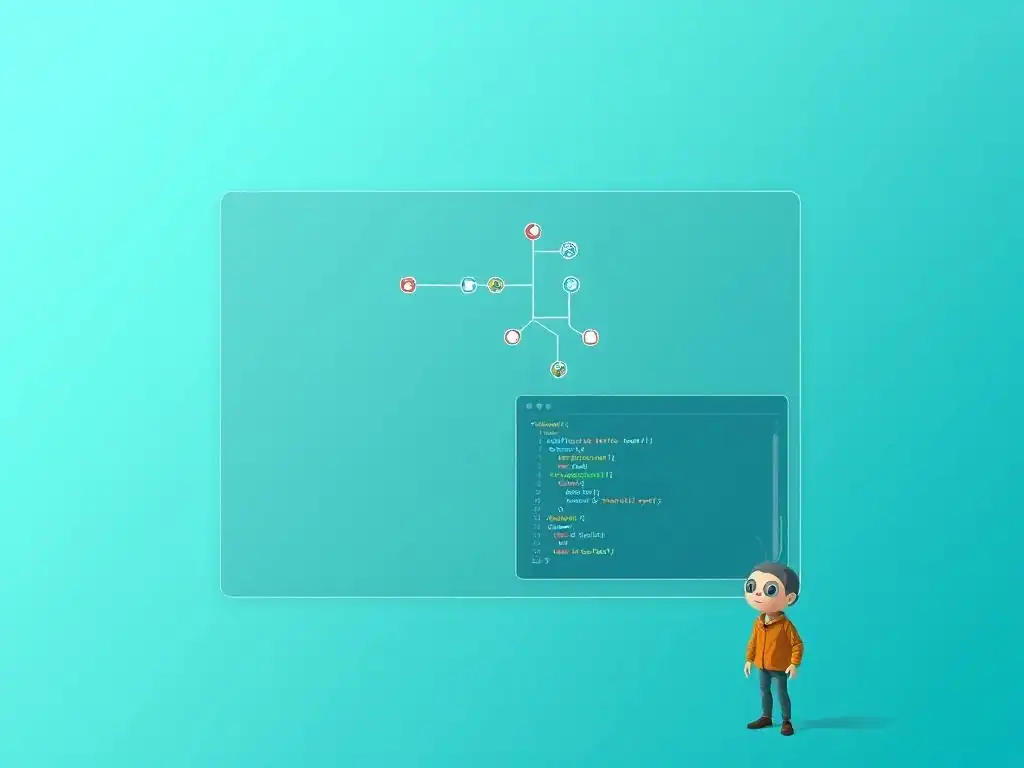
Welcome to Git and Version Control Hub, your ultimate resource for mastering the power of Git!
Are you ready to visualize your version control? This guide, “Boost Your Git Confidence: Learning with Visual GUI Clients,” dives into the world of Git GUIs, offering a user-friendly approach to understanding and utilizing Git, especially for beginners. Discover how these intuitive interfaces can simplify complex commands and unlock a whole new level of understanding. Intrigued? Let's explore the best Git GUI clients and make your journey into version control smoother than ever! Dive in to learn how!
Boost Your Git Confidence: Learning with Visual GUI Clients
- Introduction to Git GUI Clients for Beginners
- Key Benefits of Using Git GUI Clients
- Popular Git GUI Clients for Beginners: An Overview
- Getting Started with Your First Git GUI Client
- Essential Git Operations with a GUI Client
- Advanced Git GUI Features for Enhanced Workflow
- Tips for Mastering Git with GUI Clients
- Troubleshooting Common Issues with Git GUIs
- Conclusion: Empowering Your Git Journey with GUI Clients
- Frequently Asked Questions
- Final Reflection: Empowering Git Mastery
- Unleash Your Git Power: Start Visualizing!
Introduction to Git GUI Clients for Beginners
Why Choose a Git GUI Client? Visualizing Version Control
For those new to the world of version control, Git can initially seem daunting. The command line interface, while powerful, can present a steep learning curve, especially when visualizing complex concepts like branching and merging. This is where Git GUI clients come into play, offering a visual and intuitive way to interact with Git repositories. Imagine trying to navigate a city using only written directions versus having a visual map. Git GUIs are like maps for your version control journey, making it easier to understand the landscape of your project's history and current state.
Git GUI clients translate the abstract commands of Git into visual representations, making version control more accessible and less intimidating for beginners. Instead of typing commands like git branch or git merge, you can often perform these actions with simple clicks and drag-and-drop operations. This visual approach is particularly beneficial for understanding the relationships between branches, the flow of changes, and the overall structure of your repository. By visualizing version control, Git GUIs significantly lower the barrier to entry and empower beginners to learn and use Git effectively from day one.
Git GUI Clients vs. Command Line Interface (CLI): A Comparison
The debate between using Git GUI clients and the command line interface (CLI) is ongoing within the development community. Both approaches have their merits and are suited for different user preferences and scenarios. The CLI is often praised for its power and flexibility, allowing for precise control over Git operations. For seasoned developers, the CLI can be faster for routine tasks once the commands are memorized, and it is often required for scripting and automation. Furthermore, the CLI is universally available across all systems where Git is installed, ensuring consistency across different development environments.
However, for beginners, the CLI can be overwhelming. Remembering the syntax and options for various Git commands can be challenging, and errors are common, leading to frustration and potential mistakes in the repository. Git GUI clients, on the other hand, prioritize user-friendliness and visual feedback.
They abstract away the complexity of commands, providing buttons and menus for common actions. This visual representation can significantly reduce the learning curve, allowing beginners to grasp Git concepts more quickly. While experienced users might find GUIs slower for some tasks, for those new to version control or teams seeking to standardize Git usage across varying skill levels, Git GUI clients offer a more approachable and less error-prone pathway to mastering Git.
Key Benefits of Using Git GUI Clients
Enhanced Visualization of Git History
One of the most significant advantages of using Git GUI clients is the enhanced visualization of your project's history. Instead of relying on text-based logs from the command line, Git GUIs present a graphical representation of commits, branches, and merges. This visual timeline makes it much easier to understand the evolution of your project over time, identify when specific changes were made, and track the development of different features.
Imagine trying to understand a family history by reading a long list of dates and names versus seeing a visual family tree. Git GUIs provide that family tree for your codebase. Many clients display commit history as a graph, showing branches diverging and merging, allowing you to see the relationships between different lines of development at a glance.
This visual clarity is invaluable for understanding complex project histories, debugging issues by tracing changes, and gaining a holistic view of your project's version control narrative. For beginners, this visual approach transforms Git history from an abstract concept into a tangible and understandable representation.
Simplified Branching and Merging with Git GUIs
Branching and merging are core concepts in Git, essential for parallel development and feature isolation. However, these operations can be confusing for beginners when performed solely through the command line. Git GUI clients simplify these processes significantly by providing visual tools for branch management and merge conflict resolution. Creating a new branch often becomes as simple as clicking a button or right-clicking and selecting "Create Branch."
Similarly, merging branches is often streamlined through drag-and-drop interfaces or clearly labeled merge buttons within the GUI. Visual clients often display branches as distinct lines in the commit history graph, making it easy to understand which branch you are working on and how branches relate to each other.
When merge conflicts arise, many Git GUIs offer visual diff tools that highlight conflicting lines of code side-by-side, making it much easier to understand and resolve these conflicts compared to navigating text-based conflict markers in the CLI. This visual simplification of branching and merging empowers beginners to confidently utilize these powerful Git features without getting bogged down in complex command syntax.
Reduced Errors with User-Friendly Interfaces
The user-friendly interfaces of Git GUI clients are designed to minimize errors, especially for those still learning Git. By abstracting away complex command syntax and providing clear visual cues, GUIs reduce the likelihood of accidental mistakes that can occur when typing commands in the CLI. For example, accidentally typing git reset --hard HEAD^ instead of git reset --soft HEAD^ in the command line can lead to unintended data loss, a scenario less likely to occur with a GUI where actions are often confirmed visually and through dialog boxes.
Git GUIs often provide visual prompts and confirmations before executing potentially destructive operations, such as force pushes or hard resets. The visual nature of these clients also makes it easier to preview changes before committing them, ensuring that you are staging and committing exactly what you intend. Furthermore, features like visual diff viewers help prevent accidental commits of unwanted changes by allowing you to review modifications in detail before they are added to the repository history. This focus on user-friendliness and visual confirmation significantly reduces the risk of errors and promotes a safer learning environment for Git beginners.
Improved Collaboration with Visual Tools
Git GUI clients can also enhance collaboration within development teams, particularly those with members of varying Git experience levels. Visual tools can make it easier for team members to understand each other's work, track progress, and contribute effectively, regardless of their command-line proficiency. For instance, visualizing branch structures and merge requests within a GUI can facilitate clearer communication and understanding of ongoing development efforts within a team.
Many Git GUIs offer features specifically designed for team collaboration, such as built-in support for code review workflows, integration with issue tracking systems, and visual representations of pull requests or merge requests. By providing a common visual language for Git operations, GUIs can bridge the communication gap between team members with different levels of Git expertise. This shared visual understanding can lead to smoother collaboration, fewer misunderstandings, and a more efficient development process, especially in teams where not everyone is a Git command-line expert.
Popular Git GUI Clients for Beginners: An Overview
GitKraken: A Powerful and Intuitive Git GUI
GitKraken stands out as a visually stunning and feature-rich Git GUI client, often praised for its intuitive interface and cross-platform compatibility. Available for Windows, macOS, and Linux, GitKraken offers a consistent experience across different operating systems, making it a versatile choice for teams with diverse development environments. Its interface is known for being highly visual, utilizing graphs and clear icons to represent Git concepts, which is particularly beneficial for beginners.
Beyond its appealing aesthetics, GitKraken packs a powerful set of features. It supports complex workflows, including interactive rebasing, cherry-picking, and submodule management, all presented through a user-friendly visual interface. GitKraken integrates seamlessly with popular platforms like GitHub, GitLab, and Bitbucket, simplifying repository hosting and collaboration. While GitKraken offers a free version for personal, non-commercial use, professional teams may need to consider a paid subscription to unlock its full potential and commercial use licenses. Its combination of power and ease of use makes GitKraken a popular choice for both beginners and experienced developers seeking a visual Git client.
Sourcetree: A Free and Versatile Git Client
Sourcetree, developed by Atlassian, is a free Git GUI client known for its versatility and integration with Atlassian's suite of development tools, such as Jira and Bitbucket. Available for Windows and macOS, Sourcetree provides a clean and efficient interface for managing Git repositories. Its free availability makes it an attractive option for individual developers and teams looking for a cost-effective Git GUI solution.
Sourcetree supports a wide range of Git operations, from basic committing and branching to more advanced features like stashing, cherry-picking, and interactive rebasing. It also provides visual diff and merge tools to aid in conflict resolution. Its integration with Bitbucket and Jira is particularly beneficial for teams already using these Atlassian products, streamlining workflows and enhancing collaboration. While Sourcetree is no longer actively developed by Atlassian, it remains a widely used and capable free Git GUI client, offering a solid feature set for beginners and experienced users alike.
GitHub Desktop: Simple Git Integration with GitHub
GitHub Desktop is a Git GUI client specifically designed to simplify Git workflows for users of GitHub. Developed by GitHub, it offers seamless integration with the GitHub platform, making it exceptionally easy to clone repositories, create pull requests, and manage GitHub-hosted projects. Available for Windows and macOS, GitHub Desktop prioritizes simplicity and ease of use, making it an excellent choice for beginners who are primarily working with GitHub.
GitHub Desktop focuses on core Git functionalities, providing a streamlined interface for common tasks like committing, branching, and pushing changes. It is intentionally less feature-rich than clients like GitKraken or Sourcetree, focusing on providing a clean and intuitive experience for basic Git operations within the GitHub ecosystem. Its simplicity and direct integration with GitHub make it an ideal starting point for beginners who are new to both Git and GitHub, providing a gentle introduction to version control within the context of the popular GitHub platform.
Fork: A Fast and Friendly Git Client for Mac and Windows
Fork is a Git GUI client that emphasizes speed and user-friendliness, aiming to provide a fast and efficient Git experience. Available for both macOS and Windows, Fork is known for its clean interface and responsive performance, even when working with large repositories. It strikes a balance between simplicity and functionality, offering a comprehensive set of features without overwhelming users with unnecessary complexity.
Fork supports all essential Git operations, including branching, merging, rebasing, and stashing, presented through a visually appealing and intuitive interface. It includes a visual diff viewer and merge conflict editor to simplify code review and conflict resolution. Fork offers both a free trial and a paid license, making it accessible to individual users and teams. Its focus on speed, combined with its user-friendly design and robust feature set, makes Fork a compelling option for users seeking a fast and efficient Git GUI client that is both powerful and easy to learn.
Getting Started with Your First Git GUI Client
Downloading and Installing GitKraken
Getting started with GitKraken is a straightforward process. First, navigate to the GitKraken website, typically found by searching "GitKraken download" in your preferred search engine. The website will automatically detect your operating system (Windows, macOS, or Linux) and offer the appropriate download link. Click the download button to obtain the installer file for your system.
Once the download is complete, locate the installer file (e.g., a .exe file on Windows or a .dmg file on macOS) and double-click it to begin the installation process. Follow the on-screen instructions, which usually involve accepting the license agreement and choosing an installation location. The installation is generally quick and requires minimal user input. After installation, GitKraken should be accessible from your applications menu or desktop, ready to launch and connect to your Git repositories. During the initial setup, you might be prompted to create a GitKraken account, which is required for using the free version for personal use or activating a professional license.
Connecting Your Git GUI to a Remote Repository (GitHub, GitLab, etc.)
After installing GitKraken, or any Git GUI client, connecting to a remote repository hosted on platforms like GitHub or GitLab is a crucial first step. Typically, you will start by cloning an existing repository from the remote platform to your local machine. In GitKraken, you can usually find a "Clone Repository" option in the File menu or on the welcome screen. Selecting this option will prompt you to enter the repository's URL and choose a local directory where you want to clone it.
To connect to platforms like GitHub or GitLab, GitKraken (and many other GUIs) offer integration features that simplify authentication. You might be prompted to log in to your GitHub or GitLab account directly within GitKraken. This often involves OAuth authentication, where you grant GitKraken permission to access your repositories on the platform. Once authenticated, you can easily browse your repositories hosted on these platforms directly from within GitKraken and clone them with a few clicks. This integration eliminates the need to manually handle SSH keys or personal access tokens for basic repository access, streamlining the connection process for beginners.
Initial Configuration and Setup
Once GitKraken is installed and connected to your remote repository provider, there are a few initial configuration steps that can enhance your experience. One common step is configuring your Git identity, which includes your name and email address. This information is associated with your commits and helps identify you as the author of changes in the repository history. GitKraken usually prompts you to set these details during the initial setup or allows you to configure them in the settings or preferences panel.
You might also want to customize GitKraken's appearance and behavior to your liking. Many Git GUIs offer options to change themes, font sizes, and other visual aspects. Exploring the settings menu can reveal various customization options that can improve your workflow. For instance, you might configure external diff and merge tools if you prefer specific applications for these tasks. Taking a few minutes to review the initial configuration options and personalize your Git GUI client can contribute to a more comfortable and efficient Git learning and working environment.
Essential Git Operations with a GUI Client
Cloning a Repository
Cloning a repository is the foundational operation for starting to work with an existing Git project. With a Git GUI client, cloning is significantly simplified compared to the command line. In most GUIs, including GitKraken, you initiate the cloning process by selecting a "Clone Repository" option, often found in the "File" menu or on the welcome screen. This action typically opens a dialog box where you need to provide the URL of the remote repository you want to clone.
The repository URL can usually be copied from the web interface of your repository hosting platform, such as GitHub or GitLab. You then paste this URL into the designated field in your Git GUI client. The GUI will also prompt you to choose a local directory on your computer where you want to clone the repository.
After providing the URL and local path, clicking a "Clone" button initiates the process. The Git GUI client then handles the underlying Git commands, downloading all the repository files and history to your local machine, ready for you to start working. This visual process makes cloning repositories straightforward even for users completely new to Git.
Staging and Committing Changes
Staging and committing changes are core Git operations for tracking modifications to your project. Git GUI clients provide visual interfaces to streamline these steps. When you make changes to files in your local repository, the Git GUI client typically displays these changes in a dedicated "Working Directory" or "Unstaged Changes" section. Unmodified files are usually not shown, focusing your attention on what has changed.
To stage changes, you typically select the files you want to include in your next commit and click a "Stage" button or drag the files to a "Staged Changes" area. This visual staging area allows you to selectively choose which changes to include in each commit, a crucial aspect of good version control practice. Once you have staged your desired changes, you enter a commit message describing the changes you made in a designated text field, and then click a "Commit" button to finalize the commit. The Git GUI client handles the underlying git add and git commit commands, providing a visual and interactive way to manage your changes and create commit history.
Pushing and Pulling Updates
Pushing and pulling are essential operations for synchronizing your local repository with a remote repository, allowing you to share your changes and receive updates from others. Git GUI clients simplify these operations with visual cues and buttons. When you have local commits you want to share with the remote repository, you typically click a "Push" button in the GUI. The client handles the git push command, uploading your commits to the remote branch. Many GUIs visually indicate the status of your local and remote branches, making it clear whether you have commits to push.
Similarly, to retrieve changes from the remote repository, you use a "Pull" or "Fetch" operation. A "Pull" operation, often initiated with a "Pull" button, fetches changes from the remote and automatically merges them into your local branch. A "Fetch" operation, sometimes available as a separate option or part of the "Pull" functionality, only downloads the remote changes without automatically merging them, giving you more control over when and how to integrate remote updates. Git GUIs visually represent the synchronization status and simplify the process of pushing and pulling changes, making collaboration and staying up-to-date with remote repositories easier.
Branching and Merging Made Easy
Git GUI clients excel at simplifying branching and merging, two fundamental Git operations often perceived as complex by beginners. Creating a new branch in a GUI is typically a straightforward process. You often find a "Create Branch" option in a menu or context menu, or a dedicated button for branch creation. Clicking this option usually opens a dialog where you can name your new branch and choose a starting point for it, often the current branch or a specific commit. The GUI then handles the git branch command, creating the new branch based on your input.
Switching between branches is also visually intuitive in GUIs. Branches are often displayed in a sidebar or dropdown menu, and you can switch to a different branch by simply clicking on it. Merging branches is similarly simplified.
Often, you can initiate a merge by right-clicking on a branch and selecting a "Merge into current branch" option or by dragging and dropping branches visually within the GUI. Git GUIs often provide visual feedback during the merge process and offer visual tools to resolve merge conflicts if they arise, making branching and merging significantly more accessible and less error-prone compared to command-line operations.
Resolving Conflicts Visually
Merge conflicts are an inevitable part of collaborative Git workflows, occurring when changes from different branches conflict with each other. Git GUI clients offer visual conflict resolution tools that greatly simplify this process compared to resolving conflicts manually in the command line. When a merge conflict occurs, the Git GUI client typically visually indicates the files with conflicts and provides options to resolve them.
Upon opening a conflicted file in a Git GUI, you are often presented with a side-by-side view showing the conflicting changes from different branches. These visual diff tools highlight the lines that are in conflict, making it easy to identify the problematic areas.
Many GUIs offer interactive conflict resolution interfaces where you can choose which version of the conflicting lines to keep, edit the lines directly to create a merged version, or even use a three-way merge view to compare the base version with the conflicting versions. These visual conflict resolution tools significantly reduce the complexity and frustration of resolving merge conflicts, making it easier for beginners and experienced users alike to handle these situations effectively.
Advanced Git GUI Features for Enhanced Workflow
Interactive Rebase with Git GUIs
Interactive rebase is a powerful Git feature that allows you to rewrite commit history, for example, to squash commits, reorder them, or edit commit messages. While powerful, interactive rebase can be complex and error-prone when performed solely through the command line. Git GUI clients often provide visual interfaces that make interactive rebase more approachable and less daunting.
In a GUI client, initiating an interactive rebase typically involves right-clicking on a branch or commit and selecting an "Interactive Rebase" option. The GUI then presents a visual list of commits in the branch, allowing you to reorder them by dragging and dropping, squash commits together by selecting them and choosing a "Squash" action, or edit commit messages directly in the list.
The visual feedback and interactive nature of the GUI make it easier to understand and control the rebase process, reducing the risk of mistakes and making this advanced Git feature more accessible to a wider range of users. Visualizing the commit history during interactive rebase helps in making informed decisions about rewriting history.
Cherry-Picking Commits Visually
Cherry-picking is the process of selecting specific commits from one branch and applying them to another branch. This can be useful for selectively incorporating features or bug fixes from one branch into another without merging the entire branch. Git GUI clients often simplify cherry-picking by providing visual ways to select and apply commits.
In a Git GUI, cherry-picking is often initiated by right-clicking on a commit in the commit history graph and selecting a "Cherry-pick" option. The GUI then applies the selected commit to the current branch. Some GUIs allow you to visually browse commits from different branches and drag and drop commits to cherry-pick them onto the current branch. This visual approach makes it easier to identify and select the specific commits you want to cherry-pick and simplifies the process compared to using command-line cherry-pick commands, especially for users who are not yet comfortable with complex command syntax.
Stashing and Unstashing Changes
Stashing is a useful Git feature for temporarily shelving changes you are working on without committing them. This is helpful when you need to switch branches quickly to address an urgent issue or work on a different feature, but you are not ready to commit your current changes. Git GUI clients provide visual interfaces for stashing and unstashing changes, making this workflow more convenient.
In a Git GUI, stashing is often initiated by clicking a "Stash" button or selecting a "Stash Changes" option from a menu. The GUI then saves your uncommitted changes as a stash. To unstash changes and resume your work, you typically find a list of stashes in the GUI and can select a stash to "Unstash" or "Apply."
Unstashing applies the stashed changes back to your working directory. Some GUIs also offer options to "Pop" a stash, which unstashes the changes and also removes the stash from the stash list. Visualizing the stash list and having dedicated buttons for stashing and unstashing makes this workflow more accessible and easier to manage compared to using command-line stash commands.
Submodule Management
Git submodules allow you to include external repositories as subdirectories within your main repository. This is useful for managing dependencies or incorporating code from other projects into your project. However, managing submodules through the command line can be somewhat complex. Git GUI clients often provide visual tools to simplify submodule management.
Some Git GUIs offer features to visually initialize, update, and manage submodules within your repository. They might display submodules differently in the file tree, indicating their submodule status. GUIs can provide options to easily update submodules to the latest version, initialize new submodules, or remove existing submodules. Visual submodule management in GUIs can make it easier to work with projects that utilize submodules, especially for users who are not deeply familiar with the command-line intricacies of submodule management. These visual tools can help in maintaining consistency and avoiding common pitfalls when working with submodules.
Tips for Mastering Git with GUI Clients
Understanding Git Concepts Behind the GUI
While Git GUI clients make Git more accessible, it's crucial to understand the underlying Git concepts they represent. Treat the GUI as a visual aid to learn Git, not as a replacement for understanding version control principles. Take the time to learn about concepts like commits, branches, merges, repositories, and the staging area. Understanding these concepts will empower you to use your Git GUI client more effectively and troubleshoot issues when they arise.
Think of learning to drive a car – understanding the mechanics of an engine isn't essential for basic driving, but knowing how the brakes and steering work is crucial for safe and effective operation. Similarly, understanding the core Git concepts will make you a more proficient and confident Git user, even when relying on a GUI. Resources like the official Git documentation, online tutorials, and interactive Git learning platforms can greatly aid in building this conceptual understanding alongside using a Git GUI client.
Practice Regularly to Improve Your Skills
Like any skill, proficiency in Git, even with a GUI client, comes with practice. Make it a habit to use your Git GUI client regularly for your projects, whether personal or professional. Experiment with different Git operations, create branches, make commits, merge branches, and resolve conflicts. The more you use Git, the more comfortable and efficient you will become, and the better you will understand how the GUI translates Git concepts into visual actions.
Consider setting up a practice repository specifically for Git experimentation. This sandbox environment allows you to try out different Git features and workflows without risking your actual project data. Regular practice, even in small increments, will solidify your understanding and build muscle memory for common Git operations within your chosen GUI client, ultimately boosting your Git confidence and efficiency.
Explore Advanced Features Gradually
Git GUI clients often provide access to advanced Git features like interactive rebase, cherry-picking, and submodule management. While it's beneficial to start with the basics, don't shy away from exploring these advanced features gradually as you become more comfortable with Git. Experiment with these features in a safe environment, like a practice repository, to understand their functionalities and benefits.
Start by exploring one advanced feature at a time. For instance, begin with learning how to use interactive rebase to clean up your commit history. Once you are comfortable with that, move on to cherry-picking, and then perhaps submodule management. Gradually expanding your Git skill set in this manner will prevent overwhelm and allow you to progressively leverage the full power of Git and your GUI client to enhance your workflow. Remember to consult documentation and tutorials specific to your Git GUI client to understand how these advanced features are implemented visually within the interface.
Leverage Online Resources and Tutorials
Numerous online resources and tutorials are available to help you master Git and your chosen Git GUI client. Utilize these resources to deepen your understanding and troubleshoot any issues you encounter. Many Git GUI clients have their own documentation and tutorials, which are often the best starting point for learning the specific features and workflows of that client.
Beyond client-specific resources, general Git tutorials and documentation are also invaluable. Websites like the official Git website, GitHub Guides, and platforms like Udemy and Coursera offer a wealth of Git learning materials. Look for tutorials that specifically focus on using Git with GUI clients, as these will often demonstrate concepts within the visual context of a GUI. Combining online learning with hands-on practice is the most effective way to become proficient in Git and maximize the benefits of using a Git GUI client.
Troubleshooting Common Issues with Git GUIs
Authentication Errors and Solutions
Authentication errors are a common issue when working with remote Git repositories, particularly when using Git GUI clients for the first time. These errors often occur when your GUI client is unable to properly authenticate with your repository hosting platform, such as GitHub or GitLab. Common error messages might include "Authentication failed," "Permission denied," or prompts for credentials that seem to be ignored.
One frequent cause is incorrect credentials. Double-check that you are using the correct username and password or personal access token for your platform. If you are using SSH keys for authentication, ensure that your SSH key is properly configured and loaded, and that the public key is added to your account settings on your hosting platform. Git GUI clients often have built-in mechanisms for managing credentials and SSH keys.
Explore the settings or preferences of your client to ensure that your authentication methods are correctly configured. Restarting your Git GUI client or even your computer can sometimes resolve temporary authentication glitches. If problems persist, consult the documentation for your Git GUI client and your repository hosting platform for specific troubleshooting steps.
Merge Conflicts and Resolutions
Merge conflicts are a natural part of collaborative Git workflows and can occur regardless of whether you are using a GUI client or the command line. While Git GUIs provide visual tools to aid in conflict resolution, understanding how to approach and resolve merge conflicts is essential. Common scenarios leading to merge conflicts include making changes to the same lines of code in different branches or when changes made in one branch are incompatible with changes in another branch.
When a merge conflict arises in your Git GUI client, it will typically indicate the files with conflicts and provide options to resolve them. Utilize the visual diff and merge tools provided by your GUI to understand the conflicting changes. Carefully review the differences and decide which changes to keep or how to merge them.
Most GUIs offer options to accept changes from "Current Branch," "Incoming Branch," or to manually edit the conflicted sections to create a merged version. Take your time to understand the conflicts and resolve them thoughtfully to maintain the integrity of your codebase. If you are unsure about how to resolve a complex conflict, consider communicating with your team members to understand the changes and collaborate on a resolution.
Connection Problems and Troubleshooting
Connection problems between your Git GUI client and remote repositories can arise due to various factors, ranging from network issues to repository server problems. If you are experiencing issues cloning, pushing, or pulling, first check your internet connection to ensure it is stable. Try accessing the repository through a web browser to verify that the repository server is accessible and operational.
Firewall or proxy settings on your network or computer can sometimes interfere with Git client connections. Check your firewall settings to ensure that your Git GUI client is allowed to access the internet. If you are behind a proxy, configure your Git GUI client with the appropriate proxy settings. Repository hosting platforms may experience occasional outages or temporary disruptions.
Check the status pages of platforms like GitHub or GitLab to see if there are any reported service disruptions. If connection problems persist, restarting your Git GUI client and your computer can sometimes resolve temporary network-related issues. Consulting network administrators or your IT department may be necessary if the issue is related to your network infrastructure.
Conclusion: Empowering Your Git Journey with GUI Clients
Choosing the Right Git GUI for Your Needs
Selecting the best Git GUI client for you depends on your individual needs and preferences. Consider factors like your operating system (Windows, macOS, Linux), your level of Git experience, the complexity of your workflows, and whether you need specific integrations with platforms like GitHub or GitLab. For beginners, clients like GitHub Desktop or Sourcetree offer a gentle introduction with simplified interfaces. GitKraken and Fork cater to both beginners and experienced users, providing a balance of user-friendliness and powerful features.
Experiment with a few different Git GUI clients to find one that resonates with your workflow and learning style. Many clients offer free trials or free versions for personal use, allowing you to test them out before committing to a paid license. Read reviews, watch demo videos, and consider the recommendations of other developers to inform your decision. The "right" Git GUI is the one that makes you feel comfortable and productive while working with Git, empowering you to effectively manage your version control needs.
Building Confidence in Version Control with Visual Tools
Git GUI clients are powerful tools for building confidence in version control, especially for those new to Git. By providing visual representations of Git concepts and simplifying complex operations, GUIs lower the barrier to entry and make Git more approachable. The visual feedback and user-friendly interfaces reduce the risk of errors and allow beginners to learn Git in a less intimidating environment.
As you gain experience with a Git GUI client, you will gradually develop a stronger understanding of Git principles and workflows. The visual nature of GUIs helps to solidify these concepts and makes it easier to grasp the relationships between different Git operations. This increased understanding and confidence will empower you to use Git more effectively, whether you continue primarily using a GUI or eventually transition to using the command line for certain tasks. Git GUI clients serve as valuable stepping stones in your Git journey, fostering confidence and competence in version control.
The Future of Git Workflow with GUI Clients
Git GUI clients are continuously evolving, incorporating new features and improving user experiences to meet the changing needs of developers. As Git itself evolves and new workflows emerge, GUI clients are adapting to support these advancements. We can expect to see continued improvements in areas like visual conflict resolution, workflow automation within GUIs, and deeper integrations with cloud-based development platforms and CI/CD pipelines.
The trend towards visual tools in software development is likely to continue, and Git GUI clients are well-positioned to play a crucial role in making version control more accessible and efficient for a broader range of developers. As development teams become increasingly distributed and diverse in skill levels, the collaborative and user-friendly nature of Git GUI clients will become even more valuable.
The future of Git workflow is likely to involve a blend of visual tools and command-line proficiency, with Git GUI clients playing a central role in empowering developers of all skill levels to harness the power of version control effectively.
Frequently Asked Questions
What are Git GUI clients and why are they helpful for beginners?
Git GUI clients are visual interfaces that help interact with Git repositories. They're helpful for beginners because they provide a user-friendly alternative to the command line, making Git more accessible and easier to understand.
What are some recommended Git GUI clients for beginners?
Several GUI clients are beginner-friendly, including GitHub Desktop, GitKraken, and Sourcetree. These tools offer intuitive interfaces and helpful visualizations of your Git history.
How do Git GUI clients simplify common Git tasks?
GUI clients simplify tasks like committing changes, branching, and merging by providing visual buttons and menus. This reduces the need to memorize complex command-line syntax, improving workflow efficiency.
Can I still use the command line with a Git GUI client?
Yes, most Git GUI clients allow you to integrate with the command line. This is useful for more advanced operations or for users who prefer a mix of visual and command-line tools.
What are the benefits of using a Git GUI client in a team environment?
Git GUI clients improve team collaboration by visualizing branches and merges, making it easier to understand the project's history. They also help to resolve conflicts and track changes made by different team members.
Okay, here's a final reflection designed to close your article "Boost Your Git Confidence: Learning with Visual GUI Clients," targeting the keyword "Git GUI clients for beginners," and following the requested structure:
Final Reflection: Empowering Git Mastery
The journey to Git mastery doesn't have to be daunting; in fact, it can be remarkably accessible, especially with the right tools. As we've explored, Git GUI clients offer a visual bridge, transforming the often-intimidating command line into an intuitive landscape for beginners. This accessibility is more crucial than ever in today's collaborative development environments, where version control is not just a best practice, but a fundamental necessity.
The impact of Git GUI clients extends beyond mere convenience; they foster a deeper understanding of Git's underlying principles. By visualizing branches, commits, and merges, these tools demystify the complex processes that power collaborative software development. They empower individuals to contribute confidently, regardless of their technical background. The best way to learn is by doing. And the best way to do, is with tools that make the process intuitive and engaging.
This sentiment perfectly encapsulates the value of Git GUI clients in the learning process.
Now, armed with the knowledge of how Git GUI clients can simplify your Git journey, take the leap! Experiment with the tools we've discussed, explore their features, and embrace the power of visual learning. Don't let the complexities of Git hold you back from contributing your unique talents to the world of software development. Embrace the visual, empower your understanding, and unlock your full Git potential.
Unleash Your Git Power: Start Visualizing!
Thanks for exploring how GUI clients simplify Git. We hope you've gained a new appreciation for how these tools boost confidence and understanding of version control. Now, put your knowledge into action!
Continue your Git journey:
- Download and try a GUI client you liked. Hands-on experience is key.
- Share your favorite Git GUI and a helpful tip on our forum at GitAndVersionControlHub.com. Help others find the perfect tool!
- Try recreating a challenging Git scenario (like resolving a merge conflict) using both the command line and your GUI. Compare the experiences to deepen your understanding.
What's the first Git command you'll visualize? Share your plans in the comments!