
Local vs. Remote Branches in Git: What's the Difference and Why It Matters?

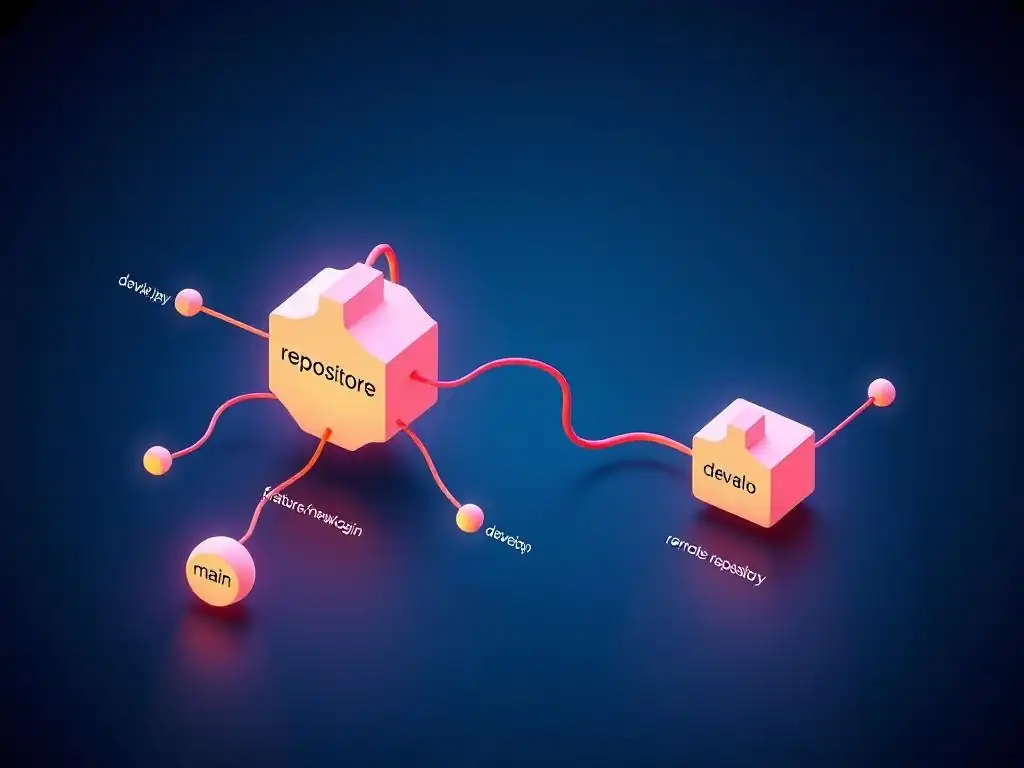
Welcome to Git and Version Control Hub!
Are you ready to untangle the mysteries of Git branches? This site is your comprehensive guide to mastering Git, from fundamental commands to advanced collaborative workflows. Dive into our article, " Local vs. Remote Branches in Git: What's the Difference and Why It Matters?," and discover how to streamline your development process. Uncover the crucial distinctions between local and remote branches, and learn how understanding these differences can dramatically improve your team's collaboration and code management. Ready to master your branching strategy? Let's get started!
- Introduction to Local and Remote Branches in Git
- What are Local Branches in Git?
- What are Remote Branches in Git?
- Key Differences Between Local and Remote Git Branches
- Working with Remote Branches: Essential Git Commands
- Why Local and Remote Branch Management is Crucial
- Common Scenarios: Using Local and Remote Branches Effectively
- Best Practices for Managing Local and Remote Branches in Git
- Troubleshooting Common Issues with Local and Remote Branches
- Conclusion: Mastering Local and Remote Branches for Efficient Git Workflow
-
Frequently Asked Questions
- What is the main difference between a local and a remote branch in Git?
- Why is it important to understand the difference between local and remote branches?
- How do I create a local branch that tracks a remote branch?
- What happens when I run git pull on a local branch that's tracking a remote branch?
- How can I see a list of all local and remote branches in my Git repository?
- Final Reflection: Bridging the Local and Remote in Collaboration
Introduction to Local and Remote Branches in Git
Why Understanding Git Branches Matters for Version Control
Version control is the backbone of modern software development. It allows teams and individual developers to track changes to their codebase, collaborate effectively, and revert to previous versions when necessary. Among the many powerful features Git offers, branching stands out as a cornerstone of efficient and organized development workflows.
Understanding Git branches is not just about knowing the commands; it's about grasping the underlying concepts that enable parallel development, feature isolation, and robust release management. Without a solid understanding of branching, developers can easily find themselves in situations of tangled code, merge conflicts, and lost work, hindering productivity and project stability.
Git branches are essential for managing different lines of development in a project. They allow you to diverge from the main line of development and continue working without disturbing the stable version. This isolation is crucial for developing new features, fixing bugs, or experimenting with new ideas without risking the integrity of the main codebase.
Imagine a team of developers working on a large project simultaneously. Without branches, everyone would be modifying the same files, leading to chaos and conflicts. Branches provide a structured way for each developer or team to work in isolation and then merge their changes back into the main project.
Defining Local and Remote Branches: A Quick Overview
When working with Git, you'll encounter two main types of branches: local and remote branches. Local branches are branches that exist on your own computer, within your local Git repository. They are your personal workspaces where you make changes, commit them, and iterate on features or fixes. Think of them as your private copies of the project's history that you can modify freely without immediately affecting others. You create, modify, and manage local branches using Git commands directly on your machine.
Remote branches, on the other hand, are branches that reside on a remote repository, such as GitHub, GitLab, or a company server. These branches serve as shared points of collaboration and represent the project's state on the remote server. Remote branches are not directly modifiable in the same way local branches are. Instead, you interact with them by fetching updates to your local repository and pushing your local changes to the remote. Understanding the distinction between local and remote branches is fundamental to grasping Git's distributed nature and collaborative workflow.
What are Local Branches in Git?
Local Branches: Your Private Workspace for Development
Local branches in Git are essentially pointers to commits within your local repository's history. When you create a new branch, you are creating a new, independent line of development that diverges from another branch, typically the main or master branch. This new branch becomes your isolated workspace where you can make changes, add new features, or fix bugs without affecting other branches, including the main branch or branches being used by other developers. This isolation is a key advantage of Git's branching model, allowing for parallel development and risk mitigation.
Imagine you are working on a new feature for a website. You would create a local branch, say feature-new-homepage, from your main branch. All the changes you make on feature-new-homepage are isolated to this branch. You can experiment, make mistakes, and even completely rewrite code without impacting the main branch, which ideally should remain stable and deployable. This separation minimizes the risk of introducing bugs into the main codebase while developing new functionalities. Local branches empower developers to work confidently and iteratively in their own sandboxes.
Creating, Switching, and Managing Local Branches
Git provides a set of straightforward commands for managing local branches. To create a new local branch, you would use the command git branch <branch-name>. For example, git branch feature-login-system creates a new branch named feature-login-system. However, this only creates the branch; to start working on it, you need to switch to it using git checkout <branch-name>, like git checkout feature-login-system. Alternatively, you can combine branch creation and switching in one step using git checkout -b <branch-name>, for instance, git checkout -b feature-login-system.
Once you are done working on a local branch and the changes are merged, you might want to delete it to keep your local repository clean. You can delete a local branch using git branch -d <branch-name>, such as git branch -d feature-login-system. If the branch has not been merged, Git will prevent deletion to avoid accidental data loss. In such cases, if you are sure you want to delete it even without merging, you can use git branch -D <branch-name>. Managing local branches effectively—creating them for new tasks, switching between them as needed, and deleting them when they are no longer required—is a fundamental aspect of a streamlined Git workflow.
How Local Branches Facilitate Feature Development
Local branches are indispensable for feature development in Git. They allow developers to isolate new features from the main codebase, ensuring that ongoing development doesn't destabilize the project's core functionality. Consider a scenario where a development team is working on a new e-commerce platform. Different developers might be assigned to different features, such as product catalog, shopping cart, and user reviews. Each developer can create their own local feature branch, for example, feature-product-catalog, feature-shopping-cart, and feature-user-reviews.
Within their respective branches, developers can work independently, commit changes as they progress, and even experiment with different approaches without affecting each other's work or the main project. This parallel development significantly speeds up the feature development process. Once a feature is complete and tested within its local branch, it can be merged back into the main branch or a development branch for integration. This feature branching strategy is a cornerstone of agile development workflows, enabling teams to deliver new functionalities incrementally and efficiently while maintaining code stability.
What are Remote Branches in Git?
Remote Branches: Tracking Changes on Remote Repositories
Remote branches in Git are references to the state of branches on a remote repository. A remote repository is essentially another copy of your project that is hosted on a server, like GitHub, GitLab, or a private server. Remote branches serve as a shared point of reference for team collaboration and for tracking changes made by others. They are not branches that you directly work on and modify in the same way as local branches. Instead, they reflect the branches on the remote repository at the time of your last synchronization.
When you clone a repository, Git automatically sets up a remote connection, usually named origin, pointing to the repository you cloned from. Under this origin remote, you will see remote branches like origin/main, origin/develop, and origin/feature-branch. These remote branches are essentially read-only snapshots of the branches on the remote repository. They allow you to see the history and current state of the project as it exists on the remote server, enabling you to stay informed about changes made by collaborators and to prepare for integrating those changes into your local work.
Fetching and Pulling Updates from Remote Branches
To keep your local repository synchronized with the remote repository, you need to fetch updates from remote branches. The git fetch command is used to retrieve the latest changes from the remote repository without automatically merging them into your local branches. When you run git fetch origin, Git will download all the new commits and branches from the origin remote and update your local remote branches (like origin/main, origin/develop, etc.) to reflect the latest state of the remote repository.
After fetching, you can inspect the changes made on remote branches and decide how to integrate them into your local work. If you want to merge the changes from a remote branch into your current local branch, you can use the git pull command. git pull is essentially a combination of two commands: git fetch followed by git merge. For example, git pull origin main will fetch the latest changes from the origin/main remote branch and then merge them into your currently active local branch. Regularly fetching and pulling updates from remote branches is crucial for staying in sync with the team and avoiding integration issues later in the development process.
The Role of Remote Branches in Collaboration
Remote branches are central to collaborative workflows in Git. They provide a shared space where team members can push their local changes and access changes made by others. When a developer finishes working on a feature in their local branch, they can push that branch to the remote repository. This makes their work accessible to other team members, allowing for code reviews, integration testing, and further collaboration. For instance, if a developer named Alice has been working on feature-alice locally, she can use git push origin feature-alice to push her branch to the origin remote.
Once Alice's branch is on the remote, other developers, like Bob, can fetch updates and see origin/feature-alice. Bob can then create a local branch based on origin/feature-alice to review Alice's code, test it, or even contribute to it. Remote branches facilitate transparency and coordination within development teams. They act as a central hub for sharing code, tracking progress, and ensuring that everyone is working with the latest version of the project. This shared visibility and accessibility are fundamental for effective teamwork in software development using Git.
Key Differences Between Local and Remote Git Branches
Location and Accessibility: Where the Branches Reside
The most fundamental difference between local and remote branches is their location. Local branches reside solely on your local machine. They are part of your local Git repository and are only accessible to you unless you explicitly share them. You create, modify, and delete local branches within your personal development environment. They are designed for individual work and experimentation before changes are shared with others.
Remote branches, in contrast, reside on a remote server. They are part of the remote repository and are accessible to anyone who has access to that repository. Remote branches serve as a shared reference point and a communication hub for teams. While you have local representations of remote branches (e.g., origin/main), these are simply mirrors reflecting the state of the branches on the remote server. You cannot directly modify remote branches through your local repository; instead, you update them by pushing changes from your local branches. This distinction in location dictates how you interact with each type of branch and their respective roles in a Git workflow.
Tracking and Synchronization: Keeping Local and Remote in Sync
Local and remote branches have different mechanisms for tracking and synchronization. Local branches are tracked by your local Git repository. When you make commits on a local branch, Git updates the branch pointer to reflect the latest commit in your local history. The tracking of local branches is entirely confined to your machine and does not involve any network communication until you decide to share your changes.
Remote branches are tracked by the remote repository. Your local repository maintains remote-tracking branches (like origin/main) to remember the state of the remote branches at the time of your last fetch or pull. Synchronization between local and remote branches is not automatic; it requires explicit actions like git fetch, git pull, and git push. git fetch updates your local remote-tracking branches to reflect the current state of the remote branches. git pull fetches and merges remote changes into your local branch, while git push sends your local commits to update the remote branch. This manual synchronization model gives developers control over when and how they integrate remote changes and share their local work.
Permissions and Collaboration: Controlling Access to Branches
Permissions and collaboration models differ significantly between local and remote branches. Local branches have no inherent permissions. They are your personal workspaces, and you have full control over them. You can create, modify, and delete them without needing any special permissions. Local branches are primarily for individual development and experimentation, where access control is not a concern.
Remote branches, particularly on platforms like GitHub and GitLab, often have permission controls. Repository administrators can set permissions to control who can read, write, and manage branches on the remote repository. For example, in many team environments, only certain developers might have permission to push directly to the main branch, while feature branches might have more open access for collaboration within smaller teams. These permission settings are crucial for managing code quality, ensuring that only reviewed and approved code makes it into critical branches, and controlling access to sensitive parts of the codebase in collaborative projects.
Working with Remote Branches: Essential Git Commands
git fetch: Updating Your Local Repository with Remote Changes
The git fetch command is fundamental for working with remote branches. It is used to retrieve the latest changes from a remote repository to your local repository, specifically updating your remote-tracking branches. When you execute git fetch <remote-name>, such as git fetch origin, Git connects to the specified remote repository (in this case, origin) and downloads all the new commits and branches that your local repository doesn't have yet.
Crucially, git fetch does not merge these changes into your local working branches. It only updates your local remote-tracking branches (e.g., origin/main, origin/develop) to reflect the state of the remote repository. After running git fetch, you can inspect the changes that have occurred on the remote branches using commands like git log origin/main or git diff main origin/main. This allows you to review what has changed remotely before deciding how and when to integrate those changes into your local branches. git fetch is a safe operation because it doesn't alter your local working branches; it only updates your local view of the remote repository.
git pull: Fetching and Merging in One Step
The git pull command is a convenience command that combines two operations: git fetch and git merge. When you run git pull <remote-name> <branch-name>, for example, git pull origin main, Git first performs a git fetch origin to update your remote-tracking branches. Then, it automatically merges the specified remote branch (in this case, origin/main) into your currently active local branch.
git pull is often used to quickly synchronize your local branch with the latest changes from the remote repository. It is particularly useful when you want to get the most recent updates and immediately integrate them into your current work. However, because git pull automatically merges, it's important to ensure your local branch is clean (i.e., no uncommitted changes) before running it to minimize the risk of merge conflicts. If conflicts do arise, you will need to resolve them manually before completing the merge.
git push: Sharing Your Local Changes with the Remote Repository
The git push command is used to upload your local commits to a remote repository, effectively sharing your local changes with your team and making them available on the remote server. When you run git push <remote-name> <local-branch-name>:<remote-branch-name>, for instance, git push origin feature-branch:feature-branch, Git pushes the commits from your local feature-branch to the remote origin and updates the feature-branch on the remote repository. If the remote branch name is the same as your local branch name, you can often shorten this to git push origin feature-branch.
git push is essential for collaboration. After you have made commits on your local branch and want to share your work, you use git push to make those changes available to others. Before pushing, it's generally recommended to fetch and pull the latest changes from the remote repository to minimize the chances of conflicts and ensure your local branch is up-to-date with the remote branch. If your local branch has diverged significantly from the remote branch, you might need to resolve merge conflicts before you can successfully push your changes.
git branch -r: Listing Remote Branches
The git branch -r command is used to list all remote branches known to your local repository. When you execute this command, Git displays a list of remote-tracking branches, typically prefixed with the remote name (e.g., origin/main, origin/develop, origin/feature-branch). This command is helpful for getting an overview of the branches that exist on the remote repository and that your local repository is tracking.
Using git branch -r allows you to see what branches are available on the remote without having to visit the remote repository directly through a web interface. It's a quick way to check if a specific branch exists remotely or to see the names of all branches that collaborators are working on. This command is often used in conjunction with other branch-related commands to manage and understand the branch structure of a Git project.
git remote show origin: Inspecting Remote Repository Details
The command git remote show origin (or git remote show <remote-name>) provides detailed information about a specific remote repository, in this case, origin. When you run this command, Git displays information such as the remote repository's URL, the configured push and pull URLs, the remote branches it tracks, and the status of your local branches relative to the remote branches.
This command is useful for understanding the configuration of your remote connection and for getting a comprehensive overview of the relationship between your local repository and the remote. For example, it shows which local branch is set up to track which remote branch, and it can highlight if your local branch is ahead or behind the remote branch. git remote show origin is a valuable tool for diagnosing issues related to remote connections and for getting a deeper understanding of how your local repository interacts with the remote repository.
Why Local and Remote Branch Management is Crucial
Preventing Conflicts and Maintaining Code Integrity
Effective management of local and remote branches is paramount for preventing merge conflicts and maintaining code integrity in Git projects. By using local branches for feature development and bug fixes, developers isolate their changes, reducing the risk of inadvertently introducing bugs into the main codebase or interfering with others' work. When changes are ready to be integrated, they are carefully merged, often through pull requests and code reviews, ensuring that the integrated code is of high quality and doesn't introduce regressions.
Remote branches play a crucial role in this process by providing a shared integration point. Before merging local feature branches, developers typically fetch and pull updates from the remote integration branch (e.g., origin/develop or origin/main) to ensure their local branch is up-to-date. This proactive synchronization helps in identifying and resolving potential merge conflicts early, before they become complex and difficult to manage. Proper branch management, including frequent synchronization and careful merging, is a cornerstone of maintaining a stable and reliable codebase.
Streamlining Collaboration in Team Environments
In team environments, local and remote branch management is essential for streamlining collaboration and enabling parallel development. Remote branches serve as a central hub for sharing code and coordinating work among team members. Each developer can work on their features in isolated local branches and then push those branches to the remote repository for others to review, test, and integrate. This branching strategy allows multiple developers to work on different features simultaneously without stepping on each other's toes.
Using remote branches for collaboration also facilitates code reviews through pull requests or merge requests. When a developer is ready to merge their feature branch, they can create a pull request against a remote integration branch. Other team members can then review the code, provide feedback, and ensure that the changes meet the project's quality standards before they are merged. This collaborative workflow, enabled by effective branch management, enhances code quality, reduces integration issues, and boosts team productivity.
Efficient Feature Branching and Release Management
Local and remote branches are fundamental to efficient feature branching and release management strategies in Git. Feature branching, where each new feature is developed in its own branch, is a widely adopted best practice. Local branches are used to implement features in isolation, while remote branches are used to track and share these feature branches among team members. Once a feature is complete and tested, its branch is merged into a development or integration branch.
For release management, branches are used to manage different release versions of the software. For example, a release branch can be created from the main branch to stabilize code for an upcoming release. Bug fixes for the release can be applied to the release branch, and once the release is ready, it can be tagged and deployed. Branches can also be used for hotfixes, where a branch is created from a stable release branch to quickly address critical issues in production. This branch-based release management approach provides a structured and controlled way to manage software releases and maintain different versions of the codebase.
Common Scenarios: Using Local and Remote Branches Effectively
Scenario 1: Contributing to a Public Repository on GitHub
Imagine you want to contribute to an open-source project hosted on GitHub. The typical workflow involves forking the repository to your own GitHub account. This creates a remote repository under your control. Next, you clone your forked repository to your local machine. This local repository will have origin set to your fork. You then add the original repository as another remote, often named upstream, using git remote add upstream <original-repo-url>.
To contribute, you would create a local branch, say feature-contribution, based on your local main branch. You make your changes, commit them, and then push your local branch to your fork on GitHub using git push origin feature-contribution. Finally, you create a pull request from your feature-contribution branch in your fork to the main branch of the original repository. To keep your fork synchronized with the original repository, you would periodically fetch changes from upstream using git fetch upstream and merge them into your local main branch or feature branch as needed. This scenario highlights how local and remote branches are used in a forking workflow for contributing to open-source projects.
Scenario 2: Developing a User Authentication Feature in a Team
Consider a team of three developers—Alice, Bob, and Charlie—working on a web application and tasked with developing a user authentication feature. They are using a shared remote repository hosted on GitLab. First, each developer creates their own local feature branch, for example, alice-auth, bob-auth, and charlie-auth, based on the develop branch. Alice works on the login functionality in her alice-auth branch, Bob works on registration in his bob-auth branch, and Charlie works on password reset in his charlie-auth branch.
As they develop, they commit changes to their respective local branches. Periodically, they fetch and pull updates from origin/develop into their local feature branches to stay synchronized. Once they have completed their parts and tested them locally, they push their local feature branches to the remote repository: git push origin alice-auth, git push origin bob-auth, and git push origin charlie-auth. Finally, they create merge requests from their remote feature branches to the develop branch. Team lead reviews these merge requests, and upon approval, merges them into the develop branch. This scenario illustrates parallel feature development using local and remote branches in a team setting.
Scenario 3: Implementing a Hotfix for a Critical Security Vulnerability
Suppose a critical security vulnerability is discovered in a production application. The team needs to implement a hotfix quickly and deploy it without disrupting ongoing feature development. They would typically create a hotfix branch from the main or release branch that is currently in production. Let's say they create a local branch named hotfix-security-patch based on the main branch. A developer, say David, is assigned to implement the fix.
David switches to the hotfix-security-patch branch, implements the necessary changes to address the vulnerability, and commits them. He then pushes this local hotfix branch to the remote repository: git push origin hotfix-security-patch. The operations team can then checkout the hotfix-security-patch remote branch, build and test the hotfix, and deploy it to production. Meanwhile, development on new features can continue on other branches, unaffected by the hotfix process. After the hotfix is deployed, the hotfix-security-patch branch is typically merged back into the main and develop branches to ensure the fix is included in future releases. This scenario demonstrates the use of branches for rapid response to critical issues while maintaining separation from regular development activities.
Best Practices for Managing Local and Remote Branches in Git
Regularly Fetch and Pull Updates
A crucial best practice for managing local and remote branches is to regularly fetch and pull updates from the remote repository. Fetching updates using git fetch keeps your local remote-tracking branches synchronized with the state of the remote repository. Pulling updates using git pull not only fetches but also merges remote changes into your current local branch. Regularly performing these operations helps you stay informed about changes made by collaborators and reduces the likelihood of significant divergence and complex merge conflicts.
Aim to fetch and pull updates at least once a day, or even more frequently if your team is very active. Before starting new work or before pushing your local changes, always fetch and pull to ensure you are working with the latest version of the codebase. This proactive synchronization minimizes surprises and makes integration smoother.
Use Descriptive Branch Names
Using descriptive branch names is a simple yet highly effective practice for branch management. Branch names should clearly indicate the purpose of the branch, whether it's for a feature, a bug fix, or some other task. For feature branches, use names like feature-user-profile, feature-payment-gateway, or feature-responsive-design. For bug fixes, use names like bugfix-login-error, bugfix-data-corruption, or hotfix-security-vulnerability.
Descriptive branch names improve the readability and maintainability of your Git repository. They make it easier for team members to understand the purpose of each branch and to navigate the branch structure. Avoid generic or ambiguous branch names like dev-branch or my-branch. Clear and informative branch names contribute to better team communication and reduce confusion, especially in projects with many branches.
Delete Branches After Merging
Once a feature or bug fix branch has been successfully merged into an integration branch (like develop or main) and is no longer needed for active development, it's a good practice to delete both the local and remote branches. Deleting merged branches helps keep your repository clean and uncluttered. Having too many branches, especially those that are no longer active, can make it harder to navigate and understand the current state of the project.
To delete a local branch after merging, use git branch -d <branch-name>. To delete a remote branch, use git push origin --delete <branch-name>. Regularly cleaning up merged branches simplifies branch management, reduces visual clutter, and makes it easier to focus on active development branches. However, ensure that the branch has been properly merged and that you no longer need it before deleting it.
Communicate Branching Strategies with Your Team
Effective communication about branching strategies is crucial for successful team collaboration in Git. Establish clear guidelines and conventions for how branches should be used in your project. Discuss and document your team's branching model, whether it's Gitflow, GitHub Flow, or a custom approach. Make sure everyone on the team understands the purpose of different types of branches (e.g., main, develop, feature branches, hotfix branches) and how they are used in the development workflow.
Communicate about branch creation, merging, and deletion within the team. Use pull requests or merge requests not only for code review but also as a communication tool to discuss and coordinate branch merges. When introducing changes to branching strategies or workflows, ensure that everyone on the team is informed and understands the changes. Clear and consistent communication about branching practices minimizes confusion, reduces errors, and promotes a smooth and efficient collaborative development process.
Troubleshooting Common Issues with Local and Remote Branches
Resolving Merge Conflicts Between Local and Remote Branches
Merge conflicts are a common issue when working with local and remote branches, especially when multiple developers are working on the same files concurrently. Conflicts occur when Git cannot automatically reconcile changes from different branches during a merge or pull operation. When a merge conflict arises, Git will indicate the conflicting files and mark the conflicting sections within those files with special markers ( <<<<<<<, =======, >>>>>>>).
To resolve merge conflicts, you need to manually edit the conflicting files, decide which changes to keep (or combine changes from both branches), and remove the conflict markers. After resolving the conflicts in all files, you need to stage the resolved files using git add <file> and then complete the merge by running git commit. Understanding how to identify and resolve merge conflicts is a fundamental skill for working effectively with Git branches. Practicing conflict resolution and using tools that help visualize and resolve conflicts can significantly streamline this process.
Dealing with Stale Local Branches
Stale local branches are branches that have diverged significantly from their remote counterparts and are no longer up-to-date with the latest changes in the project. Stale branches can lead to integration issues and merge conflicts if you continue to work on them for extended periods without synchronizing. To avoid stale branches, regularly fetch and pull updates from the remote repository into your local branches.
If you suspect a local branch might be stale, you can compare it to its remote counterpart using git diff <local-branch-name> origin/<remote-branch-name>. To update a stale local branch, you can use git merge origin/<remote-branch-name> to merge the latest remote changes into your local branch. Alternatively, you can rebase your local branch onto the remote branch using git rebase origin/<remote-branch-name>. Keeping your local branches relatively up-to-date minimizes integration headaches and ensures you are working with the latest codebase.
Fixing Push Errors Due to Outdated Remote Branches
Push errors, particularly "non-fast-forward updates were rejected," often occur when you try to push your local branch to a remote branch that has been updated since you last fetched. This means the remote branch has commits that your local branch does not have, and Git prevents a direct push to avoid overwriting those remote changes. To fix this push error, you first need to fetch and pull the latest changes from the remote repository.
Run git pull origin <branch-name> to fetch and merge the remote changes into your local branch. This will integrate the remote commits into your local branch and resolve any potential conflicts. After pulling and resolving any conflicts, you should be able to push your local branch successfully using git push origin <branch-name>. In some cases, if you are certain you want to overwrite the remote branch (which is generally not recommended unless you know what you are doing), you can use a force push ( git push origin <branch-name> --force), but use force push with extreme caution as it can lead to data loss if not used properly. Always prefer fetching and pulling before pushing to avoid push errors and maintain repository integrity.
Conclusion: Mastering Local and Remote Branches for Efficient Git Workflow
The Importance of Understanding Git Branching Concepts
Understanding the concepts of local and remote branches in Git is absolutely crucial for any developer working with version control. Branches are the foundation of parallel development, feature isolation, and effective collaboration in Git. Mastering branch management allows developers to work more efficiently, reduce integration risks, and maintain code integrity. Whether you are working on personal projects or collaborating in large teams, a solid grasp of local and remote branches is essential for leveraging the full power of Git.
By understanding the differences between local and remote branches, how to create, manage, and synchronize them, and best practices for branching strategies, you can significantly improve your Git workflow. This knowledge empowers you to navigate complex development scenarios, contribute effectively to projects, and ensure the smooth and organized evolution of your codebase.
Further Resources for Learning Git and Version Control
To deepen your understanding of Git and version control beyond local and remote branches, numerous resources are available. The official Git documentation is an excellent starting point, providing comprehensive information about all Git commands and concepts. Websites like GitHub and GitLab offer extensive tutorials and guides on using Git in collaborative environments. Online courses on platforms like Coursera, Udemy, and Udacity provide structured learning paths for mastering Git, often including practical exercises and real-world examples.
Books such as "Pro Git" by Scott Chacon and Ben Straub are highly recommended for a thorough understanding of Git internals and advanced workflows. Exploring interactive Git learning platforms like Learn Git Branching can also be very beneficial for visualizing and practicing Git concepts. Continuously learning and practicing Git commands and workflows will solidify your skills and enable you to become a proficient Git user, improving your productivity and collaboration in software development.
Frequently Asked Questions
What is the main difference between a local and a remote branch in Git?
A local branch exists only on your machine and reflects your personal work. A remote branch is a reference to a branch on a remote repository like GitHub, allowing you to track changes made by others.
Why is it important to understand the difference between local and remote branches?
Understanding the difference is crucial for effective collaboration within a team. It allows you to manage your work locally while staying updated with the changes on the remote repository.
How do I create a local branch that tracks a remote branch?
You can use the command git checkout -b <local-branch-name> origin/<remote-branch-name>. This command creates a new local branch and sets it up to track the specified remote branch, allowing you to easily pull and push changes.
What happens when I run git pull on a local branch that's tracking a remote branch?
git pull fetches the latest changes from the remote branch and merges them into your local branch. This keeps your local copy synchronized with the remote repository.
How can I see a list of all local and remote branches in my Git repository?
Use git branch to list your local branches. Use git branch -r to list your remote branches. Use git branch -a to list both local and remote branches.
Final Reflection: Bridging the Local and Remote in Collaboration
The intricacies of Git branches, both local and remote, might seem like technical minutiae, but understanding their differences is fundamentally about effective collaboration in the modern software development landscape. In a world increasingly reliant on distributed teams and open-source contributions, mastering the nuances of Git branching is not just a skill, but a necessity for seamless and productive teamwork.
The impact of Git on the way we build software is undeniable, and the distinction between local and remote branches is at the heart of this revolution. My own journey with Git has underscored the importance of grasping these concepts for efficient version control and conflict resolution. The goal of Git is to make distributed development easier, not harder.
- Linus Torvalds. This quote perfectly encapsulates the spirit of Git, reminding us that understanding its core principles, like local and remote branches, empowers us to build better software, together.
Now, armed with a deeper understanding of local and remote branches in Git, I encourage you to reflect on your own workflow. How can you leverage this knowledge to improve your collaboration with others? How can you streamline your development process and minimize conflicts? Embrace the power of Git, explore its capabilities, and contribute to a more collaborative and efficient future for software development.
Master your Git workflow! Learn the crucial differences between local and remote branches at the Git and Version Control Hub (GitAndVersionControlHub.com). Understand how this impacts your collaborative coding and boost your efficiency.