
Demystifying Detached HEAD in Git: Understanding and Resolving the Issue

Welcome to Git and Version Control Hub!
Ever found yourself in a Git state where things just don't feel quite right? You're making changes, but they don't seem to be attaching to any branch? You might be experiencing the dreaded detached HEAD state. Fear not! This guide will demystify this common Git conundrum. Dive in to learn how to fix detached HEAD Git and regain control of your repository, ensuring your commits land exactly where you intend. Unlock a deeper understanding of Git's inner workings and prevent future headaches. Curious to learn more? Let's get started!
Demystifying Detached HEAD in Git: Understanding and Resolving the Issue
- Understanding Detached HEAD State in Git
- Identifying a Detached HEAD
- Resolving Detached HEAD: Step-by-Step Solutions
- Best Practices for Avoiding Detached HEAD
- Advanced Scenarios and Troubleshooting
- Detached HEAD vs. Normal Branching: A Comparison
- Mastering Git: Beyond Detached HEAD
-
Frequently Asked Questions
- How does a detached HEAD state occur in Git?
- What are the potential drawbacks of working in a detached HEAD state?
- How can I identify if my Git repository is in a detached HEAD state?
- What is the recommended way to fix a detached HEAD state in Git?
- Can I merge changes from a detached HEAD state into an existing branch?
- Final Reflection: Embracing the Transient in Git
- Rediscover Git Mastery: Conquer Detached HEAD!
Understanding Detached HEAD State in Git
What is Detached HEAD in Git?
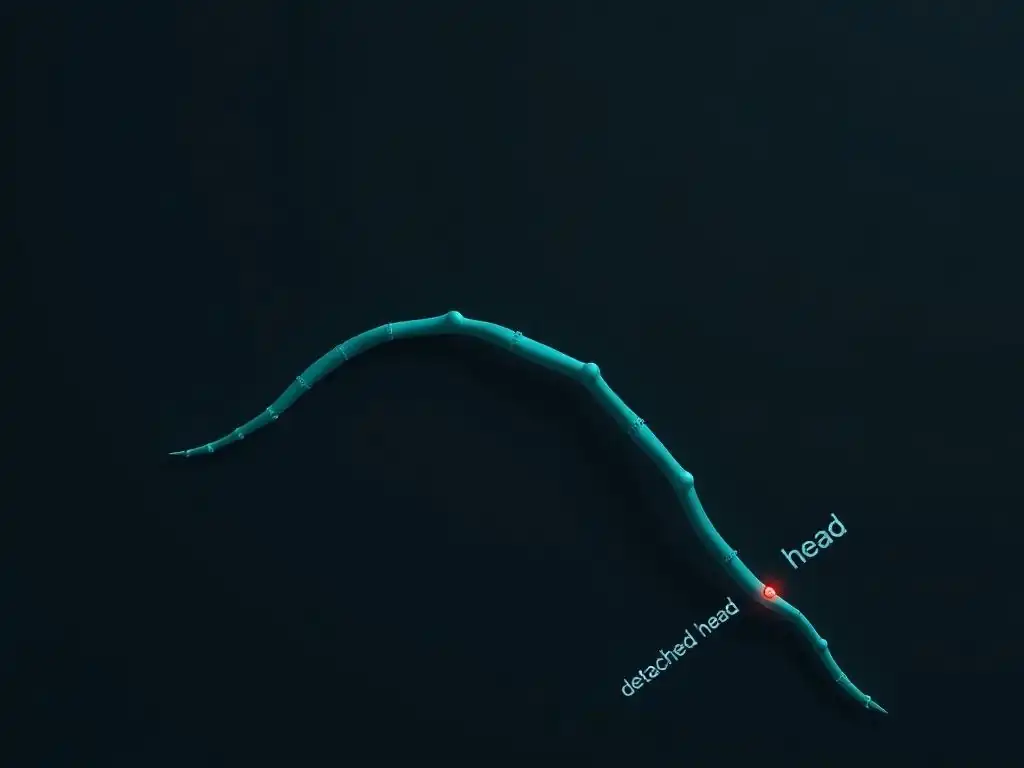
In Git, the term HEAD is a symbolic reference to the currently checked-out commit. Think of it as a pointer that indicates where you are in your project's history. Normally, HEAD points to a branch, like main or develop. This means that when you make a new commit, the branch pointer moves forward, and HEAD follows along. However, Git allows you to check out specific commits directly, rather than branches. When you do this, HEAD no longer points to a branch; instead, it points directly to a commit. This state is known as "detached HEAD". In essence, you're working outside of any branch, directly on a specific point in your project's history.
Imagine your project history as a timeline, with branches being named paths along that timeline. When you are on a branch, you are on a named path, and any new work you do extends that path. Detached HEAD is like stepping off the named path and standing directly on a point on the timeline itself.
You can explore the project at that point, make changes, and even commit, but these commits are not automatically associated with a branch. This can lead to confusion if you're not aware of what's happening, especially when you want to save your work or switch back to a branch later.
Detached HEAD state in Git can arise from several common actions, often during exploration or when trying to revert to a previous project state. One of the most frequent causes is checking out a specific commit hash directly. For instance, if you use the command git checkout <commit-hash> to inspect an older version of your code, Git will place you in a detached HEAD state at that commit. This is because you're explicitly telling Git to position HEAD at a particular point in history, without the context of a branch. This is a perfectly valid action when you want to review the code as it was at that commit or to run tests against a past version.
Another typical scenario leading to detached HEAD is checking out a tag. Tags in Git are used to mark specific points in history, often releases. When you checkout a tag using git checkout <tag-name>, Git will again place you in detached HEAD state, positioned at the commit that the tag points to. This is useful for examining a specific release version without altering your current branch structure. Accidental detachment can also occur, particularly for developers new to Git's command-line interface. For example, a slightly mistyped command intended to switch branches might inadvertently checkout a commit hash if the input resembles one, leading to an unexpected detached HEAD state. Understanding these common causes can help developers proactively avoid or quickly recognize when they enter a detached HEAD state.
The Risks of Working in a Detached HEAD State
While being in a detached HEAD state isn't inherently wrong, it presents certain risks, primarily concerning the persistence and accessibility of your work. If you make commits while in a detached HEAD state, these commits are not associated with any branch. They become 'anonymous' commits, only directly referenced by HEAD. If you switch to another branch without creating a new branch from your detached HEAD, these commits can become orphaned and harder to find later. Git's garbage collection might eventually remove these unreferenced commits, leading to potential data loss if you haven't taken steps to save them.
The primary danger is losing work if you're not careful. Imagine you're investigating a bug from a previous release (checked out using a tag) and, in detached HEAD, you find and fix it. If you then switch back to your main development branch without explicitly creating a branch from your detached HEAD and committing your fix there, your bug fix is effectively lost from your branch structure.
You would need to remember the commit hash of your detached HEAD commits and manually retrieve them. This contrasts sharply with working on a branch, where commits are automatically tracked and easily accessible as part of the branch's history. Therefore, while detached HEAD can be useful for temporary exploration, it's generally advisable to work within branches to ensure your work is properly tracked and easily managed in the long run.
Identifying a Detached HEAD
How to Check if You're in Detached HEAD Mode
Determining whether you are in a detached HEAD state in Git is straightforward and can be done through the command line. The most direct way is to examine the output of the git status command. When you are on a branch, the output will typically start with a line indicating the branch you are on, such as "On branch main" or "On branch develop". However, if you are in a detached HEAD state, the output will be different. Instead of a branch name, you will see a message indicating that you are in a detached HEAD state, often followed by the commit hash that HEAD is currently pointing to.
For example, if you are in detached HEAD, git status might output something like: HEAD detached at <commit-hash> or You are in 'detached HEAD' state. You can still make commits, but they won't be associated with any branch.. This message clearly signals that you are not working on a branch but directly on a commit. Another indicator can be observed in your shell prompt, especially if you are using a Git-aware prompt. Many of these prompts are configured to display the current branch name. In a detached HEAD state, instead of a branch name, you might see the commit hash (or a shortened version of it) or a specific symbol indicating detached HEAD. These visual cues, provided by both git status and shell prompts, are effective ways to quickly identify whether you are in a detached HEAD state.
Git Output Indicating Detached HEAD
Beyond the git status command, there are other Git outputs that can indicate you are in a detached HEAD state. When you perform a git checkout that results in a detached HEAD, Git itself will often provide a warning message in the command line output. For example, if you checkout a commit hash, Git will display a message similar to: You are in 'detached HEAD' state. If you want to create a new branch to retain commits you create, you may do so (now or later) by using -c with the checkout command again. Example: git checkout -b <new-branch-name>. This message is a clear indication that the checkout operation has resulted in a detached HEAD.
Furthermore, if you use commands that display Git history or references, like git branch or git log --oneline --decorate --graph --all, you can visually identify detached HEAD. In these outputs, HEAD will be shown pointing directly to a commit hash and not associated with a branch name. For instance, in git log --oneline --decorate --graph --all, you'll see HEAD next to a commit hash, but not aligned with any of the branch names listed. These visual representations in Git's command-line outputs and history logs offer multiple ways to confirm whether you are in a detached HEAD state, helping you to quickly recognize and address the situation if needed.
Resolving Detached HEAD: Step-by-Step Solutions
Option 1: Creating a New Branch from Detached HEAD
Step 1: Verify Your Current Position (Commit Hash)
Before proceeding to create a new branch, it's crucial to confirm exactly where you are in the commit history in your detached HEAD state. Use the command git log --oneline to view a concise, one-line log of recent commits. The topmost commit in this log, marked with HEAD, is your current position. Note down the commit hash of this commit. While not strictly necessary in most cases as Git remembers HEAD, having the commit hash handy can be useful for verification or in more complex scenarios. This step ensures you know the exact starting point for your new branch, preventing any confusion about where your work is based.
For example, after running git log --oneline, you might see an output like:
abcdefg (HEAD) Your commit message in detached HEAD
1234567 Previous commit message
...
Here, abcdefg is the commit hash of your current position in detached HEAD. Verifying this position is a good practice, especially if you've made changes in detached HEAD that you intend to keep. It confirms that you are branching off from the correct commit, ensuring you don't accidentally lose any work.
Step 2: Create a New Branch
Once you've verified your position, the next step is to create a new branch starting from your current detached HEAD state. This will preserve any work you've done in detached HEAD and allow you to continue working within a named branch. To create a new branch, use the command git checkout -b <new-branch-name>. Replace <new-branch-name> with the desired name for your new branch, for example, fix-bug-xyz or feature-abc. The -b option in the git checkout command tells Git to create a new branch and immediately switch to it. Git will create this new branch at the commit that HEAD is currently pointing to in your detached HEAD state.
For instance, if you want to create a branch named fix-login-bug, you would execute: git checkout -b fix-login-bug. Upon successful execution, Git will output a message similar to: Switched to a new branch 'fix-login-bug'. At this point, you are no longer in a detached HEAD state. HEAD now points to the newly created branch fix-login-bug, which in turn points to the commit you were previously at in detached HEAD. Any commits you make from now on will be added to this new branch, ensuring your work is properly tracked and associated with a branch.
Step 3: Switch to the Newly Created Branch
While the git checkout -b <new-branch-name> command in the previous step already switches you to the newly created branch, it's good practice to explicitly verify that you are indeed on the new branch. After running the command in Step 2, you can use git branch to list all local branches. The currently active branch will be marked with an asterisk *. You should see your newly created branch listed with an asterisk next to it, confirming that you are now working on this new branch. Alternatively, you can use git status again. The output should now indicate "On branch <new-branch-name>", replacing the detached HEAD message you saw earlier.
For example, after creating and switching to the fix-login-bug branch, running git branch might output:
* fix-login-bug
  main
  develop
The asterisk next to fix-login-bug confirms that it is the currently active branch. Similarly, git status output will start with "On branch fix-login-bug". This step provides a final confirmation that you have successfully transitioned from detached HEAD to working on a proper branch. From this point onward, your workflow is back to the standard Git branching model, and your commits will be part of the fix-login-bug branch history.
Option 2: Returning to an Existing Branch
Step 1: Identify the Branch You Want to Return To
If you find yourself in a detached HEAD state and realize you intended to be working on an existing branch, the first step is to identify the correct branch you want to return to. Use the command git branch to list all your local branches. This command will display a list of branch names, with the currently active branch (if you were on one, which you're not in detached HEAD, but it still shows your local branches) marked with an asterisk. Examine this list and determine which branch you intended to be on. It might be main, develop, or a feature branch you were working on previously.
For instance, running git branch might output:
  main
* feature-x
  develop
Even though you're in detached HEAD, this list shows all available local branches. Let's say you realize you meant to continue working on feature-x. In this case, feature-x is the branch you want to return to. If you are unsure, consider the context of your work – what feature or bug fix were you working on? Which branch was associated with that task? Identifying the correct branch is crucial before proceeding with the checkout command to ensure you return to the intended line of development.
Step 2: Use git checkout to Switch Branches
Once you have identified the branch you want to return to, the next step is to switch back to it using the git checkout command. Use the command git checkout <branch-name>, replacing <branch-name> with the name of the branch you identified in the previous step. For example, if you want to return to the feature-x branch, you would execute git checkout feature-x. This command instructs Git to update your working directory to match the state of the specified branch and to point HEAD to that branch.
After executing git checkout feature-x, Git will output a message like: Switched to branch 'feature-x'. You are now back on the feature-x branch, and no longer in a detached HEAD state. Any subsequent commits you make will be added to the feature-x branch. It's always a good idea to verify the switch by using git status or git branch. git status should now indicate "On branch feature-x", and git branch will show * feature-x as the active branch. This method is the quickest way to resolve detached HEAD if you simply intended to be on an existing branch all along.
Option 3: Discarding Changes Made in Detached HEAD
Understanding the Implications of Discarding Changes
In some situations, you might enter a detached HEAD state, make changes, and then realize that these changes were exploratory or unnecessary and you don't want to keep them. In such cases, the simplest solution is to discard these changes and revert your working directory back to the state of the commit you were at when you entered detached HEAD.
It's crucial to understand that discarding changes in detached HEAD means any commits you made in this state will be lost if you haven't taken specific steps to save them (like creating a branch as discussed in Option 1). Git's garbage collection will eventually remove these unreferenced commits.
Before proceeding with discarding changes, carefully consider whether you might need any of the work done in detached HEAD. If there's any chance you might want to recover these changes later, it is strongly recommended to first create a new branch from the detached HEAD (Option 1) as a safety precaution. Discarding changes should only be considered when you are certain that the work in detached HEAD is truly disposable and you want to quickly revert to a known clean state, typically the state of an existing branch.
Performing a Hard Reset (Use with Caution!)
To discard changes made in detached HEAD and revert to a clean state, you can perform a hard reset to a branch. First, identify the branch you want to return to and reset to. This is usually your main branch or the branch you were working on before entering detached HEAD. Then, use the command git checkout <branch-name> to switch to that branch. For example, git checkout main. Once you are on the desired branch, execute git reset --hard <branch-name>. Using the same branch name in the reset command effectively resets the current branch to itself, discarding any changes made in detached HEAD. Be extremely cautious when using git reset --hard as it permanently removes changes from your working directory and staging area, and also resets the branch pointer, potentially losing commits if they are not pushed or otherwise saved.
For instance, if you want to discard changes and return to the state of your main branch, first checkout main using git checkout main. Then, execute git reset --hard main. Git will output a message indicating that HEAD is now at the latest commit of main, and your working directory will be cleaned up to match that commit. After this operation, you will be back on the main branch, and any changes or commits made while in detached HEAD (that were not explicitly saved) will be gone. This method provides a quick way to "undo" the detached HEAD state and return to a known, clean branch state, but it should be used with caution due to its destructive nature.
Best Practices for Avoiding Detached HEAD
Always Work on Branches
The most fundamental best practice to avoid unintended detached HEAD states is to always ensure you are working on a branch. Whenever you start a new task, whether it's a feature, a bug fix, or even just exploring, create a new branch for it. Use git checkout -b <new-branch-name> to create and switch to a new branch before you start making changes. This practice ensures that all your commits are automatically associated with a branch, making them easily trackable and preventing accidental data loss. Working on branches is the standard and recommended workflow in Git for most development tasks.
For example, instead of directly checking out a commit to investigate a bug, create a branch from your current branch first: git checkout -b investigate-bug-123. Then, if needed, you can further checkout specific commits within this branch if you need to examine past states for debugging. By consistently starting your work on a dedicated branch, you minimize the chances of unintentionally ending up in a detached HEAD state and simplify the management of your project's history and your own work.
Double-Check Your Checkout Commands
Carefully review your git checkout commands before execution, especially when switching between branches or exploring history. When you intend to switch to an existing branch, ensure you are using the branch name correctly with git checkout <branch-name>. Avoid accidentally using commit hashes or tag names if your intention is to switch branches. If you are intentionally checking out a commit or tag for inspection, be aware that this will lead to a detached HEAD state, and be prepared to handle it appropriately, such as creating a new branch if you plan to make and keep changes.
For instance, if you want to switch to the develop branch, double-check that you type git checkout develop and not something like git checkout <commit-hash-that-resembles-develop>. Pay attention to Git's output after running git checkout. If you see a message indicating "detached HEAD", it's a signal to re-evaluate your intended action and take corrective steps if necessary. Being mindful and verifying your checkout commands can significantly reduce the occurrence of unintended detached HEAD states.
Understanding Git's Branching Model
A solid understanding of Git's branching model is crucial for avoiding detached HEAD issues and for effective version control in general. Familiarize yourself with the concepts of branches, commits, and HEAD. Understand that HEAD usually points to the tip of a branch, and branches are pointers to a series of commits. Learn how Git uses branches to manage parallel lines of development and how switching branches affects your working directory and HEAD. Invest time in learning about different branching strategies like Gitflow or GitHub Flow to understand how branches are typically used in collaborative software development.
Resources like online Git documentation, interactive tutorials, and books on Git can significantly improve your understanding of Git's branching model. For example, visualizing Git branches and commits using tools or diagrams can help solidify your mental model. A clear understanding of these fundamentals will empower you to use Git more effectively, avoid common pitfalls like detached HEAD confusion, and leverage Git's powerful branching capabilities for better code management and collaboration.
Advanced Scenarios and Troubleshooting
Recovering Lost Commits in Detached HEAD
Even if you accidentally lose track of commits made in a detached HEAD state, Git provides mechanisms to recover them, especially if they haven't been garbage collected yet. The primary tool for this is git reflog. Reflog, or reference log, is a mechanism Git uses to record updates to the tip of branches and other references. It essentially keeps a history of where your HEAD and branch pointers have been, even if those commits are not part of a branch's current history.
When you make commits in detached HEAD, these commits are recorded in the reflog. Even if you switch branches and seemingly "lose" these commits from your immediate view, they are still recorded in the reflog for a certain period (by default, reflog entries expire after 90 days for commits reachable by the reflog and 30 days for unreachable commits). This makes git reflog a powerful tool for recovering from accidental data loss, including commits made in detached HEAD that are no longer directly referenced by a branch.
Using git reflog to Find Commits
To recover commits from a detached HEAD state using git reflog, first, execute the command git reflog. This will display a history of actions that have updated the references in your local repository, including HEAD movements, branch creations, resets, and checkouts. Each entry in the reflog is associated with a commit hash and a description of the action. Look through the reflog output for entries that correspond to your detached HEAD activity. You'll be looking for entries that occurred around the time you were working in detached HEAD.
Identify the commit hash associated with the commit you want to recover from the reflog. Once you find the relevant commit hash, you can create a new branch starting from that commit to bring it back into your branch structure. Use the command git checkout -b <recover-branch-name> <commit-hash-from-reflog>, replacing <recover-branch-name> with a new branch name (e.g., recovered-detached-head-work) and <commit-hash-from-reflog> with the commit hash you found in the reflog. This will create a new branch containing the commits you made in detached HEAD, effectively recovering your work. For example: git checkout -b recovered-work abc1234 where abc1234 is the commit hash from the reflog.
Dealing with Remote Repositories and Detached HEAD (Pushing a New Branch)
Detached HEAD primarily affects your local repository. However, if you create a new branch from a detached HEAD state (as described in Option 1) and want to share this work with others, you'll need to push this new branch to a remote repository. Standard git push command without specifying a branch name will typically push the current branch. Since you are now on a newly created branch, you can push it to the remote using git push origin <new-branch-name>, where <new-branch-name> is the name of the branch you created from detached HEAD. This command will upload your new local branch to the remote repository, making it available to your team.
For example, if you created a branch named fix-security-vulnerability from detached HEAD and want to push it to the origin remote, you would use: git push origin fix-security-vulnerability. This command establishes an upstream relationship between your local fix-security-vulnerability branch and a remote branch of the same name (or creates it if it doesn't exist). After pushing, your colleagues can then fetch and checkout this branch to review or collaborate on your work. Remember that you must explicitly create a branch from your detached HEAD work and push that branch to share your changes remotely.
Detached HEAD vs. Normal Branching: A Comparison
Key Differences in Workflow
The fundamental difference between working in detached HEAD and on a branch lies in how commits are tracked and referenced. In normal branching, HEAD points to a branch, and commits are added to the branch's history. The branch name acts as a stable, symbolic reference to the latest commit in that line of development. This provides a clear and organized way to track changes and collaborate. In contrast, in detached HEAD, HEAD points directly to a commit, bypassing the branch structure. Commits made in detached HEAD are not automatically associated with a named branch, making them 'anonymous' initially.
This difference in referencing leads to distinct workflows. Branch-based workflow is designed for persistent, collaborative development. Branches provide stability, allow for feature isolation, and simplify merging and release management. Detached HEAD workflow is typically more transient and exploratory. It's useful for inspecting past states, running tests on specific commits, or making temporary, isolated changes that might not be intended for long-term integration. However, for persistent work, especially in collaborative environments, branch-based workflow is the standard and highly recommended approach.
Advantages and Disadvantages of Each Approach
Detached HEAD
- Advantages:
- Inspection of Historical States: Excellent for quickly viewing and testing code at specific commits or tags without altering your current branch.
- Isolated Experimentation: Allows for making temporary changes without immediately affecting your branch structure, useful for quick experiments or debugging specific versions.
- Disadvantages:
- Risk of Losing Commits: Commits made in detached HEAD can be easily orphaned and potentially lost if not explicitly saved by creating a branch.
- Less Organized Workflow: Not suitable for ongoing development or collaborative work as it lacks the organizational structure of branches.
- Potential for Confusion: Can be confusing for developers unfamiliar with detached HEAD, leading to accidental data loss or workflow disruptions.
Normal Branching
- Advantages:
- Organized Development: Provides a structured way to manage features, bug fixes, and releases through named branches.
- Collaboration-Friendly: Branches facilitate parallel development, code review, and merging in team environments.
- Commit Persistence: Commits are securely tracked as part of branch history, reducing the risk of data loss.
- Clear History Tracking: Branch names provide meaningful references to lines of development, making project history easier to understand and navigate.
- Disadvantages:
- Slightly More Overhead: Branching adds a layer of management compared to directly working on commits, although this overhead is generally minimal and well-justified.
- Initial Learning Curve: Understanding branching concepts is essential, which might require a bit more initial learning for Git beginners compared to a simpler, linear workflow.
Detached HEAD is a useful feature for specific, short-term tasks like code inspection and isolated experimentation, but it's not designed for regular development. Normal branching provides a robust, organized, and collaborative workflow that is essential for effective software development with Git.
Mastering Git: Beyond Detached HEAD
Further Learning Resources for Git Branching
To deepen your understanding of Git branching and related concepts, numerous resources are available online and in print. The official Git documentation ( https://git-scm.com/doc ) provides comprehensive information on all aspects of Git, including detailed sections on branching and merging. Websites like GitHub ( https://guides.github.com/ ) and GitLab ( https://docs.gitlab.com/ ) offer excellent tutorials and guides on using Git within their platforms, which often include visual aids and practical examples related to branching workflows.
Interactive Git learning platforms like LearnGitBranching ( https://learngitbranching.js.org/ ) provide a visual and engaging way to practice Git commands and understand branching concepts through interactive exercises. Books like "Pro Git" by Scott Chacon and Ben Straub (available for free online at https://git-scm.com/book/en/v2 ) are considered definitive guides to Git, covering branching in detail. Exploring these resources will significantly enhance your Git skills and solidify your understanding of branching strategies and best practices, moving you beyond basic detached HEAD resolution to more advanced Git proficiency.
Exploring Advanced Git Commands (Rebase, Merge)
Once you're comfortable with basic branching and resolving detached HEAD issues, delving into advanced Git commands like rebase and merge is the next step towards mastering Git. git merge is used to combine changes from one branch into another, creating a merge commit that represents the integration point. It's the most common way to integrate branches and is suitable for most merging scenarios. git rebase, on the other hand, integrates changes by rewriting the commit history. It takes the commits from one branch and reapplies them on top of another branch, resulting in a linear commit history without merge commits.
Understanding when to use merge versus rebase is a key aspect of advanced Git usage. Merge preserves the entire history, including the branch structure, which is often preferred for collaborative projects where history traceability is important. Rebase creates a cleaner, linear history, which can be beneficial for personal projects or when you want a simplified project timeline. Experimenting with both git merge and git rebase in practice, and studying their effects on your repository's history, will significantly deepen your Git expertise and enable you to choose the most appropriate integration strategy for different situations, ultimately making you a more proficient and efficient Git user.
Frequently Asked Questions
How does a detached HEAD state occur in Git?
A detached HEAD state occurs when you checkout a specific commit instead of a branch. This effectively detaches the HEAD pointer from the tip of any branch, pointing directly to a commit's history.
What are the potential drawbacks of working in a detached HEAD state?
Working in a detached HEAD state can lead to losing your work if you create new commits without creating a new branch. These commits become orphaned and difficult to access.
How can I identify if my Git repository is in a detached HEAD state?
You can identify a detached HEAD state by running the git status command, which will display a message indicating that you are in detached HEAD state at a specific commit hash.
What is the recommended way to fix a detached HEAD state in Git?
The recommended approach is to create a new branch from the detached HEAD state. This ensures any commits you make are associated with a branch and won't be lost.
Can I merge changes from a detached HEAD state into an existing branch?
Yes, you can merge changes from a detached HEAD state into an existing branch. First, create a new branch from the detached HEAD. Then, merge that new branch into the branch you want to update.
Final Reflection: Embracing the Transient in Git
The journey through the intricacies of Git's detached HEAD state, as we've explored, isn't merely a technical exercise; it's a lesson in understanding the transient nature of software development. The ability to navigate and resolve a detached HEAD situation is crucial for any developer seeking mastery over their version control system, and its relevance only grows as projects become more complex and collaborative.
This exploration has highlighted how Git, at its core, reflects the iterative and often unpredictable process of creation. Understanding detached HEAD allows us to appreciate the freedom to experiment and explore different paths in our code, without fear of permanently disrupting the main development flow. The only way to do great work is to love what you do.
- Steve Jobs. This quote resonates deeply because detached HEAD allows us to love the process of exploration and experimentation, knowing we can always return to a stable state.
Now, armed with this knowledge, I encourage you to embrace the power of detached HEAD in your own Git workflow. Don't shy away from exploring different branches and commits. Use it as a sandbox for experimentation, a safe space to test new ideas. By understanding and mastering this seemingly complex state, you unlock a new level of confidence and control over your code, ultimately becoming a more effective and innovative developer.
Rediscover Git Mastery: Conquer Detached HEAD!
Thanks for diving into the world of Git with us! We hope this article helped clarify what "Detached HEAD" means and how to navigate it confidently. Now, it's time to put that knowledge into action!
Here are a few ways to solidify your understanding and master Git:
- Practice, practice, practice! Create a new Git repository and intentionally enter detached HEAD state. Then, experiment with the different solutions we discussed until you feel comfortable resolving it.
- Dive Deeper: Explore other scenarios like using
git checkout <commit-hash>to inspect previous states and understand the implications of working in a detached HEAD. - Share your newfound wisdom: Help fellow developers by sharing this article with your network. A little Git knowledge goes a long way!
What's the most surprising thing you learned about detached HEAD, and how will you apply it to your Git workflow? Share your thoughts in the comments below!