
GitLab Boards: KanbanStyle Project Management within GitLab

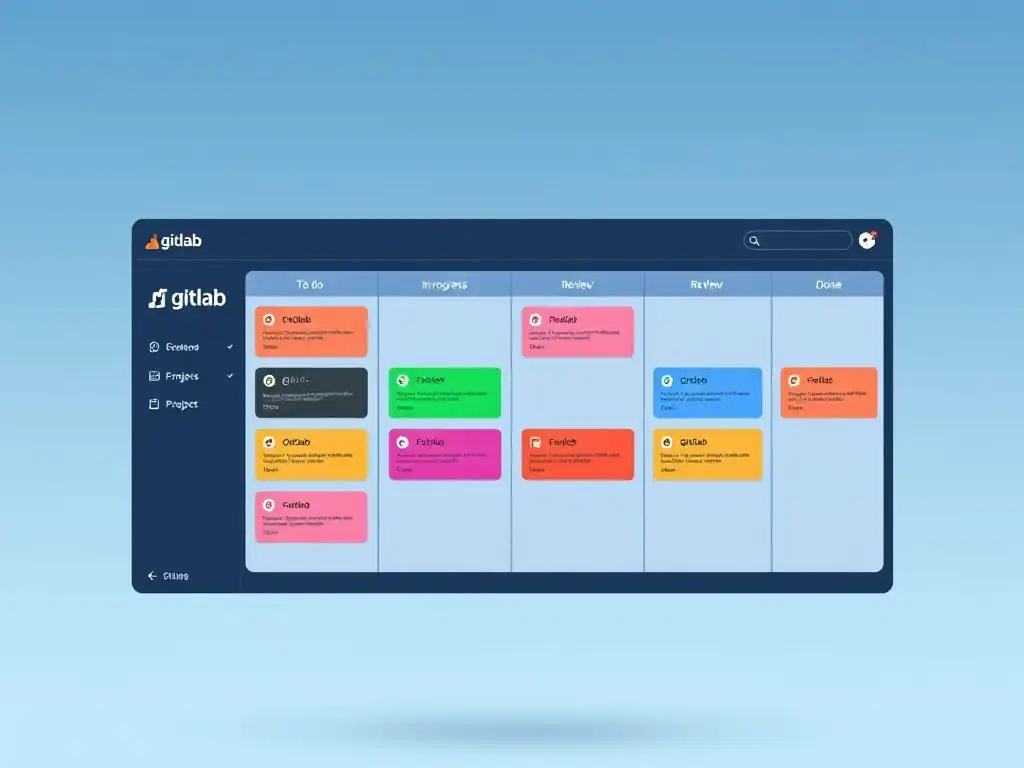
Welcome to Git and Version Control Hub, your central resource for mastering the art of version control with Git! Are you ready to unlock the full potential of collaborative software development? Today, we dive deep into Kanban project management within GitLab, exploring how to leverage GitLab Boards to streamline your workflow and boost team productivity. But first, what makes GitLab's Kanban implementation so powerful, and how can it transform your project management approach? Let's find out!
GitLab Boards: Kanban-Style Project Management within GitLab
- Introduction to Kanban Project Management in GitLab
- Setting Up Your First GitLab Board for Kanban
- Customizing Your GitLab Kanban Board for Optimal Workflow
- Advanced Kanban Features in GitLab Boards
- Integrating GitLab Boards with Other GitLab Features
- Best Practices for Effective Kanban Project Management with GitLab
- GitLab Boards vs. Other Project Management Tools: A Kanban Comparison
- Troubleshooting Common Issues with GitLab Kanban Boards
- Conclusion: Leveraging GitLab Boards for Agile Project Management
-
Frequently Asked Questions
- What are GitLab Boards and how do they relate to Kanban?
- How do GitLab Boards facilitate team collaboration?
- Can I integrate GitLab Boards with other GitLab features?
- What are the benefits of using GitLab Boards for Kanban project management?
- Are GitLab Boards suitable for both personal and team projects?
- Final Reflection: Embracing Flow in the Digital Workspace
- Unlock Your Team's Potential: Master GitLab Boards!
Introduction to Kanban Project Management in GitLab
Understanding Kanban Principles and Their Application in Software Development
Kanban, originating from Toyota's lean manufacturing, is a visual system for managing workflow. In essence, Kanban focuses on visualizing the workflow, limiting work in progress (WIP), and managing flow. The core principles revolve around starting with what you do now, agreeing to pursue incremental, evolutionary change, respecting the current process, roles, responsibilities, and encouraging acts of leadership at all levels. In the context of software development, these principles translate to creating transparency in the development process, improving team focus by limiting concurrent tasks, and optimizing the delivery pipeline for faster and more efficient software releases.
Applying Kanban in software development means visualizing the stages of your development lifecycle, such as "To Do," "In Development," "Testing," and "Done." Each task, represented as a card, moves through these stages. This visual representation provides immediate insights into the project's progress, bottlenecks, and areas for improvement. Teams using Kanban benefit from increased flexibility as it’s a pull-based system, allowing for quicker adaptation to changing priorities compared to rigid, time-boxed methodologies. The emphasis on continuous flow and iterative improvements makes Kanban a valuable tool for software teams striving for agility and efficiency.
Why Choose GitLab Boards for Kanban? [Briefly explain benefits]
GitLab Boards offer a seamless integration of Kanban project management directly within the GitLab platform. This eliminates the need for external project management tools, streamlining workflows and reducing context switching for development teams. One of the primary benefits is the tight coupling with GitLab's core functionalities like issue tracking, merge requests, and CI/CD pipelines. This integration allows for a unified view of the entire software development lifecycle, from initial feature requests to deployment. For example, linking issues on the Kanban board directly to merge requests simplifies code review and progress tracking.
Furthermore, GitLab Boards are highly customizable, allowing teams to tailor their Kanban boards to match their specific workflows and project needs. You can easily configure lists (columns) to represent different stages of your process, customize labels for categorization, and use features like swimlanes for prioritization. This flexibility makes GitLab Boards suitable for teams of varying sizes and complexities. The built-in analytics features, such as cycle time and lead time tracking, provide valuable data-driven insights for process optimization, enabling teams to continuously improve their performance and delivery speed.
Setting Up Your First GitLab Board for Kanban
Creating a New GitLab Project or Utilizing an Existing One
To begin using GitLab Boards for Kanban, you first need a GitLab project. If you are starting a new project, create a new project within your GitLab instance. This can be a blank project, or you can import an existing repository.
For instance, if you're developing a new feature for an existing application, you might create a new project group to organize related repositories and boards, or simply use the existing project repository if it's a standalone project. Suppose you are working on a web application; you might name your project "WebApp Development" and initialize it with your application's code.
Alternatively, if you are already managing your code in GitLab, you can leverage an existing project. Navigate to your desired project within GitLab. This is particularly useful if you want to implement Kanban for an ongoing project without disrupting your current GitLab setup.
For example, if you have a project called "Customer Support Portal" already in GitLab, you can immediately start setting up a Kanban board within that project to manage feature requests, bug fixes, and improvements for the portal. Choosing to use an existing project allows for a quick and easy transition to Kanban project management within your familiar GitLab environment.
Once you have selected or created your GitLab project, accessing the Kanban board is straightforward. Within your project's sidebar menu, look for the "Boards" section. Depending on your GitLab version and project settings, this might be directly visible or nested under a "Project" or "Issues" dropdown menu. Typically, it's located prominently to ensure easy access for project management activities. Clicking on "Boards" will take you to the Kanban board interface for your project.
If this is your first time accessing the Boards section for the project, GitLab might present you with a default board or guide you through creating a new one. In many cases, a default board with "Open" and "Closed" lists might already be present. This initial setup provides a basic Kanban structure that you can then customize to fit your team's specific workflow. The intuitive navigation ensures that even users new to GitLab can quickly find and start using the Kanban board feature, facilitating a smooth adoption of Kanban project management.
Configuring Lists (Columns) to Represent Kanban Workflow Stages
Backlog, Development, Testing, Staging, Production
The heart of a Kanban board lies in its lists, which represent the stages of your workflow. GitLab Boards allows for flexible configuration of these lists. To set up a typical software development Kanban workflow, you would start by defining the key stages your issues progress through. Common lists include "Backlog," "Development," "Testing," "Staging," and "Production." The "Backlog" list holds all the issues and feature requests that are planned for development but not yet actively being worked on. This acts as a repository of tasks waiting to be pulled into the active workflow.
Next, "Development" represents the stage where developers are actively working on implementing features or fixing bugs. Following "Development," "Testing" is where completed code is tested for quality assurance. "Staging" typically represents a pre-production environment where changes are validated before final release. Finally, "Production" signifies that the feature or fix has been successfully deployed to the live environment.
These lists provide a clear visual representation of the issue lifecycle, from initial idea to live deployment. You can customize these list names and add or remove lists to precisely mirror your team's unique development process. For example, some teams might include a "Code Review" stage between "Development" and "Testing." The ability to tailor these lists makes GitLab Boards adaptable to various software development workflows and methodologies.
Customizing Your GitLab Kanban Board for Optimal Workflow
Creating and Assigning Issues as Kanban Cards
In GitLab Boards, issues serve as Kanban cards, representing individual tasks, bug fixes, or feature requests. Creating an issue is straightforward. From within your GitLab project, navigate to the "Issues" section and click "New Issue." Fill in the issue title, which should be a concise summary of the task. For example, "Implement User Authentication Feature" or "Fix Bug on Login Page." In the description, provide detailed information about the issue, including acceptance criteria, steps to reproduce (for bugs), or user stories. You can use Markdown formatting in the description for better readability and structure.
Once created, you can assign the issue to a specific team member responsible for working on it. Assignees are selected from the project members. For instance, you might assign the "Implement User Authentication Feature" issue to John Doe, a developer on your team. Assigning issues ensures accountability and clarity within the team. After creating and assigning an issue, it appears as a card on your GitLab Board, typically in the first list, such as "Backlog" or "Open," ready to be moved through the workflow stages as progress is made.
Using Labels for Categorization and Filtering
Labels in GitLab Boards are crucial for categorizing and filtering issues, enhancing board organization and issue management. You can create labels to represent various aspects of issues, such as feature areas, priorities, issue types (bug, feature, enhancement), or teams responsible. For example, you might create labels like "Frontend," "Backend," "Urgent," "High Priority," "Bug," "Feature Request," or "Team Alpha." Labels can be created and managed within the "Labels" section of your GitLab project settings.
Applying labels to issues allows for efficient filtering and searching on the Kanban board. You can filter issues by label to focus on specific types of tasks or areas of the project. For instance, you could filter the board to only show "Bug" issues labeled as "Urgent" to prioritize critical bug fixes. Labels also visually categorize issues on the board itself, often displayed as colored tags on the issue cards. This visual categorization helps team members quickly understand the context and nature of each task at a glance, improving overall board clarity and team communication.
Assigning Milestones and Due Dates to Issues
Milestones in GitLab provide a way to group related issues and track progress towards larger project goals or releases. You can create milestones to represent sprints, releases, or specific project phases. For example, you might create milestones like "Release 1.0," "Sprint 2," or "Phase 1 - User Interface Development." Milestones are created and managed in the "Milestones" section of your GitLab project. Assigning a milestone to an issue links it to a specific project goal and helps in visualizing progress towards that milestone on the Kanban board.
Due dates add a time-bound aspect to issues, indicating when a task is expected to be completed. You can set due dates when creating or editing an issue. Due dates help in prioritizing tasks and ensuring timely completion of work. On the Kanban board, issues with approaching or overdue due dates can be visually highlighted, providing alerts to the team about impending deadlines. Combining milestones and due dates in GitLab Boards enables effective time-based project management within the Kanban framework, facilitating better planning and execution of software development projects.
Utilizing Issue Weight for Effort Estimation
Issue weight in GitLab Boards allows teams to estimate the effort or complexity of tasks represented by issues. Issue weight is a numerical value assigned to an issue, reflecting the relative effort required to complete it. Unlike time-based estimations, issue weight is abstract and can represent story points, ideal days, or any other unit of effort estimation your team prefers. For example, a simple bug fix might be weighted as 1, while a complex feature implementation could be weighted as 5 or 8, depending on your team's scale.
Assigning issue weights helps in capacity planning and sprint planning, especially when used in conjunction with iterations (discussed later). By summing up the issue weights in a given list or iteration, teams can get a sense of the total effort involved and better manage their workload. While issue weight itself doesn't directly influence the Kanban board's visual appearance, it provides valuable data for reporting and analysis, particularly in tracking team velocity and predicting future sprint capacities. Issue weight is a crucial element for teams adopting a more agile approach to Kanban project management within GitLab.
Advanced Kanban Features in GitLab Boards
Swimlanes for Prioritization and Categorization
Grouping Issues by Assignee, Milestone, or Feature
Swimlanes in GitLab Boards provide an additional layer of horizontal categorization, allowing you to visually group issues based on different criteria. Instead of just vertical lists representing workflow stages, swimlanes create horizontal rows that further divide the board. Common swimlane options include grouping issues by assignee, milestone, or feature. For example, using "Assignee" swimlanes will create a separate horizontal lane for each team member, displaying the issues assigned to them within each workflow stage. This provides immediate visibility into individual workloads and task distribution.
Grouping by "Milestone" creates swimlanes for each milestone, allowing you to track progress towards different project goals concurrently on the same board. If you are organizing by "Feature," each swimlane could represent a major feature area, helping to manage and visualize feature-specific tasks across the workflow. Swimlanes enhance board organization, especially for larger projects or teams, making it easier to prioritize tasks within specific categories and gain a more granular view of project progress. They are a powerful tool for managing complexity and improving the visual clarity of your GitLab Kanban board.
Cycle Time and Lead Time Tracking for Performance Measurement
GitLab Boards automatically tracks cycle time and lead time, providing valuable metrics for performance measurement and process improvement. Cycle time measures the time taken for an issue to move from the start of "Development" (or a designated starting list) to "Done" (or a designated ending list). Lead time, on the other hand, measures the total time from issue creation to completion. These metrics are calculated and displayed within GitLab's analytics features for your Kanban board.
Tracking cycle time helps identify bottlenecks in your development process. Long cycle times in a particular stage might indicate process inefficiencies or resource constraints that need to be addressed. Lead time provides a broader view of the entire issue lifecycle, highlighting areas where delays might occur from initial request to final delivery.
By monitoring these metrics over time, teams can identify trends, measure the impact of process improvements, and make data-driven decisions to optimize their workflow and reduce delivery times. GitLab's automatic tracking of cycle time and lead time provides a significant advantage for teams focused on continuous improvement and efficient Kanban project management.
Burn Down Charts for Visualizing Progress
Burn down charts in GitLab Boards offer a visual representation of the remaining work within a milestone or iteration over time. These charts are particularly useful for tracking progress in sprint-based Kanban or time-boxed iterations. A burn down chart typically plots the remaining issue weight (or issue count) on the vertical axis against time on the horizontal axis. Ideally, the chart line should trend downwards towards zero as work is completed, "burning down" the remaining effort.
Deviations from the ideal burn down line can indicate potential issues, such as scope creep, underestimated tasks, or team velocity fluctuations. For example, a burn down chart flattening out might suggest that the team is not completing tasks at the planned rate, requiring investigation and potential adjustments to the plan or process. Burn down charts provide a quick and intuitive way to visualize progress, identify potential roadblocks early, and keep projects on track. GitLab's integration of burn down charts within the Kanban board analytics provides teams with a valuable tool for visual project management and progress monitoring.
Issue Board Iterations for Sprint Planning
GitLab Boards supports iterations, which are time-boxed periods, similar to sprints in Scrum, used for structured planning and execution of work. Iterations allow you to plan work in fixed-length cycles, typically one or two weeks, providing a framework for sprint-based Kanban. You can define iterations with start and end dates and associate issues with specific iterations. This allows for focused planning and tracking of work within each iteration cycle.
Using iterations in GitLab Boards facilitates sprint planning meetings where teams can select issues from the backlog and assign them to the current iteration. The Kanban board then becomes a visual tool for managing the iteration's work, with issues moving through the workflow stages within the iteration timeframe.
Iteration reports and burn down charts, as described earlier, further enhance progress tracking within iterations. Issue board iterations provide a structured approach to Kanban project management, combining the flexibility of Kanban with the time-boxed planning and review cycles of sprint-based methodologies, making it suitable for teams transitioning from Scrum or those who prefer a more iterative approach to Kanban.
Integrating GitLab Boards with Other GitLab Features
Connecting Issues to Merge Requests for Code Review
GitLab Boards seamlessly integrates with merge requests, streamlining the code review process within the Kanban workflow. When a developer completes work on an issue and moves it to a "Code Review" or similar list, they can create a merge request directly linked to that issue. This connection ensures traceability and context throughout the development lifecycle. The merge request will automatically reference the issue number, providing reviewers with immediate access to the issue description, acceptance criteria, and related discussions.
Conversely, from within an issue, you can easily access linked merge requests, providing a clear view of the code changes associated with that task. This integration simplifies the transition from development to code review, ensuring that all code changes are properly reviewed and approved before merging. For example, when an issue "Implement User Authentication Feature" reaches the "Code Review" stage on the Kanban board, the developer creates a merge request for the code changes. Reviewers can then access the issue details directly from the merge request, facilitating a more efficient and context-aware code review process.
Automating Workflow with GitLab CI/CD Pipelines
GitLab Boards can be integrated with GitLab CI/CD pipelines to automate workflow transitions based on CI/CD pipeline stages. For instance, you can configure your CI/CD pipeline to automatically move an issue to the "Testing" list on the Kanban board when a build is successfully completed in the CI pipeline. Similarly, upon successful deployment to a staging or production environment through the CI/CD pipeline, the issue can be automatically moved to the "Staging" or "Production" list on the board.
This automation reduces manual updates to the Kanban board and ensures that the board accurately reflects the real-time status of issues as they progress through the CI/CD pipeline. It also provides immediate feedback to the team on the success or failure of CI/CD stages directly within the project management context of the Kanban board.
For example, if a CI pipeline fails during testing, the issue might remain in the "Development" list or even move back to a "Needs Fix" list, visually signaling the need for developer intervention. This tight integration between GitLab Boards and CI/CD pipelines enhances workflow efficiency and provides a comprehensive view of the software delivery process.
Linking Issues to Epics for Larger Project Goals
GitLab Epics allow you to group related issues under a larger project goal or feature set. Epics represent high-level initiatives that are broken down into smaller, manageable issues. By linking issues on your Kanban board to epics, you can visualize the contribution of individual tasks to larger project objectives. This hierarchical relationship provides a broader context for issue management and progress tracking. For example, an epic "Redesign User Interface" might encompass several issues like "Update Navigation Menu," "Redesign Dashboard," and "Improve Mobile Responsiveness."
Within GitLab Boards, you can view the epic associated with each issue, and conversely, you can see the issues linked to a specific epic. This linkage facilitates portfolio-level project management, allowing stakeholders to track progress at both the issue level and the epic level. Epics provide a higher-level organizational structure for your Kanban board, especially useful for managing large projects with multiple interconnected features or initiatives. This integration helps maintain alignment between granular tasks and overarching project goals, improving overall project visibility and strategic planning.
Best Practices for Effective Kanban Project Management with GitLab
Defining Clear Workflow Stages
For effective Kanban project management with GitLab Boards, clearly defining your workflow stages is paramount. Start by mapping out the steps your issues typically go through from inception to completion. These stages will become your Kanban board's lists (columns). Ensure that each stage is distinct and represents a meaningful step in your development process. Avoid overly granular stages that add unnecessary complexity or too broad stages that obscure workflow bottlenecks.
For instance, a well-defined workflow might include stages like "Ideas," "To Do," "In Progress," "Code Review," "Testing," "Ready for Staging," "Staging," "Ready for Production," and "Production." Each stage should have clear entry and exit criteria, defining when an issue is considered to be in that stage and when it can move to the next. Clearly defined stages provide transparency, reduce ambiguity, and ensure that all team members have a shared understanding of the workflow, leading to smoother issue flow and improved team collaboration.
Limiting Work in Progress (WIP) to Improve Focus
Limiting Work in Progress (WIP) is a core principle of Kanban and crucial for maximizing efficiency with GitLab Boards. WIP limits restrict the number of issues that can be in a particular workflow stage at any given time. By setting WIP limits for lists like "In Progress" or "Code Review," you encourage teams to focus on completing existing tasks before starting new ones. This reduces multitasking, context switching, and bottlenecks, leading to faster cycle times and improved throughput.
For example, you might set a WIP limit of 3 for the "In Progress" list, meaning that only three issues can be actively worked on simultaneously. If a developer finishes a task, they can pull a new issue from the "To Do" list, but only if the "In Progress" list has capacity (i.e., fewer than 3 issues).
WIP limits promote a pull system, where work is pulled into a stage only when there is capacity, rather than being pushed through, preventing overburdening and improving flow. GitLab Boards allows you to visually track and manage WIP limits, though direct WIP limit enforcement might require team discipline and process adherence.
Regularly Reviewing and Refining the Kanban Board
A Kanban board is not a static artifact; it should be regularly reviewed and refined to ensure it continues to effectively support your team's workflow. Schedule regular Kanban board review meetings, ideally weekly or bi-weekly, where the team discusses the board's performance, identifies bottlenecks, and proposes improvements. Analyze cycle time and lead time metrics to pinpoint areas for optimization. Are issues consistently getting stuck in a particular stage? Is the board accurately reflecting the current workflow?
Based on these reviews, you might need to adjust workflow stages, refine WIP limits, or modify issue categorization using labels or swimlanes. For instance, if code review is consistently a bottleneck, you might consider adding a "Code Review Queue" list or adjusting the team's code review process. Continuous review and refinement ensures that your GitLab Kanban board remains a dynamic and valuable tool for project management, adapting to evolving team needs and process improvements over time.
Fostering Collaboration and Communication within the Team
GitLab Boards, when used effectively for Kanban, naturally fosters collaboration and communication within development teams. The visual nature of the board provides a shared understanding of project status and individual responsibilities. Daily stand-up meetings conducted using the Kanban board as a visual aid can be highly effective. Teams can walk through the board from right to left, discussing issues in each stage, identifying blockers, and coordinating next steps.
Encourage team members to actively update issue statuses on the board as they progress through their tasks, maintaining real-time visibility for everyone. Use issue comments and discussions within GitLab to communicate about specific tasks, ask questions, and share updates. The transparency provided by GitLab Boards and the collaborative practices it enables help build a shared sense of ownership and accountability within the team, leading to improved communication, coordination, and overall project success.
GitLab Boards vs. Other Project Management Tools: A Kanban Comparison
GitLab Boards vs. Jira: Key Differences and Similarities
When comparing GitLab Boards and Jira for Kanban project management, both tools offer robust features but cater to different user needs and ecosystem preferences. Jira, developed by Atlassian, is a dedicated project management tool with a wide range of features, including extensive customization options, workflow automation, and reporting capabilities. It’s highly versatile and integrates with a vast array of third-party applications. Jira excels in complex project management scenarios and is often favored by larger organizations with diverse project needs.
GitLab Boards, on the other hand, is deeply integrated within the GitLab DevOps platform. Its strength lies in its seamless integration with GitLab's source code management, CI/CD, and other DevOps functionalities. While GitLab Boards may not offer the same level of granular customization as Jira, its tight integration with the development workflow is a significant advantage for teams already using GitLab for their DevOps needs.
For example, linking issues to merge requests and CI/CD pipelines is natively smoother in GitLab Boards compared to Jira, which might require plugins or integrations. Choosing between Jira and GitLab Boards often depends on whether you prioritize a dedicated, highly customizable project management tool (Jira) or a tightly integrated solution within a comprehensive DevOps platform (GitLab Boards).
GitLab Boards vs. Trello: Kanban Implementation Comparison
Comparing GitLab Boards with Trello, a simpler, more visually focused Kanban tool, reveals different approaches to Kanban implementation. Trello, known for its intuitive drag-and-drop interface and card-based system, is exceptionally user-friendly and easy to learn. It's ideal for teams that prioritize simplicity and visual appeal, and for projects where complexity is relatively low. Trello is often favored for its ease of use and quick setup, making it a popular choice for smaller teams or personal project management.
GitLab Boards, while also visually oriented, offers a more feature-rich Kanban experience within the context of software development. It provides deeper integration with issues, merge requests, milestones, and other software development-specific features. GitLab Boards caters to teams that need a Kanban tool that is tightly coupled with their development workflow and requires features like issue tracking, version control integration, and CI/CD integration.
While Trello excels in simplicity and general-purpose Kanban, GitLab Boards offers a more development-focused and integrated Kanban solution within the GitLab ecosystem. The choice often depends on the project's complexity, the team's familiarity with development tools, and the need for deep integration with a DevOps platform.
When to Choose GitLab Boards for Kanban Project Management
GitLab Boards is the optimal choice for Kanban project management when your team is already heavily invested in the GitLab ecosystem for source code management, CI/CD, and DevOps practices. The primary advantage is its seamless integration with these GitLab functionalities, streamlining workflows and eliminating the need for external tool integrations. If your team values a unified platform for the entire software development lifecycle, from planning to deployment, GitLab Boards provides a cohesive and efficient solution.
GitLab Boards is particularly well-suited for software development teams that require Kanban integrated with issue tracking, merge requests, and CI/CD pipelines. Its features like cycle time and lead time tracking, burn down charts, and iterations provide valuable analytics and support for agile development practices within the Kanban framework. For organizations aiming to consolidate their DevOps toolchain and leverage the power of GitLab's integrated platform, GitLab Boards offers a compelling and efficient Kanban project management solution, especially when compared to using standalone Kanban tools or integrating disparate systems.
Troubleshooting Common Issues with GitLab Kanban Boards
Issues Not Appearing on the Board
A common issue users encounter is issues not appearing on their GitLab Kanban board. This often stems from incorrect issue status or list configuration. First, ensure that the issues are actually created within the project and are not mistakenly created in a different project or group. Verify the issue's status; by default, only "Open" issues are displayed on most Kanban boards. If an issue is accidentally closed, it won't appear unless the board is configured to show closed issues.
Check your board's list configuration. Ensure that the lists are set up to display issues with the correct statuses. For example, if you have a "To Do" list, confirm that it's configured to show issues with the "Open" status (or whichever status you intend to represent "To Do"). Filters applied to the board can also hide issues. Review any active filters, such as assignee, labels, or milestones, and ensure they are not inadvertently excluding the issues you expect to see. Clearing filters can often resolve issues disappearing from the board.
Difficulty Moving Issues Between Lists
Difficulty moving issues between lists on GitLab Boards can arise from permission issues or misconfigured workflow settings. First, verify your user permissions within the GitLab project. Ensure you have sufficient permissions to edit issues and move them between lists. In some cases, project roles might restrict issue movement to specific users or roles.
If permissions are not the issue, examine your project's workflow settings. While GitLab Boards is generally flexible, certain workflow customizations or integrations might inadvertently restrict issue movement. For example, custom workflow rules or integrations with external systems might impose conditions on when issues can be moved between lists. In simpler setups, ensure that you are correctly dragging and dropping the issue cards to the desired list. Sometimes, browser caching issues can also interfere with drag-and-drop functionality; clearing browser cache or trying a different browser might resolve the problem.
Problems with Cycle Time and Lead Time Tracking
Inaccurate cycle time and lead time tracking in GitLab Boards can be due to improperly configured workflow stages or issues not progressing through the workflow correctly. Cycle time and lead time calculations rely on issues transitioning through defined lists representing workflow stages.
Ensure that your lists are accurately mapped to the intended stages for cycle time and lead time calculation. For example, if you want cycle time to measure from "Development Start" to "Done," make sure those lists are correctly designated as the start and end points for cycle time tracking in your board settings (if configurable in your GitLab version, otherwise it's based on the list order).
If issues are not consistently moved through the workflow stages as work progresses, the metrics will be skewed. Encourage team members to diligently update issue statuses and move issues through the Kanban board as they work on tasks. Inconsistent updates or skipping stages will lead to inaccurate cycle time and lead time data. Review your team's Kanban process and ensure everyone understands the importance of maintaining an up-to-date Kanban board for accurate performance metrics.
Conclusion: Leveraging GitLab Boards for Agile Project Management
Recap of Key Benefits of Using GitLab Boards for Kanban
GitLab Boards offers a powerful and integrated Kanban project management solution directly within the GitLab platform. Its key benefits include seamless integration with GitLab's core DevOps functionalities, such as issue tracking, merge requests, and CI/CD pipelines, streamlining the entire software development lifecycle. The customization options allow teams to tailor their Kanban boards to match specific workflows, while features like swimlanes, iterations, and issue weight enhance board organization and sprint planning capabilities. Built-in analytics, including cycle time, lead time tracking, and burn down charts, provide valuable data-driven insights for process optimization and performance measurement.
By choosing GitLab Boards, teams eliminate the need for separate project management tools, reducing context switching and simplifying toolchains. The collaborative features of GitLab Boards, combined with Kanban principles, foster improved team communication, transparency, and focus. Overall, GitLab Boards provides a robust and efficient platform for implementing Kanban project management, especially for teams already leveraging the GitLab ecosystem for their DevOps needs.
Tips for Maximizing Productivity and Collaboration with GitLab's Kanban Features
To maximize productivity and collaboration using GitLab's Kanban features, start by clearly defining your workflow stages and configuring your GitLab Board to reflect them accurately. Implement WIP limits to encourage focus and improve flow. Utilize labels and swimlanes to effectively categorize and prioritize issues, enhancing board organization and visibility. Embrace issue weight for effort estimation and consider using iterations for sprint-based Kanban planning. Regularly review and refine your Kanban board based on team feedback and performance metrics.
Encourage active participation from all team members in updating issue statuses and using the board for daily stand-ups and project discussions. Leverage the integration with merge requests and CI/CD pipelines to automate workflow transitions and streamline code review and deployment processes. By consistently applying these best practices, teams can fully harness the power of GitLab Boards to achieve efficient Kanban project management, improved team collaboration, and faster software delivery cycles.
Future of Kanban Project Management in GitLab [Speculate on future improvements]
The future of Kanban project management in GitLab likely involves further enhancements to automation, analytics, and user customization. We can anticipate deeper integration with AI-powered features for predictive analytics, potentially suggesting WIP limit adjustments based on historical data or identifying potential bottlenecks proactively. Enhanced automation could include more sophisticated workflow rules, automatically triggering actions based on issue movements and status changes, further reducing manual overhead.
Improved analytics might include more granular reporting on cycle time breakdowns by stage, trend analysis of lead times over longer periods, and potentially even predictive lead time estimations. User customization could see more flexible swimlane options, customizable card layouts, and enhanced visual reporting directly within the Kanban board interface. GitLab may also introduce more robust WIP limit enforcement features directly within the board, along with enhanced collaboration features like real-time board updates and integrated communication tools, further solidifying GitLab Boards as a leading Kanban project management solution within a comprehensive DevOps platform.
Frequently Asked Questions
What are GitLab Boards and how do they relate to Kanban?
GitLab Boards are a project management tool within GitLab that implements the Kanban methodology. They provide a visual way to track issues and workflows, making it easier to manage projects.
How do GitLab Boards facilitate team collaboration?
GitLab Boards allow teams to visualize the progress of issues across different stages. This increased transparency fosters better communication and collaboration, ensuring everyone is on the same page.
Can I integrate GitLab Boards with other GitLab features?
Yes, GitLab Boards seamlessly integrate with other GitLab features, such as issues, merge requests, and CI/CD pipelines. This integration creates a unified workflow for development and project management.
What are the benefits of using GitLab Boards for Kanban project management?
Using GitLab Boards provides a centralized location for managing code and project tasks. It improves workflow visibility and efficiency, allowing teams to deliver projects faster.
Are GitLab Boards suitable for both personal and team projects?
Absolutely! GitLab Boards are flexible and scalable, making them suitable for managing individual tasks as well as complex team projects. They adapt to various project sizes and team structures.
Final Reflection: Embracing Flow in the Digital Workspace
The exploration of GitLab Boards as a Kanban-style project management tool highlights a crucial need in today's fast-paced development environments: the seamless integration of workflow and code. The ability to visualize, manage, and track progress directly within the GitLab ecosystem streamlines processes, reduces friction, and empowers teams to deliver value more efficiently. This isn't just about software; it's about fostering a culture of transparency and continuous improvement.
This approach to project management, embedded directly within the development platform, has profoundly influenced how teams collaborate and iterate. The shift towards integrated workflows, where communication and progress are visible and accessible, has fostered a sense of shared ownership and accountability. The best way to predict the future is to create it.
- Peter Drucker. This quote resonates deeply, as GitLab Boards empower teams to actively shape their project's trajectory, adapting and evolving in real-time based on clear, actionable insights.
As you navigate your own projects, consider the power of visualization and the benefits of a unified workflow. Embrace the principles of Kanban – limit work in progress, manage flow, and make process policies explicit. Let GitLab Boards, or similar tools, be your guide in creating a more transparent, efficient, and ultimately, more successful development journey. The power to optimize your workflow lies within your grasp; take the first step towards a more streamlined and collaborative future.
Unlock Your Team's Potential: Master GitLab Boards!
Thanks for exploring GitLab Boards with us! We hope you've discovered how this powerful tool can revolutionize your team's project management. Now it's time to put your new knowledge into practice and see the benefits firsthand.
Ready to transform your workflows? Here's what you can do:
- Create your first GitLab Board! Choose a project and start visualizing your team's tasks and progress today.
- Explore advanced features like swimlanes and multiple issue boards to customize your boards to your specific needs.
- Share this article with your team! Help them learn about GitLab Boards and boost your team's productivity together.
What's the first feature you'll implement in your GitLab Board to improve your team's workflow? Let us know in the comments!