
Remote Git Workflow Mastery: Push, Pull, and Branching Strategies

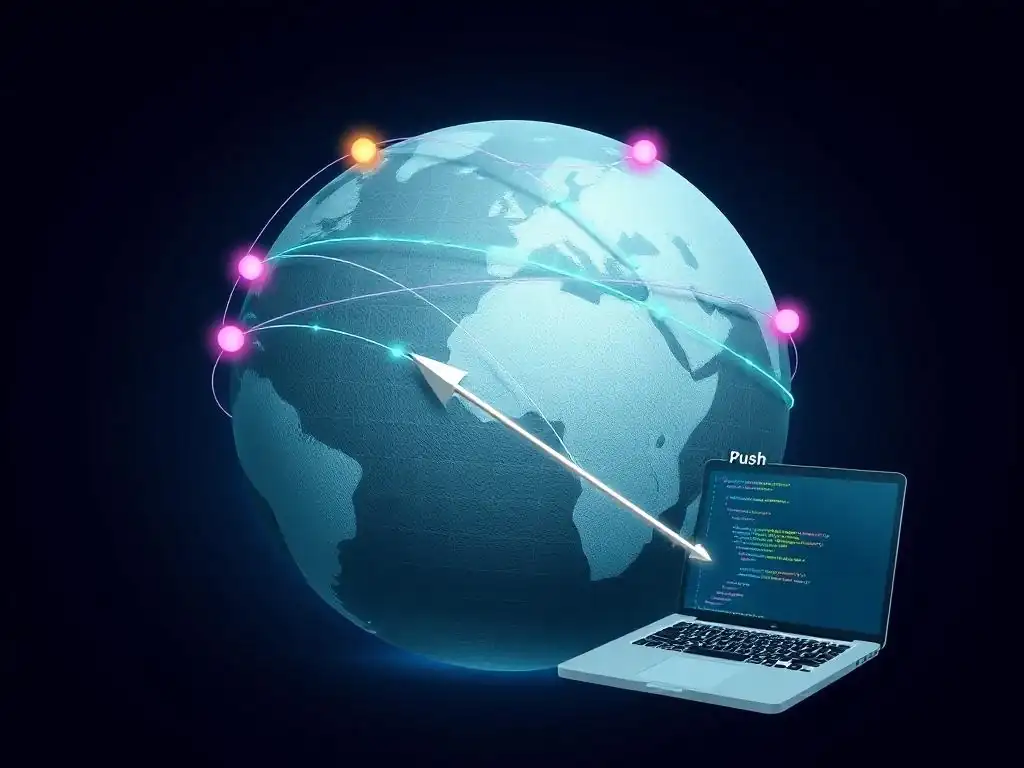
Welcome to the Git and Version Control Hub, your central resource for all things Git!
Are you ready to unlock the secrets of efficient remote Git workflow strategies? In today's collaborative landscape, mastering remote workflows is more crucial than ever. Discover how to streamline your development process, avoid common pitfalls, and maximize your team's productivity. Dive in to learn the push, pull, and branching techniques that will elevate your Git game and transform the way you work remotely.
Collaborative Git Workflow Mastery: Push, Pull, and Branching Strategies
- Introduction to Collaborative Development with Remote Git Workflows
- Mastering Git Push: Uploading Local Changes to Remote
- Mastering Git Pull: Downloading Remote Updates
- Advanced Branching Strategies for Remote Collaboration
- Collaborative Git Workflow Strategies for Teams
- Troubleshooting Common Remote Git Workflow Issues
- Optimizing Your Remote Git Workflow for Speed and Efficiency
- Best Practices for Remote Git Workflow Management
- Conclusion: Embracing Collaborative Git Workflow Mastery
-
Frequently Asked Questions
- What are some common remote Git workflow strategies that developers use?
- How can I effectively use branching for remote Git collaboration?
- What are the benefits of using pull requests in a remote Git workflow?
- How do I handle merge conflicts when working with remote Git repositories?
- How can CI/CD pipelines be integrated with remote Git workflows?
- Final Reflection: Embracing Collaborative Code in a Distributed World
- Conquer Your Git Workflow: Unleash Seamless Collaboration!
Introduction to Collaborative Development with Remote Git Workflows
Understanding the Importance of Remote Repositories (GitHub, GitLab, Bitbucket)
Remote repositories, hosted on platforms like GitHub, GitLab, and Bitbucket, are the cornerstone of collaborative software development using Git. They act as centralized hubs where teams can share code, track changes, and work together seamlessly, regardless of geographical location. Imagine a team of developers spread across different continents working on the same project. Without a remote repository, coordinating their contributions, merging code, and ensuring everyone is working on the latest version would be a chaotic and error-prone process. Remote repositories solve this by providing a single source of truth for the project's codebase, enabling efficient collaboration and version control.
Beyond basic code sharing, these platforms offer a rich ecosystem of tools that enhance the development workflow. Features like issue tracking, pull requests, and project management tools are tightly integrated with remote repositories, facilitating communication, code review, and project organization. For instance, GitHub, with over 100 million developers, has become the de facto standard for open-source projects and a popular choice for private repositories.
GitLab, known for its robust CI/CD capabilities, is favored by organizations seeking comprehensive DevOps solutions. Bitbucket, often preferred by teams using Jira and other Atlassian products, offers tight integration within the Atlassian suite. The choice of platform often depends on specific project needs and team preferences, but the fundamental importance of a remote repository in modern collaborative development remains constant.
Setting Up Your Remote Repository: GitHub, GitLab, and Bitbucket
Setting up a remote repository is the first step to enabling collaborative remote Git workflow strategies. While the specific steps might vary slightly across platforms like GitHub, GitLab, and Bitbucket, the general process is quite similar and straightforward. Let's consider GitHub as an example.
To create a new repository, you would typically navigate to your GitHub dashboard and click on the "New repository" button. You'll then be prompted to provide a repository name, a description (optional but recommended for clarity), and choose whether it should be public or private. Public repositories are visible to everyone, while private repositories restrict access to collaborators you specifically invite.
After naming and configuring your repository, GitHub provides you with a repository URL, which is crucial for connecting your local Git repository to this remote one. This URL, typically in SSH or HTTPS format, will be used in your local Git commands to interact with the remote repository. For instance, in your local project directory initialized with git init, you would use the command git remote add origin <repository URL> to link your local repository to the newly created remote repository on GitHub. 'origin' is a common alias for the remote repository, but you can choose other names if needed. GitLab and Bitbucket follow a similar repository creation process, generally involving navigating to a "Projects" or "Repositories" section and initiating the creation of a new project or repository, followed by obtaining the remote repository URL for local connection.
Mastering Git Push: Uploading Local Changes to Remote
Git Push Explained: Uploading Commits to a Remote Branch
git push is the command that uploads your local commits to a remote repository, making your changes available to your team and reflecting them in the project's shared history. In essence, git push transfers commits from your local branch to a corresponding branch on the remote, updating the remote branch to match the state of your local branch. Imagine you've been working on a new feature in a local branch called feature-x. After committing your changes locally, you need to share this feature with your team. This is where git push comes into play.
When you execute a command like git push origin feature-x, Git takes the commits you've made on your local feature-x branch that are not yet present on the origin remote's feature-x branch, and uploads them. It's crucial to understand that git push only pushes commits. If you have uncommitted changes in your working directory or staging area, git push will not include them. You must first commit your changes locally before you can push them remotely. Furthermore, git push typically requires your local branch to be "ahead" of the remote branch. If the remote branch has changes that you don't have locally, Git will prevent a direct push to avoid overwriting remote changes. This scenario often leads to the need for a git pull first, to synchronize your local branch with the remote before pushing your updates.
Resolving Push Conflicts: Rebasing and Collaboration Strategies
Push conflicts arise when the remote branch has diverged from your local branch, meaning the remote branch has new commits that your local branch doesn't have. Git prevents a direct git push in such cases to avoid accidentally overwriting remote changes. One common scenario is when multiple developers are working on the same branch concurrently, and one developer pushes their changes to the remote before another. The second developer attempting to push will then encounter a conflict.
To resolve push conflicts, you first need to integrate the remote changes into your local branch using git pull. This command fetches the remote changes and attempts to merge them into your current local branch. If the merge results in conflicts (e.g., changes in the same lines of code), Git will mark these conflicts, and you'll need to manually resolve them by editing the affected files, choosing which changes to keep, and then committing the resolved merge. Alternatively, in some collaborative workflows, especially when working on feature branches that haven't been shared yet, rebasing can be used before pushing. git rebase origin/feature-x (assuming your local branch is feature-x) will replay your local commits on top of the latest origin/feature-x, creating a linear history and often simplifying the push process. However, rebasing on shared branches is generally discouraged as it rewrites history, which can cause confusion and complications for other collaborators. Effective communication and collaboration strategies, such as frequent pulls and discussions about potential conflicting changes, are crucial to minimize push conflicts in team environments.
Understanding Different Push Options: --force-with-lease, --set-upstream
Git push command offers various options to modify its behavior, catering to different scenarios in remote Git workflow strategies. Two particularly useful options are --force-with-lease and --set-upstream. --force-with-lease is a safer alternative to the simple --force option, which should generally be avoided as it can easily lead to data loss. --force-with-lease allows you to force push, overwriting the remote branch, but only if your local branch is based on the version of the remote branch you expect. It checks if the remote branch has changed since you last fetched it. If it has, the force push is rejected, preventing accidental overwriting of changes you might not be aware of. This option adds a safety net when force pushing is necessary, for example, after a local rebase of a feature branch that hasn't been shared yet.
The --set-upstream option is used when you push a local branch to a remote for the first time and want to establish a tracking relationship between your local branch and the remote branch. When you use git push --set-upstream origin feature-x, Git not only pushes your local feature-x branch to the origin remote but also sets up tracking. This means that subsequent git pull and git push commands on your local feature-x branch will automatically operate on the origin/feature-x remote branch without you needing to specify the remote and branch name each time. This simplifies your workflow, especially when working with multiple branches and remote repositories, making your remote Git workflow strategies more efficient.
Mastering Git Pull: Downloading Remote Updates
Git Pull Explained: Integrating Remote Changes into Your Local Branch
git pull is the command used to download changes from a remote repository and integrate them into your current local branch. Essentially, git pull is a convenience command that combines two other Git commands: git fetch followed by git merge. First, git fetch retrieves the latest commits and branch information from the remote repository but does not automatically merge these changes into your local branches. It updates your remote-tracking branches (e.g., origin/main) to reflect the remote state. Then, git merge attempts to merge the fetched remote branch into your current local branch.
For example, if you are working on your local main branch and want to get the latest updates from the origin/main remote branch, running git pull origin main will first fetch the commits from origin/main and update your local origin/main remote-tracking branch. Then, it will attempt to merge the changes from origin/main into your local main branch. If there are no conflicts, the merge will proceed automatically, and your local main branch will be synchronized with the remote main branch. git pull is a fundamental command in collaborative workflows, ensuring that you are always working with the most recent version of the codebase and integrating changes from your teammates into your local environment.
Understanding Merge Conflicts During Git Pull and How to Resolve Them
Merge conflicts during git pull occur when Git cannot automatically integrate changes from the remote branch into your local branch. This typically happens when both you and someone else have made changes to the same lines or overlapping sections of the same file since the last common commit. When git pull encounters such conflicting changes during the merge step, it will halt the merge process and indicate the files with conflicts.
Git marks the conflicting sections in the affected files with special markers: <<<<<<< HEAD, =======, and >>>>>>> remote-branch-name. The section between <<<<<<< HEAD and ======= represents your local changes, while the section between ======= and >>>>>>> remote-branch-name represents the changes from the remote branch. To resolve the conflict, you must manually edit these files, examine the conflicting sections, and decide which changes to keep or how to combine them. After editing the files to resolve the conflicts, you need to stage the resolved files using git add <resolved-file> and then complete the merge process by running git commit. Git will recognize that you are resolving a merge conflict and create a merge commit to record the resolution. Understanding how to identify and resolve merge conflicts is a critical skill in collaborative remote Git workflow strategies, ensuring smooth integration of changes from multiple contributors.
Keeping Your Local Branch Up-to-Date: git fetch and git merge
While git pull is a convenient way to fetch and merge remote changes, sometimes you might prefer more control over the integration process. This is where using git fetch and git merge separately becomes beneficial for keeping your local branch up-to-date. git fetch origin (or simply git fetch if 'origin' is your default remote) retrieves all the latest changes from the remote repository without automatically merging them into your local branch. After fetching, you can inspect the changes by comparing your local branch with the remote-tracking branches (e.g., origin/main).
For instance, you can use git log main..origin/main to see the commits that are present in origin/main but not in your local main branch. This allows you to review the remote changes before deciding to integrate them. Once you are ready to merge the remote changes, you can use git merge origin/main (assuming you are on your local main branch). This command will merge the changes from the origin/main remote-tracking branch into your current local branch. Separating fetch and merge gives you more control, allowing you to review changes, potentially stage changes selectively, or even rebase instead of merging if that aligns better with your workflow. This approach is particularly useful when you want to stay informed about remote updates without immediately integrating them, giving you time to prepare for potential merge conflicts or to coordinate with your team before merging.
Advanced Branching Strategies for Remote Collaboration
Branching Models Explained: Gitflow, GitHub Flow, GitLab Flow, Trunk-Based Development
Branching models define structured approaches to using branches in Git, especially in collaborative environments. Different models cater to varying project needs and team sizes, influencing remote Git workflow strategies significantly. Gitflow, a more traditional model, is well-suited for release-based software development. It uses branches like main (for releases), develop (for integration), feature branches (for new features), release branches (for preparing releases), and hotfix branches (for patching releases). Gitflow provides a robust framework for managing complex release cycles but can be perceived as complex for simpler projects.
GitHub Flow, in contrast, is a much simpler, continuous delivery-oriented model. It primarily uses main branch for production-ready code and short-lived feature branches. Feature branches are created from main, and once features are ready, they are merged back into main after code review, and main is deployed. GitHub Flow emphasizes continuous integration and deployment, making it ideal for web applications and services with frequent releases. GitLab Flow builds upon GitHub Flow, adding environment branches (like pre-production) for more controlled deployments and release branches for supporting older versions. GitLab Flow offers more flexibility than GitHub Flow, accommodating different release cadences and environments. Trunk-Based Development is an even more streamlined approach where developers commit directly to the trunk (usually main or master) branch, minimizing branching and merging complexity. Feature development is done in short-lived branches or directly on the trunk, often using feature flags to control feature releases. Trunk-based development requires strong CI/CD practices and disciplined teamwork but can lead to faster development cycles and reduced merge conflicts. The choice of branching model depends on factors like release frequency, team size, project complexity, and organizational culture.
Creating and Managing Remote Branches: A Practical Guide
Creating and managing remote branches is essential for effective remote Git workflow strategies. To create a remote branch, you typically start by creating a local branch. For example, git checkout -b new-feature-branch creates and switches to a new branch named new-feature-branch. After making commits on this local branch, you need to push it to the remote repository to make it available to your team. You can use the command git push origin new-feature-branch. This command not only pushes your local branch but also creates a corresponding remote branch named new-feature-branch on the origin remote. As discussed earlier, using git push --set-upstream origin new-feature-branch for the first push establishes a tracking relationship, simplifying future push and pull operations for this branch.
Managing remote branches involves various operations. To see a list of remote branches, you can use git branch -r. This command displays all remote-tracking branches. To switch to a remote branch locally, you can use git checkout -b local-branch-name origin/remote-branch-name. This creates a new local branch local-branch-name that tracks the remote branch origin/remote-branch-name. Deleting a remote branch is done using git push origin --delete remote-branch-name. However, be cautious when deleting remote branches, especially shared branches, as it can impact other collaborators. It's good practice to communicate with your team before deleting remote branches. Regularly pruning stale remote-tracking branches can also keep your local repository clean. git fetch --prune origin will remove remote-tracking branches that no longer exist on the remote.
Merging and Rebasing in a Remote Environment: Choosing the Right Approach
Merging and rebasing are two primary ways to integrate changes from one branch into another in Git, and choosing the right approach is crucial in remote Git workflow strategies. In a remote environment, both merging and rebasing have implications for collaboration and the project history. Merging creates a new merge commit that explicitly records the integration of two branches. It preserves the entire history of both branches, including their parallel development paths. When merging in a remote context, such as merging a feature branch into main, it clearly shows when and how the feature was integrated. Merging is generally safer for shared branches because it doesn't rewrite history, making it easier for collaborators to track changes and understand the project's evolution.
Rebasing, on the other hand, rewrites the commit history. When you rebase a feature branch onto main, it replays your feature branch commits on top of the latest main branch, creating a linear history without merge commits. Rebasing results in a cleaner, more linear project history, which can be easier to read and understand, especially for complex projects. However, rebasing shared branches is generally discouraged because it alters commit history that others might be relying on. Force pushing is often required after rebasing, which can cause confusion and conflicts for collaborators who have already pulled the original commits. In a remote collaborative setting, rebasing is typically more suitable for local feature branches before they are shared or for personal branches where history rewriting is less problematic. For integrating changes into shared branches, especially main or develop, merging is usually the preferred and safer approach, preserving history and ensuring a clear record of integrations.
Collaborative Git Workflow Strategies for Teams
Feature Branch Workflow: Isolating Development Efforts
The feature branch workflow is a widely adopted collaborative Git workflow strategy, especially effective for teams working on projects with distinct features or tasks. In this workflow, each new feature, bug fix, or improvement is developed in its own dedicated branch, isolated from the main codebase (typically the main or develop branch). Developers create feature branches from the main branch, work on their assigned tasks in these branches, and commit their changes there. This isolation prevents unfinished or potentially unstable code from directly impacting the main codebase, ensuring the main branch remains stable and deployable.
Once a feature is complete and tested, the feature branch is merged back into the main branch. This integration is usually done through a pull request or merge request, especially in remote repositories hosted on platforms like GitHub, GitLab, or Bitbucket. Pull requests facilitate code review, allowing team members to review the changes before they are merged, ensuring code quality and identifying potential issues early. The feature branch workflow promotes parallel development, allowing multiple developers to work on different features simultaneously without interfering with each other's work.
It also facilitates easier feature rollbacks if needed, as each feature is contained within its branch. After a feature branch is merged and the feature is released, the branch is typically deleted to keep the repository clean. This workflow is well-suited for teams of varying sizes and project complexities, providing a structured and organized approach to collaborative development.
Forking Workflow: Contributing to Open Source Projects
The forking workflow is a specific collaborative Git workflow strategy particularly common in open-source projects and scenarios where contributors do not have direct write access to the main repository. In this workflow, contributors create their own personal copy, or "fork," of the main repository. This fork resides in their own account on a platform like GitHub or GitLab.
Contributors then clone their fork to their local machines and work on their changes within their fork. Since they have full write access to their fork, they can create branches, commit changes, and push to their fork freely without needing permissions on the original repository.
Once a contributor has completed their work in their fork, and wants to contribute these changes back to the main project, they submit a pull request (or merge request) from their fork to the main repository. This pull request proposes their changes for inclusion in the main project. Project maintainers then review the pull request, discuss the changes with the contributor, and may request revisions.
If the changes are accepted, the maintainers merge the pull request, integrating the contributor's work into the main repository. The forking workflow is ideal for open-source projects as it allows anyone to contribute without needing initial write access, enabling a decentralized and open contribution model. It also provides a clear mechanism for maintainers to review and control contributions before they are integrated into the main project, ensuring the quality and integrity of the codebase.
Centralized Workflow: A Simpler Approach for Smaller Teams
The centralized workflow is a simpler collaborative Git workflow strategy that is often suitable for smaller teams or projects with less complex branching needs. In this workflow, there is a central repository (typically hosted remotely) and a single main branch that serves as the primary branch for development. Developers work directly on their local copies of the main branch. When they want to make changes, they pull the latest updates from the central main branch, make their changes locally, and then push their changes directly back to the central main branch.
This workflow avoids the complexity of feature branches and other more elaborate branching models. It is straightforward to understand and implement, making it easier for teams new to Git or for projects with less complex collaboration requirements. However, the centralized workflow requires good communication and coordination among team members to avoid conflicts, especially when multiple developers are working on the same parts of the codebase concurrently.
Frequent pulling and pushing are crucial to minimize integration issues. While simpler, the centralized workflow can become less manageable as team size and project complexity grow. For larger teams or projects with more concurrent development, branching models like feature branch workflow or Gitflow generally offer better isolation and control over changes, reducing integration risks and improving overall workflow efficiency.
Troubleshooting Common Remote Git Workflow Issues
Dealing with Authentication Problems When Pushing and Pulling: SSH Keys and Tokens
Authentication problems when pushing and pulling are common hurdles in remote Git workflow strategies. These issues typically arise when Git cannot verify your identity with the remote repository, preventing you from accessing or modifying the remote codebase. Two primary methods for authentication are SSH keys and personal access tokens (PATs). SSH keys provide a more secure, key-based authentication mechanism.
To use SSH keys, you generate a pair of keys (public and private) on your local machine. The public key is then uploaded to your Git hosting platform (e.g., GitHub, GitLab, Bitbucket) under your account settings. Git clients on your machine use the private key to authenticate with the remote repository. SSH keys eliminate the need to repeatedly enter passwords for every push and pull operation, streamlining the workflow and enhancing security.
Personal access tokens (PATs) are another authentication method, often used with HTTPS. PATs are like passwords specifically for applications or Git clients. You generate a PAT on your Git hosting platform, specifying the scopes of access (e.g., repository access, read/write permissions). When prompted for credentials during a push or pull operation over HTTPS, you can use your username and the generated PAT instead of your regular password.
PATs are useful for scripting or when SSH key setup is not feasible. However, PATs should be treated like passwords and kept secure. If you encounter authentication errors, such as "Permission denied (publickey)" or "Authentication failed," check if your SSH keys are correctly configured, if your PAT is valid and has the necessary permissions, or if you are using the correct authentication method (SSH vs. HTTPS) for your remote repository.
Resolving Detached HEAD State Issues in Remote Repositories
A detached HEAD state in Git can be confusing, particularly in remote Git workflow strategies. Detached HEAD occurs when your current branch's HEAD pointer is not pointing to the tip of a local branch but directly to a commit. This often happens after checking out a specific commit hash, a remote branch, or a tag directly, instead of checking out a local branch.
When you are in a detached HEAD state, any new commits you make are not associated with a branch. If you switch to another branch, these commits might become orphaned and harder to find later if not properly handled.
To resolve detached HEAD state issues and return to a normal, branch-based workflow, you typically want to create a new branch or checkout an existing branch. If you have made commits in detached HEAD state that you want to keep, the best approach is to create a new branch from your current detached HEAD position. You can do this by running git checkout -b new-branch-name. This command creates a new local branch new-branch-name starting from the commit you are currently at in detached HEAD state and switches you to this new branch. Now, your commits are safely associated with a branch. Alternatively, if you just want to continue working on an existing branch, you can simply checkout that branch using git checkout branch-name. Understanding detached HEAD state and how to resolve it is important for maintaining a clear and organized Git workflow, especially when working with remote repositories and collaborating with teams.
Handling Large Files in Git: Git LFS and .gitignore
Handling large files in Git repositories, particularly in remote Git workflow strategies, requires specific approaches to maintain repository performance and efficiency. Git is designed to efficiently track changes in text-based files, but it can become slow and resource-intensive when dealing with large binary files (e.g., images, videos, datasets). Storing large files directly in Git repositories can lead to repository bloat, slow clone times, and increased storage costs. Two key tools for addressing this are Git Large File Storage (LFS) and .gitignore. Git LFS is a Git extension specifically designed for handling large files. Instead of storing the large file content directly in the Git repository, Git LFS stores pointers to the files, while the actual file content is stored separately on a Git LFS server. When you clone or checkout a repository using Git LFS, Git LFS automatically downloads the large file content when needed. This keeps the main Git repository lightweight and efficient, while still versioning large files.
.gitignore files are used to specify intentionally untracked files that Git should ignore. This is crucial for preventing large, unnecessary files from being added to your Git repository in the first place. You can use .gitignore to exclude files like build artifacts, temporary files, log files, and large data files that don't need to be versioned or tracked by Git. By combining Git LFS for versioning large files when necessary and .gitignore for excluding unnecessary large files, you can effectively manage large files in your Git projects, ensuring your remote Git workflow strategies remain performant and scalable.
Optimizing Your Remote Git Workflow for Speed and Efficiency
Using Git Aliases to Streamline Common Tasks
Git aliases are custom shortcuts for Git commands, significantly enhancing speed and efficiency in remote Git workflow strategies. Aliases allow you to replace frequently used, lengthy Git commands with shorter, more memorable aliases. For example, instead of typing git status --branch --porcelain, you could create an alias like git config --global alias.st 'status --branch --porcelain' and then simply use git st to get the same output. Aliases can drastically reduce typing and make common Git operations faster and less error-prone.
You can define Git aliases globally (using --global) for all repositories or locally within a specific repository. To create an alias, you use the git config alias.<alias-name> '<git-command>' command. For remote workflow optimization, you can create aliases for frequently used push, pull, fetch, and branch management commands. For instance, git config --global alias.pu 'push origin HEAD' could be used to push the current branch to the origin remote, simplifying git push operations. Similarly, git config --global alias.pl 'pull origin HEAD' can be used for pulling. Aliases can also be chained together or include shell commands for more complex operations. By strategically using Git aliases, you can tailor your Git workflow to your specific needs, making your remote Git workflow strategies more efficient and productive.
Leveraging Git Hooks for Automated Workflow Actions
Git hooks are scripts that Git executes automatically before or after certain events, such as commits, pushes, and merges. They are powerful tools for automating various tasks and enforcing workflow policies in remote Git workflow strategies. Git hooks can be client-side (local to your repository) or server-side (executed on the remote repository server). Client-side hooks, like pre-commit and pre-push, run on the developer's local machine before a commit or push is completed. pre-commit hooks can be used to run linters, code formatters, or unit tests before allowing a commit, ensuring code quality and consistency early in the development process. pre-push hooks can run checks before pushing to a remote, such as verifying commit message formats or running integration tests.
Server-side hooks, like pre-receive and post-receive, run on the remote repository server. pre-receive hooks can enforce repository policies, such as preventing direct commits to the main branch or requiring specific commit message formats. post-receive hooks can trigger actions after a successful push, such as deploying code to a staging or production environment, sending notifications, or updating issue trackers. Git hooks can be written in any scripting language, like Bash, Python, or Ruby. By leveraging Git hooks, teams can automate repetitive tasks, enforce coding standards, improve code quality, and streamline their remote Git workflow strategies, leading to more efficient and reliable software development processes.
Integrating Git with VS Code for Enhanced Productivity
Integrating Git with VS Code (Visual Studio Code) significantly enhances productivity in remote Git workflow strategies. VS Code has built-in Git support, providing a rich graphical interface for interacting with Git directly within the editor. VS Code's Git integration allows you to stage and commit changes, create and manage branches, resolve merge conflicts, and push and pull changes to and from remote repositories, all without leaving the editor. The Source Control view in VS Code provides a clear overview of your Git repository status, showing changed files, staged changes, commit history, and branch information.
VS Code's Git features include visual diffing and merging tools, which make it easier to compare changes between commits or branches and resolve merge conflicts. The editor also integrates with Git history viewers, allowing you to browse commit history, inspect commit details, and visualize branch relationships. For remote workflows, VS Code seamlessly integrates with popular Git hosting platforms like GitHub and GitLab.
You can clone repositories directly from these platforms, authenticate using your accounts, and manage pull requests and issues from within VS Code. Extensions like "GitHub Pull Requests and Issues" and "GitLab Workflow" further enhance this integration, providing features like pull request review within the editor and GitLab CI/CD pipeline status visibility. By leveraging VS Code's powerful Git integration, developers can streamline their remote Git workflow strategies, reduce context switching, and improve overall development efficiency.
Best Practices for Remote Git Workflow Management
Code Review Strategies for Remote Teams: Pull Requests and Reviews
Code review is a cornerstone of effective remote Git workflow management, particularly for remote teams. Pull requests (or merge requests) are the primary mechanism for implementing code review in Git-based collaborative workflows. When a developer completes a feature or bug fix on a feature branch, they create a pull request to merge their branch into the main branch (or another integration branch). This pull request serves as a formal request for code review from other team members. The pull request typically includes a description of the changes, a link to the feature branch, and a diff of the changes.
Code reviews in remote teams are often conducted asynchronously, meaning reviewers may be in different time zones or working at different times. Tools like GitHub, GitLab, and Bitbucket provide excellent platforms for asynchronous code reviews. Reviewers can add comments directly to specific lines of code, suggest changes, and engage in discussions within the pull request interface. Best practices for effective code reviews include focusing on code quality, maintainability, and potential bugs, rather than personal preferences.
Reviews should be constructive and respectful, aiming to improve the codebase collaboratively. Establishing clear code review guidelines and expectations within the team is crucial. Defining criteria for code acceptance, assigning reviewers, and setting turnaround times for reviews can streamline the process. Automated code analysis tools and linters can also be integrated into the code review process to catch common issues automatically before human review, further optimizing remote Git workflow strategies.
Maintaining a Clean and Organized Remote Repository: Branching Conventions and Commit Messages
Maintaining a clean and organized remote repository is crucial for long-term project health and effective remote Git workflow management. Two key aspects of repository organization are branching conventions and commit message guidelines. Branching conventions establish naming standards and usage guidelines for branches, making it easier for team members to understand the purpose and status of different branches. Common branching conventions include using prefixes like feature/, bugfix/, hotfix/, release/ for different types of branches, followed by a descriptive name (e.g., feature/user-authentication, bugfix/login-error). main (or master) branch is typically reserved for stable, production-ready code, and a develop branch (if used in Gitflow) for ongoing integration. Consistent branching conventions improve repository clarity and facilitate branch management.
Commit message guidelines promote clear and informative commit messages, making it easier to understand the history of changes and track down issues. A well-structured commit message typically includes a concise summary line followed by a more detailed body explaining the changes and their rationale. Using imperative mood in the summary line (e.g., "Fix login error," "Implement user authentication") is a common practice.
Referencing issue tracker IDs in commit messages (e.g., "Fixes #123: Login error") helps link commits to related issues. Enforcing commit message guidelines and branching conventions through team agreement and potentially Git hooks can significantly improve repository organization and maintainability, contributing to more efficient remote Git workflow strategies.
Documenting Your Git Workflow for Team Consistency: README and CONTRIBUTING.md
Documenting your Git workflow is essential for team consistency and onboarding new members in remote Git workflow management. Two key files for documenting your workflow are README.md and CONTRIBUTING.md, typically placed at the root of your repository. README.md serves as the entry point for anyone visiting your repository. It should provide a high-level overview of the project, its purpose, and how to get started. In the context of Git workflow documentation, the README.md can briefly describe the team's chosen Git workflow strategy, branching model, and any essential Git-related setup instructions for new developers.
CONTRIBUTING.md provides more detailed guidelines for contributors, especially in open-source projects or larger teams. This file should comprehensively document the team's Git workflow, including branching conventions, commit message guidelines, pull request process, code review process, and any other Git-related best practices or policies. Clearly documenting these aspects ensures that all team members, especially new ones, understand the expected Git workflow and can contribute consistently and effectively. Well-documented Git workflows reduce misunderstandings, minimize errors, and promote collaboration within remote teams. Regularly reviewing and updating these documentation files as the workflow evolves ensures that they remain accurate and helpful, supporting efficient and consistent remote Git workflow strategies.
Conclusion: Embracing Collaborative Git Workflow Mastery
The Future of Collaborative Development with Git
The future of collaborative development is inextricably linked with Git and version control systems. As software projects become increasingly complex and teams more geographically distributed, mastering remote Git workflow strategies is no longer optional but a fundamental requirement for success. The trend towards more agile and DevOps-centric development methodologies further emphasizes the importance of efficient and collaborative version control.
Expect to see continued evolution in Git tooling and workflows, with more sophisticated integrations into IDEs, project management platforms, and CI/CD pipelines. Artificial intelligence and machine learning may play a larger role in automating code reviews, predicting merge conflicts, and optimizing Git workflows, further enhancing developer productivity and collaboration.
Platforms like GitHub, GitLab, and Bitbucket are continuously innovating, adding features that streamline collaborative development, such as improved pull request workflows, advanced code review tools, and tighter integration with cloud-based development environments. The rise of remote work and distributed teams will drive further advancements in collaborative Git workflow strategies, focusing on enhancing communication, transparency, and efficiency across geographically dispersed teams. Embracing continuous learning and adaptation in Git practices will be crucial for developers and organizations to stay at the forefront of collaborative software development in the years to come.
Further Resources for Advanced Git Learning
To continue your journey towards advanced Git learning and remote Git workflow mastery, numerous resources are available. The official Git documentation ( git-scm.com/doc) is an invaluable and comprehensive resource, providing detailed explanations of Git commands, concepts, and workflows. Websites like Atlassian Git Tutorial ( atlassian.com/git/tutorials) and GitHub Guides ( guides.github.com) offer practical tutorials and guides covering various Git topics, from basic commands to advanced branching strategies. Online courses on platforms like Coursera, Udemy, and Pluralsight provide structured learning paths for mastering Git, often including hands-on exercises and real-world examples.
Books like "Pro Git" by Scott Chacon and Ben Straub (available for free online at git-scm.com/book/en/v2) are highly recommended for in-depth understanding of Git internals and advanced concepts. Blogs and articles from Git hosting platforms and the wider development community regularly publish valuable content on Git best practices, workflow tips, and troubleshooting advice. Exploring these resources and continuously practicing Git in real projects will solidify your understanding and skills, enabling you to effectively leverage remote Git workflow strategies and excel in collaborative software development environments.
Frequently Asked Questions
What are some common remote Git workflow strategies that developers use?
Common strategies include feature branching, where developers work on isolated branches, and Gitflow, a stricter model with release branches. Using pull requests for code review is also a key component.
How can I effectively use branching for remote Git collaboration?
Branching allows developers to work on features or bug fixes in isolation. When ready, these branches can be merged back into the main branch after review.
What are the benefits of using pull requests in a remote Git workflow?
Pull requests facilitate code review, allowing team members to inspect changes before they are integrated. This helps catch errors and ensures code quality.
How do I handle merge conflicts when working with remote Git repositories?
Merge conflicts arise when changes conflict with each other. You'll need to manually resolve the conflicting sections in your code and then commit the changes.
How can CI/CD pipelines be integrated with remote Git workflows?
CI/CD pipelines can be triggered by Git events, like pushing to a branch or creating a pull request. This automates building, testing, and deploying your code changes.
Final Reflection: Embracing Collaborative Code in a Distributed World
The principles of efficient remote Git workflows, as explored throughout this article, are not merely theoretical exercises; they are essential survival skills for modern software development. In a world increasingly defined by distributed teams and asynchronous collaboration, mastering push, pull, and branching strategies is no longer optional, but a fundamental requirement for building robust and innovative software. Ignoring these best practices risks chaos, conflicts, and ultimately, project failure.
The impact of Git extends far beyond the lines of code it manages. It has fundamentally reshaped how teams collaborate, fostering transparency, accountability, and a shared understanding of the development process. My own experience has shown me that a well-defined Git workflow can be the difference between a smooth, productive project and a frustrating, error-prone one. The future of coding is collaborative. Git is the foundation upon which that collaboration is built.
This quote encapsulates the ongoing influence of Git on the cultural landscape of software engineering, highlighting its role in enabling global teams to work together seamlessly.
Now, consider how you can apply these remote Git workflow strategies to your own projects and teams. Embrace the power of branching, master the art of pull requests, and champion clear communication. By fostering a culture of collaboration and continuous improvement, you can unlock the full potential of your team and build software that truly makes a difference. Let us all strive to become masters of our remote Git workflows, shaping a future where code is not just written, but collaboratively crafted with precision and purpose.
Conquer Your Git Workflow: Unleash Seamless Collaboration!
Thanks for exploring the world of remote Git workflows! You've learned the secrets to efficient pushing, pulling, and branching, setting you up for smoother collaboration and fewer merge conflicts. Let's put that knowledge into practice and elevate your Git skills.
Here are a few actionable steps you can take now:
- Apply the branching strategy discussed in this article to your next project. This is your chance to put theory into practice and solidify your understanding!
- Explore a Git GUI tool like SourceTree or GitKraken to visualize your branches and streamline your workflow. You might be surprised how much easier things become!
- Share this article with a teammate or colleague. Helping others master Git strengthens your team and reinforces your own understanding.
What's one new Git command or workflow you're excited to use on your next project? Share your thoughts in the comments below!