
Interactive Rebasing Nightmares: Troubleshooting and Best Practices

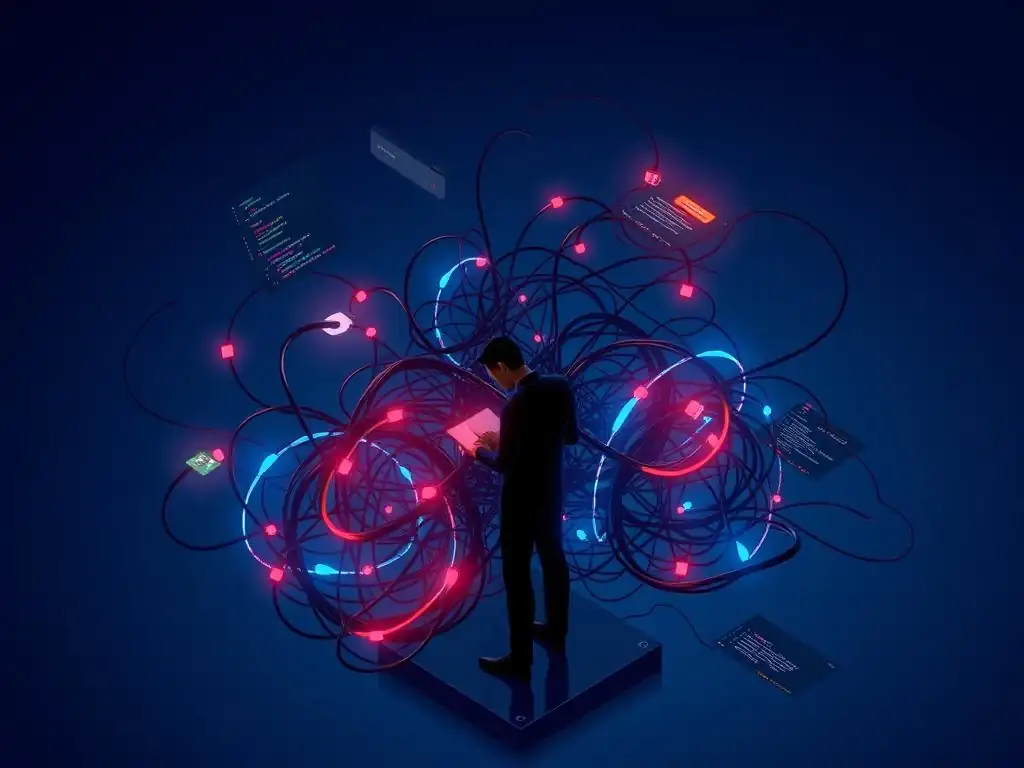
Welcome to Git and Version Control Hub, your one-stop destination for mastering the art of version control! Are you ready to level up your Git skills and streamline your development workflow? Dive into our latest article, " Interactive Rebasing Nightmares: Troubleshooting and Best Practices," where we tackle the common pitfalls of interactive rebasing. Unravel the mysteries of this powerful Git feature and learn how to avoid those project-crippling conflicts. Curious how to escape the rebasing rabbit hole? Read on to discover effective strategies and best practices that will transform you from a Git novice to a version control virtuoso!
Interactive Rebasing Nightmares: Troubleshooting and Best Practices
- Understanding Interactive Rebasing and Its Potential Pitfalls
-
Frequently Asked Questions
- What is interactive rebase and why would I use it?
- What are some common problems encountered during an interactive rebase?
- How do I resolve merge conflicts during an interactive rebase?
- What does the "detached HEAD" state mean during an interactive rebase, and how do I fix it?
- What should I do if I accidentally mess up my interactive rebase and want to start over?
- Final Reflection: Taming the Interactive Rebase Beast
- Conquer Your Rebase Fears!
Understanding Interactive Rebasing and Its Potential Pitfalls
What is Interactive Rebasing in Git? A Quick Overview
Interactive rebasing in Git is a powerful tool that allows developers to rewrite commit history in a more controlled and flexible way than standard rebasing. Imagine your commit history as a story of your project's development. Interactive rebase is like editing that story, allowing you to reorder, squash, edit, or even drop commits before integrating them into another branch.
This is particularly useful for cleaning up messy feature branches before merging them into the main branch, making the project history cleaner and easier to understand. It's not just about rearranging commits; it's about refining the narrative of your project's evolution.
At its core, interactive rebase provides a script-based approach to rewriting history. When you initiate an interactive rebase, Git presents you with a list of commits in your chosen range, typically in a text editor. For each commit, you can choose an action from a set of commands like pick, reword, edit, squash, fixup, drop, break, and label/ reset/ merge/ nomerge. These commands give you granular control over each commit. For example, you can combine multiple small commits into a single, more coherent commit using squash, or you can edit a commit message using reword. This level of control makes interactive rebase a favorite among developers who prioritize a clean and meaningful commit history.
Why Interactive Rebase Can Lead to Trouble: Common Scenarios
While interactive rebase is incredibly useful, its power comes with the potential for complications, especially for those new to Git or unfamiliar with its intricacies. One of the most common scenarios where trouble arises is during conflict resolution. Because interactive rebase rewrites history, it can introduce merge conflicts that are different from those encountered during a standard merge or rebase. These conflicts often occur when changes in commits being rebased overlap or contradict each other, requiring careful manual resolution.
Another common pitfall is data loss, although this is less about permanently losing data and more about temporarily misplacing it or making it harder to find. If you are not careful during an interactive rebase, especially when using commands like drop or fixup, you might unintentionally remove commits you intended to keep or alter the commit history in unexpected ways. Furthermore, interactive rebase fundamentally changes commit SHAs (Secure Hash Algorithm), the unique identifiers for each commit. This can lead to confusion and issues if you are collaborating with others, particularly on shared branches, as the rewritten history on your local branch will diverge from the remote branch. Understanding these potential pitfalls is the first step in troubleshooting interactive rebase issues effectively.
Identifying Potential Interactive Rebase Issues Early
Proactive identification of potential issues is crucial to avoid interactive rebase nightmares. Before even initiating an interactive rebase, it's wise to consider the complexity of the changes you are about to manipulate. If you are working on a branch with significant divergence from the target branch, or if your branch involves substantial changes across many files, the likelihood of encountering conflicts increases. It's also important to assess the clarity and organization of your existing commit history. A messy, poorly organized commit history is more prone to causing confusion and errors during an interactive rebase.
One of the most effective early warning signs is a lack of familiarity or confidence with interactive rebasing itself. If you are unsure about the commands or the process, it's a strong indicator that you should proceed with caution. Before attempting an interactive rebase on a critical branch, consider practicing on a test branch or a local copy of your repository.
Pay attention to Git's output and warnings during the rebase preparation phase; these messages often provide valuable clues about potential conflicts or problems. Taking these preemptive steps—assessing complexity, reviewing commit history, and acknowledging your comfort level—can significantly reduce the chances of encountering serious troubleshooting interactive rebase issues later on.
Frequently Asked Questions
What is interactive rebase and why would I use it?
Interactive rebase allows you to rewrite your commit history by combining, editing, or reordering commits. It's useful for cleaning up your history before sharing it with others or merging into a main branch.
What are some common problems encountered during an interactive rebase?
Common problems include merge conflicts, issues with the pick, reword, edit, squash, fixup, drop, and exec commands, and forgetting to git rebase --continue after resolving a conflict. These issues can lead to a broken commit history if not handled carefully.
How do I resolve merge conflicts during an interactive rebase?
Resolve merge conflicts just as you would during a normal merge. Use git status to identify the conflicted files, edit them to resolve the conflicts, then git add the resolved files and git rebase --continue. Careful conflict resolution is essential.
What does the "detached HEAD" state mean during an interactive rebase, and how do I fix it?
"Detached HEAD" usually means you've switched to a commit that isn't the tip of any branch. During a rebase, this is normal. Just continue with the rebase using git rebase --continue until it's finished, and then switch back to your branch using git checkout <branch_name>.
What should I do if I accidentally mess up my interactive rebase and want to start over?
Use the command git rebase --abort to cancel the rebase and return to the state before you started the interactive rebase. This is a safe way to recover from mistakes.
Final Reflection: Taming the Interactive Rebase Beast
The intricacies of Git interactive rebasing, while powerful, often lead to frustrating and time-consuming debugging sessions. Understanding and proactively addressing common pitfalls is crucial for any developer seeking to leverage this tool effectively. The ability to rewrite history cleanly and efficiently is a valuable asset, but only when wielded with knowledge and caution.
The impact of mastering (or failing to master) interactive rebasing extends far beyond individual productivity. It shapes the collaborative landscape of software development, influencing code quality, branch management, and ultimately, the overall success of a project. My own experiences with interactive rebase have taught me the importance of meticulous planning and thorough testing before committing to any historical alterations. The best way to predict the future is to create it.
- Peter Drucker. This quote resonates deeply when considering interactive rebase; we are, in essence, creating a new version of the past, and the responsibility that comes with that power should not be taken lightly.
As you navigate the complex world of Git, remember that interactive rebasing is a tool, not a magic wand. Embrace the challenges, learn from your mistakes, and continuously refine your understanding of its nuances. Take the lessons learned here, apply them to your own workflows, and contribute to a culture of cleaner, more maintainable code. The power to shape your project's history is in your hands; use it wisely and responsibly.
Conquer Your Rebase Fears!
Thank you for exploring the world of interactive rebasing! Hopefully, you now feel more confident handling challenging scenarios and navigating Git's powerful history editing tools. Let's put your new knowledge to work and improve your version control skills.
Here's how you can benefit immediately:
- Try a small, low-risk interactive rebase on a feature branch. Gain practical experience using the troubleshooting techniques you've learned.
- Dive deeper: Explore the official Git documentation on
git rebaseto discover advanced options and less common situations. You might find a solution to a problem you frequently encounter! - Share your rebase experiences and solutions in the comments below. Let's build a collaborative knowledge base to help one another.
What's the most challenging rebase you've ever done, and what did you learn from it? Share your story!