
Git Client Usability Showdown: Which Interface Makes Version Control Effortless?

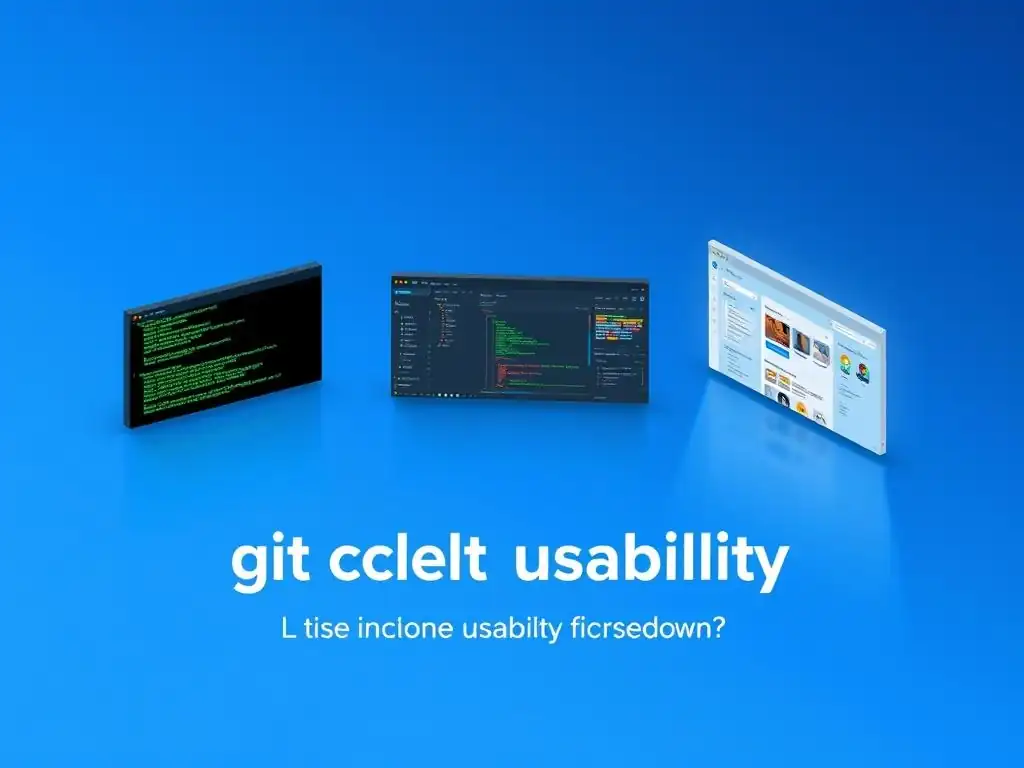
Welcome to Git and Version Control Hub, your central resource for mastering the art of collaborative coding!
Are you tired of wrestling with complex command lines? Dive into our latest article, " Git Client Usability Showdown: Which Interface Makes Version Control Effortless?" where we explore the best Git client interfaces to streamline your workflow. Discover user-friendly tools that can transform your approach to version control and unlock a more intuitive coding experience. Eager to find the perfect interface for your needs? Let's get started!
- Git GUI vs. CLI: Understanding the Interface Options for Effective Git Management
-
Frequently Asked Questions
- What is a Git client interface, and why is it important?
- What factors should I consider when choosing the best Git client interface?
- Does the best Git client interface depend on my operating system?
- How does a Git client interface help with team collaboration?
- Can using a Git client interface completely replace the need to understand Git commands?
- Final Reflection: Embracing Effortless Collaboration
- Unlock Your Git Potential: Choose Your Ideal Client!
Git GUI vs. CLI: Understanding the Interface Options for Effective Git Management
Command Line Interface (CLI): The Power User's Git Experience
The Command Line Interface (CLI) for Git is the foundational method for interacting with version control. It offers direct access to the full spectrum of Git commands, providing unparalleled control and flexibility. For seasoned developers, the CLI is often the preferred choice due to its speed and efficiency in executing complex operations.
It's a text-based interface where users type commands to perform actions like committing changes, branching, merging, and managing repositories. The CLI's power lies in its ability to be scripted and automated, making it indispensable for advanced workflows and integrating Git into sophisticated development pipelines. Many developers find that mastering the CLI grants a deeper understanding of Git's inner workings and allows for more precise manipulation of the repository.
However, the CLI's strength can also be its primary challenge for beginners. The learning curve can be steep, as it requires memorizing a wide array of commands and their syntax. For instance, a simple task like staging changes involves using commands like git add <file> and git commit -m "Your commit message". While powerful, these commands can be intimidating for those new to version control or programming in general. The CLI's text-based nature also means that visualizing repository history, branching structures, and merge conflicts can be less intuitive compared to graphical interfaces. Despite these challenges, proficiency in the Git CLI remains a highly valuable skill for any developer aiming for mastery in version control.
Graphical User Interfaces (GUIs): Simplifying Git for Visual Learners
Graphical User Interfaces (GUIs) for Git offer a visually driven alternative to the command line, making version control more accessible, especially for visual learners and those new to Git. Git GUIs present repository status, commit history, and branching structures in a graphical format, often using icons, diagrams, and drag-and-drop functionality to simplify complex operations.
This visual approach can significantly reduce the learning curve, allowing users to grasp Git concepts more quickly and perform common tasks with fewer commands. For example, staging changes might be as simple as clicking checkboxes, and committing involves filling out a form with a commit message.
The primary advantage of Git GUIs is their enhanced usability for visualizing and managing repository states. Features like commit history graphs, branch visualization, and diff viewers make it easier to understand the evolution of a project and resolve merge conflicts. Many GUIs also integrate tools for conflict resolution, often displaying changes side-by-side with visual cues to highlight differences.
While GUIs might abstract away some of the underlying command-line operations, they empower users to perform version control tasks efficiently and effectively without needing to memorize complex commands. Popular Git GUIs like GitKraken and Sourcetree provide intuitive interfaces that streamline workflows and enhance team collaboration, particularly for projects where visual clarity and ease of use are paramount.
Frequently Asked Questions
What is a Git client interface, and why is it important?
A Git client interface is a graphical user interface (GUI) that allows you to interact with Git repositories without using the command line. It's important because it can simplify complex Git operations and improve your workflow, especially for beginners.
What factors should I consider when choosing the best Git client interface?
Consider ease of use, features offered (branch management, visual diffing, etc.), and integration with platforms like GitHub or GitLab. Also, think about your personal workflow and what features are most important to you.
Does the best Git client interface depend on my operating system?
Yes, some Git client interfaces are platform-specific (e.g., macOS only). Others are available on multiple operating systems (Windows, macOS, Linux). Check compatibility before choosing.
How does a Git client interface help with team collaboration?
Many Git client interfaces offer features that facilitate team collaboration, such as visual merge conflict resolution and easy branch management. This helps avoid integration issues within a team.
Can using a Git client interface completely replace the need to understand Git commands?
While a good Git client interface can simplify many tasks, understanding basic Git commands is still essential for troubleshooting and advanced operations. The best approach is to use the GUI to supplement your command-line knowledge.
Final Reflection: Embracing Effortless Collaboration
The exploration of Git client usability reveals more than just interface preferences; it underscores the critical role of intuitive tools in fostering seamless collaboration and innovation. In today's fast-paced development landscape, where teams are often distributed and projects increasingly complex, the ease with which developers can interact with version control directly impacts productivity, code quality, and overall project success. A clunky Git client isn't just an inconvenience; it's a bottleneck that stifles creativity and hinders progress.
The impact of user-friendly Git interfaces extends far beyond the individual developer. It shapes the entire culture of a team, encouraging more frequent commits, clearer communication, and a greater sense of shared ownership. This, in turn, leads to more robust and maintainable codebases. As Linus Torvalds famously said: Given enough eyeballs, all bugs are shallow.
A usable Git client empowers more "eyeballs" to participate effectively in the development process, ultimately leading to better software.
Now, consider the power you hold as a developer, a team lead, or even a student learning to code. The choice of Git client is not merely a technical decision, but a strategic one. It's an investment in your team's potential, your project's success, and your own sanity. Take the time to explore the options, experiment with different interfaces, and find the tool that truly empowers you to collaborate effortlessly. Embrace the power of intuitive version control, and unlock a new level of productivity and innovation in your work.
Okay, I will use this information to create a compelling CTA for the end of the article.
Unlock Your Git Potential: Choose Your Ideal Client!
Thanks for delving into the world of Git client usability! We hope this comparison has shed light on the best interface to streamline your version control workflow and boost your productivity. Ready to take the next step and truly master Git?
Here's how to put your newfound knowledge to action:
- Download and Test-Drive the Client That Sparked Your Interest! See if it lives up to the hype and fits your personal coding style.
- Explore the advanced features of your chosen client, like interactive staging or visual commit history, to unlock its full potential.
- Share your experiences! What hidden gems did you discover in your chosen client? Let us know in the comments!
Which Git client are you most excited to explore further, and what's the first feature you'll try out?