
Customizing Your GitHub Project Board: Tailor it to Your Team's Needs

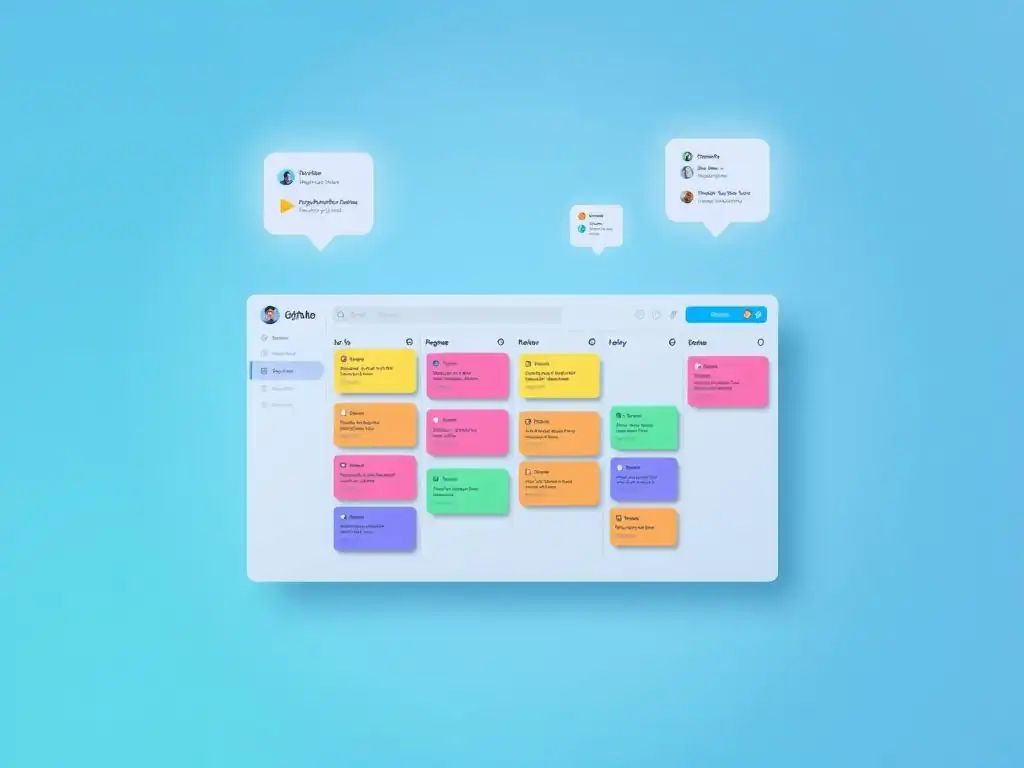
Welcome to Git and Version Control Hub, your go-to resource for mastering Git and version control! Ever wished your GitHub project board was more tailored to your team's specific workflow? Dive in and discover how to customize your GitHub project board to perfectly reflect your team's needs and boost productivity. Unlock the secrets to efficient project management – let's get started!
Customizing Your GitHub Project Board: Tailor it to Your Team's Needs
- Introduction: Enhancing Team Collaboration with a Tailored GitHub Project Board
- Understanding GitHub Project Boards: The Foundation for Customization
- Key Elements for Customizing Your GitHub Project Board
- Tailoring Your Project Board for Specific Team Needs
- Advanced Customization Techniques for GitHub Project Boards
- Best Practices for Effective GitHub Project Board Customization
- Real-World Examples of Customized GitHub Project Boards
- Troubleshooting Common Customization Challenges
- Conclusion: Optimizing Your Workflow with a Personalized GitHub Project Board
-
Frequently Asked Questions
- How can I change the columns on my GitHub project board?
- What kind of automation can I add to my GitHub project board?
- Can I filter or sort issues on my GitHub project board?
- How do I share my customized GitHub project board with my team?
- Is it possible to link pull requests or issues to a GitHub project board?
- Final Reflection: Embracing Agile Evolution
- Elevate Your Workflow: Unleash the Power of Personalized Project Boards!
Introduction: Enhancing Team Collaboration with a Tailored GitHub Project Board
In today's fast-paced software development landscape, effective project management and issue tracking are crucial for team success. GitHub Project Boards offer a powerful and flexible solution to visualize, organize, and prioritize your team's work directly within your repositories. However, the default setup might not perfectly align with every team's unique workflow and project requirements.
This is where the power of customization comes in. By strategically customizing your GitHub project board, you can transform it from a generic tool into a highly efficient, team-specific hub that significantly enhances collaboration, streamlines workflows, and ultimately boosts productivity. This article will guide you through the essential aspects of customizing your GitHub project board, enabling you to tailor it precisely to your team's needs and optimize your project management process.
A well-customized project board is more than just a visual aid; it becomes a central communication point for your team. It provides a shared understanding of project status, clarifies responsibilities, and ensures everyone is on the same page. By adapting the project board to reflect your team’s specific processes and terminology, you reduce ambiguity and friction. This targeted approach not only improves individual task management but also fosters a more cohesive and collaborative team environment. Investing time in customizing your GitHub project board is an investment in your team's efficiency and the overall success of your projects.
Understanding GitHub Project Boards: The Foundation for Customization
What is a GitHub Project Board? A Visual Overview
A GitHub Project Board is a visual tool within GitHub repositories designed to help teams organize and track their work. Think of it as a digital Kanban board or a task management system directly integrated into your development workflow. At its core, a project board consists of columns representing different stages of a workflow, and cards within these columns represent individual tasks, issues, or pull requests.
This visual representation allows teams to see the progress of work at a glance, understand bottlenecks, and manage priorities effectively. Each card can be moved between columns as the task progresses through different stages, providing a dynamic and real-time view of the project's status.
Project boards in GitHub offer a flexible and intuitive interface for managing software development projects or any workflow that can be broken down into stages. They are not just static lists; they are interactive and customizable. Users can drag and drop cards, add notes, assign team members, and link cards to issues or pull requests, creating a rich and interconnected workspace.
This visual and interactive nature of GitHub project boards makes them an invaluable tool for agile teams, project managers, and individual developers looking to organize their tasks and improve their workflow within the GitHub ecosystem. Understanding the fundamental visual structure and interactive elements of a GitHub project board is the first step towards effective customization.
Benefits of Using GitHub Project Boards for Issue Tracking
Utilizing GitHub Project Boards for issue tracking offers a multitude of benefits that directly contribute to improved project management and team collaboration. Firstly, project boards provide enhanced visual organization. Instead of managing issues as a flat list, project boards allow you to categorize and visualize issues based on their status, such as "To Do," "In Progress," and "Done." This visual clarity makes it easier to understand the overall project status, identify bottlenecks, and prioritize tasks effectively. For example, a quick glance at the board can instantly reveal how many issues are currently blocked or require immediate attention.
Secondly, GitHub Project Boards facilitate improved team collaboration and communication. By providing a shared and transparent view of the project's progress, project boards ensure that all team members are on the same page. Everyone can see who is working on what, what the current priorities are, and where issues are getting stuck.
This shared understanding reduces misunderstandings, facilitates proactive problem-solving, and promotes a more collaborative work environment. Features like assigning issues to team members and adding comments directly within the cards further enhance communication and accountability within the team. Studies show that teams using visual project management tools experience a 20-30% increase in project completion rates due to improved organization and communication.
Different Layout Options: Kanban vs. Automated Boards
GitHub Project Boards offer different layout options to cater to various project management styles and team preferences, primarily Kanban and Automated boards. Kanban boards provide a classic, visual workflow management approach. They are typically structured with columns representing stages of work, such as "Backlog," "In Progress," "Review," and "Deployed."
Teams manually move cards representing issues or tasks across these columns as they progress through the workflow. Kanban boards are highly flexible and are ideal for teams that prefer a manual, visually driven approach to managing their workflow. They empower teams to directly control the flow of work and adapt to changing priorities dynamically.
Automated boards, on the other hand, leverage automation to streamline the workflow and reduce manual updates. These boards can be configured to automatically move issues between columns based on events like pull request merges or issue status changes. For instance, an issue can automatically move from "In Progress" to "Review" when a pull request linked to it is created.
Automated boards are particularly beneficial for teams that want to minimize manual board maintenance and focus on development tasks. They promote efficiency by automatically reflecting the current status of work based on GitHub events, ensuring the board is always up-to-date with minimal manual intervention. Choosing between Kanban and Automated boards depends on the team's preference for manual control versus automated workflow management, and the specific needs of the project.
Key Elements for Customizing Your GitHub Project Board
Defining Custom Columns: Aligning with Your Workflow Stages
Customizing columns in your GitHub Project Board is a fundamental step in tailoring it to your team's specific workflow. The default columns like "To do," "In progress," and "Done" are a good starting point, but often don't accurately reflect the nuances of a team's development process. By defining custom columns, you can mirror your actual workflow stages, providing a more precise and relevant visualization of work progress.
For example, a software development team might benefit from columns like "Feature Backlog," "Development," "Testing," "Code Review," "Staging," and "Production." These custom columns directly represent the stages a feature goes through in their development lifecycle, offering a clearer picture of where each task stands.
The process of defining custom columns should involve your team to ensure alignment with their workflow. Consider the specific steps your team takes from the initial idea to the final deployment. For instance, a content creation team might use columns like "Idea Backlog," "Drafting," "Editing," "Review," "Publishing," and "Promotion."
By customizing columns to reflect these stages, the project board becomes a more intuitive and practical tool for the team. Furthermore, custom columns enable better tracking of cycle times and identification of bottlenecks within specific stages of your workflow. According to a study by Forrester, teams that customize their workflow visualization tools see a 15% improvement in workflow efficiency due to better alignment with their processes.
Utilizing Labels for Enhanced Issue Categorization and Filtering
Labels are an incredibly powerful tool for enhancing issue categorization and filtering within GitHub Project Boards, thereby significantly improving organization and issue management. While columns represent workflow stages, labels provide a way to categorize issues based on various attributes, such as type (bug, feature request, documentation), priority (high, medium, low), component (frontend, backend, API), or even team (team-A, team-B). This multi-dimensional categorization allows for more granular filtering and analysis of issues on the project board. For example, you can easily filter the board to view only "high priority" "bug" issues assigned to the "frontend" team.
Effective use of labels greatly improves the searchability and manageability of issues, especially in large projects with numerous tasks. By establishing a clear and consistent labeling system, teams can quickly identify and focus on specific types of issues. For instance, during sprint planning, a team can filter the project board to only show "feature request" issues labeled as "high priority" to decide what to include in the upcoming sprint.
Moreover, labels can be used to generate reports and metrics, providing insights into the distribution of issue types, priorities, and components. A well-defined label system is crucial for effective customizing GitHub project board to handle complex projects and diverse issue types. Statistics show that teams using labels effectively can reduce issue resolution time by up to 25% due to improved categorization and prioritization.
Leveraging Milestones to Track Progress and Deadlines
Milestones are essential for tracking progress and deadlines in GitHub Project Boards, particularly for time-bound projects or releases. Milestones represent specific goals or deadlines within a project, such as a release version, a sprint goal, or a project phase completion. By associating issues and pull requests with milestones, teams can visually track the progress towards these defined objectives.
The project board then provides a clear overview of how many issues and pull requests related to a particular milestone are completed, in progress, or still to do. This progress tracking is often displayed visually on the milestone itself, showing a percentage completion rate.
Using milestones effectively helps teams stay focused on key objectives and manage project timelines. For example, if a team is working towards a "v2.0 Release" milestone, they can filter the project board to only show issues and pull requests associated with this milestone. This focused view allows them to track the progress of all tasks required for the release and identify any potential roadblocks in meeting the deadline.
Furthermore, milestones can be used to generate burndown charts and progress reports, providing stakeholders with a clear understanding of project status against planned timelines. Leveraging milestones within your customized GitHub project board is crucial for effective project planning, progress monitoring, and ensuring timely project delivery. Project management surveys indicate that projects using milestones for tracking are 30% more likely to be completed on time and within budget.
Tailoring Your Project Board for Specific Team Needs
Customizing Views: Focusing on Relevant Information
Customizing views in GitHub Project Boards allows teams to focus on the information most relevant to their current tasks and responsibilities, thereby enhancing efficiency and reducing information overload. Customized views are essentially saved filters and groupings of your project board data.
Instead of always viewing the entire project board with all issues, you can create specific views tailored to different roles, priorities, or work streams. For example, a development team lead might create a view that shows all "high priority" issues across all columns, while individual developers might create views that only show issues assigned to them in the "In Progress" and "Code Review" columns.
The ability to create and save multiple custom views is a powerful feature for customizing GitHub project board to the needs of different team members and different project phases. A QA team, for instance, could create a view that specifically focuses on issues in the "Testing" column, grouped by labels like "Severity" or "Test Environment." Similarly, a project manager could create a view that shows progress towards specific milestones, grouped by assignee to monitor individual contributions.
By providing focused views, teams can quickly access the information they need without being overwhelmed by irrelevant data, leading to faster decision-making and improved productivity. According to a study by McKinsey, personalized work environments, including customized views, can increase employee productivity by up to 25%.
Setting Up Automation Rules: Streamlining Workflow Processes
Setting up automation rules in GitHub Project Boards is a key technique for streamlining workflow processes and minimizing manual effort. Automation rules allow you to automatically trigger actions on the project board based on specific events, such as issue creation, status changes, or pull request merges. These rules can automate tasks like moving cards between columns, assigning issues to team members, adding labels, or even sending notifications.
For example, you can set up a rule to automatically move an issue from the "To Do" column to the "In Progress" column when it is assigned to a developer. Or, you can configure a rule to automatically add a "Needs Review" label when an issue is moved to the "Code Review" column.
Implementing automation rules significantly reduces the manual overhead of managing the project board, allowing team members to focus more on their core tasks. For instance, when a pull request is merged, you can automate the associated issue to move to the "Done" column, keeping the board automatically updated with the latest progress. Furthermore, automation ensures consistency and reduces the chance of human error in workflow management.
By thoughtfully setting up automation rules, you can create a more efficient and self-managing project board that reflects the real-time status of your project with minimal manual intervention. Companies using workflow automation tools have reported an average of 20% reduction in operational costs and a 30% increase in process efficiency.
Integrating with Other GitHub Features: Connecting Issues and Pull Requests
Integrating GitHub Project Boards with other GitHub features, particularly issues and pull requests, creates a seamless and interconnected workflow that enhances traceability and context. Integration involves linking issues and pull requests directly to cards on your project board. This connection provides a direct pathway from planning and issue tracking (project board) to code implementation (pull requests) and problem reporting (issues).
For example, when you create a card on the project board to implement a new feature, you can directly link it to the issue that describes the feature request. Similarly, when a developer starts working on the feature, they can create a pull request and link it back to the project board card.
This tight integration offers several advantages. Firstly, it provides complete traceability – you can easily navigate from a project board card to the related issue and pull request, and vice versa. This makes it easier to understand the context and history of each task. Secondly, it improves workflow efficiency by streamlining the process of moving issues through different stages.
As mentioned earlier, automation rules can be set up to automatically update the project board based on pull request status changes. For instance, merging a pull request can automatically move the linked project board card to the "Done" column. Finally, this integration fosters better communication by providing a central location to track the progress of issues and related code changes. Teams that effectively integrate their project boards with issues and pull requests experience a more cohesive and efficient development workflow.
Advanced Customization Techniques for GitHub Project Boards
Using Custom Fields for Specific Data Tracking
Going beyond default fields, GitHub Project Boards offer the powerful feature of custom fields for tracking specific data points relevant to your project. Custom fields allow you to add additional attributes to your project board cards, enabling you to capture and display information that is not natively available in standard issue or pull request fields.
These custom fields can be of various types, including text, number, date, dropdown select, or even checkboxes. For example, a software team might add a custom field called "Estimated Story Points" (number type) to cards representing user stories, or a "Priority Level" (dropdown select type) with options like "P1," "P2," "P3."
Implementing custom fields significantly enhances the granularity of your project board data and allows for more tailored tracking and reporting. For instance, a marketing team managing content creation could use custom fields like "Content Type" (blog post, case study, white paper), "Target Audience" (dropdown select), or "Due Date" (date type). By utilizing custom fields, you can collect and visualize data specific to your project's needs, facilitating more informed decision-making and better project insights.
Furthermore, custom fields can be used in filters and groupings, allowing for more sophisticated analysis and views of your project data. Advanced teams leveraging custom fields for data tracking report a 10-15% improvement in data-driven project management and reporting accuracy.
Implementing Custom Workflows with GitHub Actions
For teams seeking highly tailored and automated workflows, integrating GitHub Actions with Project Boards unlocks a new level of customization. GitHub Actions allow you to create custom workflows triggered by events within your GitHub repository, including project board card changes. This integration allows you to automate complex processes that go beyond the built-in automation rules of Project Boards. For example, you could create a GitHub Action that automatically sends a notification to a Slack channel when a high-priority issue is moved to the "Blocked" column, or trigger a deployment pipeline when a card reaches the "Production Ready" column.
By combining the visual project management of Project Boards with the automation power of GitHub Actions, you can implement truly custom workflows that are perfectly aligned with your team's processes and needs. Imagine a workflow where moving a card to "Ready for QA" automatically triggers a series of automated tests via GitHub Actions, and the results are then posted back to the project board card.
This level of automation reduces manual steps, improves efficiency, and ensures consistency in your workflow execution. While requiring more technical setup, integrating GitHub Actions with Project Boards provides unparalleled flexibility in customizing GitHub project board for highly specialized and automated workflows.
Creating Custom Reports and Visualizations
While GitHub Project Boards offer built-in visualizations, creating custom reports and visualizations can provide deeper insights and tailored perspectives on your project data. By exporting data from your project board, you can leverage external tools like spreadsheets, data visualization libraries (e.g., Chart.js, D3.js), or business intelligence platforms (e.g., Power BI, Tableau) to generate reports and visualizations that are specifically designed to answer your project's key questions.
For example, you could export your project board data to create a burndown chart showing progress against milestones, a cumulative flow diagram visualizing workflow bottlenecks, or a report analyzing the average cycle time for different types of issues.
Creating custom reports and visualizations allows you to go beyond the standard project board views and gain a more comprehensive and analytical understanding of your project performance. You can tailor reports to track specific metrics relevant to your team, such as issue resolution rates, defect densities, or sprint velocity. Furthermore, custom visualizations can make complex data more accessible and understandable, facilitating better communication with stakeholders and data-driven decision-making. Although requiring additional effort to set up data export and reporting pipelines, the insights gained from custom reports can be invaluable for continuous improvement and optimizing your project management processes.
Best Practices for Effective GitHub Project Board Customization
Establishing Clear Naming Conventions for Labels and Milestones
Establishing clear naming conventions for labels and milestones is crucial for maintaining a well-organized and easily understandable GitHub Project Board. Consistent naming conventions ensure that labels and milestones are used uniformly across the project, avoiding confusion and ambiguity. For labels, this might involve defining categories like type:bug, type:feature, priority:high, priority:low, component:frontend, component:backend. Using prefixes or suffixes to categorize labels makes it easier to filter and search. For milestones, clear and descriptive names like "v1.0 Release," "Sprint 3," or "Q3 Goals" are essential. Avoid vague or ambiguous names that could be interpreted in multiple ways.
Well-defined naming conventions make your project board more user-friendly and efficient to navigate. When team members consistently use the same labels and milestone names, it simplifies issue categorization, filtering, and reporting. This consistency reduces cognitive load and minimizes the chances of errors due to misinterpretation of labels or milestones.
Documenting these naming conventions and communicating them to the entire team is also a best practice. A shared understanding of the label and milestone vocabulary ensures that everyone is on the same page and contributes to maintaining a clean and organized project board. Teams with clear naming conventions for labels and milestones report a 15-20% reduction in time spent on issue triaging and project board maintenance.
Regularly Reviewing and Updating Your Project Board Configuration
A GitHub Project Board is not a static entity; it should evolve alongside your team's processes and project needs. Regularly reviewing and updating your project board configuration is essential to ensure it remains effective and relevant. This includes periodically evaluating your columns, labels, milestones, automation rules, and custom fields to determine if they are still accurately reflecting your current workflow and providing the information your team needs. Workflow processes may change, new project requirements may emerge, or the team's understanding of project management best practices may evolve. Regular reviews allow you to adapt your project board to these changes.
Reviewing your project board configuration should be a scheduled activity, perhaps as part of sprint retrospectives or quarterly planning sessions. Gather feedback from your team members on what's working well and what could be improved in the project board setup. Are the columns still aligned with the current workflow? Are there labels that are no longer used or new labels that should be added?
Are the automation rules still effective? Based on this feedback and your evolving needs, make necessary adjustments to your project board configuration to ensure it continues to be a valuable tool for your team. Continuous improvement and adaptation are key to maximizing the long-term effectiveness of your customized GitHub project board.
Gathering Feedback from Your Team to Optimize the Board's Functionality
The ultimate goal of customizing your GitHub Project Board is to create a tool that effectively serves your team's needs. Therefore, gathering feedback from your team is paramount to optimizing the board's functionality and ensuring its adoption and usefulness. Your team members are the daily users of the project board, and their insights are invaluable for identifying areas for improvement. Actively solicit feedback from your team on all aspects of the project board, including the columns, labels, milestones, views, automation rules, and overall usability.
Feedback can be gathered through various channels, such as team meetings, surveys, or dedicated feedback sessions. Encourage open and honest feedback, and create a safe space for team members to voice their opinions and suggestions. Use this feedback to iteratively improve your project board configuration.
Implement changes based on team suggestions, and then solicit feedback again to see if the changes have been effective. This iterative feedback loop ensures that the project board is continuously optimized to meet the evolving needs of your team and enhances its overall effectiveness as a project management tool. Teams that actively solicit and act upon team feedback for project board optimization see a significant increase in team satisfaction and project board adoption rates.
Real-World Examples of Customized GitHub Project Boards
Example 1: Software Development Team Project Board Customization
A software development team working on a SaaS application customized their GitHub Project Board to mirror their Agile development workflow. They defined columns as: "Product Backlog," "Sprint Backlog," "In Development," "Code Review," "Testing," "Staging," and "Production." They utilized labels extensively for categorization, including type:bug, type:feature, priority:high, priority:medium, priority:low, and component:frontend, component:backend, component:api. Milestones were used for sprint goals and release versions, such as "Sprint 1," "Sprint 2," and "v1.0 Release."
Automation rules were set up to automatically move issues between columns based on pull request status changes. For example, when a pull request linked to an issue was merged, the issue automatically moved from "Code Review" to "Testing." They also created custom views for different team members.
Developers had views showing issues assigned to them in "Sprint Backlog" and "In Development," while the QA team had a view focused on issues in the "Testing" column. This customized GitHub project board significantly improved their sprint planning, daily stand-ups, and overall workflow visibility, leading to a reported 20% increase in sprint velocity.
Example 2: Open Source Project Issue Tracking Board Setup
An open-source project maintaining a popular JavaScript library customized their GitHub Project Board to manage community contributions and bug reports effectively. Their columns were: "Triage," "Needs Investigation," "Help Wanted," "In Progress," "Reviewing," "Merged," and "Closed." Labels were crucial for issue categorization, including type:bug, type:feature-request, type:documentation, status:confirmed, status:duplicate, status:wontfix, and difficulty:easy, difficulty:medium, difficulty:hard. Milestones were used for major and minor releases, such as "v2.0.0 Release," "v2.1.0 Feature Updates."
Due to the volunteer nature of the project, automation rules were kept simple, mainly for moving issues from "Reviewing" to "Merged" when pull requests were merged. Custom views were used to filter for "Help Wanted" issues to encourage community contributions and to track the progress of issues labeled with different difficulty levels. This setup allowed them to effectively manage a high volume of community contributions, prioritize bug fixes, and track progress towards releases, resulting in a more organized and responsive open-source project. The project maintainers noted a 30% reduction in issue triage time after implementing this customized project board.
Example 3: Agile Project Management Board Tailoring
An Agile marketing team managing content creation and campaign execution tailored their GitHub Project Board to reflect their marketing workflow. Their columns were: "Campaign Ideas," "Content Backlog," "Drafting," "Design," "Review & Approval," "Scheduling," "Published," and "Analysis." Labels were used to categorize content and campaigns, such as content-type:blog-post, content-type:social-media, campaign:summer-sale, campaign:product-launch, status:urgent, status:on-hold. Milestones were used for campaign deadlines and quarterly goals, like "Summer Sale Campaign Launch," "Q3 Marketing Objectives."
Automation rules were used to send notifications to team members when content moved to the "Review & Approval" column and to automatically move content to "Published" upon reaching a specific date custom field. Custom views were created for individual team members to focus on their assigned tasks in "Drafting" and "Design," and for the marketing manager to oversee progress across all columns. This customized GitHub project board enabled them to effectively manage marketing campaigns, track content creation progress, and improve team collaboration, leading to a reported 15% increase in campaign execution efficiency.
Troubleshooting Common Customization Challenges
Addressing Performance Issues with Large Project Boards
As project boards grow in size with numerous cards and columns, performance issues like slow loading times or laggy interactions can sometimes arise. To address performance issues with large project boards, consider several strategies. Firstly, archive completed cards regularly. Move cards in the "Done" or "Closed" columns to the archive to reduce the number of active cards on the board. Archived cards are still searchable but don't contribute to board loading times.
Secondly, optimize your browser. Ensure you are using an up-to-date browser and clear your browser cache and cookies periodically. Thirdly, simplify complex automation rules. Overly complex or numerous automation rules can sometimes impact performance. Review your automation rules and streamline them where possible.
If performance issues persist, consider breaking down large project boards into smaller, more focused boards. For instance, you could create separate project boards for different teams, projects, or features. This reduces the overall size of each individual board and can improve performance. Additionally, GitHub is continuously working on performance improvements for Project Boards. Keeping your browser and GitHub platform updated can also help in benefiting from the latest performance optimizations. In extreme cases, if performance remains severely impacted despite these measures, contacting GitHub support for further assistance might be necessary.
Resolving Conflicts in Automation Rules
When setting up multiple automation rules, conflicts can sometimes arise if rules are triggered by the same events or actions and have contradictory outcomes. To resolve conflicts in automation rules, carefully review your rule configurations. Firstly, understand the order of rule execution. GitHub executes automation rules in the order they are defined.
This order can be important if rules are dependent on each other. Secondly, check for overlapping triggers. Identify rules that are triggered by the same events and ensure they are not causing conflicting actions. For example, two rules might be trying to move the same card to different columns based on the same event.
To mitigate conflicts, refine your rule triggers and conditions. Make your rule triggers more specific to avoid unintended overlaps. Use conditions within rules to further narrow down when a rule should be executed.
For example, instead of a rule triggering on any issue moved to "In Progress," add a condition to only trigger if the issue has a specific label. If conflicts are difficult to resolve, consider simplifying your automation logic or consolidating multiple rules into fewer, more comprehensive rules. Testing your automation rules thoroughly after any modifications is crucial to ensure they function as expected and do not create conflicts.
Managing User Permissions and Access Control
Properly managing user permissions and access control is essential for maintaining the security and integrity of your GitHub Project Boards, especially in team environments. User permissions control who can view, edit, and manage your project boards. GitHub offers different permission levels, such as read, write, and admin, which can be assigned to individual users or teams. To manage access control effectively, start by defining clear roles and responsibilities for your team members. Determine who needs read-only access, who needs write access to update cards, and who needs admin access to configure the project board settings.
Utilize GitHub's team features to manage permissions for groups of users instead of individually assigning permissions. This simplifies permission management and ensures consistency. Regularly review user permissions to ensure they are still appropriate and up-to-date, especially when team members join or leave the project.
Follow the principle of least privilege, granting users only the minimum level of access they need to perform their tasks. For sensitive project boards, consider enabling branch protection rules to further restrict modifications and ensure that changes are reviewed and approved. Properly managing user permissions and access control is vital for maintaining a secure and well-managed GitHub Project Board environment.
Conclusion: Optimizing Your Workflow with a Personalized GitHub Project Board
The Importance of Continuous Improvement in Project Board Customization
Customizing your GitHub Project Board is not a one-time setup; it's an ongoing process of continuous improvement. As your team, projects, and workflows evolve, your project board configuration should adapt accordingly to remain effective and valuable. Regularly reviewing and refining your customization is crucial for maximizing the benefits of your project board. This iterative approach ensures that your project board always aligns with your current needs and continues to support efficient project management and team collaboration. Embrace a mindset of continuous improvement, actively seeking feedback and making adjustments to your project board configuration as needed.
The dynamic nature of software development and project management necessitates a flexible and adaptable approach to tool customization. What works perfectly today might become less effective tomorrow as your team grows, your project scope changes, or new best practices emerge. By embracing continuous improvement, you ensure that your customized GitHub project board remains a valuable asset, consistently optimizing your workflow and contributing to your team's success over the long term. This commitment to ongoing refinement is what truly unlocks the full potential of GitHub Project Boards as a personalized and powerful project management tool.
Future Trends in GitHub Project Board Functionality
The functionality of GitHub Project Boards is continuously evolving, with future trends likely to focus on enhanced automation, deeper integrations, and improved data insights. Expect to see more advanced automation capabilities, potentially including AI-powered automation suggestions and more granular control over automation rules. Deeper integrations with other GitHub features and third-party tools are also anticipated, further streamlining workflows and providing a more unified development experience. For example, tighter integration with GitHub Actions and improved connectivity with popular project management and communication platforms are likely developments.
Furthermore, enhanced data insights and reporting features are expected to become more prominent in future iterations of GitHub Project Boards. This could include more sophisticated built-in reporting tools, customizable dashboards, and improved data export options for deeper analysis. The focus will likely be on providing teams with richer data and visualizations to better understand project performance, identify bottlenecks, and make data-driven decisions. Staying informed about these future trends and proactively adapting your project board customization strategies will ensure you continue to leverage the latest advancements in GitHub Project Board functionality to optimize your workflow and project management practices.
Frequently Asked Questions
How can I change the columns on my GitHub project board?
You can customize the columns by clicking the "+" button to add new columns, or by dragging and dropping existing columns to rearrange them. This allows you to define custom workflows tailored to your project's needs and track progress effectively.
What kind of automation can I add to my GitHub project board?
GitHub project boards support automation based on events like pull requests being opened, closed, or merged. Use rules to automatically move issues between columns based on these events, saving you time.
Can I filter or sort issues on my GitHub project board?
Yes, you can filter issues based on criteria like assignee, labels, and milestones. You can also sort them based on priority or other relevant factors to focus on what's most important to your team.
GitHub project boards are shared automatically with members of the repository. Ensure everyone on your team has the necessary permissions to view and edit the board for seamless collaboration.
Is it possible to link pull requests or issues to a GitHub project board?
Absolutely! Linking pull requests and issues to your project board allows you to visualize the relationship between different tasks and track their progress within your defined workflow.
Final Reflection: Embracing Agile Evolution
The ability to adapt and refine our tools is paramount in today's dynamic development landscape, and customizing your GitHub project board is a powerful testament to this principle. It's not merely about aesthetics; it's about crafting a workspace that truly reflects the unique workflows and priorities of your team, fostering efficiency and collaboration.
The impact of a well-tailored project board extends far beyond simple task management. It shapes the very culture of your team, promoting transparency, accountability, and a shared understanding of progress. It allows for a more fluid and responsive approach to project management, aligning perfectly with the principles of agile development. The greatest discovery of all time is that a person can change his future by merely changing his attitude.
- Oprah Winfrey, highlighting the power of adapting our mindset and tools to achieve better outcomes.
As you embark on your journey of customizing your GitHub project board, remember that this is an ongoing process of refinement and adaptation. Embrace the opportunity to experiment, gather feedback, and continuously evolve your board to meet the ever-changing needs of your team. Let this be a catalyst for fostering a more collaborative, efficient, and ultimately, more successful development environment.
Elevate Your Workflow: Unleash the Power of Personalized Project Boards!
Thanks for diving into the world of customized GitHub project boards! We hope you've discovered new ways to make your project management more efficient and tailored to your team's specific needs. Now, it's time to put that knowledge into action.
Here are a few steps to supercharge your team's GitHub workflow:
- Immediately implement one customization tip from this article on your team's project board. Even a small change can make a big difference!
- Explore the GitHub Marketplace for apps and integrations that further enhance your project board functionality. Consider trying something new!
- Share this article with your team and encourage them to brainstorm unique project board customizations for your current projects.
What's the first customization you're excited to implement to boost your team's productivity?