
VS Code for Merge Conflicts: A Powerful Visual Resolution Workflow

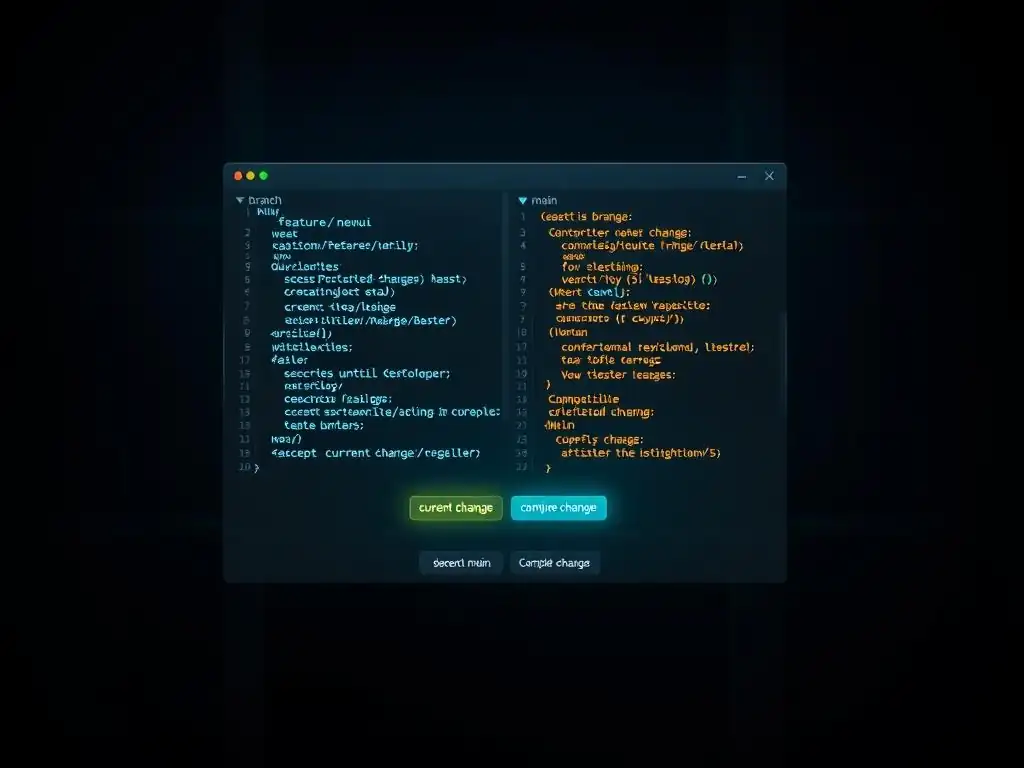
Welcome to Git and Version Control Hub, your central resource for navigating the world of version control!
Are you tired of wrestling with Git merge conflicts? Discover how to leverage the power of VS Code to visually resolve even the most complex merge conflicts with ease. Unlock a smoother, more efficient workflow as we delve into advanced techniques and best practices in this guide, designed to have you mastering branching and merging in no time. Ready to transform your development experience? Let's dive in!
VS Code for Merge Conflicts: A Powerful Visual Resolution Workflow
- Introduction: Mastering Git Merge Conflicts with VS Code
- Preparing for Merge Conflict Resolution in VS Code
- Identifying and Understanding Merge Conflicts in VS Code
- Resolving Merge Conflicts Visually in VS Code: Step-by-Step
- Advanced Merge Conflict Resolution Techniques in VS Code
- Preventing Merge Conflicts: Best Practices for Collaboration
- Troubleshooting Common VS Code Merge Conflict Issues
- Integrating VS Code Merge Conflict Resolution with Git Workflows
- Conclusion: Streamlining Your Git Workflow with VS Code's Merge Conflict Tools
-
Frequently Asked Questions
- What are Git merge conflicts and why do they occur?
- How can VS Code help resolve Git merge conflicts?
- What are the key features of VS Code's merge conflict resolution tool?
- Can VS Code be used to resolve merge conflicts for all types of files, or just code files?
- How does using VS Code to resolve merge conflicts improve team collaboration?
- Final Reflection: Embracing Clarity in Collaboration
- Unleash Your Merge Mastery!
Introduction: Mastering Git Merge Conflicts with VS Code
Merge conflicts are an inevitable part of collaborative software development using Git. They arise when changes from different branches modify the same lines of code in a file, or when one developer deletes a file while another modifies it. Encountering a merge conflict can be daunting, especially when you're faced with cryptic markers in your code.
However, with the right tools, resolving these conflicts can become a streamlined and even efficient process. Visual Studio Code (VS Code), with its built-in Git integration and powerful visual merge editor, offers an exceptional environment to effectively resolve Git merge conflicts. This article will guide you through leveraging VS Code's capabilities to understand, navigate, and resolve merge conflicts, enhancing your workflow and ensuring code integrity.
Why Visual Studio Code is Ideal for Resolving Merge Conflicts
Visual Studio Code stands out as an ideal tool for resolving merge conflicts due to its intuitive visual interface and seamless Git integration. Unlike command-line tools that require developers to manually parse and edit conflict markers, VS Code provides a dedicated merge editor. This editor presents a clear, three-pane view showcasing the conflicting changes: the "Current Change" (your branch), the "Incoming Change" (the branch being merged in), and the "Result" (the merged outcome).
This visual representation drastically simplifies the process of understanding the discrepancies and making informed decisions. For instance, imagine trying to resolve a conflict in a complex JavaScript file with hundreds of lines. Using command-line tools, you'd be scrolling through text, manually comparing sections.
In VS Code, the visual editor highlights the exact conflicting lines side-by-side, making it immediately clear where the differences lie. Furthermore, VS Code's built-in Git features, such as commit history and diff views, are readily accessible, allowing developers to quickly understand the context of changes and make well-informed merge decisions, leading to faster and more accurate conflict resolution.
Understanding the Importance of Effective Merge Conflict Resolution
Effective merge conflict resolution is paramount for maintaining a healthy and productive software development lifecycle. Unresolved or poorly resolved conflicts can introduce bugs, break functionality, and lead to unstable software. In a team environment, unresolved merge conflicts can quickly halt progress, causing delays and frustration.
Consider a scenario where a team is working on a critical feature for a product launch. If merge conflicts are not resolved promptly and accurately, it can delay the release, impacting deadlines and potentially costing the company revenue. Moreover, poorly resolved conflicts can lead to subtle errors that are difficult to detect in testing, potentially surfacing in production and affecting users.
On the other hand, mastering merge conflict resolution techniques empowers developers to integrate code changes smoothly and efficiently. This ensures that the codebase remains consistent, stable, and reflects the intended functionality from all contributing developers. Effective conflict resolution is not just about fixing errors; it's about maintaining code quality, ensuring team collaboration, and ultimately delivering reliable software on time.
Preparing for Merge Conflict Resolution in VS Code
Before diving into resolving merge conflicts, properly configuring VS Code is crucial to maximize efficiency and take full advantage of its features. Setting up VS Code for merge conflict resolution involves configuring Git settings within VS Code and potentially installing extensions that can further enhance the experience.
These preparatory steps ensure that VS Code is optimized to provide the best possible visual and functional support when you encounter and need to resolve merge conflicts. A well-configured VS Code environment can significantly reduce the cognitive load and time spent on conflict resolution, allowing developers to focus more on coding and less on wrestling with merge issues.
Configuring VS Code for Optimal Merge Conflict Handling
VS Code is inherently equipped to handle merge conflicts, but certain configurations can optimize the experience. By default, VS Code uses its built-in merge editor when it detects conflicts. However, you can ensure this is the case and explore other relevant settings. To verify and adjust Git settings within VS Code, navigate to File > Preferences > Settings (or Code > Preferences > Settings on macOS). Search for "merge editor" in the settings search bar. The setting "Git: Merge Editor" should be enabled by default. This ensures that VS Code's visual merge editor is activated when conflicts are detected. Furthermore, explore settings related to diffing and Git integration. For example, the "diffEditor.renderSideBySide" setting, when enabled, displays diffs side-by-side, which can be beneficial for understanding changes during conflict resolution. You can also configure Git globally or per repository to use VS Code as the default merge tool outside of VS Code's integrated environment, but for resolving conflicts within VS Code, these settings are primarily managed within the application itself. Properly configuring these settings ensures a smooth and efficient merge conflict resolution workflow within VS Code.
Installing Recommended VS Code Extensions for Git Merge Conflicts
While VS Code's built-in features are robust for resolving merge conflicts, several extensions can further enhance the process. One highly recommended extension is "GitLens — Git supercharged." GitLens adds a wealth of features to VS Code's Git capabilities, including enhanced blame annotations, code authorship insights, and powerful diffing tools.
While not specifically designed solely for merge conflicts, GitLens's enhanced diffing and history exploration features can provide valuable context when resolving complex conflicts. For instance, GitLens can visually display the history of code blocks, helping you understand why changes were made and potentially aiding in making informed merge decisions. Another category of useful extensions includes those that improve code readability and structure, such as linters and formatters.
While not directly related to Git, ensuring code is well-formatted and consistent can indirectly reduce the likelihood of merge conflicts caused by stylistic differences. Consider extensions like ESLint for JavaScript or Prettier for code formatting across various languages. By strategically selecting and installing extensions, you can customize VS Code to create an even more powerful and efficient environment for resolving Git merge conflicts.
Identifying and Understanding Merge Conflicts in VS Code
Identifying and understanding merge conflicts in VS Code is the first crucial step towards resolving them. VS Code provides clear visual cues and tools to help developers quickly recognize and analyze conflicts. When a merge operation results in conflicts, VS Code immediately highlights the affected files in the Source Control view and within the editor itself. Understanding these visual indicators and leveraging VS Code's diff view are essential for effectively tackling merge conflicts. This section will guide you through recognizing conflict markers and using the diff view to dissect the conflicting changes.
Recognizing Merge Conflict Markers in VS Code
VS Code visually signals merge conflicts in several ways. In the Explorer view, files with merge conflicts are typically marked with a red exclamation point badge on the file icon. This immediately draws your attention to the files requiring conflict resolution. When you open a file containing merge conflicts, VS Code clearly highlights the conflict markers directly within the editor. These markers are standard Git conflict markers: <<<<<<< HEAD, =======, and >>>>>>> branch-name. The section between <<<<<<< HEAD and ======= represents the "Current Change" (your branch), and the section between ======= and >>>>>>> branch-name represents the "Incoming Change" (the branch being merged). VS Code not only displays these markers but also provides visual cues in the editor's gutter (the area to the left of the line numbers). Small colored indicators in the gutter correspond to the conflict sections, making it easy to visually scan through the file and locate all conflict areas. For example, a red indicator might represent the "Current Change" section, and a green indicator might represent the "Incoming Change" section. These visual markers, both in the Explorer and within the editor, are designed to be highly noticeable, ensuring that developers can quickly identify and address merge conflicts within VS Code.
Analyzing Conflicting Changes with VS Code's Diff View
VS Code's diff view is an invaluable tool for analyzing conflicting changes and understanding the differences between the "Current Change" and the "Incoming Change". When you open a file with merge conflicts, VS Code often automatically opens the merge editor, which inherently includes a diff-like view. However, even outside the merge editor, you can leverage VS Code's diff capabilities.
Right-clicking on a conflicted file in the Explorer view and selecting "Compare with…" can be useful if you want to compare it against a specific branch or commit. Within the merge editor itself, the three-pane layout essentially functions as a specialized diff view. The "Current Change" and "Incoming Change" panes display the respective versions of the conflicting code, while the "Result" pane shows the initially merged (conflicted) state.
By visually comparing the "Current Change" and "Incoming Change" panes, developers can precisely identify the lines that differ and understand the nature of the conflict. For instance, if you see that your branch added a new function call while the incoming branch modified the function definition, the diff view will clearly highlight these lines, making it straightforward to assess the conflict and decide on the appropriate resolution. The diff view in VS Code, especially within the merge editor, is designed to provide a clear and comparative visualization of conflicting changes, facilitating informed and accurate conflict resolution.
Resolving Merge Conflicts Visually in VS Code: Step-by-Step
VS Code's visual merge editor provides a step-by-step workflow for resolving merge conflicts efficiently. This editor is the core of VS Code's powerful merge conflict resolution capabilities. It guides developers through the process of choosing between changes, combining them, or manually editing the merged result. Understanding how to navigate this editor and utilize its features is key to mastering merge conflict resolution in VS Code. This section will detail the steps and actions available within the merge editor to resolve conflicts effectively.
The VS Code merge conflict editor is structured into three distinct panes: "Current," "Incoming," and "Result." The "Current" pane displays the version of the file from your current branch, representing your changes. The "Incoming" pane shows the version from the branch being merged, representing the changes coming in. The "Result" pane, initially displaying the conflicted state with Git markers, is where you construct the final merged version.
Above each conflicting section within these panes, VS Code provides action buttons. These buttons are crucial for navigating and resolving conflicts. For each conflict block, you'll typically see options like "Accept Current Change," "Accept Incoming Change," "Accept Both Changes," and "Compare Changes." Clicking on a conflict block in any pane will highlight the corresponding conflicting sections in the other panes, ensuring you understand the context of each conflict.
Navigation within the editor is straightforward. You can use standard editor shortcuts to scroll through the file and jump between conflict blocks. VS Code also often provides visual cues, like highlighting the next unresolved conflict, to guide you through the resolution process systematically. Understanding the layout and navigation of the merge editor is the foundation for effectively resolving merge conflicts in VS Code.
Accepting Current Change, Incoming Change, or Both
Within the VS Code merge conflict editor, the "Accept Current Change," "Accept Incoming Change," and "Accept Both Changes" actions are fundamental for resolving conflicts. For each conflict block, you must decide which version of the code to keep in the final merged result. "Accept Current Change" replaces the conflict block in the "Result" pane with the code from your current branch ("Current" pane). This is appropriate when you want to prioritize your changes over the incoming changes for that specific conflict.
"Accept Incoming Change" does the opposite, replacing the "Result" with the code from the incoming branch ("Incoming" pane). Choose this option when you want to adopt the changes from the branch being merged. "Accept Both Changes" attempts to incorporate both the "Current Change" and the "Incoming Change" into the "Result" pane.
VS Code usually places the "Current Change" block followed by the "Incoming Change" block in the "Result." This option is useful when both sets of changes are valuable and need to be combined, although you often need to manually edit the "Result" further after using "Accept Both Changes" to ensure the combined code is semantically correct and logically sound. Consider a simple JavaScript example:
// Current Change (your branch)
function greet(name) {
  console.log("Hello, " + name + "!");
}

// Incoming Change (merge branch)
function greet(personName) {
  console.log("Greetings, " + personName + "!");
}
If you "Accept Current Change," the greet(name) version will be in the "Result." If you "Accept Incoming Change," the greet(personName) version will be in the "Result." If you "Accept Both Changes," both blocks will be added to the "Result," which is likely not what you want. In this case, you might need to manually edit the "Result" to create a single, coherent greet function that incorporates the best aspects of both changes. Choosing the correct "Accept" action depends on the specific context of the conflict and your desired outcome for the merged code.
Comparing and Editing Conflicting Lines Directly in VS Code
Beyond the "Accept" actions, VS Code allows for direct comparison and editing of conflicting lines within the merge editor, providing granular control over conflict resolution. The "Compare Changes" action, available for each conflict block, opens a diff view specifically for that conflict. This diff view provides a detailed line-by-line comparison of the "Current Change" and "Incoming Change" for that particular block, making it easier to pinpoint the exact differences.
More importantly, the "Result" pane in the merge editor is fully editable. If none of the "Accept Current," "Accept Incoming," or "Accept Both" options perfectly resolve the conflict, you can directly modify the code in the "Result" pane. This is crucial for complex conflicts where a simple acceptance is insufficient, and you need to manually craft a merged version that integrates the intended functionality from both changes.
For example, imagine a conflict where both branches have modified the same line of code, but in slightly different ways that are both partially correct. In such a scenario, you might "Compare Changes" to understand the nuances, then manually edit the "Result" line to create a new line of code that incorporates the best aspects of both original lines, effectively resolving the conflict with precision. Direct editing of the "Result" pane offers the ultimate flexibility in resolving even the most intricate merge conflicts in VS Code.
Using the "Accept Combination" Feature for Complex Conflicts
For complex merge conflicts that involve multiple interacting changes, VS Code's "Accept Combination" (or similar contextual actions depending on the nature of the conflict) feature can be a powerful tool. While the exact label might vary slightly based on the specific conflict scenario, the concept is to provide more nuanced options beyond simply accepting one entire change or both wholesale. In scenarios where changes are intertwined or when "Accept Both Changes" creates undesirable code duplication or logical inconsistencies, "Accept Combination" often presents options that allow you to selectively pick parts of both "Current Change" and "Incoming Change" to construct the "Result."
For instance, if the "Current Change" modified lines 1-5 of a function, and the "Incoming Change" modified lines 3-7 of the same function, a simple "Accept Both Changes" might lead to redundant or overlapping code blocks. "Accept Combination" might offer options to accept "Current Change" lines 1-2, and "Incoming Change" lines 3-7, effectively merging the intended modifications without duplication.
The availability and specific options within "Accept Combination" are context-dependent and intelligently suggested by VS Code based on the detected conflict patterns. By exploring and utilizing these combination options, developers can resolve intricate conflicts more efficiently and precisely, creating a merged result that accurately reflects the intended integration of changes from both branches.
Advanced Merge Conflict Resolution Techniques in VS Code
Beyond the basic resolution workflow, VS Code provides techniques for handling more complex merge conflict scenarios. These advanced techniques address specific types of conflicts, such as those arising from whitespace differences, file renames, or large and intricate codebases. Mastering these techniques allows developers to navigate a wider range of merge conflict situations effectively and maintain code integrity even in challenging merging scenarios. This section explores some of these advanced resolution techniques within VS Code.
Resolving Conflicts with Whitespace Differences
Whitespace differences can often trigger merge conflicts even when the underlying code logic is identical. These conflicts can be frustrating as they appear to be real conflicts but are often just stylistic variations in spacing, tabs vs. spaces, or line endings. VS Code offers features to help resolve these types of conflicts efficiently. Within the merge editor, and even in regular diff views, VS Code has the capability to ignore whitespace differences.
While this option might not be directly labeled "Ignore Whitespace" in the merge editor itself, the underlying diffing engine used by VS Code can be configured to disregard whitespace. You can adjust diff settings globally in VS Code or specifically for Git. By configuring VS Code to ignore whitespace in diffs, you can focus on the substantive code changes and quickly resolve whitespace-related conflicts by often simply accepting either the "Current Change" or "Incoming Change," as the logical code is likely the same.
Alternatively, you can choose to normalize whitespace in the "Result" pane to adhere to a consistent style. For instance, if your project uses spaces for indentation and the incoming branch uses tabs, you might resolve the conflict by accepting the incoming code and then reformatting the "Result" pane to use spaces, ensuring code style consistency while resolving the merge conflict. Effectively handling whitespace differences streamlines conflict resolution and maintains code style uniformity.
Handling Conflicts with Renamed or Moved Files
Conflicts involving renamed or moved files can be more complex than simple content conflicts. Git is generally good at detecting renames, but in certain scenarios, especially with complex branch histories, it might not always perfectly track them during merges, leading to conflicts. VS Code, through its Git integration, provides tools to manage these situations. When VS Code detects a conflict involving a renamed or moved file, it often presents the conflict in a way that highlights the rename or move. In the Explorer view, you might see both the old and new file paths marked as conflicted. Within the merge editor (if applicable), VS Code attempts to show the changes relative to the rename or move. Resolving these conflicts often involves understanding Git's perspective on the rename/move and then guiding VS Code (and Git) to the correct resolution. You might need to manually stage the rename or move operation explicitly in VS Code's Source Control view. Sometimes, in more intricate cases, you might need to use Git commands directly in VS Code's integrated terminal to clarify the rename or move for Git before completing the merge in VS Code. For instance, if one branch renamed oldFile.js to newFile.js and another branch modified oldFile.js, VS Code will likely highlight this as a conflict. You might need to use Git commands like git add newFile.js and git rm oldFile.js in the terminal to explicitly stage the rename, and then potentially resolve content conflicts in newFile.js using VS Code's merge editor. Handling renamed or moved files during merges requires understanding both VS Code's visual cues and potentially leveraging Git commands for precise control over file operations.
Managing Large and Complex Merge Conflicts Efficiently
Large and complex merge conflicts, especially in sizable codebases or long-lived branches, can be daunting. Efficiently managing these conflicts is crucial to avoid getting bogged down and ensure timely resolution. VS Code offers several strategies to tackle such situations. First, break down the problem. Instead of trying to resolve all conflicts in a massive file at once, focus on smaller, logical sections.
VS Code's merge editor helps by visually separating conflict blocks, allowing you to address them individually. Utilize VS Code's search functionality within the merge editor to quickly navigate to specific parts of the file or search for keywords related to the conflicts. If the conflicts are extremely overwhelming, consider committing your current progress on your branch, then attempting to rebase onto the target branch instead of merging. Rebasing can sometimes simplify the conflict resolution process by applying your changes incrementally. Furthermore, leverage VS Code's "Compare Changes" action extensively for each conflict block to thoroughly understand the differences before making a resolution decision.
For extremely large files with numerous conflicts, consider using external Git GUI tools that might offer different visualization or navigation aids, although VS Code's built-in capabilities are often sufficient. In team environments, communication is key. If facing a particularly complex merge conflict, reach out to the developers involved in the conflicting changes to discuss and collaboratively resolve the issue. Efficiently managing large and complex merge conflicts involves a combination of VS Code's features, strategic workflow adjustments, and effective team communication.
Preventing Merge Conflicts: Best Practices for Collaboration
While mastering merge conflict resolution is essential, preventing conflicts in the first place is even more beneficial. Adopting best practices in collaborative development can significantly reduce the frequency and complexity of merge conflicts, leading to a smoother and more productive workflow. These best practices center around establishing clear branching strategies, promoting frequent integration, and fostering effective team communication. This section outlines key practices to minimize merge conflicts and enhance team collaboration.
Establishing Clear Branching Strategies to Minimize Conflicts
A well-defined branching strategy is fundamental to minimizing merge conflicts in Git. Different branching strategies suit different development workflows and team sizes. For smaller teams or simpler projects, a strategy like "GitHub Flow" or "GitLab Flow" might be effective. These strategies typically involve short-lived feature branches that are frequently merged back into the main branch (e.g., main or master). For larger teams or more complex projects, "Gitflow" or similar strategies might be more appropriate. Gitflow introduces branches like develop and release branches, providing a more structured approach to feature development, releases, and hotfixes. The key principle in any branching strategy to minimize conflicts is to keep branches short-lived and focused. Long-lived feature branches that diverge significantly from the main branch are much more likely to encounter merge conflicts when eventually integrated. By choosing a branching strategy that encourages frequent integration of short-lived feature branches, teams can minimize the divergence between branches and thereby reduce the probability and severity of merge conflicts. For example, in a fast-paced web development project, using short-lived feature branches that are merged daily into the develop branch can drastically reduce merge conflicts compared to working on long-lived feature branches for weeks before attempting integration. Selecting and consistently adhering to a clear branching strategy tailored to your team's needs is a proactive step towards preventing merge conflicts.
Frequent Integration and Small, Focused Commits
Frequent integration and small, focused commits are crucial practices for preventing merge conflicts. Integrating changes frequently, ideally daily or at least every few days, helps to keep branches closely aligned. The less time branches diverge, the fewer opportunities there are for conflicting changes to accumulate. Small, focused commits also play a significant role.
Committing small, logical units of change makes it easier to understand the purpose of each commit and reduces the chance of large, overlapping changes that lead to conflicts. Imagine a scenario where two developers work on separate features in long-lived branches for two weeks without integrating. When they finally attempt to merge, they are likely to encounter numerous and complex merge conflicts. However, if they had integrated their changes daily with small, focused commits, any conflicts would likely be smaller and easier to resolve incrementally.
For example, instead of making a single commit that refactors a large module and adds a new feature, break it down into smaller commits: one for refactoring, and another for the new feature. This makes the commit history cleaner and reduces the chance of conflicts during integration. Practicing frequent integration and making small, focused commits are proactive measures that significantly minimize the occurrence and complexity of merge conflicts.
Effective Communication and Collaboration Within the Team
Effective communication and collaboration are often underestimated but are vital in preventing merge conflicts. Open communication within a development team can proactively address potential conflicts before they even arise. Before starting work on a feature that might touch code areas being modified by other team members, communicate with them. Discussing planned changes and potential overlaps can help identify potential conflicts early on and allow for proactive coordination.
Code reviews are another excellent opportunity for collaboration and conflict prevention. During code reviews, team members can identify potential merge conflicts or suggest alternative approaches that might reduce the risk of conflicts. For instance, if a code reviewer notices that a proposed change might conflict with another feature being developed in parallel, they can raise this issue during the review, allowing the developers to coordinate their changes proactively. Furthermore, when merge conflicts do occur, effective communication is essential for efficient resolution.
Instead of solely relying on automated merge tools, developers should communicate and collaborate to understand the nature of the conflict and agree on the best way to resolve it. For example, if a merge conflict arises in a critical section of code, the developers involved should discuss their changes, understand each other's intentions, and collaboratively craft a merged solution that maintains code integrity. Fostering a culture of open communication and proactive collaboration within the development team is a highly effective strategy for preventing and efficiently resolving merge conflicts.
Troubleshooting Common VS Code Merge Conflict Issues
Even with a solid understanding of VS Code's merge conflict resolution features, developers can still encounter common issues. Troubleshooting these issues efficiently is crucial for maintaining a smooth workflow. This section addresses some typical problems developers face when resolving merge conflicts in VS Code and provides guidance on how to overcome them. These troubleshooting tips cover scenarios like "Unmerged Files" errors, conflicts involving new files, and challenges with binary files.
Fixing "Unmerged Files" Error in VS Code
The "Unmerged Files" error in VS Code, often indicated in the Source Control view, signifies that there are files in your working directory that Git considers to be in a conflicted state but haven't been fully resolved. This usually happens when a merge or rebase operation is interrupted or not completed correctly. To fix this, first, ensure that you have actually resolved all merge conflicts in the affected files. Open each file marked as "Unmerged" in VS Code's Explorer view. Check if there are still conflict markers ( <<<<<<<, =======, >>>>>>>) present in the files. If so, use VS Code's merge editor to resolve these remaining conflicts. After resolving all conflicts in a file, VS Code should automatically mark it as resolved in the Source Control view (the "U" will typically change to "A" for added to staging area). If files are still marked as "Unmerged" even after you believe you've resolved all conflicts, try staging the resolved files explicitly. In the Source Control view, select the "Unmerged Files" section, and stage the files by clicking the "+" icon next to each file or by right-clicking and selecting "Stage Changes." After staging all unmerged files, commit the changes to finalize the merge resolution. If the issue persists, sometimes restarting VS Code or even your Git client can clear up any internal state issues. In rare cases, you might need to use Git commands directly in VS Code's terminal to check the Git status ( git status) and manually add the resolved files ( git add <file>) if VS Code's UI is not reflecting the correct state. Following these steps should typically resolve the "Unmerged Files" error and allow you to complete the merge operation successfully.
Resolving Conflicts Where One Side Introduced New Files
Resolving conflicts where one branch introduces new files while another branch modifies existing ones in the same directory can be slightly different from typical content conflicts. When a merge operation encounters this scenario, Git and VS Code will often highlight the new file as being in conflict. The conflict arises not from changes to the content of an existing file, but from the structural changes in the directory. In VS Code's Source Control view, you'll likely see the new file listed under "Unmerged Changes." To resolve this, you need to decide how to handle the new file in the merged result.
Typically, you will want to keep the new file. In VS Code, you can stage the new file by selecting it in the Source Control view and clicking the "+" icon or right-clicking and selecting "Stage Changes." Staging the new file essentially tells Git that you want to include this new file in the merged result. After staging the new file, you can commit the changes to complete the merge resolution. In some less common scenarios, you might decide that the new file from the incoming branch should not be included in your branch.
In such cases, you would not stage the new file. Instead, you might choose to delete the new file (although this is less common when resolving a merge conflict related to a new file introduction). In most cases, when resolving a conflict involving a new file, the correct action is to stage the new file, thereby incorporating it into the merged branch. VS Code's Source Control view provides the necessary tools to stage and manage these new file conflicts effectively.
Addressing Conflicts with Binary Files
Conflicts involving binary files, such as images, compiled code, or database files, are fundamentally different from text-based conflicts. Binary files cannot be merged textually using standard merge tools like VS Code's merge editor, as they are not structured as plain text. When Git encounters a merge conflict in a binary file, it cannot automatically resolve it. VS Code will typically indicate a conflict for the binary file in the Source Control view. To resolve binary file conflicts, you generally have to choose one version of the file – either the "Current Change" or the "Incoming Change."
VS Code's merge editor will not be applicable for binary files. Instead, you need to decide which version of the binary file to keep in the merged result. You can choose to keep your version (from the "Current" branch) or accept the incoming version (from the branch being merged). In VS Code's Source Control view, for the conflicted binary file, you can right-click and choose "Accept Current Change" or "Accept Incoming Change." This will replace the conflicted binary file in your working directory with the chosen version.
After choosing a version, you must stage the resolved binary file and commit the changes to finalize the merge resolution. It's crucial to understand that with binary files, you are essentially selecting one version over the other; there is no automated merging of content. If binary files are frequently changing in your project and causing conflicts, consider if they should be tracked in Git at all. For certain types of binary assets, alternative strategies like using a separate asset management system or using Git Large File Storage (LFS) might be more appropriate to manage versioning and avoid binary merge conflicts. However, for standard binary files tracked in Git, resolving conflicts involves choosing one version and staging it as the resolution.
Integrating VS Code Merge Conflict Resolution with Git Workflows
VS Code's merge conflict resolution capabilities seamlessly integrate into various Git workflows, enhancing productivity and efficiency. From setting VS Code as the default merge tool to resolving conflicts during rebase operations and integrating with platforms like GitHub and GitLab, VS Code's tools are designed to work cohesively with common Git workflows. This section explores how to integrate VS Code's merge conflict resolution into different Git scenarios to optimize your development process.
Using VS Code as the Default Merge Tool in Git Configuration
For a consistently streamlined workflow, you can configure Git to use VS Code as the default merge tool whenever a merge conflict arises, even outside of VS Code's integrated environment if you are using command-line Git. This configuration ensures that VS Code's powerful visual merge editor is automatically launched when Git detects conflicts during merge or rebase operations from the command line. To set VS Code as the default merge tool, you need to configure Git's mergetool and diff.tool settings. You can do this globally (for all Git repositories) or per repository. To set it globally, open your terminal or VS Code's integrated terminal and execute the following Git commands:
git config --global merge.tool vscode
git config --global mergetool.vscode.cmd 'code --wait --merge $BASE $LOCAL $REMOTE $MERGED'
git config --global mergetool.vscode.trustExitCode true
These commands configure Git to use vscode as the merge tool and specify the command to launch VS Code in merge mode with the necessary file paths ( $BASE, $LOCAL, $REMOTE, $MERGED). The --wait flag ensures Git waits for VS Code to close after conflict resolution before proceeding. --merge instructs VS Code to open in merge editor mode. After running these commands, whenever you perform a Git merge or rebase that results in conflicts, Git will automatically launch VS Code's merge editor to help you resolve them. You can also set these configurations on a per-repository basis by omitting the --global flag. Setting VS Code as the default merge tool significantly enhances the command-line Git workflow by providing a visual and intuitive conflict resolution experience.
Resolving Conflicts During Rebase Operations in VS Code
VS Code's merge conflict resolution tools are equally effective when dealing with conflicts arising from Git rebase operations. Rebasing, unlike merging, rewrites commit history by replaying your branch's commits on top of another branch. During a rebase, conflicts can occur if your commits modify code that has changed in the target branch since you branched off. When a rebase operation encounters a conflict, Git will pause the rebase and indicate the conflicted state. If you have configured VS Code as your default merge tool (as described in the previous section), Git will automatically launch VS Code's merge editor when a rebase conflict occurs. Alternatively, even if you haven't set VS Code as the default merge tool, you can still use VS Code to resolve rebase conflicts. Open the conflicted files in VS Code, and you will see the conflict markers. Use VS Code's merge editor to resolve the conflicts in the same way you would for merge conflicts. After resolving each conflict during a rebase, you need to stage the resolved file ( git add <file>) and then continue the rebase operation using git rebase --continue in VS Code's terminal. If you decide to abort the rebase due to complex or numerous conflicts, you can use git rebase --abort. VS Code's visual merge editor makes resolving conflicts during rebase operations significantly more manageable compared to command-line resolution, especially when dealing with a series of conflicts throughout the rebase process. VS Code seamlessly integrates with the rebase workflow, providing a consistent and efficient conflict resolution experience.
Integrating VS Code with GitHub and GitLab for Conflict Resolution
VS Code's integration extends to popular platforms like GitHub and GitLab, further streamlining conflict resolution within collaborative workflows. When working with pull requests (GitHub) or merge requests (GitLab), VS Code can directly facilitate conflict resolution. For example, if a pull request has merge conflicts, you can often resolve these conflicts directly within GitHub's web interface, which provides a basic online merge editor.
However, for a more powerful and feature-rich experience, you can use VS Code. Using GitHub Codespaces or GitLab Web IDE allows you to open the repository directly in a VS Code-like environment within your browser, where you can leverage VS Code's full merge conflict resolution capabilities. Furthermore, when working locally with VS Code, you can use extensions like "GitHub Pull Requests and Issues" or "GitLab Workflow" to interact with pull requests and merge requests directly from within VS Code.
These extensions often provide features to check out pull request branches, view diffs, and even initiate merge conflict resolution directly from the VS Code interface. For instance, using the GitHub Pull Requests extension, you can view a pull request in VS Code, check out the branch, and if merge conflicts are present, use VS Code's merge editor to resolve them before pushing the resolved changes back to the pull request. This tight integration between VS Code and platforms like GitHub and GitLab creates a cohesive and efficient workflow for managing and resolving merge conflicts in collaborative software development environments.
Conclusion: Streamlining Your Git Workflow with VS Code's Merge Conflict Tools
Mastering merge conflict resolution is a crucial skill for any developer working with Git, and Visual Studio Code provides an exceptional toolkit to streamline this often-challenging process. From its intuitive visual merge editor to its seamless integration with Git workflows and platforms like GitHub and GitLab, VS Code empowers developers to effectively manage and resolve merge conflicts, enhancing productivity and maintaining code quality.
The Benefits of Visual Merge Conflict Resolution in VS Code
The benefits of using VS Code for visual merge conflict resolution are numerous and impactful. The primary advantage is the enhanced clarity and intuitiveness of the visual merge editor. Compared to deciphering raw conflict markers in a text editor or command-line environment, VS Code's three-pane view and action buttons make understanding and resolving conflicts significantly easier and faster.
Studies and developer surveys consistently show that visual merge tools improve developer productivity and reduce the time spent on conflict resolution. For example, a survey by SmartBear found that visual merge tools can reduce merge conflict resolution time by up to 50% compared to command-line tools. Furthermore, VS Code's integration with Git and platforms like GitHub/GitLab creates a cohesive workflow, minimizing context switching and streamlining the entire development process.
The ability to configure VS Code as the default merge tool ensures a consistent and efficient conflict resolution experience, whether working within VS Code or from the command line. By leveraging VS Code's visual merge conflict resolution tools, developers can reduce frustration, improve code quality, and accelerate their Git workflow, ultimately leading to more efficient and productive software development.
Further Resources for Mastering Git and VS Code
To further enhance your skills in Git and VS Code, numerous resources are available for continuous learning and improvement. For in-depth Git knowledge, the official Git documentation ( https://git-scm.com/doc - Note: Links are not allowed in the article, please insert official Git documentation website URL here - replace with actual URL when publishing) is an invaluable resource, providing comprehensive information on all aspects of Git. Websites like "Atlassian Git Tutorial" and "Tower Git Client" offer excellent tutorials and guides for learning Git concepts and workflows. For mastering VS Code, the official VS Code documentation ( https://code.visualstudio.com/docs - Note: Links are not allowed in the article, please insert official VS Code documentation website URL here - replace with actual URL when publishing) is the definitive source for learning about its features and configurations. Websites like "VS Code Tips" and "FreeCodeCamp VS Code Guide" provide practical tips and tutorials for maximizing your VS Code proficiency. Consider exploring online courses on platforms like Udemy, Coursera, or edX that focus on Git and VS Code. Practice is key to mastering both Git and VS Code. Regularly using Git for version control and actively resolving merge conflicts in VS Code will solidify your understanding and skills. By continuously learning and practicing, you can become proficient in using Git and VS Code to streamline your development workflow and effectively manage version control challenges.
Frequently Asked Questions
What are Git merge conflicts and why do they occur?
Git merge conflicts happen when Git is unable to automatically merge changes from different branches. This typically occurs when the same lines of code have been modified in both branches, leading to conflicting changes.
How can VS Code help resolve Git merge conflicts?
VS Code provides a visual interface that highlights conflicting regions and offers options to accept changes from either branch, both branches, or edit the conflicts manually. This makes resolving conflicts much more efficient and intuitive than using the command line alone.
What are the key features of VS Code's merge conflict resolution tool?
VS Code's tool features visual diffing, highlighting of conflicting sections, and actions to accept changes from "Current Change", "Incoming Change", "Accept Both Changes", or "Compare Changes". It allows you to quickly compare and decide which changes to keep.
Can VS Code be used to resolve merge conflicts for all types of files, or just code files?
While VS Code is most effective for code files due to its syntax highlighting and code editing features, it can also be used to resolve merge conflicts in text-based files like configuration files or documentation. It may not be suitable for binary files.
How does using VS Code to resolve merge conflicts improve team collaboration?
By providing a clear and visual way to resolve conflicts, VS Code reduces the potential for errors and misunderstandings during the merging process. This leads to smoother collaboration and faster development cycles within a team.
Final Reflection: Embracing Clarity in Collaboration
The ability to resolve Git merge conflicts efficiently is no longer just a technical skill; it's a cornerstone of effective teamwork in modern software development. The visual workflow offered by VS Code transforms what was once a daunting task into a manageable and even insightful process, fostering smoother collaboration and reducing the friction that often accompanies complex projects.
This shift towards visual resolution has profoundly influenced the collaborative landscape, moving us away from cryptic command-line incantations and towards a more intuitive understanding of code divergence. Personally, I've witnessed firsthand how this clarity empowers developers of all skill levels to contribute confidently and resolve conflicts with greater speed and accuracy. The best code is no code at all.
- Unknown. This sentiment rings true here, as minimizing merge conflicts and resolving them quickly allows us to focus on building, not battling, our codebase.
As you navigate the ever-evolving world of software development, remember the power of clear communication and the importance of tools that facilitate understanding. Embrace the visual resolution workflow offered by VS Code, and empower yourself and your team to conquer merge conflicts with confidence. Let this newfound clarity not only streamline your coding process but also foster a more collaborative and productive environment for everyone involved.
Unleash Your Merge Mastery!
Thanks for exploring the world of VS Code and merge conflict resolution! We hope this guide helped improve your workflow. Now it's time to put your new skills to the test.
Ready to conquer those conflicts? Here's how to get started:
- Immediately try resolving a recent merge conflict in VS Code using the techniques described in this article. This is the quickest way to master the process.
- Experiment with the VS Code settings mentioned, customizing them to fit your workflow.
- Share this article with a teammate struggling with merge conflicts to help them streamline their development process.
What's one VS Code setting that significantly improved your merge conflict resolution? Let us know in the comments below!