
GitLab Project Boards: A Visual Roadmap to Software Success

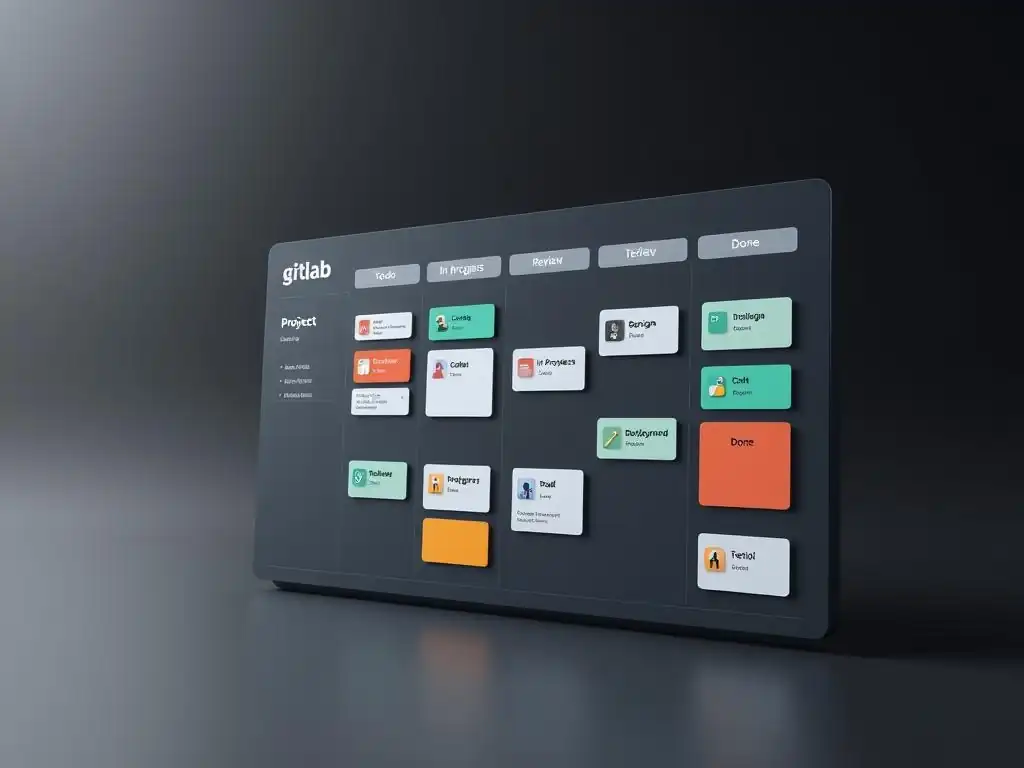
Welcome to Git and Version Control Hub!
Are you ready to transform your software development workflow? Dive in to discover how GitLab project boards can revolutionize your team's collaboration and project management. Unlock a more visual and intuitive approach to task tracking and project organization, and learn how to leverage this powerful feature to achieve software success. Curious how to get started? Keep reading!
GitLab Project Boards: A Visual Roadmap to Software Success
- Introduction to GitLab Project Boards for Efficient Software Development
- Setting Up Your First GitLab Project Board: A Step-by-Step Guide
- Mastering GitLab Project Board Features: A Comprehensive Guide
- Advanced GitLab Project Board Techniques for Team Collaboration
- Optimizing Your Workflow with GitLab Project Boards: Best Practices
- GitLab Project Boards vs. Other Issue Tracking Systems: A Comparison
- Real-World Examples of GitLab Project Boards in Action
- Troubleshooting Common GitLab Project Board Issues
- Conclusion: Embracing GitLab Project Boards for Software Success
- Frequently Asked Questions
- Final Reflection: Navigating the Future of Software Development
- Unlock Your Team's Potential: Start Visualizing Success Now!
Introduction to GitLab Project Boards for Efficient Software Development
Understanding the Importance of Visual Project Management in GitLab
Visual project management has become indispensable in modern software development, and GitLab Project Boards are at the forefront of providing this crucial visibility. Imagine trying to build a house without blueprints or managing a complex marketing campaign without a Gantt chart. Similarly, software development, with its intricate tasks, dependencies, and evolving requirements, benefits immensely from visual aids.
GitLab project boards offer this visual representation, transforming abstract software tasks into concrete, manageable cards organized across customizable lists. This visual approach makes it significantly easier for teams to grasp the current project status at a glance, identify bottlenecks, and proactively manage workloads.
The power of visualization stems from its ability to leverage our innate pattern recognition capabilities. Instead of sifting through endless lines of text or dense spreadsheets, a visual board allows stakeholders, from developers to project managers and even clients, to quickly understand the project's progress. Studies in cognitive psychology have consistently shown that humans process visual information much faster and more effectively than textual data.
For instance, a study by 3M found that visuals are processed 60,000 times faster in the brain than text. This rapid comprehension translates to quicker decision-making, improved communication, and ultimately, faster project delivery. In the context of GitLab, project boards act as a central hub for visualizing the entire software development lifecycle, fostering transparency and alignment across teams.
Why Use GitLab Project Boards for Issue Tracking and Workflow Management?
GitLab project boards are not just another feature within the GitLab ecosystem; they are a powerful tool specifically designed to streamline issue tracking and workflow management. Traditional issue tracking systems, while functional, often lack the dynamic and visual nature required for agile and fast-paced development environments. GitLab project boards bridge this gap by offering a flexible and intuitive interface that adapts to diverse workflows. They move beyond simple lists of issues by allowing teams to visualize their entire development process, from initial idea conception to final deployment, all within a single, collaborative platform.
The advantages of using GitLab project boards for issue tracking are manifold. Firstly, they enhance team collaboration by providing a shared, transparent view of all tasks and their statuses. Every team member can see exactly what needs to be done, who is responsible, and what stage each task is in. This shared understanding reduces miscommunication and ensures everyone is working towards the same goals. Secondly, GitLab project boards significantly improve workflow management by allowing teams to define and visualize their unique development pipelines. Whether using Kanban, Scrum, or a custom workflow, the boards can be configured to mirror the specific stages of your process. For example, a typical software development workflow might include stages like "Backlog," "To Do," "In Development," "Testing," and "Deployed." GitLab project boards make it incredibly easy to visualize and manage issues as they progress through these stages, ultimately leading to more efficient and predictable software delivery.
Setting Up Your First GitLab Project Board: A Step-by-Step Guide
Creating a New GitLab Project Board from Scratch
Creating your first GitLab project board is a straightforward process, designed to get you up and running quickly. To begin, navigate to your GitLab project. On the left-hand sidebar, look for the "Issues" section. Within the "Issues" menu, you will find "Boards." Click on "Boards" to access the project boards interface. If you haven't created a board yet, you'll see a prompt to "Create new board." Click this button to initiate the board creation process.
GitLab offers flexibility in board creation. You can choose to create a board from scratch, giving you complete control over its configuration, or you can opt to use a predefined template if you are following a standard workflow like Kanban or Scrum. For this tutorial, let's focus on creating a board from scratch to understand the fundamental components. Upon clicking "Create new board," you'll be presented with options to name your board and add a description.
Choose a descriptive name that reflects the board's purpose, for example, "Development Board" or "Sprint 1 Board." A clear description further clarifies the board's scope for team members. After naming and describing your board, click the "Create board" button. GitLab will then generate your new, empty project board, ready for customization with lists and issues.
Configuring Lists (Columns) to Represent Your Workflow Stages
Once your GitLab project board is created, the next crucial step is configuring lists, also known as columns, to represent the different stages of your workflow. These lists are the backbone of your board, visually organizing issues as they progress through your development pipeline. GitLab automatically provides default lists like "Open" and "Closed," but to truly leverage the power of project boards, you'll need to customize these and add lists that accurately reflect your team's workflow.
To add a new list, look for the "+" button, typically located to the right of your existing lists. Clicking this button will open a panel where you can define a new list. You can name your list according to a specific stage in your workflow, for example, "To Do," "In Progress," "Review," "Testing," "Ready for Deploy," or "Deployed."
Consider the typical steps an issue goes through in your development process and create lists that map to these stages. For instance, a software development team might use lists like "Backlog," "Development," "Code Review," "QA," and "Production." A marketing team might use lists like "Ideas," "Drafting," "Review," "Approved," and "Published."
You can add as many lists as needed to accurately represent your workflow. Furthermore, you can reorder lists by simply dragging and dropping them to better align with the flow of your work, ensuring a logical left-to-right progression that mirrors your project stages.
Customizing Board Settings for Optimal Project Visualization
GitLab project boards offer several customization options to enhance visual clarity and optimize the board for your team's specific needs. These settings allow you to tailor the board's appearance and behavior, making it even more effective for project management. To access the board settings, typically, there is a settings icon (often a gear icon) near the board's title or in the board's menu. Clicking this icon will open the board settings panel.
Within the settings panel, you'll find options to control various aspects of your board. One important customization is related to issue cards. You can configure what information is displayed on each issue card to provide quick insights without needing to open the issue itself.
For example, you can choose to display the issue assignee, labels, milestones, and due dates directly on the card. This visual cue helps team members quickly identify key information about each issue. Another valuable customization is the ability to set color codes for labels.
By assigning specific colors to different labels (e.g., red for "Priority: High," green for "Type: Bug"), you can visually categorize issues and quickly identify patterns or areas that require attention. Furthermore, GitLab allows you to customize the board's background and theme to improve visual appeal and reduce eye strain. Experiment with these settings to find a configuration that best suits your team's preferences and enhances the overall visual management experience.
Mastering GitLab Project Board Features: A Comprehensive Guide
Creating and Assigning Issues within GitLab Project Boards
GitLab project boards are tightly integrated with GitLab's issue tracking system, making it seamless to create and manage issues directly from the board interface. Creating issues within the board is designed to be quick and intuitive, ensuring that capturing new tasks or bugs doesn't disrupt workflow. To create a new issue, locate the "+" button at the bottom of each list (column). Clicking this button within a specific list will create a new issue directly in that stage of your workflow.
Upon clicking the "+" button, a quick issue creation form will appear. At a minimum, you'll need to provide a title for the issue. A clear and concise title is crucial for quickly understanding the issue's purpose at a glance. You can also add a more detailed description in the issue body, providing context and specific details about the task or problem. Once you've entered the title and description, you can create the issue.
After creation, you can further refine the issue by assigning it to a team member. To assign an issue, click on the issue card to open its details. Within the issue details, you'll find an "Assignee" field where you can select a team member responsible for the issue. Assigning issues ensures accountability and clarity regarding who is working on what, streamlining task management and promoting individual ownership within the team.
Using Labels and Milestones for Enhanced Issue Organization
Labels and milestones are powerful features within GitLab project boards that significantly enhance issue organization and prioritization. Labels allow you to categorize issues based on various attributes, such as type, priority, component, or status beyond workflow stages. Milestones, on the other hand, are used to group issues that are targeted for completion within a specific timeframe or release cycle. Using these features effectively leads to a more structured and manageable project board.
Labels can be applied to issues to add context and enable filtering and grouping. For example, you might use labels like "bug," "feature request," "documentation," "frontend," "backend," "urgent," "high priority," "low priority," etc. You can create new labels directly within the issue details or from the project's "Issues > Labels" settings.
Once labels are created, you can easily apply them to issues by clicking on the issue card and selecting the relevant labels. Milestones are used to track progress towards specific goals or deadlines. You can create milestones to represent sprints, releases, or project phases.
Similar to labels, milestones can be created and managed in the "Issues > Milestones" section of your project. Assigning a milestone to an issue indicates that the issue is part of a larger effort and helps track overall progress towards that milestone. By using labels and milestones in conjunction with GitLab project boards, you gain a robust system for organizing, categorizing, and prioritizing issues, leading to better project control and visibility.
Drag-and-Drop Functionality for Seamless Workflow Progression
One of the most intuitive and efficient features of GitLab project boards is its drag-and-drop functionality. This simple yet powerful feature allows you to seamlessly move issues between lists, visually representing their progression through your defined workflow stages. Instead of manually updating issue statuses or navigating through menus, you can simply drag an issue card from one list to another, instantly updating its status and reflecting its current stage in the development process.
The drag-and-drop functionality not only simplifies issue management but also provides a real-time, visual representation of workflow progress. As team members work on issues and complete tasks, they can drag the corresponding issue cards to the next appropriate list. For example, an issue might start in the "To Do" list, then be dragged to "In Progress" when development begins, followed by "Code Review" after development is complete, and finally to "Done" upon successful deployment.
This visual movement of issues across the board gives a clear and immediate indication of project progress. It also facilitates team collaboration by making it easy for everyone to see the current status of each task and the overall flow of work. This dynamic and interactive approach to workflow management significantly enhances efficiency and transparency within the development process.
Filtering and Searching Issues within Your Project Board
As your GitLab project board grows with more issues, efficiently finding specific issues becomes crucial. GitLab provides robust filtering and searching capabilities within project boards to help you quickly locate the issues you need. These tools are essential for managing larger projects and ensuring you can focus on relevant tasks without getting lost in a sea of issues.
Filtering allows you to narrow down the issues displayed on the board based on specific criteria. GitLab offers various filter options, including filtering by assignee, labels, milestones, and keywords in the issue title or description. Typically, a filter bar is located at the top of the project board.
By clicking on the filter bar, you can access various filter options. For example, you can choose to only display issues assigned to a specific team member, issues with a particular label (e.g., "bug" or "urgent"), or issues belonging to a specific milestone. Searching, on the other hand, allows you to find issues by entering keywords.
The search functionality looks for matches within issue titles and descriptions, quickly locating issues related to your search terms. Combining filtering and searching provides a powerful way to navigate and manage issues on your GitLab project board, ensuring you can always find the information you need quickly and efficiently, especially as your GitLab project boards tutorial progresses and your project scales.
Advanced GitLab Project Board Techniques for Team Collaboration
Utilizing Multiple Boards for Different Teams or Project Aspects
For larger projects or organizations with multiple teams, utilizing multiple GitLab project boards can significantly improve organization and focus. Instead of trying to manage everything on a single, potentially overwhelming board, you can create separate boards tailored to specific teams, projects, or aspects of your workflow. This approach allows for better specialization and reduces noise, ensuring each team or area of focus has a dedicated visual management space.
For instance, if you have separate frontend and backend development teams, you could create a "Frontend Development Board" and a "Backend Development Board." Each board would then contain lists and issues relevant to that specific team's work. Similarly, for a large project with distinct modules or features, you could create boards for each module, allowing for granular tracking of progress within each area.
GitLab allows you to create multiple boards within a single project, and you can easily switch between them using a board selector. This modular approach to project boards enhances clarity and reduces cognitive overload by allowing teams to focus on their specific responsibilities and workflows without being distracted by irrelevant information from other areas of the project. Utilizing multiple boards is a key technique for scaling GitLab project boards effectively in larger or more complex environments.
Linking Issues to Merge Requests for Streamlined Development
GitLab project boards seamlessly integrate with merge requests, enabling a streamlined development workflow by linking issues directly to the code changes that resolve them. This integration provides traceability and context, making it easy to understand the relationship between issues, code modifications, and workflow progression. Linking issues to merge requests is a best practice that enhances collaboration and simplifies the review process.
When working on an issue, developers typically create a branch, make code changes, and then create a merge request to propose merging those changes back into the main branch. GitLab allows you to directly link an issue to a merge request. This link can be established when creating the merge request or by editing an existing merge request or issue.
By linking an issue to a merge request, you create a clear connection between the problem being addressed (the issue) and the solution implemented (the merge request). This linkage provides valuable context for reviewers, making it easier to understand the purpose and scope of the code changes.
Furthermore, GitLab automatically tracks these links, displaying them in both the issue and merge request details. This bidirectional linking ensures that everyone involved can easily navigate between the issue and its corresponding code changes, fostering transparency and improving the efficiency of the code review and merging process.
Integrating GitLab Project Boards with CI/CD Pipelines
For organizations leveraging CI/CD (Continuous Integration/Continuous Delivery) pipelines, GitLab project boards can be integrated to provide a visual representation of the deployment pipeline and track issues as they progress through different stages of the CI/CD process. This integration bridges the gap between issue tracking and the automated deployment pipeline, offering a holistic view of the software delivery lifecycle.
By integrating GitLab project boards with CI/CD pipelines, you can create lists that represent different stages of your pipeline, such as "Build," "Test," "Staging," and "Production." As code changes are merged and the CI/CD pipeline executes, issues can be automatically moved between these lists based on pipeline events. For example, when a build succeeds, issues associated with that build could automatically move to the "Test" list. Similarly, upon successful deployment to staging, issues could move to "Staging."
This automation provides a real-time visual dashboard of the deployment pipeline, directly within your project board. It allows teams to monitor the progress of deployments, identify bottlenecks, and quickly react to any issues that arise during the CI/CD process. Integrating GitLab project boards with CI/CD pipelines enhances visibility, improves communication between development and operations teams, and contributes to a more efficient and reliable software delivery process.
Optimizing Your Workflow with GitLab Project Boards: Best Practices
Defining Clear and Consistent Workflow Stages
Optimizing your workflow with GitLab project boards begins with defining clear and consistent workflow stages. These stages form the foundation of your project board, representing the distinct steps an issue progresses through from inception to completion. Well-defined stages provide structure, improve predictability, and ensure everyone on the team has a shared understanding of the development process. Inconsistent or ambiguous stages can lead to confusion, inefficiencies, and hinder the effectiveness of your project board.
When defining workflow stages, consider your team's specific development process and the typical lifecycle of an issue. Start by identifying the key phases an issue typically goes through. Common stages in software development include "Backlog," "To Do," "In Progress," "Code Review," "Testing," "QA," "Staging," "Production," and "Closed." Choose stages that are meaningful and relevant to your team's work. Ensure that each stage is clearly defined and understood by all team members.
For example, "In Progress" might mean "actively being developed," while "Code Review" might mean "development is complete and code is awaiting review." Consistency is key. Once you've defined your stages, stick to them. Avoid adding or changing stages frequently, as this can disrupt the flow and make it harder to track progress over time. Clearly defined and consistently used workflow stages are essential for maximizing the benefits of GitLab project boards and creating a smooth, predictable workflow.
Regularly Reviewing and Updating Your Project Board
A GitLab project board is a dynamic tool that reflects the real-time status of your project. To maintain its effectiveness, it's crucial to regularly review and update your board. Neglecting to update the board can lead to it becoming outdated and inaccurate, diminishing its value as a visual management tool. Regular reviews and updates ensure that the board remains a reliable source of information for the entire team.
Establish a routine for reviewing and updating your project board. This could be daily, bi-daily, or weekly, depending on the pace of your project and the frequency of changes. During these review sessions, team members should update the status of issues by moving them to the appropriate lists as they progress through the workflow stages.
New issues should be added as they arise, and completed issues should be closed or moved to a "Done" list. Regular reviews also provide an opportunity to identify any bottlenecks or roadblocks. If issues are consistently滞留在 a particular list, it might indicate a problem in that stage of the workflow that needs to be addressed.
Furthermore, regular reviews ensure that the board remains aligned with the current project priorities and goals. By making board updates a regular part of your workflow, you ensure that it remains a valuable and accurate tool for project management and team collaboration.
Using GitLab Project Boards for Agile Development and Sprint Planning
GitLab project boards are particularly well-suited for agile development methodologies, such as Scrum and Kanban. Their visual and flexible nature aligns perfectly with the iterative and incremental approach of agile. Project boards can be effectively used for sprint planning, sprint tracking, and overall agile workflow management. Leveraging GitLab project boards within an agile framework enhances transparency, collaboration, and adaptability.
For sprint planning in Scrum, GitLab project boards can be used to visualize the sprint backlog. Issues selected for the sprint can be placed in a "Sprint Backlog" list. During the sprint, the board can be used to track the progress of each issue through workflow stages like "To Do," "In Progress," and "Done."
The drag-and-drop functionality makes it easy to update issue statuses during daily stand-up meetings, providing a visual representation of sprint progress. For Kanban, GitLab project boards naturally align with the Kanban workflow. Lists can represent Kanban stages like "Backlog," "Ready," "Development," "Testing," and "Deployed."
The board provides a visual representation of the workflow, allowing teams to manage work in progress (WIP) limits and optimize flow. GitLab project boards also support agile practices like user story mapping and release planning. By adopting GitLab project boards within your agile framework, you can enhance team collaboration, improve sprint visibility, and facilitate continuous improvement throughout the development process.
GitLab Project Boards vs. Other Issue Tracking Systems: A Comparison
Advantages of GitLab Project Boards for GitLab Users
For teams already invested in the GitLab ecosystem, GitLab project boards offer significant advantages over standalone issue tracking systems. The tight integration with other GitLab features, such as issue tracking, merge requests, and CI/CD pipelines, creates a seamless and unified development experience. This integration eliminates the need for context switching between different tools and streamlines workflows within a single platform.
One key advantage is the inherent integration with GitLab issues. Project boards are essentially a visual representation of GitLab issues, leveraging the same issue tracking system. This means there's no need to synchronize data between separate issue tracking and project management tools. Issues created on the board are directly GitLab issues, and changes made on the board are reflected in the issue tracker and vice versa.
Furthermore, GitLab project boards seamlessly integrate with merge requests and CI/CD pipelines, as discussed earlier. This level of integration is often difficult to achieve with standalone issue tracking systems, which may require complex configurations or third-party integrations to connect with version control and CI/CD tools. For GitLab users, project boards provide a natural and efficient way to visualize and manage their entire development workflow within the familiar GitLab environment, enhancing productivity and reducing toolchain complexity.
Understanding Limitations and Potential Alternatives
While GitLab project boards are powerful and versatile, it's important to acknowledge their limitations and consider potential alternatives in certain scenarios. GitLab project boards are primarily focused on issue tracking and workflow visualization within the GitLab ecosystem. For organizations requiring highly specialized project management features or integrations with non-GitLab tools, alternative solutions might be more suitable.
One limitation is the scope of GitLab project boards. They are primarily designed for software development workflows and issue tracking. While they can be adapted for other types of projects, they may lack specific features found in dedicated project management tools, such as advanced resource management, Gantt charts, or financial tracking.
For projects with complex dependencies or resource allocation needs, tools like Jira, Asana, or dedicated project management software might offer more comprehensive features. Another consideration is integration with non-GitLab tools. While GitLab integrates well with its own features, integrating with external tools outside the GitLab ecosystem might require more effort compared to using a more open and integration-focused project management platform.
Organizations that heavily rely on tools outside the GitLab ecosystem might find it easier to use an issue tracking or project management system that offers broader integration capabilities. It's essential to evaluate your specific project requirements and toolchain to determine if GitLab project boards are the best fit or if alternative solutions would be more effective.
Real-World Examples of GitLab Project Boards in Action
Example 1: Managing a Software Release Cycle
Consider a software company preparing for a major release of their flagship product. GitLab project boards can be instrumental in managing the entire release cycle, from initial planning to final deployment. They create a "Release Board" with lists representing key stages of the release process, such as "Release Backlog," "In Development," "Testing," "Staging," "Release Candidate," and "Released."
Initially, all features and bug fixes planned for the release are added as issues to the "Release Backlog" list. During release planning, the team prioritizes and moves issues to the "In Development" list. As developers work on features, they move issues to "Testing" upon completion.
The QA team then tests the features and moves issues to "Staging" after successful testing. Issues that pass staging are moved to "Release Candidate" for final verification before the actual release. Once the release is deployed to production, issues are moved to the "Released" list, signifying completion.
Throughout the release cycle, the project board provides a visual dashboard of progress, highlighting bottlenecks and ensuring all team members are aligned on the release status. For example, if many issues are stuck in "Testing," it might indicate a need to allocate more QA resources or address testing bottlenecks. This real-world example demonstrates how GitLab project boards can effectively manage a complex software release cycle, enhancing visibility and coordination across teams.
Example 2: Tracking Infrastructure Changes
GitLab project boards are not limited to software development; they can also be effectively used for managing infrastructure changes. Consider a DevOps team responsible for maintaining and updating a company's cloud infrastructure. They can utilize GitLab project boards to track infrastructure changes, ensuring a controlled and auditable process. They might set up an "Infrastructure Changes Board" with lists like "Change Requests," "Planning," "Implementation," "Testing," "Deployment," and "Completed."
When a need for an infrastructure change arises (e.g., upgrading a server, configuring a new service), a change request is created as an issue in the "Change Requests" list. The team then reviews and plans the change, moving the issue to "Planning." During the planning stage, details of the change, potential risks, and rollback plans are documented in the issue description. Once planning is complete, the issue moves to "Implementation," where engineers execute the infrastructure changes.
After implementation, the changes are tested and validated in a staging environment, and the issue moves to "Testing." Upon successful testing, the changes are deployed to production, and the issue moves to "Deployment" and finally to "Completed" after successful deployment and verification. This example illustrates how GitLab project boards can provide a structured and visual approach to managing infrastructure changes, ensuring proper planning, tracking, and accountability for every infrastructure modification.
Troubleshooting Common GitLab Project Board Issues
Resolving Display or Synchronization Problems
Occasionally, users might encounter display or synchronization problems with GitLab project boards. These issues can manifest as boards not loading correctly, issues not appearing in the correct lists, or changes not being reflected in real-time. While these issues are usually infrequent, knowing how to troubleshoot them is essential for maintaining a smooth workflow.
One common cause of display problems is browser caching. Clearing your browser cache and cookies can often resolve display issues by forcing the browser to load the latest version of the project board. Try clearing your browser cache and reloading the GitLab page. If synchronization problems occur, such as issues not moving between lists correctly or changes not being reflected, try manually syncing the board.
GitLab often provides a "Sync" or "Refresh" button on the project board interface. Clicking this button forces a synchronization with the GitLab server, ensuring that your local view is up-to-date. If the problem persists, check your internet connection. A poor or unstable internet connection can sometimes cause synchronization issues.
Ensure you have a stable internet connection and try reloading the board again. In rare cases, GitLab server-side issues might be the cause. Check the GitLab status page or contact your GitLab administrator to see if there are any known server-side problems. If none of these steps resolve the issue, contacting GitLab support might be necessary to investigate further.
Addressing Permission and Access Control Issues
GitLab's robust permission and access control system also applies to project boards. Users might encounter issues related to permissions, such as not being able to create boards, edit issues, or move issues between lists. Understanding and addressing these permission issues is crucial for ensuring that team members have the appropriate access levels while maintaining project security.
If you are unable to create a project board, check your project role and permissions. You typically need to have at least "Developer" role in a project to create project boards. If you have a lower role, such as "Reporter," you might not have the necessary permissions. Contact your project administrator or maintainer to request a role upgrade if needed.
Similarly, if you are unable to edit or move issues, check your issue permissions. In some cases, issue permissions might be restricted based on project settings or specific issue configurations. Ensure that your project role grants you the necessary permissions to modify issues and move them between lists. If you are working with multiple project boards, ensure you have the correct permissions for the specific board you are trying to access.
Permissions can be set at the project level and might apply differently to various boards within the project. If you suspect permission issues, consult your project administrator or maintainer to verify your access levels and adjust permissions as needed. Properly managing permissions ensures that GitLab project boards are used securely and effectively within your team or organization.
Conclusion: Embracing GitLab Project Boards for Software Success
Key Takeaways from This GitLab Project Boards Guide
This GitLab project boards tutorial has provided a comprehensive overview of how to effectively utilize GitLab project boards for visual project management and workflow optimization. Key takeaways include the importance of visual project management for clarity and team alignment, the benefits of using GitLab project boards for issue tracking and workflow management, and the step-by-step guide to setting up and customizing your first board.
We explored mastering core features like issue creation, labels, milestones, drag-and-drop functionality, and filtering, along with advanced techniques for team collaboration, such as utilizing multiple boards, linking issues to merge requests, and integrating with CI/CD pipelines.
Furthermore, we discussed best practices for optimizing your workflow by defining clear stages, regularly updating your board, and leveraging project boards for agile methodologies. The comparison with other issue tracking systems highlighted the advantages of GitLab project boards for GitLab users, while also acknowledging limitations and potential alternatives. Real-world examples demonstrated the practical application of project boards in managing software releases and infrastructure changes.
Finally, troubleshooting tips addressed common display, synchronization, and permission issues, equipping you with the knowledge to resolve potential problems. By embracing GitLab project boards and applying the techniques and best practices outlined in this guide, you can significantly enhance your software development workflow, improve team collaboration, and drive project success.
Next Steps: Further Resources for Mastering GitLab Project Management
While this GitLab project boards tutorial provides a solid foundation, continuous learning and exploration are key to fully mastering GitLab project management. To deepen your knowledge and skills, consider exploring further resources and practicing with GitLab project boards in real-world projects. GitLab's official documentation is an invaluable resource, offering in-depth information on all features and functionalities, including project boards. The GitLab documentation is regularly updated and provides detailed explanations, examples, and best practices.
Participating in GitLab community forums and online discussions can also be beneficial. Engaging with other GitLab users allows you to learn from their experiences, ask questions, and share your own insights. Consider exploring online courses and tutorials specifically focused on GitLab project management and agile methodologies within GitLab. Platforms like Udemy, Coursera, and GitLab Learn offer courses that delve into advanced GitLab features and project management techniques.
Experiment with different board configurations, workflows, and features in your own GitLab projects. Hands-on practice is the most effective way to solidify your understanding and discover new ways to optimize your workflow with GitLab project boards. By continuously learning and practicing, you can become proficient in using GitLab project boards to drive efficiency, collaboration, and success in your software development projects.
Frequently Asked Questions
What are GitLab Project Boards used for?
GitLab Project Boards are visual tools used for project management and issue tracking. They help teams organize tasks, visualize workflow, and track progress on projects within GitLab.
How do GitLab Project Boards contribute to team collaboration?
They provide a centralized platform for teams to collaborate on tasks, track progress, and discuss issues. This shared visibility promotes transparency and improves communication within the team.
What are some key features of GitLab Project Boards?
Key features include customizable lists (columns) to represent different stages of a workflow, drag-and-drop functionality to move issues between lists, and the ability to assign issues to team members for task ownership.
Can GitLab Project Boards be integrated with other GitLab features?
Yes, they seamlessly integrate with other GitLab features like issues, merge requests, and CI/CD pipelines. This integration allows for a unified development workflow.
Are GitLab Project Boards suitable for both small and large teams?
Absolutely. They can be scaled to fit the needs of both small and large teams, providing a flexible and adaptable solution for project visualization and management.
The journey through GitLab project boards, as outlined in this tutorial, highlights a fundamental truth: effective visualization is paramount to successful software development. In today's rapidly evolving technological landscape, the ability to clearly map out, track, and manage projects is no longer a luxury, but a necessity for teams striving for efficiency and innovation. The principles discussed here, from agile methodologies to collaborative workflows, are directly applicable to any team seeking to streamline their processes and achieve tangible results.
The impact of well-structured project boards extends far beyond mere task management. They foster transparency, encourage collaboration, and ultimately, empower individuals to contribute meaningfully to a shared vision. My own experience has shown me that a clear visual roadmap, like those offered by GitLab project boards, can dramatically reduce ambiguity and increase team morale. The best way to predict the future is to create it.
- Peter Drucker. This quote resonates deeply with the power of project boards to shape the future of software, one task, one milestone, one successful project at a time.
Now, as you embark on your own software development adventures, I encourage you to embrace the principles and techniques explored in this tutorial. Experiment with different board configurations, adapt them to your team's unique needs, and above all, prioritize clear communication and collaborative spirit. Let the visual roadmap of your GitLab project boards guide you towards software success, fostering innovation and achieving your ambitious goals.
Unlock Your Team's Potential: Start Visualizing Success Now!
Thanks for diving into the world of GitLab Project Boards and discovering how they can revolutionize your software development workflow. You've now got a solid foundation for boosting team collaboration and project visibility. Ready to put your newfound knowledge into practice?
Here are a few things you can do right now to take the next step:
- Immediately create a GitLab Project Board for your most pressing project and start mapping out your tasks. Don't overthink it; just get the ball rolling!
- Share this article with a colleague or team member who could benefit from improved project management. Knowledge is power, and sharing is caring!
- Explore GitLab's advanced board features, like multiple boards and issue weighting, to further refine your workflow.
Which project will you transform with a GitLab Project Board first? Let us know in the comments!