
Git Branching Strategies for Beginners: Simple Approaches for Project Management

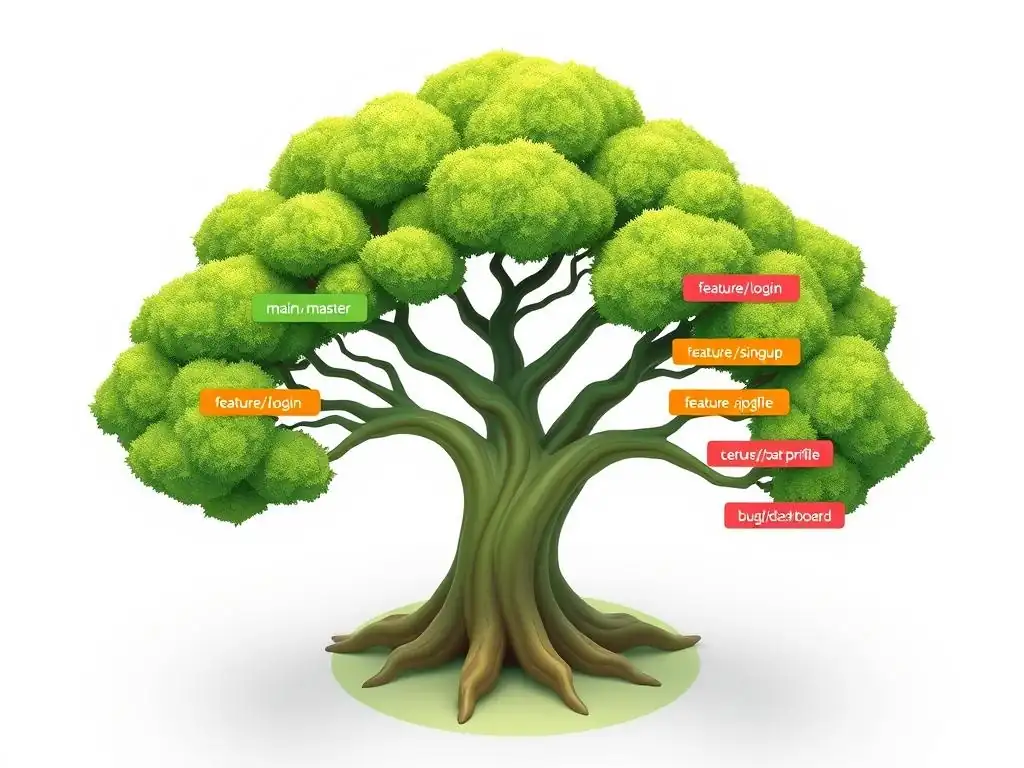
Welcome to Git and Version Control Hub!
Are you ready to unlock the power of collaborative coding? Dive into our comprehensive guide, Git Branching Strategies for Beginners, and discover how to streamline your projects with simple, yet effective branching techniques. From personal projects to team environments, understanding branching is crucial. Curious about how to avoid code conflicts and maintain a clean project history? Let's explore the fundamentals of Git branching together, and elevate your version control skills!
Git Branching Strategies for Project Management
- Introduction to Git Branching
- Core Concepts of Git Branching
- Git Branching Strategies for Project Management
- Choosing the Right Git Branching Strategy
- Best Practices for Git Branching
- Common Git Branching Mistakes and How to Avoid Them
- Practical Examples of Git Branching
- Advanced Git Branching Techniques
- Conclusion: Mastering Git Branching
- Frequently Asked Questions
- Final Reflection: Embracing Order in the Code Chaos
- Unlock Your Git Potential: Start Branching Smarter Today!
Introduction to Git Branching
Understanding Version Control Systems
Version Control Systems (VCS) are foundational tools in modern software development, acting as a comprehensive record keeper for all changes made to a project's codebase. Imagine a shared document where every edit, deletion, and addition is meticulously tracked, along with who made the change and when. This is fundamentally what a VCS does for code.
Beyond simple tracking, VCS enables developers to revert to previous versions, compare changes over time, and collaborate seamlessly without overwriting each other's work. This historical record is invaluable for debugging, understanding project evolution, and ensuring team members are always working with the most appropriate version of the project.
Git, as a distributed version control system, takes this concept further by giving each developer their own complete copy of the project's history. This distributed nature provides significant advantages, including offline work capabilities and increased redundancy. Unlike centralized systems where a server failure can halt development, Git allows teams to continue working even without a central server connection. Furthermore, Git's architecture promotes faster operations, as most actions are performed locally on a developer's machine. This speed and resilience make Git a preferred choice for projects of all sizes, from individual endeavors to massive open-source collaborations.
Why Branching is Essential
Branching in Git is akin to creating parallel timelines in your project's history. It allows developers to diverge from the main line of development to work on new features, bug fixes, or experiments in isolation. Without branching, all development would occur directly on a single, shared codebase, creating a chaotic and risky environment. Imagine trying to implement a complex new feature while simultaneously fixing critical bugs – all on the same set of files. Conflicts, instability, and delays would be inevitable.
By using branches, developers can create separate, safe spaces to implement changes without disrupting the stability of the main project. For instance, a developer can create a "feature branch" to build a new user authentication system, while another developer works on UI improvements on a different branch. These branches can evolve independently, and once the feature is complete and tested, it can be merged back into the main branch.
This isolation is crucial for managing complexity, fostering parallel development, and ensuring that the main codebase remains stable and deployable. Branching is not just a feature of Git; it's a cornerstone of effective and organized software development.
Project Management with Git
Git branching strategies are not merely technical implementations; they are integral to project management in software development. By defining clear workflows for how branches are created, used, and merged, teams can establish a structured and predictable development process. For project managers, understanding Git branching strategies is crucial for planning sprints, assigning tasks, and tracking progress. A well-defined branching strategy provides a visual map of the project's development, showing which features are in progress, which are ready for release, and how bug fixes are being managed.
Furthermore, Git branching facilitates collaboration and reduces integration risks, which are major concerns in project management. When developers work on isolated branches, the chances of introducing breaking changes to the main codebase are significantly reduced. The process of merging branches, often involving code reviews, provides opportunities to catch errors early and ensure code quality. This structured approach to development, enabled by Git branching, leads to more predictable release cycles, reduced development costs, and ultimately, higher quality software. Choosing the right Git branching strategy is therefore a strategic decision that directly impacts the success of a software project.
Core Concepts of Git Branching
What is a Git Branch?
In Git, a branch is fundamentally a lightweight, movable pointer to a specific commit in your repository's history. Think of it as a label that points to the latest snapshot of your project along a particular line of development. Initially, when you create a Git repository, you start with a default branch, conventionally named main or master. This main branch represents the primary and often production-ready state of your project. As you make commits, the branch pointer automatically moves forward to the newest commit, reflecting the latest changes on that branch.
Branches are not copies of your entire repository; they are simply references to commits. This is what makes branching in Git so efficient and fast. Creating a new branch doesn't duplicate all your files; it just creates a new pointer that initially points to the same commit as the branch you branched from. This efficient mechanism allows developers to create and switch between branches rapidly, enabling parallel work streams without significant overhead. Understanding that a branch is a pointer helps to demystify Git's branching model and appreciate its flexibility.
Creating, Switching, and Merging Branches: Basic Commands
Working with Git branches involves a few fundamental commands that are essential for any beginner to grasp. To create a new branch, you use the command git branch <branch-name>. For example, git branch feature-login creates a new branch named "feature-login". This command, however, only creates the branch locally. To actually start working on this new branch, you need to switch to it using git checkout <branch-name>, like git checkout feature-login. A shortcut for creating and switching to a new branch in one step is git checkout -b <branch-name>.
Once you have made changes and committed them on your new branch, you will eventually want to integrate those changes back into another branch, typically the main branch. This is done through merging. First, you switch to the target branch (e.g., git checkout main). Then, you use the command git merge <branch-name> to merge the changes from your feature branch into the main branch, like git merge feature-login. Git will attempt to automatically merge the changes. In cases where Git cannot automatically resolve differences, it will signal a merge conflict that needs manual resolution. These basic commands – git branch, git checkout, and git merge – form the core of Git branching operations and are crucial for effective project management.
Local vs. Remote Branches
When working with Git in a collaborative environment, it's important to distinguish between local and remote branches. Local branches, as the name suggests, exist only on your personal computer. These are the branches you create and work on using commands like git branch and git checkout. They are your private workspaces for developing features, fixing bugs, or experimenting. Remote branches, on the other hand, are branches that reside on a remote repository, such as GitHub, GitLab, or Bitbucket. These remote repositories serve as central hubs for collaboration, allowing teams to share code and track project progress.
Remote branches are typically prefixed with the name of the remote they belong to, for example, origin/main refers to the main branch on the remote named origin. To interact with remote branches, you use commands like git push to upload your local branch to a remote repository and git pull to download changes from a remote branch to your local branch. For instance, git push origin feature-login would push your local feature-login branch to the origin remote, making it accessible to your team. Understanding the distinction between local and remote branches is critical for collaborating effectively using Git and for backing up your work to a remote repository.
Git Branching Strategies for Project Management
Feature Branch Workflow: Isolating New Features
The Feature Branch Workflow is one of the most fundamental and widely adopted Git branching strategies for beginners and experienced teams alike. Its core principle is simple: each new feature or significant change should be developed in its own dedicated branch, isolated from the main codebase. This isolation is key to maintaining a stable and deployable main branch while allowing developers to work on new functionalities without disrupting ongoing development or introducing instability to the production-ready code.
This workflow promotes parallel development, where multiple developers can work on different features concurrently without stepping on each other's toes. Each feature branch acts as a sandbox, providing a safe environment to experiment, make mistakes, and iterate without affecting the broader project. By isolating features in branches, teams can also conduct thorough testing and code reviews before integrating new code into the main branch, leading to higher quality and more stable releases. The Feature Branch Workflow is particularly effective for projects with well-defined features and development cycles, providing a clear and manageable approach to software development.
Creating Feature Branches
Creating a feature branch is the first step in implementing the Feature Branch Workflow. Typically, feature branches are created from the main branch, ensuring they start from a stable and up-to-date point in the project's history. The command git checkout -b feature/<feature-name> main is commonly used to create and switch to a new feature branch. For example, to develop a user registration feature, a developer might create a branch named feature/user-registration using git checkout -b feature/user-registration main. The feature/ prefix is a common convention to categorize feature branches, making it easier to manage and identify them.
Once the feature branch is created, developers work exclusively within this branch, committing their changes as they progress. It's recommended to make frequent, small commits with clear and concise commit messages. This practice not only keeps the branch's history organized but also makes it easier to review changes and revert to previous states if necessary. Throughout the development process on a feature branch, developers should regularly pull changes from the main branch to stay up-to-date and minimize merge conflicts when the feature is eventually ready to be integrated.
Merging Feature Branches
Once a feature is fully developed, tested, and reviewed, the next step is to merge the feature branch back into the main branch. This integration process brings the new functionality into the main codebase, making it part of the project's official history. To merge a feature branch, you first switch back to the main branch using git checkout main. Then, you execute the command git merge feature/<feature-name>, for instance, git merge feature/user-registration. This command instructs Git to integrate the changes from the feature/user-registration branch into the currently checked-out main branch.
After merging, it's good practice to delete the feature branch, especially the remote feature branch, to keep the repository clean and focused. You can delete the local branch using git branch -d feature/<feature-name> and the remote branch using git push origin -d feature/<feature-name>. The merge operation itself ideally should be performed via a pull request in platforms like GitHub or GitLab, which provides a platform for code review and discussion before the changes are integrated. This process ensures code quality and reduces the risk of introducing bugs into the main branch.
Gitflow Workflow: A Structured Approach
Gitflow Workflow is a more structured and prescriptive Git branching strategy designed for projects with scheduled release cycles. It introduces several dedicated branches with specific roles to manage different stages of development, releases, and hotfixes. While it might seem more complex than the Feature Branch Workflow, Gitflow provides a robust framework for managing larger projects with multiple releases and ongoing maintenance. It's particularly well-suited for projects that follow a versioned release cycle, such as software products with periodic updates.
The core idea behind Gitflow is to have separate branches for ongoing development ( develop), stable releases ( release), and immediate bug fixes in production ( hotfix), in addition to the main branch ( main) which reflects production-ready code. This clear separation of concerns helps teams manage different aspects of the software lifecycle in a controlled and organized manner. Gitflow provides a well-defined path for features to move from development to release and for critical fixes to be deployed rapidly without disrupting ongoing feature development. However, its complexity might be overkill for simpler projects or teams that prefer a more streamlined approach.
The Main Branch
In Gitflow, the main branch serves a very specific and crucial purpose: it exclusively reflects the production-ready state of the codebase. Every commit on the main branch should represent a released version of the software. This branch is kept clean and stable, and direct commits are strictly prohibited. Instead, the main branch is updated only through merges from release branches or hotfix branches, ensuring that it always points to a tagged release version.
The main branch acts as the official history of releases, providing a clear and auditable record of every version shipped to users. When a new release is prepared, a release branch is created from the develop branch and, after finalization and testing, it is merged into both main and develop. The merge into main is then tagged with the release version number, marking a new production release point. This strict protocol for the main branch ensures that it remains a reliable source of truth for the current production codebase.
The Develop Branch
The develop branch in Gitflow is the central integration branch for all feature development. It's created as a fork from main and serves as the branch where all feature branches are eventually merged. The develop branch represents the latest state of development, incorporating all completed features that are planned for the next release. While it's generally more stable than feature branches, it's not considered production-ready and might contain unfinished or untested features.
Developers branch off from develop to create their feature branches and, upon completion, merge their feature branches back into develop. The develop branch, therefore, continuously integrates new features, acting as a staging area for the next release. Regular integration into the develop branch helps to detect integration issues early and ensures that the team is always working with the most up-to-date codebase. From the develop branch, release branches are created when the team decides to prepare for a new release cycle.
Release Branches
Release branches in Gitflow are created from the develop branch when the development cycle for a release is nearing completion. They are designed to prepare for a new production release, allowing for final bug fixes, metadata adjustments (like version numbers), and release-specific tasks to be performed in isolation from ongoing feature development on the develop branch. Release branches typically have names like release-<version-number>, for example, release-1.2.
Once a release branch is created, only bug fixes and documentation updates should be committed to it. No new features are introduced at this stage. After the release branch is thoroughly tested and finalized, it is merged into both the main branch and the develop branch. The merge into main is tagged with the release version number, marking the official release. Merging back into develop ensures that any bug fixes made in the release branch are also incorporated into the ongoing development stream. Release branches provide a crucial buffer period for stabilizing and preparing a release before it goes into production.
Hotfix Branches
Hotfix branches in Gitflow are dedicated to quickly addressing critical bugs in the production version of the software. They are created directly from the main branch, branched off from the specific commit that corresponds to the tagged production release. This ensures that hotfixes are applied to the exact version that is currently live, minimizing the risk of introducing regressions or unintended changes. Hotfix branches typically have names like hotfix-<version-number>, such as hotfix-1.2.1.
Once the bug fix is implemented and tested in the hotfix branch, it is merged into both the main branch and the develop branch. Merging into main updates the production codebase with the fix, and this commit on main is immediately tagged with an updated version number (e.g., 1.2.1). Merging into develop ensures that the bug fix is also incorporated into the ongoing development stream, preventing the bug from reappearing in future releases. Hotfix branches provide a streamlined process for rapidly deploying critical fixes to production while maintaining the integrity of both the production and development branches.
GitHub Flow: A Streamlined Workflow
GitHub Flow is a simpler and more lightweight branching strategy, particularly well-suited for projects that deploy continuously or frequently. It is favored by web development teams and projects that prioritize rapid iteration and deployment. GitHub Flow streamlines the branching process, focusing on a single, long-lived main branch and feature branches. It eliminates the need for dedicated develop or release branches, simplifying the workflow and reducing branching overhead.
The central tenet of GitHub Flow is that everything in the main branch is deployable. Feature development happens in short-lived feature branches that are branched directly from main. Once a feature is ready, it is merged back into main after a code review, typically through a pull request. Deployment to production happens directly from the main branch. This streamlined approach is ideal for teams that practice continuous integration and continuous delivery (CI/CD), where changes are frequently deployed to production. GitHub Flow prioritizes simplicity and speed, making it a popular choice for fast-paced development environments.
Pull Requests
Pull Requests (PRs) are a cornerstone of GitHub Flow and modern collaborative development. In GitHub Flow, every feature branch is merged back into the main branch via a pull request. A pull request serves as a formal request to merge the changes from a feature branch into the target branch ( main in this case). It's not just a merge request; it's a platform for code review, discussion, and collaboration before the code is integrated.
When a developer completes work on a feature branch, they open a pull request targeting the main branch. This PR presents the changes made in the feature branch in a clear and reviewable format. Team members can then review the code, provide feedback, suggest changes, and discuss the implementation. The pull request acts as a gatekeeper, ensuring that all code changes are reviewed and approved before being merged into main. This process promotes code quality, knowledge sharing, and team collaboration. Only after the pull request is approved is the feature branch merged into main, ensuring that the main branch remains stable and reflects reviewed and approved code.
Deploying from the Main Branch
In GitHub Flow, the main branch is the single source of truth and is always considered deployable. Once a feature branch is merged into main after a successful pull request and code review, the main branch is immediately ready to be deployed to production. This direct deployment from main is a key characteristic of GitHub Flow and aligns with the principles of continuous delivery. Automated CI/CD pipelines are often set up to automatically deploy changes to production whenever new commits are merged into the main branch.
This practice of deploying directly from main requires a high degree of confidence in the code quality and testing processes. Teams using GitHub Flow typically have robust automated testing in place to ensure that every commit to main is thoroughly tested before deployment. The simplicity of deploying from main streamlines the release process and enables rapid iteration and frequent releases. It eliminates the complexity of managing separate release branches and ensures that the latest approved code is always quickly pushed to production.
Choosing the Right Git Branching Strategy
Factors to Consider: Project Size and Team
Selecting the most appropriate Git branching strategy is not a one-size-fits-all decision; it depends on several factors specific to your project and team. Project size is a significant factor. For small, personal projects or simple websites, a simpler strategy like GitHub Flow or even just working directly on the main branch might suffice. However, for larger, more complex projects with multiple developers and scheduled releases, a more structured approach like Gitflow or Feature Branch Workflow becomes increasingly beneficial. The complexity of Gitflow, for instance, might be overkill for a small team but essential for a large organization managing multiple product versions and releases.
Team size and structure also play a crucial role. Smaller, co-located teams with strong communication might thrive with the flexibility of GitHub Flow. Larger, distributed teams or teams with more formal release processes might benefit from the more structured and defined roles of branches in Gitflow.
The team's experience with Git and branching strategies also matters. Beginner teams might find Feature Branch Workflow easier to grasp initially, while more experienced teams can adopt more complex strategies like Gitflow if needed. The key is to choose a strategy that aligns with the project's complexity, the team's size and expertise, and the desired development workflow.
Comparing Branching Strategies
When comparing Git branching strategies, it's crucial to weigh their pros and cons against your project's needs. Feature Branch Workflow is a solid starting point for beginners, offering simplicity and isolation of features. It's easy to understand and implement, making it suitable for most projects.
However, it might lack structure for managing releases and hotfixes in more complex scenarios. Gitflow, on the other hand, provides a comprehensive framework for managing releases, hotfixes, and ongoing development. Its structured approach is beneficial for projects with scheduled releases but can be perceived as complex and overhead-heavy for simpler projects or continuous deployment environments.
GitHub Flow stands out for its simplicity and streamlined nature, making it ideal for projects that prioritize continuous delivery. It minimizes branching complexity and encourages rapid iteration. However, its reliance on a single main branch and direct deployments requires a high degree of automation and confidence in testing. For projects with frequent deployments and a strong CI/CD pipeline, GitHub Flow can be highly efficient. Ultimately, the best strategy is the one that best balances structure, simplicity, and the specific needs of your project and team.
Adapting Strategies to Your Needs
It's important to remember that Git branching strategies are not rigid rules but rather guidelines that can and should be adapted to fit the specific needs of your project and team. No strategy is universally perfect, and blindly following a prescribed workflow without considering your context can be counterproductive.
The key is to understand the core principles of each strategy and then tailor them to optimize your development process. For example, you might start with Feature Branch Workflow for its simplicity and then gradually incorporate elements of Gitflow or GitHub Flow as your project evolves and your team gains experience.
Flexibility and adaptability are crucial. You might find that a hybrid approach, combining elements from different strategies, works best for your unique situation. For instance, you could use Feature Branch Workflow for feature development but adopt a simplified release process closer to GitHub Flow for faster deployments. Regularly review your branching strategy and be willing to adjust it as your project grows, your team changes, or your development practices mature. The goal is to find a branching strategy that enhances your workflow, improves collaboration, and supports efficient and reliable software development.
Best Practices for Git Branching
Clear Branch Naming Conventions
Establishing clear branch naming conventions is a fundamental best practice for effective Git branching. Consistent and descriptive branch names significantly improve team communication and repository organization. Well-named branches make it easier to understand the purpose of each branch, track features, and manage the overall development workflow. A common convention is to use prefixes to categorize branches based on their type, such as feature/, bugfix/, hotfix/, or release/. For example, feature/user-authentication, bugfix/login-error, or hotfix/security-vulnerability.
Branch names should be concise yet informative, clearly indicating the feature, bug fix, or release they are associated with. Avoid overly long or vague names. Using hyphens or underscores to separate words within a branch name enhances readability. For instance, feature/add-user-profile-page is more readable than feature/adduserprofilepage. Enforcing branch naming conventions across the team ensures consistency and reduces ambiguity, making it easier for everyone to navigate and work with the repository. Documenting these conventions and making them easily accessible to the team is crucial for their successful adoption.
Keeping Branches Up-to-Date
Keeping branches up-to-date with the target branch (usually main or develop) is essential to minimize merge conflicts and ensure smooth integration. Feature branches, in particular, should be regularly synchronized with the main or develop branch to incorporate the latest changes from the main development line. This practice prevents branches from diverging too significantly, which can lead to complex and time-consuming merge conflicts when the feature is eventually ready to be integrated.
There are two primary methods for updating a branch: merging and rebasing. Merging involves creating a new merge commit that combines the changes from the target branch into your feature branch. Rebasing, on the other hand, replays your feature branch commits on top of the latest commit of the target branch, resulting in a cleaner, linear history.
The choice between merging and rebasing often depends on team preferences and workflow. Regardless of the method, regularly updating branches – ideally daily or at least every few days – is a crucial best practice to maintain a manageable and efficient branching workflow.
Regular Branch Management
Regular branch management is crucial for maintaining a clean and organized Git repository. Over time, repositories can accumulate numerous branches, many of which may be outdated or no longer relevant. These stale branches can clutter the repository, making it harder to navigate and potentially leading to confusion. Regularly reviewing and deleting branches that are no longer needed is a good housekeeping practice. Feature branches, once merged, should typically be deleted to keep the repository focused on active development lines.
Tools and scripts can be used to help identify and manage stale branches. Teams should establish a process for branch cleanup, perhaps as part of their regular sprint or release cycles. Deleting branches, especially remote branches, should be done with caution, ensuring that the branch is indeed no longer needed and that its changes have been properly merged. However, proactive branch management contributes significantly to repository hygiene, improves team efficiency, and prevents the accumulation of unnecessary clutter in the project's version history.
Common Git Branching Mistakes and How to Avoid Them
Merging Conflicts
Merge conflicts are a common challenge in Git branching, especially when working collaboratively or when branches have diverged significantly. They arise when Git cannot automatically determine how to integrate changes from different branches, typically when the same lines of code have been modified in conflicting ways. Merge conflicts are not necessarily errors but rather indicators that manual intervention is needed to resolve the conflicting changes. Understanding how to handle merge conflicts is a crucial skill for any Git user.
To avoid merge conflicts, the best approach is proactive: keep branches up-to-date by regularly merging or rebasing from the target branch. Smaller, more frequent merges are generally easier to resolve than large, infrequent ones. When a merge conflict does occur, Git will mark the conflicting files and sections, typically using markers like <<<<<<<, =======, and >>>>>>>. Developers need to manually edit these files, choosing which changes to keep and which to discard, or combining them as needed. After resolving the conflicts, the files need to be staged and committed to complete the merge. Clear communication within the team about ongoing changes and potential conflicts can also help prevent and resolve merge conflicts more efficiently.
Losing Changes
Accidentally losing changes is a significant concern when working with Git branching, but it is often preventable with careful practices and understanding of Git commands. One common scenario is forgetting to commit changes before switching branches. Git will typically prevent you from switching branches if you have uncommitted changes that would be overwritten, but it's still possible to lose work if you're not careful. Always stage and commit your changes before switching branches or performing operations that might alter your working directory.
Another potential pitfall is force-pushing to remote branches, especially shared branches. Force-pushing rewrites the branch history and can lead to lost commits for other collaborators if they haven't fetched your changes. Force-pushing should generally be avoided on shared branches and used with extreme caution, typically only in specific situations on personal branches. Regularly committing and pushing your changes to remote branches also acts as a backup, reducing the risk of data loss due to local issues. Understanding Git's operations and adopting safe practices are key to preventing accidental loss of work.
Overcomplicating Your Workflow
Overcomplicating your Git branching workflow is a mistake that can hinder productivity and create unnecessary overhead. While structured strategies like Gitflow can be beneficial for complex projects, they can also be overkill for simpler projects or teams that prefer a more agile approach. Adopting a branching strategy that is too complex for your project's needs can lead to confusion, increased management overhead, and slower development cycles. It's crucial to choose a strategy that is appropriate for your project's size, team structure, and release frequency.
Starting with a simpler strategy like Feature Branch Workflow or GitHub Flow is often a good approach, especially for beginners. Avoid introducing unnecessary branches or complex workflows unless there is a clear and demonstrable need. Regularly evaluate your branching strategy and simplify it if it becomes too cumbersome or slows down your development process. The goal is to use Git branching to enhance efficiency and organization, not to create unnecessary complexity. A streamlined and easy-to-understand workflow is generally more effective than an overly complex one.
Practical Examples of Git Branching
Example 1: Implementing a New Feature
Let's illustrate the Feature Branch Workflow with a practical example: implementing a user profile page feature. Assume you are working on a web application and need to add a new page where users can view and edit their profile information. Following the Feature Branch Workflow, you would start by creating a new feature branch from the main branch. Using the command git checkout -b feature/user-profile main, you create and switch to a branch named feature/user-profile.
Now, you work on implementing the user profile page within this branch. This involves creating new templates, updating backend logic, and writing tests. As you make progress, you commit your changes regularly with descriptive commit messages, for example, "feat: add user profile template", "feat: implement user profile data fetching", "feat: add edit profile form". Once the feature is complete and tested on your feature branch, you would then create a pull request to merge feature/user-profile back into main. After code review and approval, the branch is merged, and the new user profile feature is integrated into the main codebase.
Example 2: Fixing a Bug
Consider a scenario where a bug is discovered in the production version of your application – for example, a login error that prevents users from accessing their accounts. To address this using a hotfix approach (or even a feature branch for less critical bugs), you would typically start by creating a new branch to isolate the bug fix. If using Gitflow and it's a production hotfix, you'd branch from main. For simpler workflows or less critical bugs, branching from develop or main as a feature branch works too. Let's assume a feature branch approach from main for simplicity: git checkout -b bugfix/login-error main.
On the bugfix/login-error branch, you would diagnose and fix the login error. This might involve debugging code, writing a patch, and adding a test to prevent regressions. As you fix the bug, you commit your changes, such as "fix: resolve login authentication issue", "test: add unit test for login process". Once the bug fix is verified on your bugfix/login-error branch, you would create a pull request to merge it back into main. After review and approval, the bugfix/login-error branch is merged into main, and the corrected code can be deployed to production, resolving the login issue.
Example 3: Deploying a New Release
Let's examine how Gitflow facilitates the deployment of a new release, say version 1.2.0. When the team decides to prepare for the 1.2.0 release, a release branch is created from the develop branch: git checkout -b release-1.2.0 develop. On the release-1.2.0 branch, final preparations for the release are made, such as updating version numbers, finalizing documentation, and performing last-minute bug fixes specific to this release. Only bug fixes and release-related changes are committed to this branch.
Once the release is ready and tested on the release-1.2.0 branch, it is merged into two branches. First, it's merged into the main branch: git checkout main followed by git merge --no-ff release-1.2.0. The --no-ff flag ensures a merge commit is created, preserving the release branch history. Immediately after merging into main, a tag is created to mark the release point: git tag -a v1.2.0 -m "Release version 1.2.0". Then, the release-1.2.0 branch is also merged back into the develop branch: git checkout develop followed by git merge release-1.2.0. This ensures that any bug fixes made in the release branch are also incorporated into the ongoing development stream. Finally, the tagged commit on main (v1.2.0) is deployed to production, marking the new release.
Advanced Git Branching Techniques
Git Cherry-Picking
Git cherry-picking is a powerful technique that allows you to selectively apply commits from one branch to another. Unlike merging or rebasing, which integrate entire branches, cherry-picking lets you pick and choose specific commits to incorporate. This can be useful in various scenarios, such as applying a bug fix from a feature branch to a hotfix branch, or selectively incorporating a specific feature from one branch into another without merging the entire branch. However, cherry-picking should be used judiciously, as it can sometimes lead to duplicated commits and a less linear history if overused.
To cherry-pick a commit, you first need to identify the commit hash of the commit you want to apply. Then, switch to the target branch where you want to apply the commit. Finally, use the command git cherry-pick <commit-hash>. Git will attempt to apply the changes from the specified commit to your current branch. If there are conflicts, you will need to resolve them just like in a merge. Cherry-picking is a valuable tool for fine-grained control over commit integration but should be used thoughtfully to maintain a clear and understandable project history.
Git Rebase
Git rebase is another advanced technique for integrating changes from one branch into another, similar to merging, but with a different approach to history. While merging preserves the entire commit history of both branches, rebasing rewrites the history of the branch being rebased. Rebasing essentially replays the commits of your current branch on top of the target branch, creating a linear history without merge commits. This can result in a cleaner and easier-to-follow project history, especially for feature branches.
To rebase your current branch onto another branch, say main, you would use the command git rebase main. Git will temporarily rewind your branch to the point where it diverged from main, then apply the commits from main onto your branch, and finally replay your branch's commits on top of the updated main. Rebasing can be particularly useful for feature branches, as it keeps the main branch history linear and uncluttered. However, rebasing rewrites history and should generally be avoided on shared branches, as it can cause confusion and conflicts for collaborators. Rebasing is best suited for personal feature branches before they are merged into shared branches.
Git tags are used to mark specific points in your repository's history as important milestones, typically releases. Tags are essentially snapshots of your repository at a particular commit, providing a stable reference point that doesn't change, unlike branches which are pointers that move forward as new commits are added. Tags are commonly used to mark release versions, such as v1.0, v1.1, or v2.0-beta. They provide a clear and permanent record of each release, making it easy to revert to or reference specific versions of your software.
There are two types of tags in Git: lightweight tags and annotated tags. Lightweight tags are simply pointers to commits, while annotated tags are full Git objects, containing a tagger name, email, date, and a tagging message, and are typically GPG-signed. Annotated tags are generally preferred for releases as they provide more information and security. To create an annotated tag, you can use the command git tag -a v1.0 -m "Release version 1.0" <commit-hash>. If you omit <commit-hash>, it defaults to the current HEAD commit. Tags are an essential part of release management and version control, providing stable and identifiable points in your project's history.
Conclusion: Mastering Git Branching
Recap of Git Branching Strategies
Mastering Git branching is crucial for efficient project management and collaboration in software development. We've explored several key Git branching strategies for beginners, starting with the fundamental Feature Branch Workflow, which isolates feature development for stability. We then delved into Gitflow, a structured approach ideal for projects with scheduled releases, utilizing dedicated branches for development, releases, and hotfixes. For streamlined workflows and continuous deployment, we examined GitHub Flow, emphasizing simplicity and deployment from the main branch.
Each strategy offers different advantages and is suited to various project types and team structures. Feature Branch Workflow provides basic isolation, Gitflow offers robust release management, and GitHub Flow prioritizes speed and simplicity. Choosing the right strategy depends on factors like project size, team size, release frequency, and team experience. Adaptability and understanding the core principles are key to effectively leveraging Git branching for your specific needs.
Resources for Further Learning
To deepen your understanding of Git branching strategies and Git in general, numerous resources are available. The official Git documentation is an invaluable resource, providing comprehensive information on all Git commands and concepts. Websites like GitHub, GitLab, and Atlassian Git Tutorials offer excellent guides and tutorials on various Git workflows and best practices. Online courses on platforms like Coursera, Udemy, and edX provide structured learning paths for mastering Git. Books such as "Pro Git" by Scott Chacon and Ben Straub are considered essential reading for anyone serious about Git.
Exploring real-world examples of how different teams and projects use Git branching strategies can also be highly beneficial. Open-source projects on GitHub and GitLab often showcase diverse branching workflows, providing practical insights into different approaches. Experimenting with different branching strategies in your own projects and practicing Git commands regularly is crucial for solidifying your understanding and developing proficiency. Continuous learning and exploration are key to becoming a Git branching expert.
Embracing Git Branching for Efficient Collaboration
Embracing Git branching strategies is not just about using Git commands; it's about adopting a collaborative and efficient approach to software development. Effective branching strategies enable teams to work concurrently, manage complexity, and deliver high-quality software reliably. By isolating features, managing releases, and streamlining workflows, Git branching empowers developers to collaborate seamlessly and contribute effectively to projects of any size. Understanding and implementing appropriate Git branching strategies is a cornerstone of modern software development practices.
From simple feature isolation to structured release management, Git branching provides the tools to organize your development process and enhance team collaboration. By choosing and adapting a strategy that fits your project and team, and by following best practices for branch management, you can unlock the full potential of Git and build more robust, scalable, and maintainable software. Mastering Git branching is an investment that pays off in improved productivity, reduced integration risks, and a more streamlined and enjoyable development experience for the entire team.
Frequently Asked Questions
What is Git branching and why is it important for beginners?
Git branching allows you to create isolated lines of development in your repository. This is crucial for beginners because it enables experimentation and feature development without directly affecting the main code base. It promotes safer and more organized project management.
What is the simplest branching strategy a beginner should start with?
The simplest strategy is often the "trunk-based development" approach, where all developers commit directly to the main branch. Alternatively, the "feature branch" strategy, where each feature gets its own branch, is also beginner-friendly.
How do I create a new branch in Git?
You can create a new branch using the command git branch <branch_name>. To switch to the new branch, use git checkout <branch_name>. This creates a separate workspace for your changes.
What is the purpose of merging branches in Git?
Merging combines changes from one branch into another, typically from a feature branch back into the main branch. It's essential for integrating new features and bug fixes into the primary codebase.
What are some common mistakes beginners make with Git branching?
Common mistakes include forgetting to create a branch before making changes, making large, infrequent commits, and not understanding merge conflicts. Practicing regularly and using a visual Git tool can help avoid these pitfalls.
Final Reflection: Embracing Order in the Code Chaos
The journey through Git branching strategies, as explored in this article, underscores a crucial truth: structured collaboration is the bedrock of successful software development. In today's fast-paced tech landscape, where projects are increasingly complex and teams are often geographically dispersed, mastering these strategies is no longer a luxury, but a necessity for efficient and maintainable code.
The impact of effective branching extends far beyond mere code organization. It fosters a culture of experimentation, reduces the fear of breaking things, and empowers developers to contribute confidently. This, in turn, fuels innovation and accelerates project delivery. The best code is both well-structured and easy to understand. Git branching, when used strategically, allows us to achieve both.
This principle highlights the transformative power of Git, turning potential chaos into a symphony of collaborative effort.
Now, consider how you can apply these branching principles to your own projects. Don't be intimidated by the initial learning curve. Start small, experiment with different strategies, and find what works best for your team and your workflow. Embrace the power of organized collaboration, and watch as your projects flourish and your development skills soar. The future of software development is collaborative, and mastering Git branching is your key to unlocking its full potential.
Unlock Your Git Potential: Start Branching Smarter Today!
Thank you for exploring the world of Git branching! We hope this article has clarified how branches streamline project management. Now, it's time to apply your new knowledge.
Ready to improve your workflow?
- Dive into your next project and experiment with a feature branch. Practice is key to mastering Git branching.
- Share this article with a colleague who might find these simplified strategies helpful. Collaboration enhances learning.
- Join the discussion on the Git and Version Control Hub forum and share your preferred (or least preferred!) branching strategy. Let's learn from one another!
What new branching strategy are you most eager to try on your next project? Share your thoughts in the comments below!